
Grammar
Location on ribbon: Tab DVD Addin → Group AI → click the ▾ of AI Chat
Command ID: btnAIGrammarly
License required
This command needs an active DVDAddin account (Standard or PRO). During the Trial period it is fully available.
What it does
Sends the text of every selected cell to the AI (the provider you picked in Preferences ▸ AI Assistant) for spelling and grammar correction, then writes the corrected text back over the same cell. The work runs in the background, one cell at a time, and reports how many cells were fixed when it finishes. Useful for cleaning up a work-description column, a method-statement narrative, or the remarks in an inspection record before the file goes out.
How to use
- Select the range of text cells you want corrected (a description column, a block of remarks, and so on).
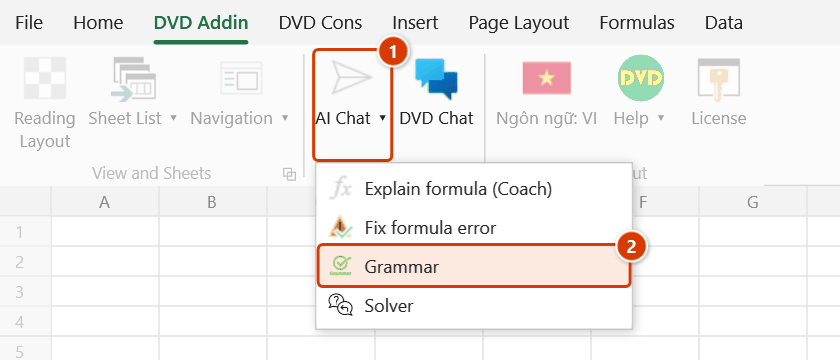
- Go to tab DVD Addin → group AI → click the ▾ of AI Chat → Grammar.
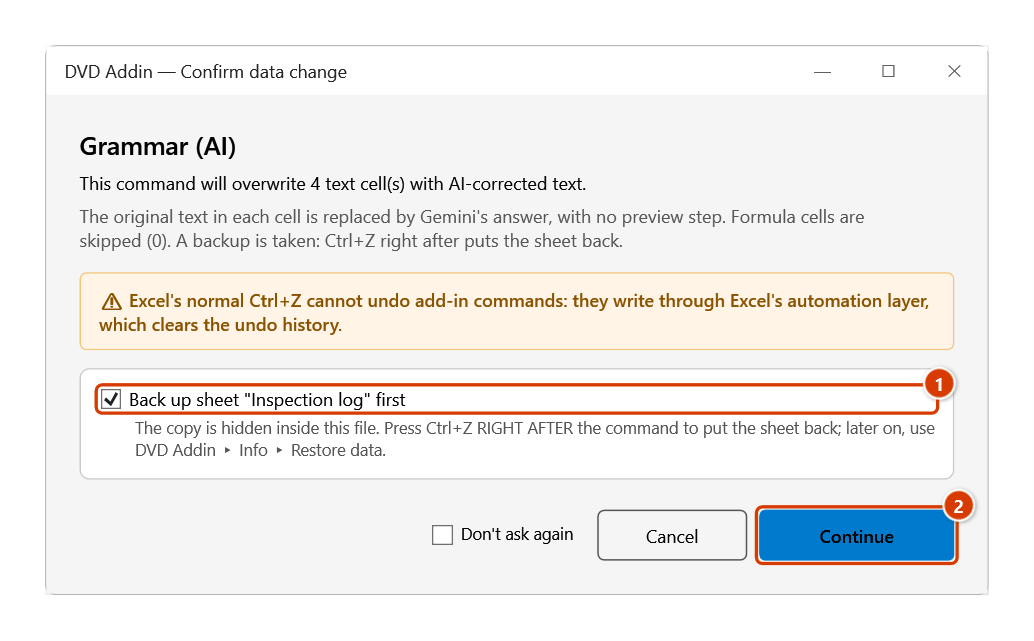
- The add-in counts the cells that actually contain text (formula cells excluded), then shows the Confirm data change window stating how many cells will be overwritten; leave the back-up-sheet box ticked and click Continue. The status bar shows "Fixing grammar for N cells via …" with the name of the AI provider selected in Preferences.
- Wait while it works (press ESC to stop part way). Each cell is sent to the AI separately, and the AI is asked to return only the corrected text, with no explanation. The reply is also cleaned —
**Markdown markers and the surrounding quotes AI tends to add are removed — before it is written over the cell. - At the end the status bar shows "Fixed N cells"; if some calls failed, a message box gives the number of cells fixed out of the total and the reason for the failure.
Video tutorial
Narrated in Vietnamese, with Vietnamese subtitles. Ngữ pháp và Giải đề bằng AI · 6 min 48 s · 15 cases · Download the video · Practice workbook for the video
Commands in this video: Grammar · Solver
Chapters (20)
- Giới thiệu
- Mở lệnh
- 1 · Nhật ký nghiệm thu
- 2 · Tiếng Việt lẫn tiếng Anh
- 3 · Ghi thẳng, không bước kiểm
- 4 · Ô công thức
- 5 · Chọn cả bảng: mã, đơn vị
- 6 · Danh sách đang lọc
- 7 · Vùng lớn – dừng bằng Esc
- 8 · Ghi đè, hoàn tác, sheet khoá
- 9 · Khi AI không trả lời được
- 10 · Không có ô chữ để sửa
- Lệnh Giải đề
- 11 · Giải đề từ ảnh trang đề
- 12 · Trang sau – chọn ô trống
- 13 · Khi Giải đề không chạy
- 14 · AI có thể sai – dùng đúng mực
- 15 · Quyền riêng tư
- Mẹo
- Kết thúc
Illustrated walkthrough
Practice
Download this command's sample workbook — the data matches the pictures below (sheet Inspection log), so you can follow each step right away.
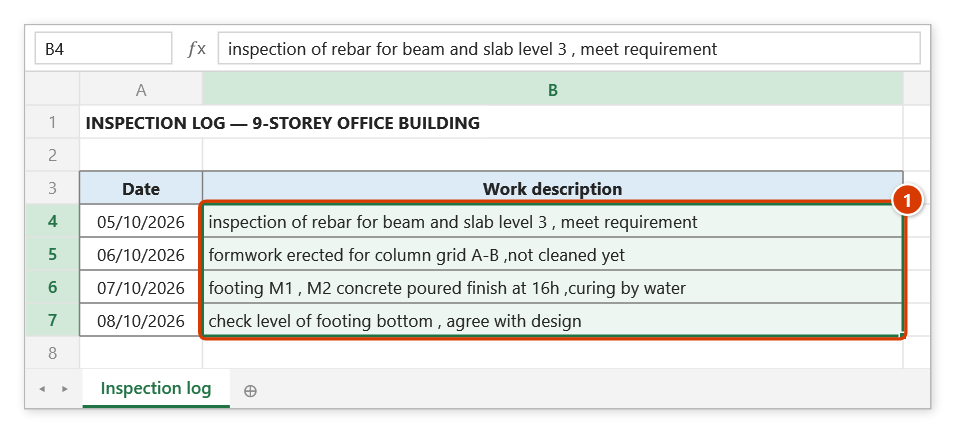
Step 1. Select the cells whose text needs spelling and grammar fixes (1) — numbers, blanks and formula cells are skipped.
Step 2. On the ribbon, open the DVD Addin tab → AI group → open AI Chat → choose Grammar.
Step 3. The add-in states how many cells will be overwritten and which AI provider is used. Leave Back up sheet "Inspection log" first ticked (1) and click Continue (2).
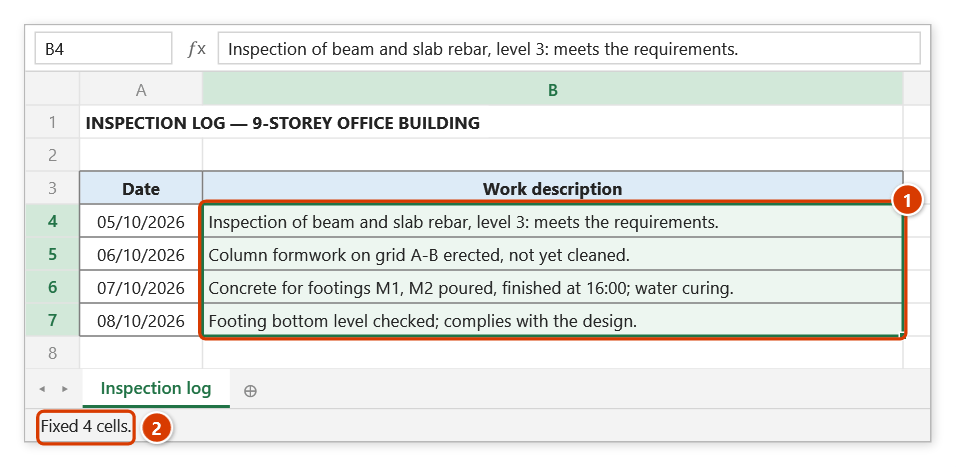
Step 4. Each cell is sent to the AI and overwritten with the corrected sentence (1); the status bar shows the progress and then how many cells were fixed (2). Press ESC to stop part way; to get the old text back use the backup via Restore data — Ctrl+Z cannot undo it because the AI results are written after the network wait.
Example
The Work description column of an inspection record was typed by several people, so the wording is inconsistent.
| Before | After |
|---|---|
inspection of slab beam rebar level 3 , accepted | Inspection of slab and beam reinforcement at Level 3, accepted. |
erect column formwork grid A-B ,not cleaned | Erect column formwork on grid A-B, not yet cleaned. |
Select the description column and click Grammar; after a few seconds the cells are rewritten with correct spelling and punctuation.
Notes
- A range must be selected first; if the selection is not a cell range, or no cell holds text, the add-in reports it and stops.
- Results overwrite the original cells. The add-in backs the sheet up before calling the AI, but the results arrive seconds later, so Ctrl+Z cannot undo them — get the old version back from Restore data.
- Only cells whose value is a text string are sent; numeric cells and blanks are skipped. Formula cells are skipped even when they return text, so a formula is never replaced by AI text. If the selection holds only formula cells, the add-in reports it and stops.
- Each cell is a separate API call, so a selection of several hundred cells takes a long time and consumes API quota.
- Requires Internet and an API key for the AI provider selected in Preferences ▸ AI Assistant; the command's messages name that provider. Any cell whose call fails is counted as an error and keeps its original text.
Related
- Add Vietnamese accents — also AI-driven, restores diacritics on unaccented text.
- Translate — translate cell contents into another language.
- Smart case — fix capitalisation without calling any AI service.
- Preferences — where the API key and AI provider are configured.