
Variance Dashboard
Location on ribbon: Tab DVD Cons → Group Schedule → Menu Reports
Command ID: btnVarianceDashboard
PRO feature
This command is part of the PRO plan. STANDARD accounts activated before 01/07/2026 keep access until their licence expires; other Standard accounts get an upgrade prompt when they click it.
What it does
Merges the two halves of the story — schedule variance (Schedule Recovery) and cost performance (EVM Report) — into a single one-page dashboard aimed at management and the owner. Instead of emailing three or four separate sheets, you hand over one page carrying the KPIs, the at-risk activities and a set of suggested actions. Best run on a fixed weekly rhythm for status reporting.
How to use
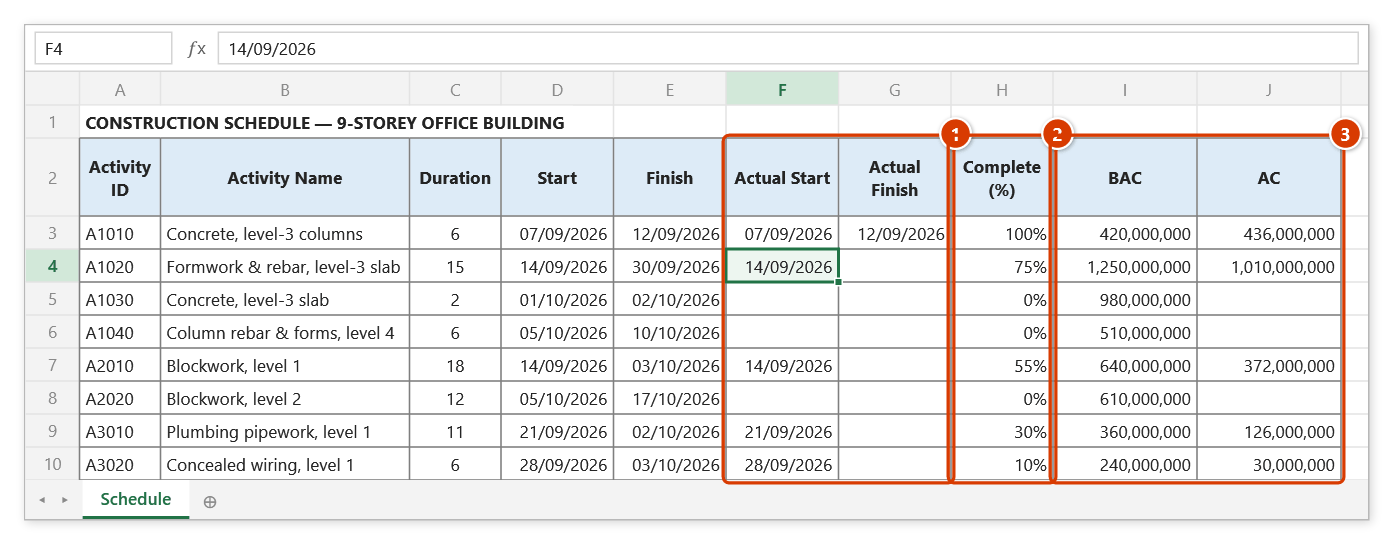
- Open a schedule sheet with percent complete updated and BAC / AC columns present — the dashboard needs both the schedule and the cost side.
- Run Auto Calc so dates and the critical path are current.
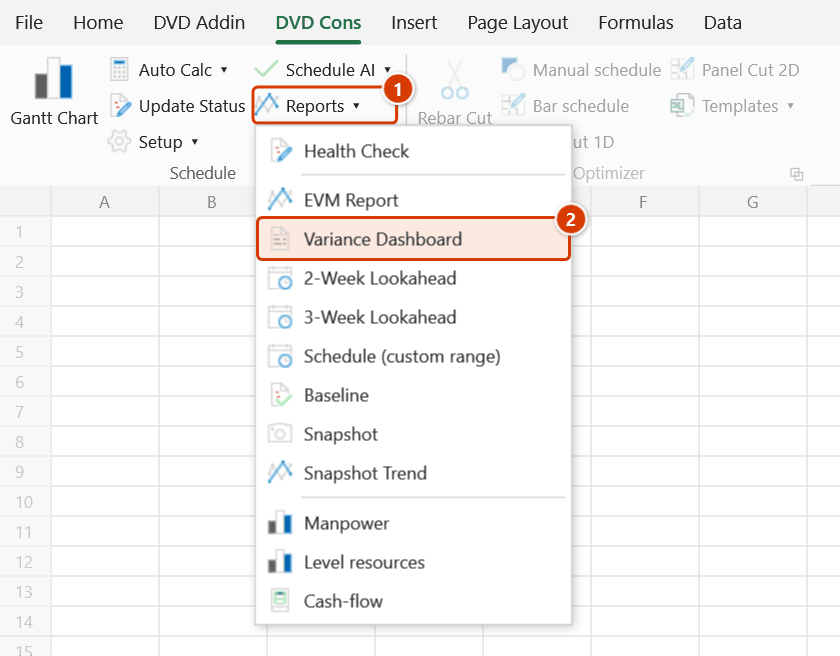
- Go to Tab DVD Cons → group Schedule → menu Reports → click Variance Dashboard.
- An Excel input box asks for the Status Date for the dashboard (dd/mm/yyyy) (pre-filled with the data date stored in the workbook, today if none) → OK; the Dashboard + date (
yyyy-MM-dd) sheet is generated and opened. - Read it top to bottom: 12 KPI tiles (Total / Behind / Ahead / Complete / Critical Slip / Forecast Finish, plus BAC / EV / AC / SPI / CPI / VAC), with SPI/CPI traffic-light coloured green at ≥ 1, yellow from 0.9 to 1 and red below 0.9; then a row of 6 finish-forecast tiles based on the actual progress rate (In progress / On track / At risk / Forecast late / No progress% / Latest forecast).
- Below the tiles sit the Top 10 at-risk activities (sorted by slip days, descending), the Top 5 cost-overrun activities (most negative CV) and the auto-generated action recommendations.
- Set the print area to one page and export to PDF for the weekly report pack.
Video tutorial
Narrated in Vietnamese, with Vietnamese subtitles. Kiểm tra chất lượng và Bảng chênh lệch tiến độ · 6 min 27 s · 11 cases · Download the video · Practice workbook for the video
Commands in this video: Health Check · Variance Dashboard
Chapters (18)
- Giới thiệu
- Mở lệnh
- Ngày dữ liệu
- 1 · Đọc bảng điểm
- Cách chấm
- 1 · Đọc bảng điểm
- 2 · Sửa logic hở, chạy lại
- 3 · Tiến độ có nhiều lỗi
- 4 · Cột Cấp, thiếu Tổng trôi
- 5 · Tuần sau – có Baseline
- Bảng chênh lệch tiến độ
- 6 · Bảng chênh lệch đầy đủ
- 7 · Chưa có cột BAC
- 8 · Có BAC, chưa nhập AC
- 9 · Bấm nhầm ở sheet Dashboard
- 10 · Khi lệnh không chạy
- Mẹo
- Kết thúc
Illustrated walkthrough
Practice
Download this command's sample workbook — the data matches the pictures below (sheet Schedule), so you can follow each step right away.
Step 1. Open the schedule sheet with up-to-date actual dates (1), % complete (2) and the BAC / AC columns (3) — the dashboard needs both the schedule and the cost side.
Step 2. On the ribbon, open the DVD Cons tab → Schedule group → open Reports → choose Variance Dashboard.
Step 3. Excel asks for a date in the Variance Dashboard box: Status Date for the dashboard (dd/mm/yyyy): — the box is pre-filled with the data date stored in the file (today if none). Type 28/09/2026 and click OK; the date is saved as the shared data date for the other schedule reports.
Step 4. The Dashboard 2026-09-28 sheet opens: schedule KPIs (1), cost KPIs with traffic lights on SPI / CPI / VAC (2), the finish forecast based on actual velocity (3) and the Top 10 late tasks sorted by slip days (4).
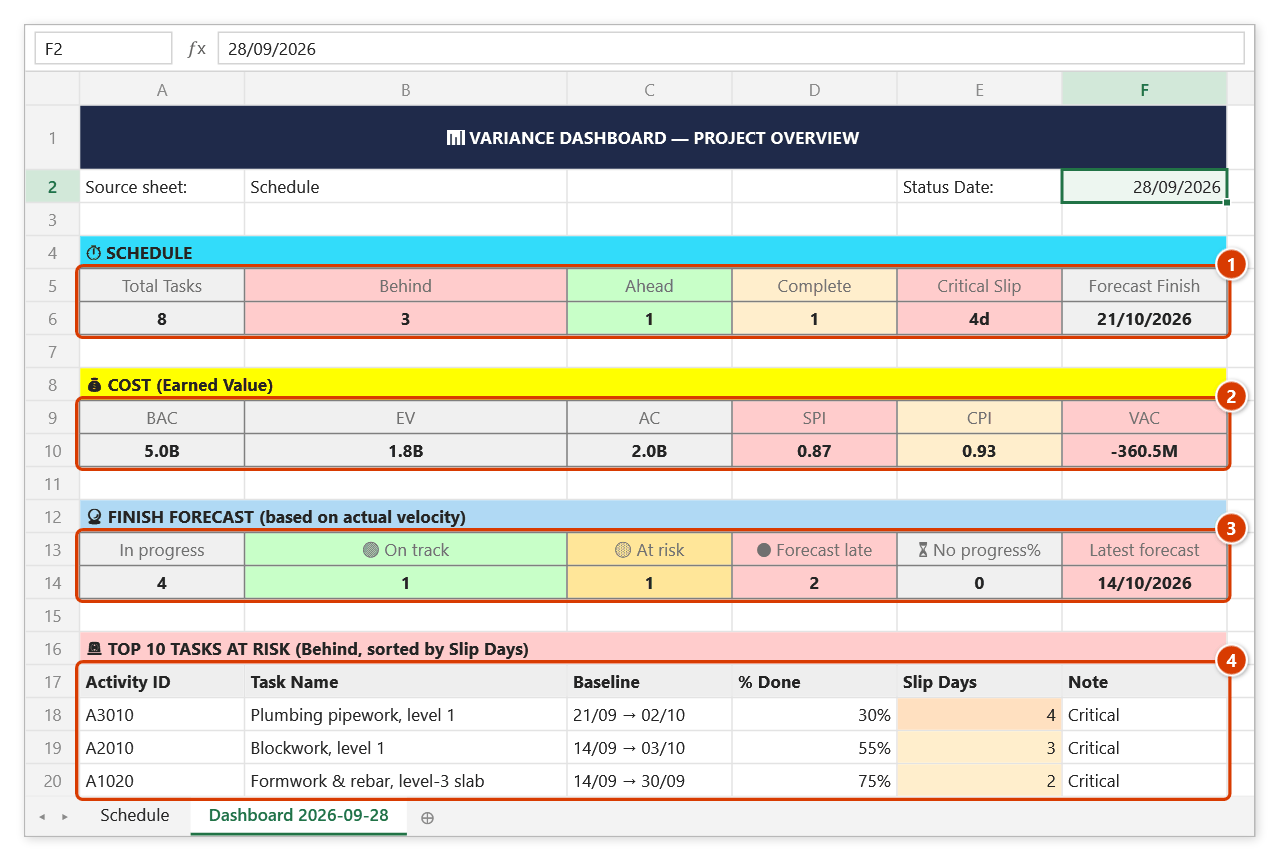
Step 5. Scroll down: row 30 starts the Top 5 cost overrun tasks (most negative CV — here A1020 with CV −72,500,000) and row 39 the auto-generated Recommended actions (2 tasks forecast late, critical path 4 days behind, SPI 0.87, negative VAC). Set a one-page print area and export to PDF for the weekly report.
Example
Week 24 report on a factory project: the dashboard shows 186 activities, 23 behind, 12 days of critical-path slip, SPI 0.92 (yellow), CPI 0.88 (red) and a VAC of −1.4 bn VND. The Top 10 table points straight at four structural-steel erection activities slipping 9–12 days, while the Top 5 overrun list shows most of the negative CV sits in finishes. The project director approves overtime for the steel crew during the meeting itself, off a single sheet of paper.
Notes
- Measured against the baseline: when this sheet has a baseline, the plan comes from the current baseline (matched by Activity ID) instead of the current Start/Finish — CPM moves Start/Finish with the actuals, so measured against them delays "vanish" (a task started 10 days late still looks on time). Rows without an ID or missing from the baseline keep using the current Start/Finish.
- Shared data date: the date prompt is pre-filled with the data date stored in the workbook (name
dvdDataDate, today if none) and saves the date you pick — the other schedule reports (EVM, Variance, Health Check, Lookahead, Snapshot, Update Status, Recovery) share it, so weekly reports no longer drift apart. - The dashboard reads the data as it stands at run time — the numbers are only as good as your latest percent complete and AC entries.
- With BAC or AC missing, the cost half of the tiles (BAC/EV/AC/CPI/VAC) comes out blank or meaningless.
- Each run creates a new dashboard sheet (
(2),(3)… on a name clash) and leaves the previous one alone; Ctrl+Z will not undo the created sheet. - The recommendations are generated from the numbers — treat them as prompts, not as a substitute for the site manager's judgement.
- The command is read-only: it never moves dates or edits logic on the schedule sheet.
Related
- EVM Report — the full detail behind the cost half of the dashboard.
- Schedule Recovery — the source of the variance half and of recovery options.
- Health Check — clean the logic before you report numbers off it.
- Snapshot — store this week's result so the trend can be plotted later.