
Snapshot
Location on ribbon: Tab DVD Cons → Group Schedule → Menu Reports
Command ID: btnSnapshotCapture
PRO feature
This command is part of the PRO plan. STANDARD accounts activated before 01/07/2026 keep access until their licence expires; other Standard accounts get an upgrade prompt when they click it.
What it does
Captures the project's state at the moment you click and stores it in a hidden sheet named _Snap_YYYYMMDD. The capture holds a metadata block (total tasks, activities behind, critical-path slip days, SPI, CPI, BAC/EV/AC) plus a full copy of the data rows — no formulas, no links, so nothing can overwrite it later. Run it on a weekly rhythm and you build the history that Snapshot Trend turns into trend charts.
How to use
- Bring the schedule up to the week's cut-off: percent complete, actual costs, then run Auto Calc.
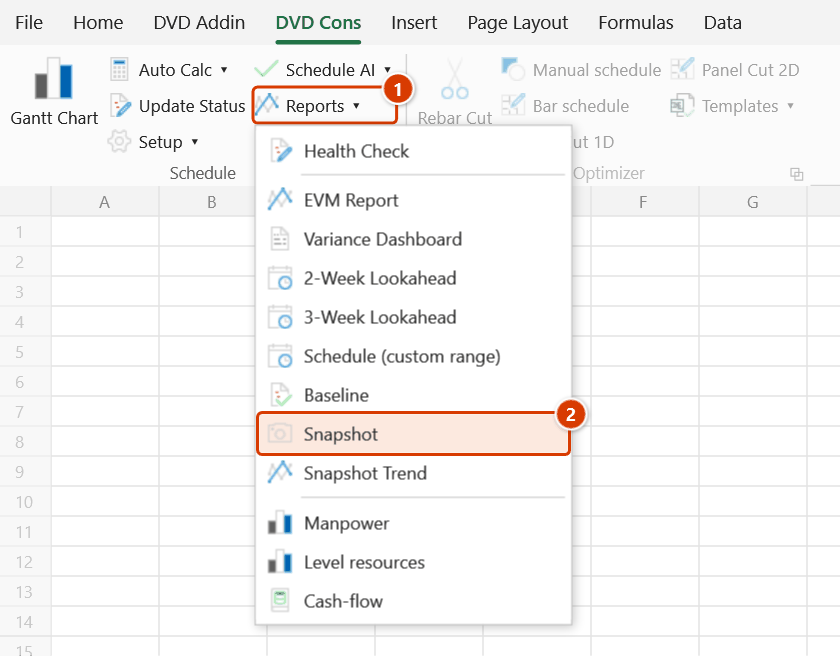
- Go to Tab DVD Cons → group Schedule → menu Reports → click Snapshot.
- An Excel input box asks for the Snapshot data date (dd/mm/yyyy) (pre-filled with the data date stored in the workbook, today if none) → OK. No selection is required.
- The
_Snap_YYYYMMDDsheet is created as very-hidden so your tab bar stays clean; nothing visibly changes apart from the confirmation message. - Repeat the same click next week — each run adds one data point.
- Once you have two or more captures, run Snapshot Trend to read them all and plot the trend.
Video tutorial
Narrated in Vietnamese, with Vietnamese subtitles. Baseline, Snapshot và Xu hướng · 4 min 56 s · 12 cases · Download the video · Practice workbook for the video
Commands in this video: Baseline · Snapshot · Snapshot Trend
Chapters (16)
- Giới thiệu
- Mở lệnh
- 1 · Lưu baseline đầu tiên
- 2 · Snapshot tuần
- 3 · Chụp lại trong ngày
- 4 · Xu hướng snapshot
- 5 · So sánh với baseline
- 6 · Thêm, xoá công tác
- 7 · Thanh baseline trên Gantt
- 8 · Lưu baseline thứ hai
- 9 · Đặt baseline hiện hành
- 10 · Trùng tên, xoá baseline
- 11 · Gửi file, sheet ẩn
- 12 · Khoá sổ và Ctrl+Z
- Mẹo
- Kết thúc
Illustrated walkthrough
Practice
Download this command's sample workbook — the data matches the pictures below (sheet Schedule), so you can follow each step right away.
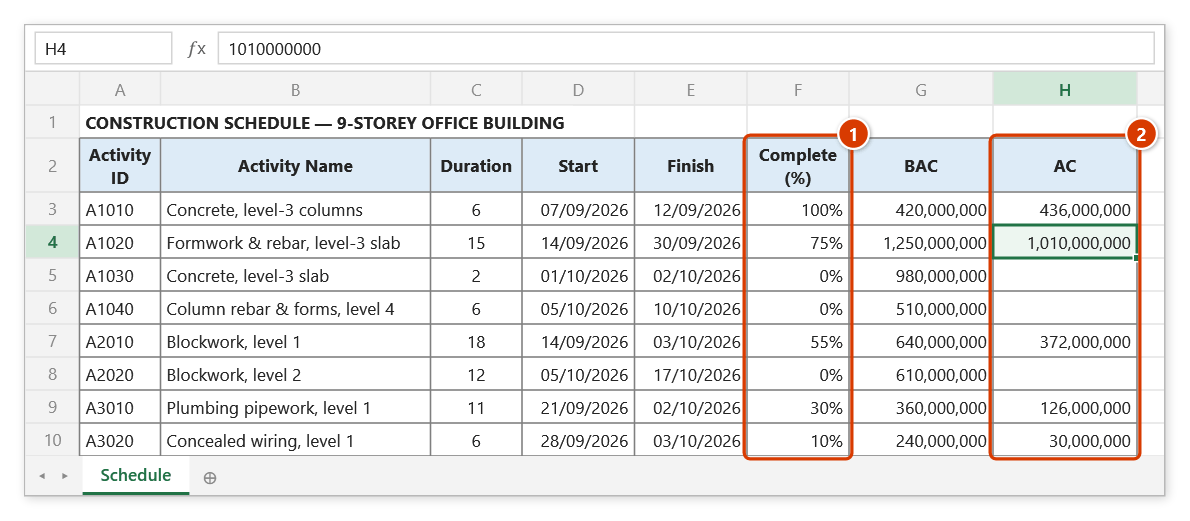
Step 1. Bring the schedule up to the weekly cut-off: Complete (%) (1) and the actual cost AC (2) (the BAC column is needed for SPI / CPI in the snapshot), then run Auto Calc.
Step 2. On the ribbon, open the DVD Cons tab → Schedule group → open Reports → choose Snapshot.
Step 3. Excel asks for a date in the Snapshot box: Snapshot data date (dd/mm/yyyy): — the box is pre-filled with the data date stored in the file (today if none). Type 28/09/2026 and click OK; the date is saved as the shared data date for the other schedule reports.
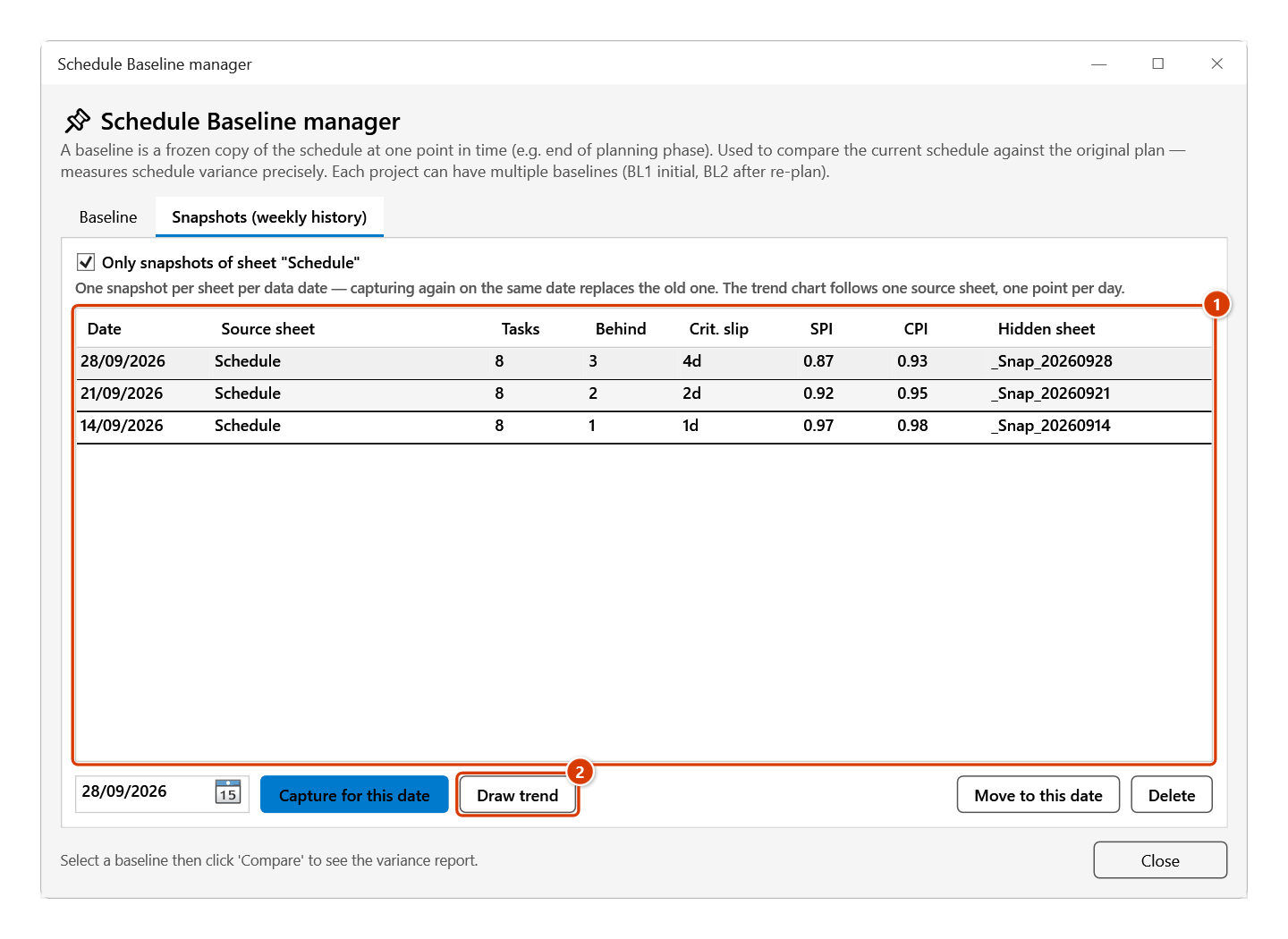
Step 4. A message box confirms ✓ Captured snapshot '_Snap_20260928' (hidden sheet). The sheet is very hidden, so the tab bar does not change; capturing again on the same date replaces the old one. The history is listed under Baseline ▸ Snapshots (weekly history) tab: one row per capture (1); with 2 or more dates, Draw trend (2) becomes available.
Example
A housing project's site team sets a rule: every Friday afternoon the planner updates completed quantities and clicks Snapshot. Three months later the workbook holds 13 _Snap_* sheets, from _Snap_20260605 to _Snap_20260828. When the owner asks whether the project is still deteriorating or has stabilised, the planner runs Snapshot Trend: SPI falls for five straight weeks then flattens from week 10 — evidence that the overtime measure worked.
Notes
- Capturing again on the same date for the same sheet replaces the old one (it used to leave two points on the same date). View / delete / re-date snapshots in Baseline ▸ Snapshots tab — no more unhiding sheets through VBA.
- Snapshots now ask for the data date (they used to take today — updating on Monday and capturing on Wednesday put the trend point two days off). Shared data date: the date prompt is pre-filled with the data date stored in the workbook (name
dvdDataDate, today if none) and saves the date you pick — the other schedule reports (EVM, Variance, Health Check, Lookahead, Snapshot, Update Status, Recovery) share it, so weekly reports no longer drift apart. - Snapshots only pay off when taken on a consistent day of the week; irregular captures make the trend chart hard to read.
- The sheets are very-hidden and do not appear in Excel's normal Unhide dialog — view, delete or re-date them in Baseline ▸ Snapshots tab, and chart them with the Snapshot Trend command.
- A snapshot is immutable: captured data does not follow later schedule edits, which is precisely the point.
- Each capture copies the data rows, so many weeks of snapshots on a large schedule will steadily grow the file.
- The cost metrics (BAC/EV/AC, CPI) are only meaningful if the sheet already carries BAC and actual cost data.
Related
- Snapshot Trend — reads the stored captures and plots the trend charts.
- Baseline — a fixed plan-of-record to compare against, as opposed to a periodic capture series.
- Variance Dashboard — this week's full picture, the source of the KPIs being captured.
- EVM Report — the SPI/CPI detail that the snapshot only stores as headline numbers.