
Update schedule (data date)
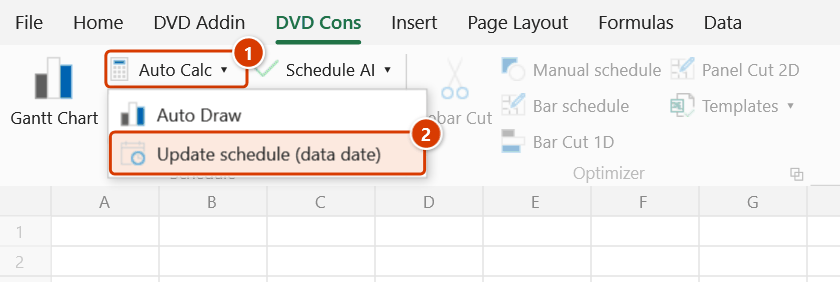
Location on ribbon: Tab DVD Cons → Group Schedule → the arrow next to Auto Calc
Command ID: btnUpdateSchedule
License required
This command needs an active DVDAddin account (Standard or PRO). It is fully available during the trial period.
What it does
Re-plans the schedule sheet from the data date — like F9 Schedule in Primavera P6 or Update Project in MS Project:
- Not-started tasks whose Start has passed → moved to start from the data date (no more "in progress in the past" on the chart).
- In-progress tasks (Actual Start, no Actual Finish) → finish = data date + remaining duration. The remaining duration comes from the Remaining Duration column (the standard template computes it as Duration × (1 − %complete)); without that column it is derived from the % complete column.
- Successors move with their links; tasks with an Actual Finish are untouched.
- Reports how many tasks changed and the project finish before → after.
Without this step CPM computes in-progress tasks as Actual Start + Duration and keeps the old Start of not-started ones — the reported schedule looks "on time" while it is actually late.
How to use
- Record progress up to the report date: Actual Start, Actual Finish, % complete.
- Click the arrow next to Auto Calc → Update schedule (data date).
- Enter the data date (pre-filled with the workbook's shared data date — name
dvdDataDate, shared with EVM, Update Status, Snapshot…). - A prompt asks whether to fill in actuals as scheduled (see below) — Yes / No / Cancel.
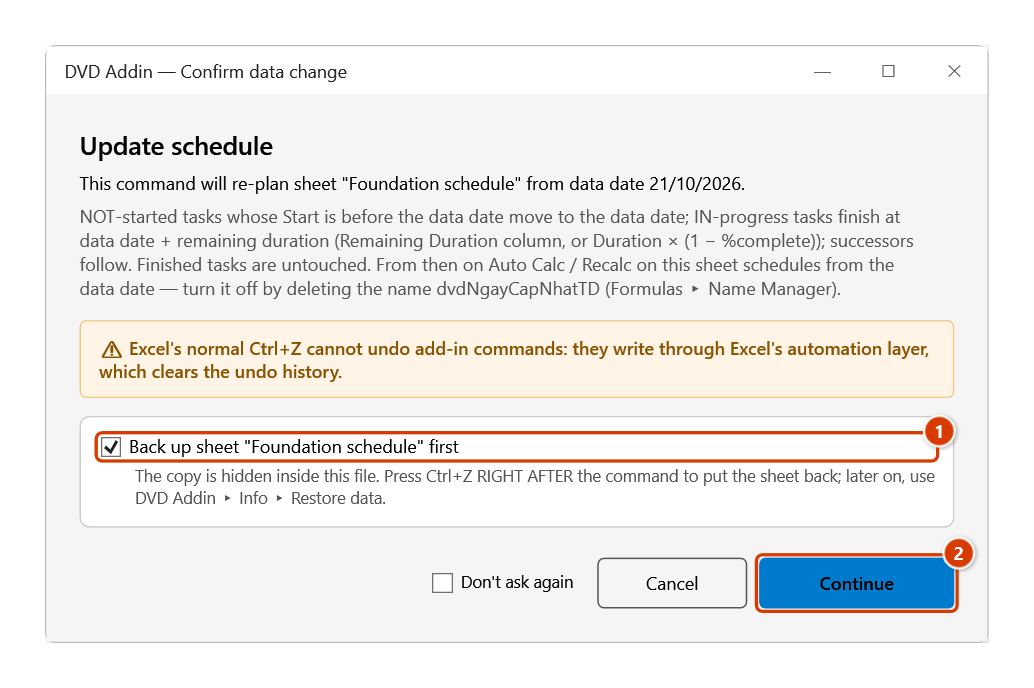
- The confirmation explains what will happen and offers to back the sheet up → Continue.
- Read the result: tasks changed, tasks pushed, in-progress tasks re-planned, project finish before → after (a warning if it slips). The Gantt chart redraws if Auto Draw is on.
Fill in actuals as scheduled
For crews that report "on plan" without entering actuals task by task (like Update work as complete through in MS Project):
- Tasks planned to finish before the data date → Actual Start = Start, Actual Finish = Finish, 100%.
- Tasks starting before the data date and finishing on or after it → Actual Start = Start, % = planned % = (data date − Start) ÷ (Finish − Start + 1).
- Only empty cells are filled (0% counts as empty) — entered figures, formula cells, tasks with an Actual Finish and WBS summary rows are left alone.
Choose No to keep the actuals as entered: tasks without an Actual Start count as not started and move to the data date.
Video tutorial
Narrated in Vietnamese, with Vietnamese subtitles. Cập nhật tiến độ và Cập nhật trạng thái · 7 min 20 s · 14 cases · Download the video · Practice workbook for the video
Commands in this video: Update schedule (data date) · Update Status
Chapters (20)
- Giới thiệu
- Mở lệnh
- 1 · Cập nhật theo thực tế
- 2 · Thực tế lệch kế hoạch
- 3 · Việc chưa làm, việc tương lai
- 4 · Cột Thời lượng còn lại
- 5 · Tự điền theo kế hoạch
- 6 · Nhập sai thực tế
- 7 · Gõ nhầm ngày dữ liệu
- Chế độ ngày dữ liệu
- 8 · Biểu đồ Gantt vẽ lại
- 9 · Sheet khoá và Ctrl+Z
- Cập nhật trạng thái
- 10 · Bảy cột trạng thái
- 11 · Chạy lại, tiêu đề tiếng Việt
- 12 · Cột Trạng thái có sẵn
- 13 · So với baseline
- 14 · Bảng thiếu cột
- Mẹo
- Kết thúc
Illustrated walkthrough
Practice
Download this command's sample workbook — the data matches the pictures below (sheet Foundation schedule), so you can follow each step right away.
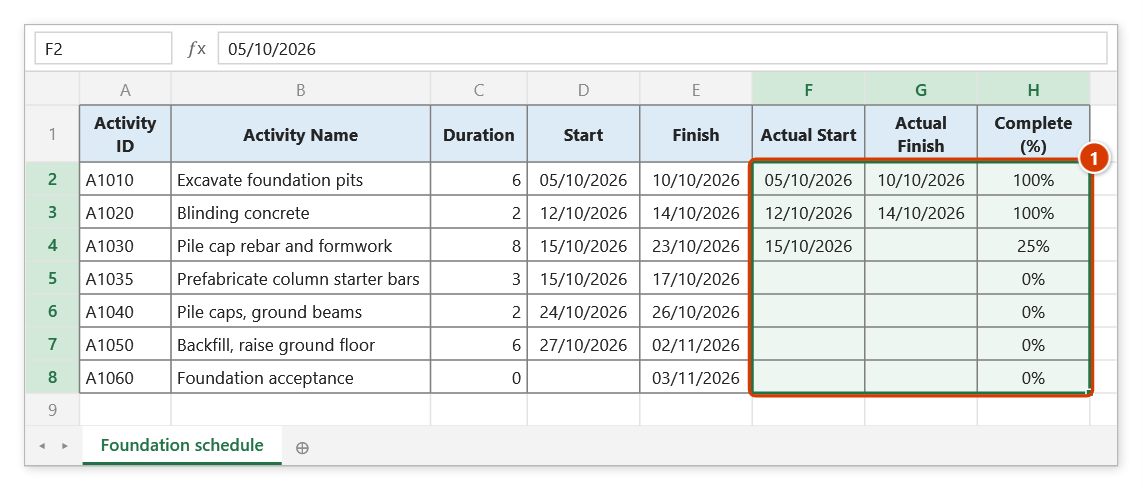
Step 1. Bring the actuals up to the report date: Actual Start, Actual Finish and % complete of each task (1). Here the report date is Wednesday 21/10/2026: Pile cap rebar and formwork is only 25% done, and Prefabricate column starter bars was due to start on 15/10 but has not started.
Step 2. On the ribbon, open the DVD Cons tab → Schedule group → open Auto Calc → choose Update schedule (data date).
Step 3. Type the data date 21/10/2026 (the box is pre-filled with the file's shared data date — the name dvdDataDate) → OK. The next box asks whether to fill in actuals as scheduled: choose No because the actuals are already entered (Yes = the add-in fills Actual Start/Finish and % as scheduled into the empty cells).
Step 4. The confirmation box spells out what will happen. Keep Back up sheet "Foundation schedule" first ticked (1) so Ctrl+Z right after the command restores the sheet, then click Continue (2).
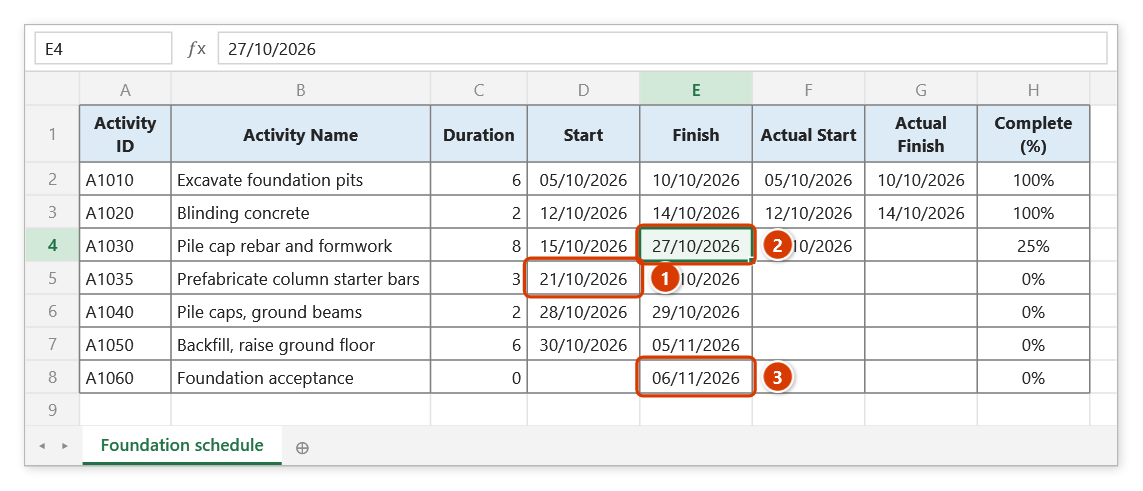
Step 5. The schedule is re-planned from the data date: the not-started task moves to 21/10 (1); the in-progress task finishes at 21/10 + 6 remaining days (8 × 75%) = 27/10 (2); successors follow and the project finish moves 03/11 → 06/11 (3). The result box reports 5/7 task(s) changed dates — 1 not-started task(s) moved past the data date, 1 in-progress task(s) re-planned… and 3 day(s) LATER.
Example
Data date 25/09 (a Friday, Mon–Sat calendar). Task Structure started 07/09, 10 days, 60% done → 4 days left → finishes 29/09 (CPM used to give 17/09 — already past). Roof, after Structure, moves to 30/09–02/10. Fence, not started with an old Start of 10/09, becomes 25–26/09.
Notes
- Afterwards the sheet is in data-date mode: every later Auto Calc / Recalc schedules from this data date (as in P6 — the data date only changes when you run the command again). The date is stored as the sheet-level name
dvdNgayCapNhatTD; delete that name (Formulas ▸ Name Manager) to turn the mode off. - Changing the report data date (EVM, Update Status…) does not move the schedule — only this command sets the scheduling date.
- Backed up: press Ctrl+Z right after to put the sheet back.
- A not-started task with a Must Start On constraint before the data date still follows its constraint.
- If the sheet has neither a Remaining Duration nor a % complete column, in-progress tasks are treated as having their full duration left — the command warns about it.
See also
- Update Status — planned %, Δ Finish and Status columns by data date and baseline.
- Baseline — keep the approved plan to measure slippage after updating.
- Snapshot — capture the figures at each update.