
Superscript
Location on ribbon: Tab DVD Addin → Group Text and Number → Menu Text ops
Command ID: btnSuperscript
What it does
The command walks every cell in the selection and applies superscript to a 2 or 3 that comes immediately after a length unit (m, cm, mm, dm, km). So m2 displays as m², m3 as m³, cm2 as cm², mm2 as mm², km2 as km², dm3 as dm³.
Tidying units this way is effectively mandatory before printing a bill of quantities, an estimate or a contract annex: the unit of measure has to read m² and m³, not m2 and m3.
How to use
- Select the unit column, or any range that contains units of measure.
- Go to tab DVD Addin → group Text and Number → menu Text ops → Superscript.
- It runs immediately, with no dialog. The status bar reports how many cells were formatted.
Video tutorial
Narrated in Vietnamese, with Vietnamese subtitles. Chỉ số trên và chỉ số dưới · 5 min 33 s · 9 cases · Download the video · Practice workbook for the video
Commands in this video: Superscript · Subscript
Chapters (13)
- Giới thiệu
- Mở lệnh
- 1 · Cột đơn vị m2, m3
- 2 · Đơn vị nằm trong câu chữ
- 3 · Chọn cả bảng
- 4 · Công thức hoá học trong câu
- 5 · Phương trình phản ứng
- 6 · Ion có điện tích
- 7 · Mác vật liệu không bị nhầm
- 8 · Khi không có gì để đổi
- 9 · Hoàn tác
- Mẹo
- Kết thúc
Illustrated walkthrough
Practice
Download this command's sample workbook — the data matches the pictures below (sheet Quantities), so you can follow each step right away.
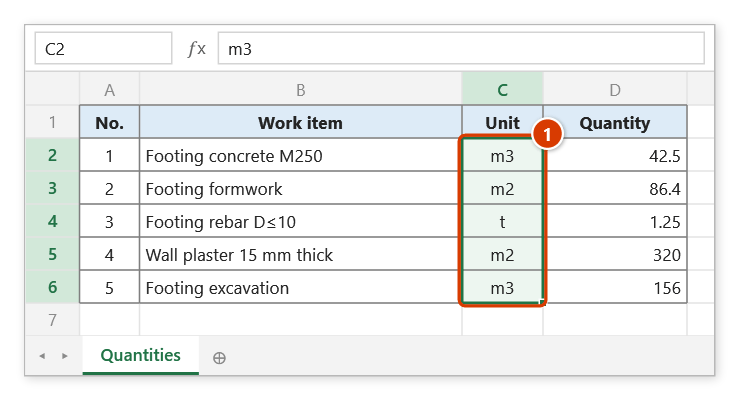
Step 1. Select the unit column of the bill of quantities (or any range that contains units) (1).
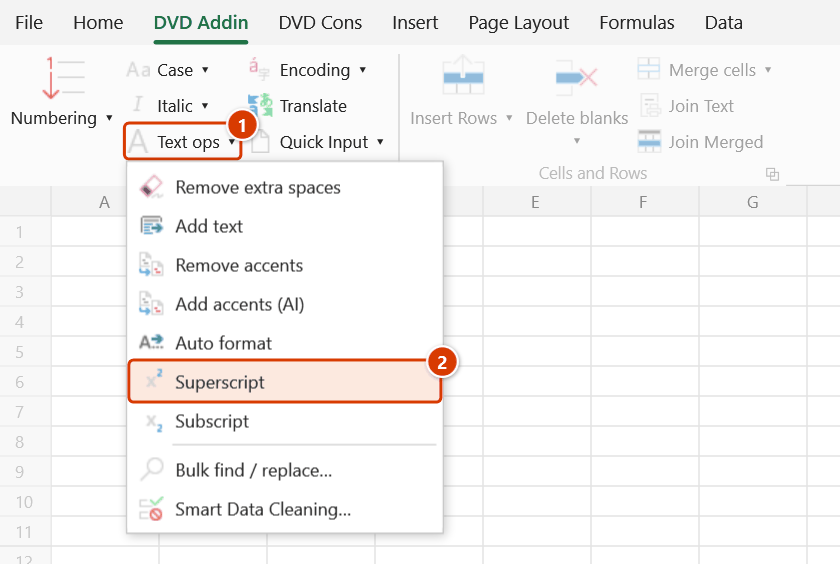
Step 2. On the ribbon, open the DVD Addin tab → Text and Number group → open Text ops → choose Superscript.
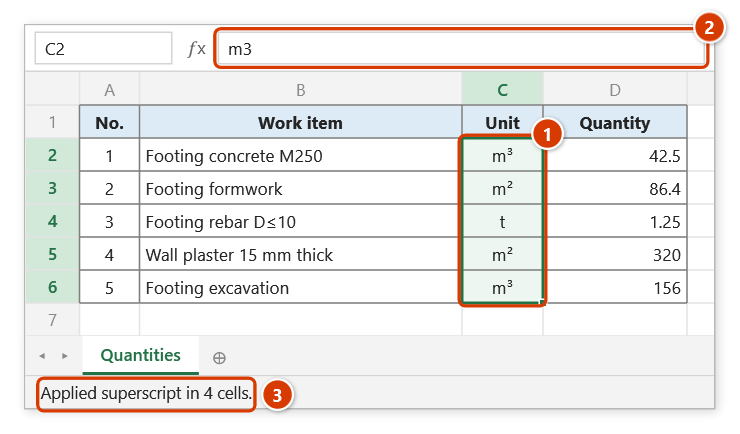
Step 3. The command runs at once with no dialog: the 2 or 3 after a length unit is raised to superscript — m2 shows as m², m3 as m³; t and grade M250 are untouched (1). The cell value is still m3, so formulas and VLOOKUP read it as before (2). The status bar reports how many cells were formatted (3).
Example
The "Unit" column of a concrete and finishing works quantity sheet.
| Before | After |
|---|---|
| m2 | m² |
| m3 | m³ |
| cm2 | cm² |
| kg | kg (unchanged) |
| Room2 | Room2 (unchanged) |
The printed sheet meets the documentation standard without typing special characters or restyling cells one by one.
Notes
- Only the character formatting changes; the cell value is still
m2. Comparison formulas, VLOOKUP and PivotTables therefore still readm2— usually exactly what you want. - Only area/volume unit patterns are raised: a stand-alone lowercase length unit followed by
2or3. Words such asRoom2,T3,A2, a concrete gradeM250or a bolt sizeM16are untouched; an uppercaseM2is left as it is too. - Formula cells cannot take per-character formatting and are skipped silently.
- If you later edit the cell text, the superscript formatting may be lost and the command has to be run again.
- Ctrl+Z cannot undo this.
Related
- Subscript — lowers the digits in chemistry formulas instead.
- Font Change — style part of a cell's content independently.
- Remove extra spaces — collapse
m 2intom2first so the rule can match. - Smart Data Cleaning… — normalise the unit column before applying the formatting.