
Remove extra spaces
Location on ribbon: Tab DVD Addin → Group Text and Number → Menu Text ops
Command ID: btnRemoveSpaces
What it does
The command applies Excel's TRIM function to every text cell in the selection: leading and trailing spaces are cut, and runs of spaces inside the string collapse to a single space. Data pasted from PDFs, from estimating software, or typed by several people usually carries this noise.
Stray spaces are the classic reason VLOOKUP, SUMIF and PivotTables fail to match a work-item code even though the two strings look identical on screen. Running this before any lookup removes most of those cases.
How to use
- Select the range to clean — a whole column is fine.
- Go to tab DVD Addin → group Text and Number → menu Text ops → Remove extra spaces.
- The command asks for confirmation and shows how many cells will be fixed — this count excludes formula cells. Confirm to run; the Excel status bar then reports how many cells were fixed.
- If nothing is selected, the command shows "Please select a data range" and stops. If only formula cells have extra spaces, it says so and changes nothing.
Video tutorial
Narrated in Vietnamese, with Vietnamese subtitles. Xoá space thừa · 5 min 10 s · 9 cases · Download the video · Practice workbook for the video
Chapters (13)
- Giới thiệu
- Mở lệnh
- 1 · Đầu, cuối và giữa chữ
- 2 · VLOOKUP không khớp
- 3 · Chọn cả bảng
- 4 · Ô công thức
- 5 · Danh sách đang lọc
- 6 · Xuống dòng trong ô
- 7 · Thụt lề bằng dấu cách
- 8 · Dấu cách lạ từ trang web
- 9 · Ghi đè và hoàn tác
- Mẹo
- Kết thúc
Illustrated walkthrough
Practice
Download this command's sample workbook — the data matches the pictures below (sheet Estimate), so you can follow each step right away.
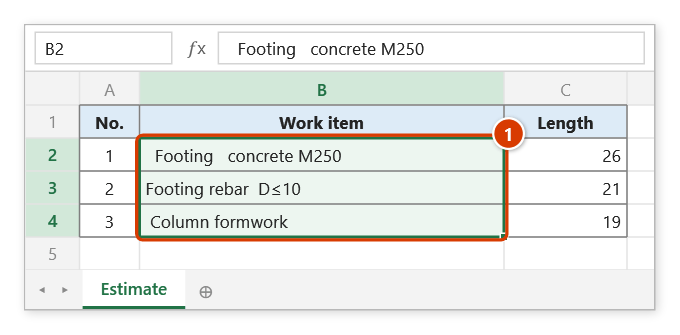
Step 1. Select the text to clean, for example a work-item column pasted from an estimate with extra spaces at the start, the end and in between (1). The =LEN(B2) column shows spaces you cannot see.
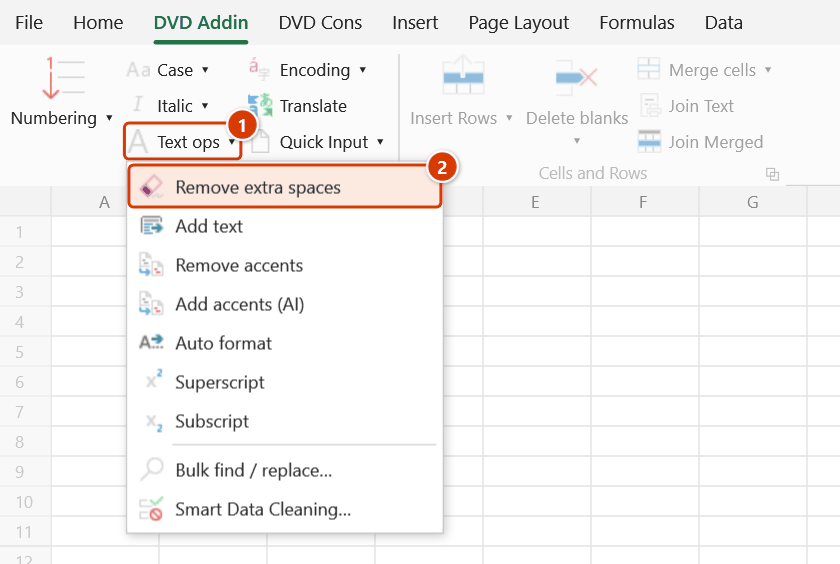
Step 2. On the ribbon, open the DVD Addin tab → Text and Number group → open Text ops → choose Remove extra spaces.
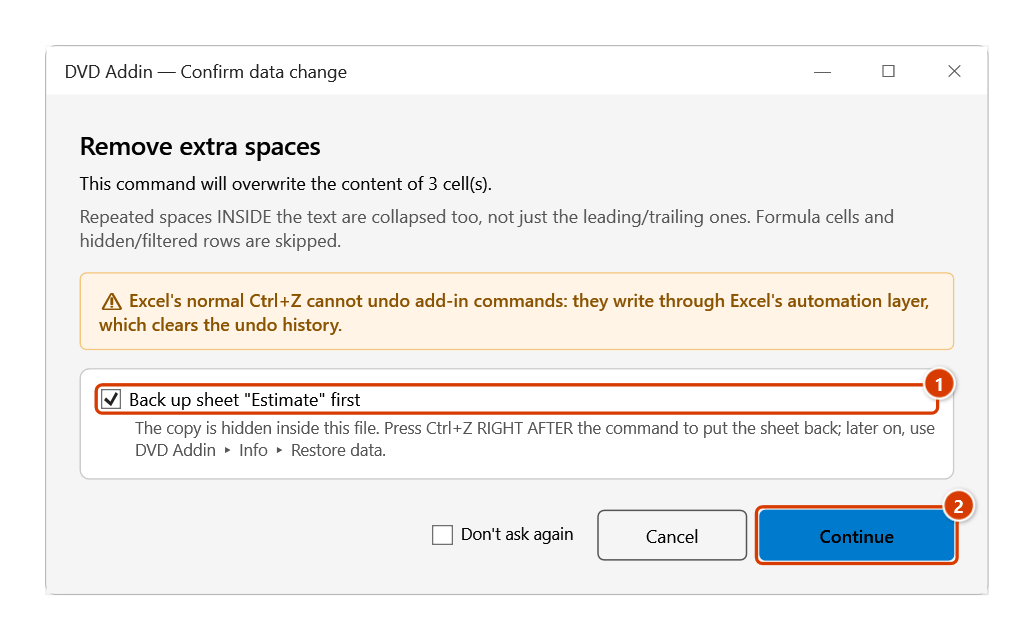
Step 3. The add-in first counts the cells it will fix (formula cells excluded) and asks again. Keep the sheet backup ticked (1), then click Continue (2).
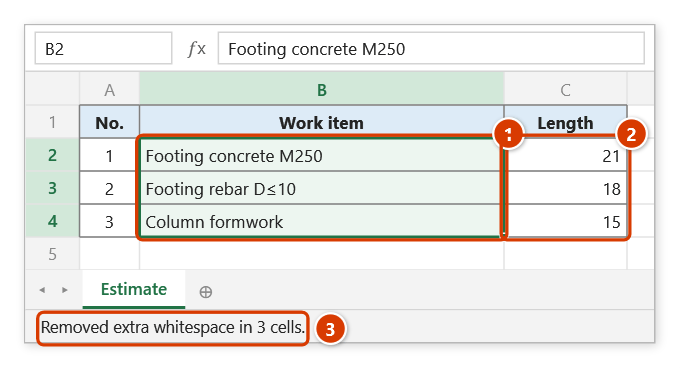
Step 4. Leading/trailing spaces are cut and repeated inner spaces collapse to one (1); the length drops accordingly (2), so VLOOKUP on the work item matches again. The status bar reports how many cells were fixed (3).
Example
A work-item column copied from a subcontractor's estimate, pasted into Excel with padding everywhere.
| Before | After |
|---|---|
Footing concrete M250 | Footing concrete M250 |
Rebar D≤10 | Rebar D≤10 |
Column formwork | Column formwork |
After the clean-up, the VLOOKUP between the BoQ sheet and the estimate sheet matches again.
Notes
- Ctrl+Z right after the command puts the sheet back as it was (thanks to the backup); see Restore data.
- Only text cells are affected; numbers, dates and blanks are left alone.
- Formula cells are skipped: formulas are kept and never replaced by static values, so it is safe to select a range that contains formulas.
- Hidden or filtered-out rows are skipped as well.
- The command does not handle special whitespace such as NBSP (character 160) or zero-width characters that come with web copies. Use Smart Data Cleaning for those.
- Cells that already have no extra spaces are not rewritten, so large ranges still process quickly.
Related
- Smart Data Cleaning… — deeper clean-up: NBSP, casing, dates, duplicate rows.
- Auto format — once spaces are gone, convert numeric/date strings to real data types.
- Remove accents — strip Vietnamese diacritics from the same text-ops menu.
- Bulk find / replace… — clear leftover odd characters across many sheets.