
Auto format
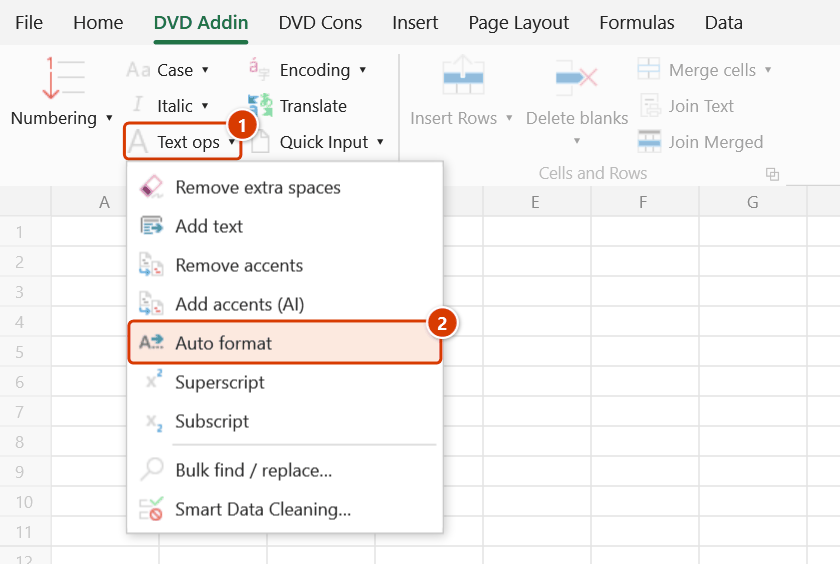
Location on ribbon: Tab DVD Addin → Group Text and Number → Menu Text ops
Command ID: btnFormatAuto
What it does
The command reads each cell holding text in the selection: strings that look like a date (15/03/2026, 2026-03-15) are rewritten as real dates, strings that look like a number as real numbers. Formulas, cells that are already numbers/dates and strings with a leading zero (phone numbers, codes) are left alone.
This is the quick fix for "numbers that sit on the left" — data pasted from PDFs, web pages, estimating software or CSV files, where SUM returns 0 and the date column refuses to sort.
How to use
- Select the range to normalise — prefer one number column or one date column at a time rather than the whole table.
- Go to tab DVD Addin → group Text and Number → menu Text ops → Auto format.
- The Confirm data change box asks before anything is overwritten; keep Back up sheet ticked and click Continue. The status bar reports how many cells were converted.
- Only the converted cells get a new format (numbers → General, dates →
dd/mm/yyyy); every other cell keeps its format.
Video tutorial
Narrated in Vietnamese, with Vietnamese subtitles. Auto format số-ngày · 4 min 57 s · 9 cases · Download the video · Practice workbook for the video
Chapters (13)
- Giới thiệu
- Mở lệnh
- 1 · Số và ngày lưu dạng chữ
- 2 · Đủ dấu chấm và dấu phẩy
- 3 · STT nhiều cấp, mã hiệu
- 4 · Số kiểu Anh chỉ một dấu
- 5 · Số 0 ở đầu – cột mã
- 6 · Tiền, phần trăm, dấu cách
- 7 · Các kiểu viết ngày
- 8 · Ô công thức
- 9 · Ghi đè và hoàn tác
- Mẹo
- Kết thúc
Illustrated walkthrough
Practice
Download this command's sample workbook — the data matches the pictures below (sheet Quantities), so you can follow each step right away.
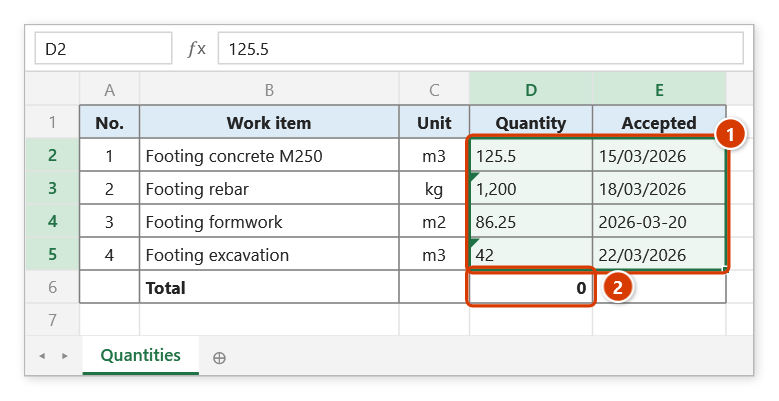
Step 1. Select the quantity and date columns that are stored as text (left-aligned) (1) — which is why the SUM in the Total row returns 0 (2).
Step 2. On the ribbon, open the DVD Addin tab → Text and Number group → open Text ops → choose Auto format.
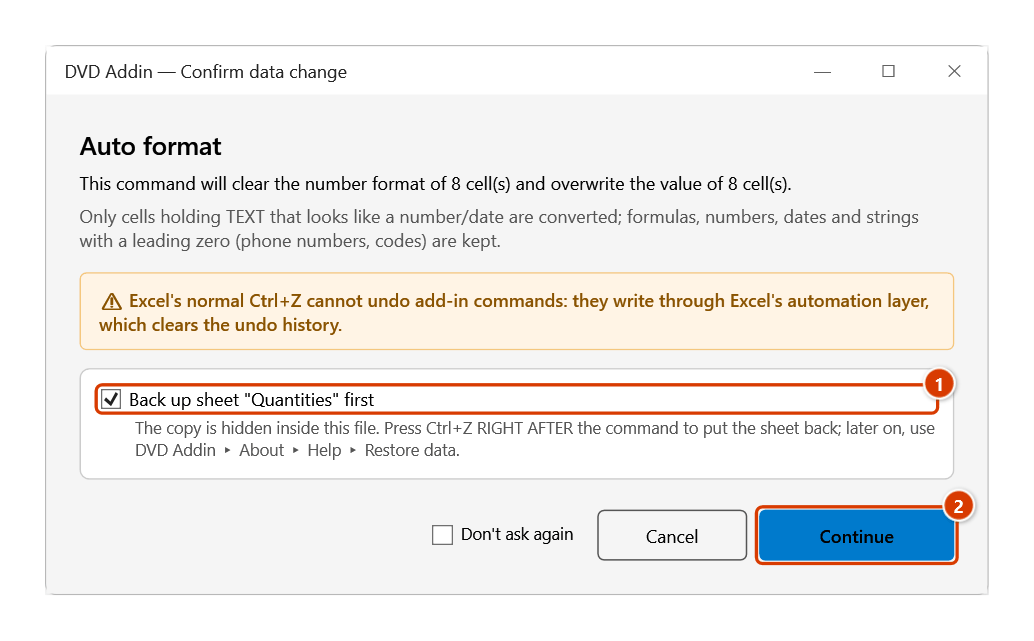
Step 3. The add-in asks before overwriting the values. Keep the sheet backup ticked (1), then click Continue (2).
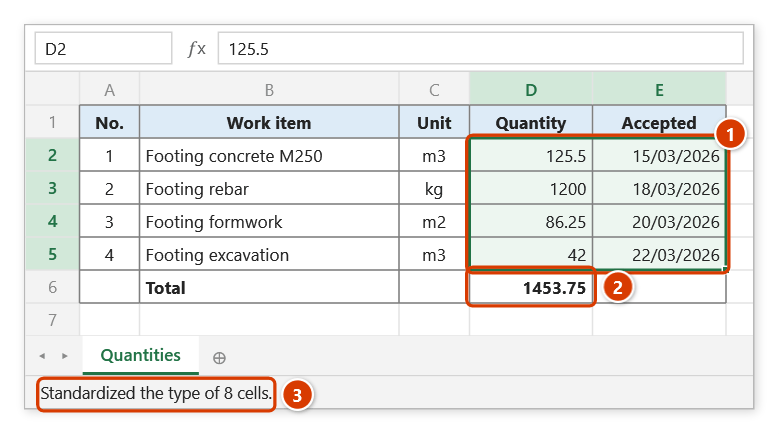
Step 4. Number strings become real numbers and date strings become real dates formatted dd/mm/yyyy (including 2026-03-20) (1); the SUM now adds up (2). The status bar reports how many cells were converted (3).
Example
A quantity sheet received from a subcontractor where both the quantity column and the acceptance-date column arrived as text.
| Before (text, left-aligned) | After (real value) |
|---|---|
125.5 | 125.5 — adds up with SUM |
1200 | 1200 — adds up with SUM |
15/03/2026 | 15/03/2026 — date maths and month filters work |
Apply #,##0.00 to the quantity column and dd/mm/yyyy to the date column and the sheet is ready to feed the payment summary.
Notes
- Numbers are read with strict rules: with both
.and,the last one is the decimal mark; one separator repeated is a thousands separator (1,234,567); a single separator follows the machine's decimal mark. - On a machine using a decimal comma (vi-VN), strings like
1.2or2.10are kept as text because they may be item numbers or codes; the final message reports how many. - Date strings must use
/or-and are read day/month/year; multi-level item numbers such as1.2.10are never taken for dates. - Cells that parse as neither number nor date stay as text.
- Ctrl+Z right after the command puts the sheet back as it was (thanks to the backup); see Restore data.
Related
- Remove extra spaces — clean whitespace first, since padded strings often fail to parse.
- Smart Data Cleaning… — normalise dates to one consistent pattern before converting types.
- Bulk find / replace… — strip stray characters (quotes, unit labels) out of a number column.
- Add text — put the unit label back on a converted column when it is needed for printing.