
Add text
Location on ribbon: Tab DVD Addin → Group Text and Number → Menu Text ops
Command ID: btnAddText
What it does
The command opens the Add Text tab of the Text & Number window, which inserts a string before (prefix) or after (suffix) the content of every selected cell. Instead of editing hundreds of rows by hand, you type the string once and click Apply.
On construction paperwork this is typically used to stamp a work-package code onto a list of activities, to append a unit label, or to mark a batch of rows belonging to one acceptance round.
How to use
- Select the cells that need the extra text.
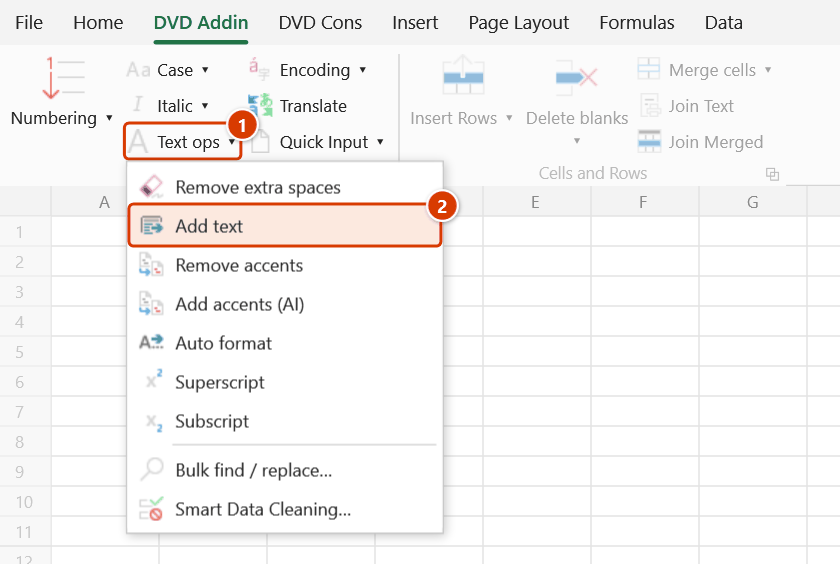
- Go to tab DVD Addin → group Text and Number → menu Text ops → Add text.
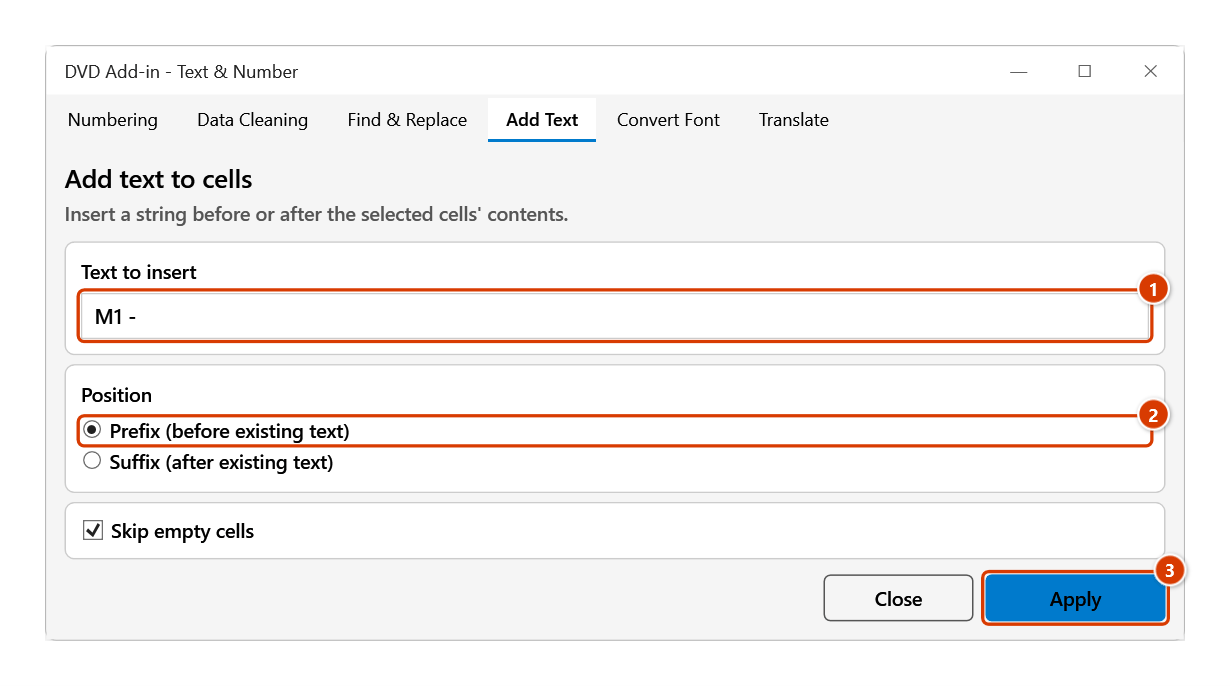
- The Text & Number window opens on the Add Text tab (heading Add text to cells), with:
- Text to insert — the string to add.
- Position — choose Prefix (before existing text) or Suffix (after existing text).
- Skip empty cells — ticked by default, so blanks stay blank.
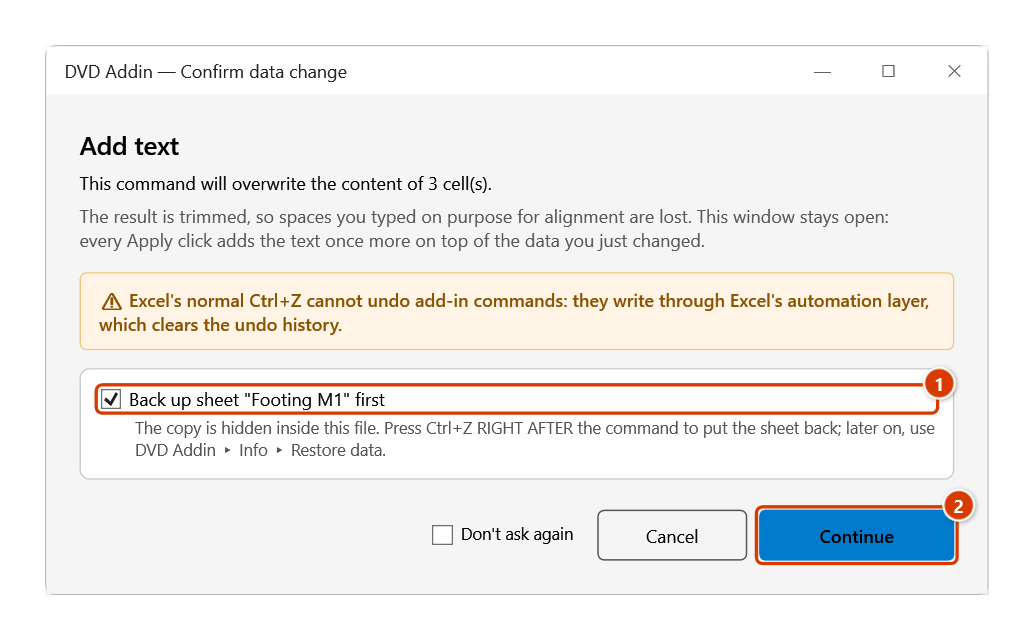
- Click Apply, then Continue in the Confirm data change box. The status bar reports how many cells were changed.
- The window does not lock Excel: you can select a different range on the sheet and click Apply again. Click Close when finished.
Video tutorial
Narrated in Vietnamese, with Vietnamese subtitles. Chèn text · 5 min 11 s · 7 cases · Download the video · Practice workbook for the video
Chapters (12)
- Giới thiệu
- Mở lệnh
- Cửa sổ Thêm chữ
- 1 · Tiền tố mã hạng mục
- 2 · Danh sách đang lọc
- 3 · Hậu tố đơn vị sau số
- 4 · Bỏ qua ô rỗng
- 5 · Nhiều vùng rời (Ctrl)
- 6 · Bấm lại và hoàn tác
- 7 · Khi lệnh không chạy
- Mẹo
- Kết thúc
Illustrated walkthrough
Practice
Download this command's sample workbook — the data matches the pictures below (sheet Footing M1), so you can follow each step right away.
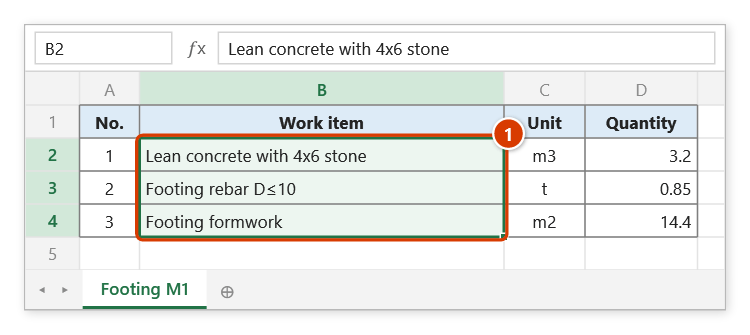
Step 1. Select the cells that need the extra text, for example the work items of footing M1 that need the item code as a prefix (1).
Step 2. On the ribbon, open the DVD Addin tab → Text and Number group → open Text ops → choose Add text.
Step 3. The Text & Number window opens on the Add Text tab. Type M1 - in Text to insert (1), choose Prefix (before existing text) (2), keep Skip empty cells and click Apply (3).
Step 4. The add-in asks before overwriting and reminds you that the result is trimmed at both ends. Keep the sheet backup ticked (1), then click Continue (2).
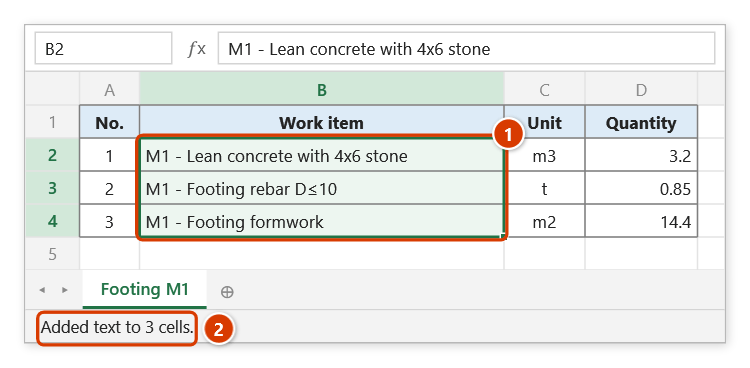
Step 5. Every cell gets the prefix M1 - (1) and the status bar reports how many cells were changed (2). The window stays open: select another item's range, change the string and click Apply again; click Close when done.
Example
The activity list for foundation F1 needs its package code so it can be merged into the project-wide summary. Select the description column, type F1 - , choose Prefix and click Apply.
| Before | After |
|---|---|
| Blinding concrete 4x6 aggregate | F1 - Blinding concrete 4x6 aggregate |
| Footing rebar D≤10 | F1 - Footing rebar D≤10 |
| Footing formwork | F1 - Footing formwork |
Without closing the window you can then select the F2 block, change the string to F2 - and click Apply again.
Notes
- Ctrl+Z right after the command puts the sheet back as it was (thanks to the backup); see Restore data.
- Cells containing formulas are skipped, so your formulas are safe.
- Cells on hidden rows are skipped too — convenient while a filter is active.
- The result is trimmed, so leading or trailing spaces in your string (for example
" (temp) ") are dropped at the outer edges. - Untick Skip empty cells if you also want the string written into blank cells.
Related
- Text Reverse — reorder the segments in the cell before prefixing.
- Bulk find / replace… — remove or change a prefix inserted by mistake across sheets.
- Remove extra spaces — clean whitespace before concatenating.
- Smart Data Cleaning… — normalise casing after the codes are joined.