
Subscript
Location on ribbon: Tab DVD Addin → Group Text and Number → Menu Text ops
Command ID: btnSubscript
What it does
The command formats chemical formulas in the selection: the digits in a formula are lowered to subscript (H2O becomes H₂O, Ca(OH)2 becomes Ca(OH)₂), while a charge sign + or - at the end of a formula and its digits are raised to superscript (Mg2+ becomes Mg²⁺). Only character formatting changes; the text in the cell is not rewritten.
On a construction project this serves concrete admixture tables, water test results and cement composition sheets — anywhere chemical notation has to be presented correctly.
How to use
- Select the cells containing chemical formulas — cells where formulas appear inside prose are fine too; the wording is kept.
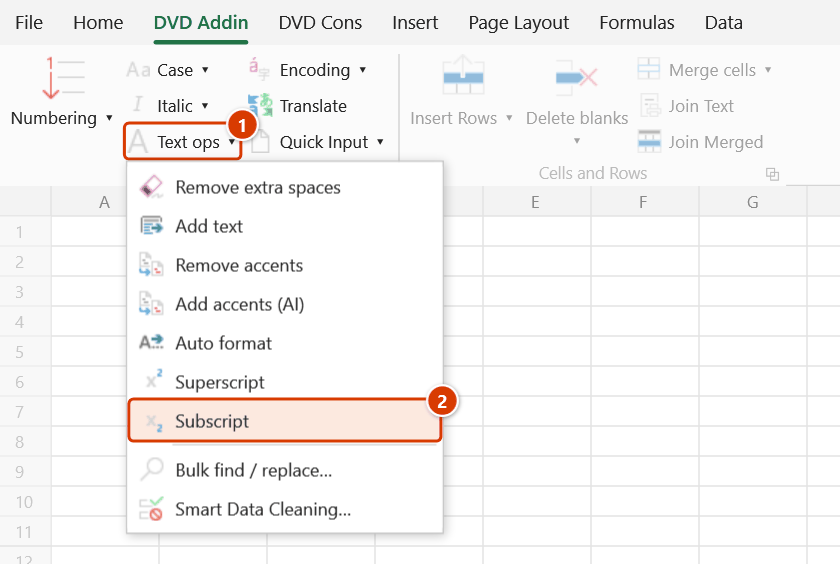
- Go to tab DVD Addin → group Text and Number → menu Text ops → Subscript.
- The command finds the chemical formulas in each cell and changes only the formatting of their digits and charge signs; the rest of the cell is not touched.
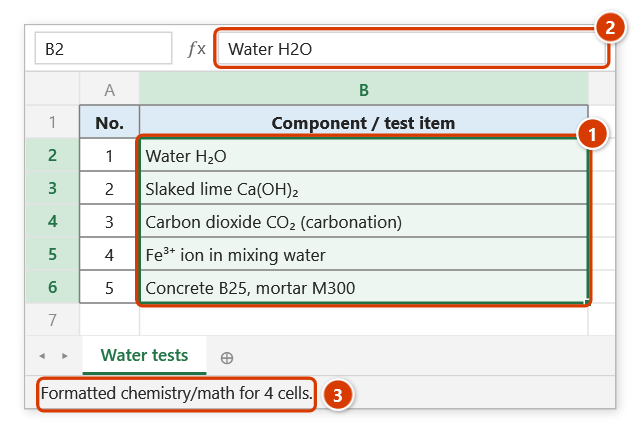
- The status bar reports how many cells were processed.
Video tutorial
Narrated in Vietnamese, with Vietnamese subtitles. Chỉ số trên và chỉ số dưới · 5 min 33 s · 9 cases · Download the video · Practice workbook for the video
Commands in this video: Superscript · Subscript
Chapters (13)
- Giới thiệu
- Mở lệnh
- 1 · Cột đơn vị m2, m3
- 2 · Đơn vị nằm trong câu chữ
- 3 · Chọn cả bảng
- 4 · Công thức hoá học trong câu
- 5 · Phương trình phản ứng
- 6 · Ion có điện tích
- 7 · Mác vật liệu không bị nhầm
- 8 · Khi không có gì để đổi
- 9 · Hoàn tác
- Mẹo
- Kết thúc
Illustrated walkthrough
Practice
Download this command's sample workbook — the data matches the pictures below (sheet Water tests), so you can follow each step right away.
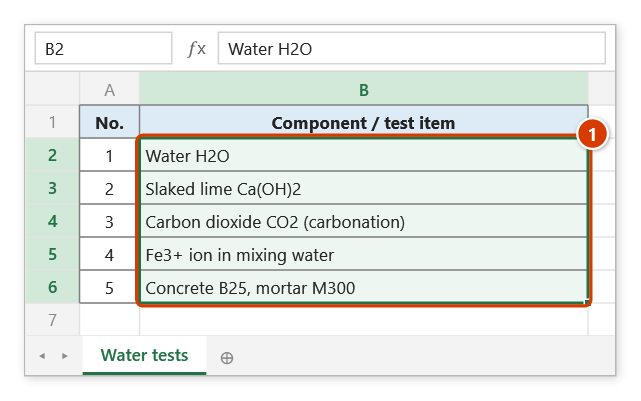
Step 1. Select the cells holding chemical formulas, for example a list of mixing-water components and test items (1) — cells where formulas sit inside a sentence are fine too.
Step 2. On the ribbon, open the DVD Addin tab → Text and Number group → open Text ops → choose Subscript.
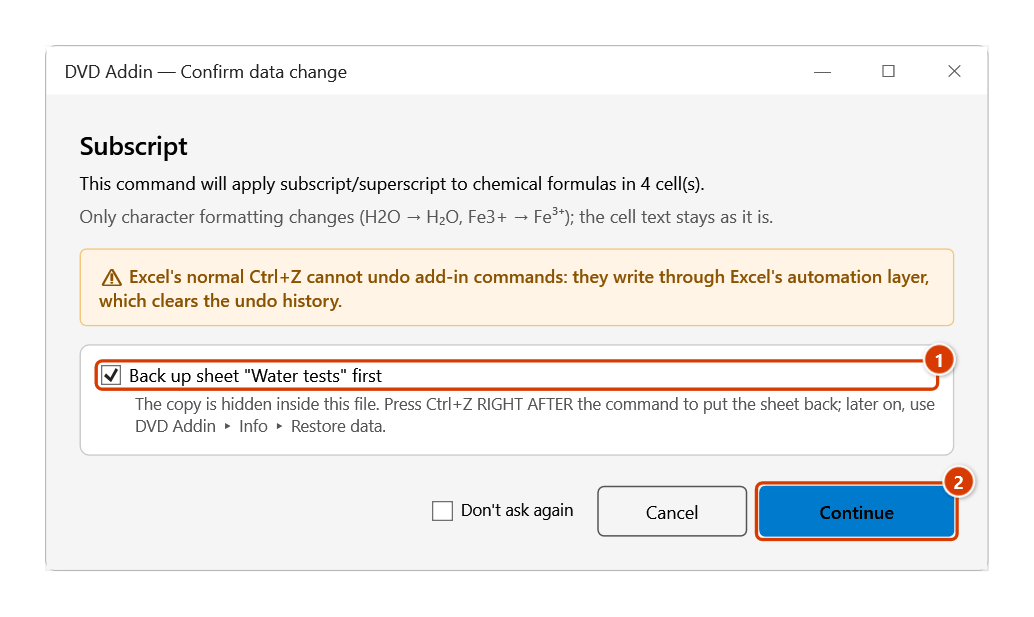
Step 3. The add-in counts the cells that contain chemical formulas and asks again. Keep the sheet backup ticked (1), then click Continue (2).
Step 4. Digits inside the formulas drop to subscript and the charge 3+ rises to superscript; the surrounding words and grades B25, M300 are untouched (1). Only character formatting changes — the cell value is still Water H2O (2). The status bar reports how many cells were processed (3).
Example
An admixture composition table and the mixing-water test results.
| Before | After |
|---|---|
| H2O | H₂O |
| Ca(OH)2 | Ca(OH)₂ |
| CO2 | CO₂ |
| Fe3+ ions in mixing water | Fe³⁺ ions in mixing water |
| Concrete B25, mortar M300 | Concrete B25, mortar M300 (unchanged) |
Notes
- The command does not rewrite the cell text: no spaces are removed or inserted, only character formatting changes. Cells containing prose keep their wording.
- A word counts as a chemical formula only when it breaks down entirely into element symbols (
H,O,Ca,Fe…), brackets and digits; contains at least two element symbols or a charge sign; and every count is a single digit. SoH2OandCO2are formatted, while concrete and mortar grades such asB25,M300orC30are left alone. - Digits are lowered using the font subscript attribute, not the Unicode character
₂; copying to another application can lose the formatting. - Excel formula cells cannot take per-character formatting and are skipped.
- Ctrl+Z right after the command puts the sheet back as it was (thanks to the backup); still, test on a few cells first.
Related
- Superscript — raises the
2or3of area/volume units (m2,m3…) to superscript. - Font Change — style parts of a cell's content separately.
- Remove extra spaces — clean up extra whitespace in text cells.
- Bulk find / replace… — correct mistyped notation in bulk before formatting.