
Sheet Numbering
Location on ribbon: Tab DVD Addin → Group View and Sheets → the ▾ arrow of Sheet List
Command ID: btnSheetAutoNumber
What it does
Prefixes every visible sheet name with a sequence number in tab order, left to right: 1_, 2_, 3_… If a name already carries a numeric prefix followed by an underscore, the old prefix is stripped before the new one is applied, so repeated runs always produce a clean, gap-free sequence.
Use it to lock the document order inside a multi-sheet submission — method statement, quantities, appendices — so the recipient knows the reading and printing order at a glance.
How to use
- Drag the tabs into the order you want.
- Hide any working sheets that should not be numbered (hidden sheets are skipped).
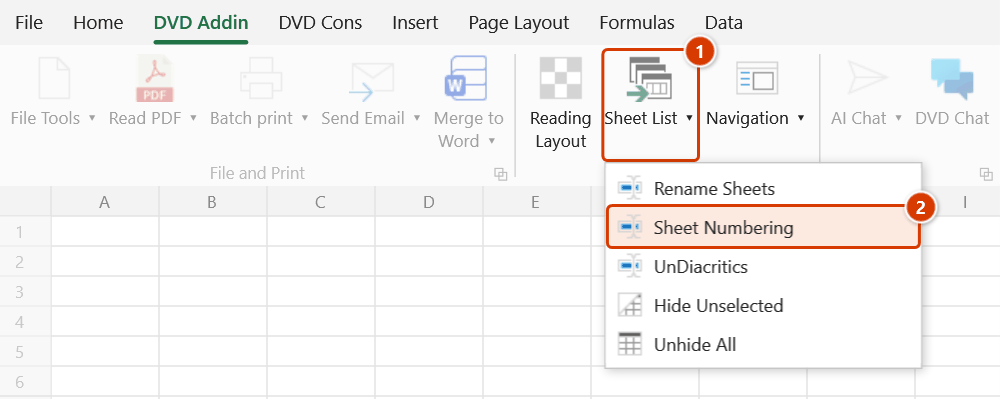
- Go to tab DVD Addin → group View and Sheets → the ▾ arrow of Sheet List → Sheet Numbering.
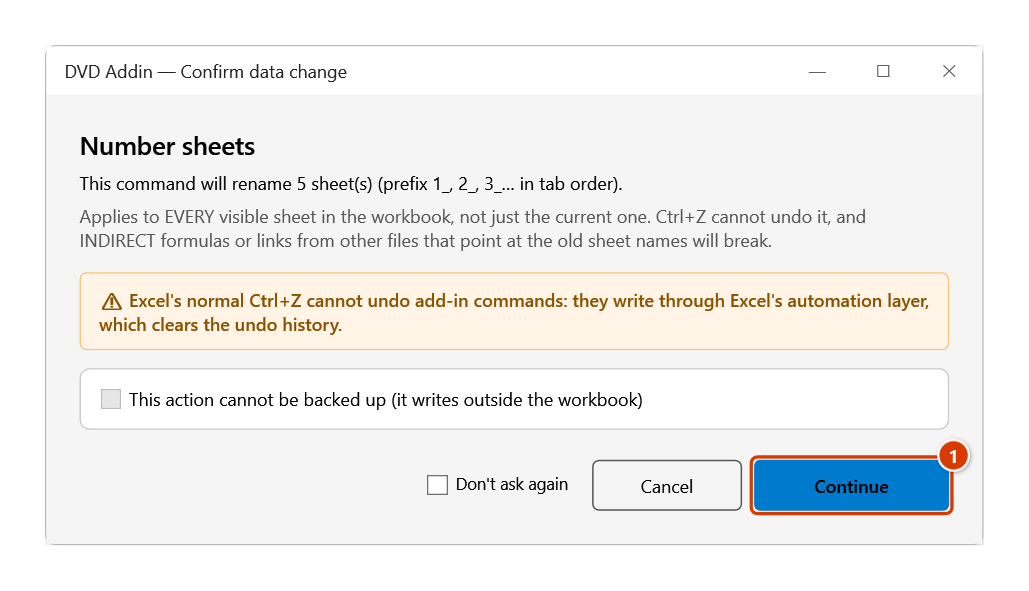
- The add-in works out the new names first, then the Confirm data change window shows how many sheets will be renamed (the command applies to every visible sheet and cannot be undone with Ctrl+Z). Click Continue: the status bar reports how many sheets were numbered; any sheet that could not be renamed is listed in a message.
- Check the tab bar; if the order was wrong, rearrange the tabs and run the command again.
Video tutorial
Narrated in Vietnamese, with Vietnamese subtitles. Đổi tên, Đánh số, Bỏ dấu Sheet · 5 min 53 s · 13 cases · Download the video · Practice workbook for the video
Commands in this video: Rename Sheets · Sheet Numbering · UnDiacritics
Chapters (19)
- Giới thiệu
- Mở lệnh
- 1 · Đổi tên theo bảng
- 2 · Bảng có dòng lỗi
- 3 · Đổi chéo, nối tiếp
- 4 · Công thức theo tên mới
- 5 · Tên trùng sheet ẩn
- Lệnh Đánh số Sheet
- 6 · Đánh số theo thứ tự tab
- 7 · Thêm sheet, chạy lại
- 8 · Số cũ kiểu khác, tên dài
- Lệnh Bỏ dấu Sheet
- 9 · Bỏ dấu tên sheet
- 10 · Sheet ẩn, chữ Đ, dấu cách
- 11 · Trùng tên sau bỏ dấu
- 12 · Khi chọn sai
- 13 · Hoàn tác, đổi ngược
- Mẹo
- Kết thúc
Illustrated walkthrough
Practice
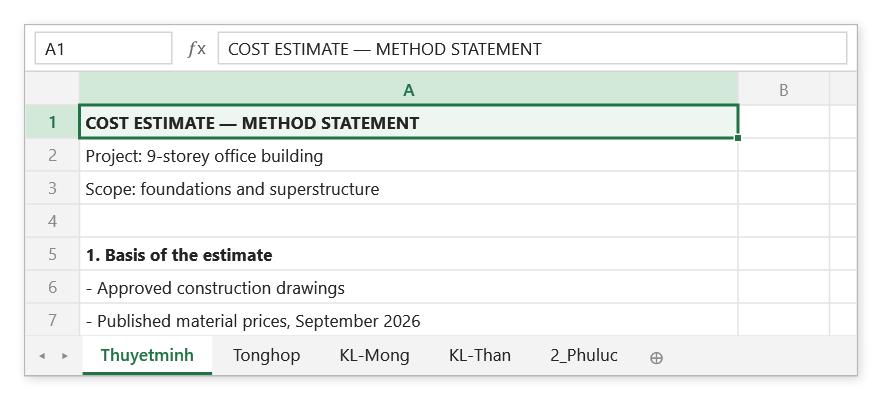
Download this command's sample workbook — the data matches the pictures below (sheet Thuyetminh), so you can follow each step right away.
Step 1. Drag the tabs into the reading/printing order you want. Hide any working sheet that should not be numbered — hidden sheets are skipped and take no number.
Step 2. On the ribbon, open the DVD Addin tab → View and Sheets group → open Sheet List → choose Sheet Numbering.
Step 3. The add-in works out every new name first and asks again with the number of sheets to rename, because the command applies to every visible sheet and cannot be undone with Ctrl+Z. Click Continue (1).
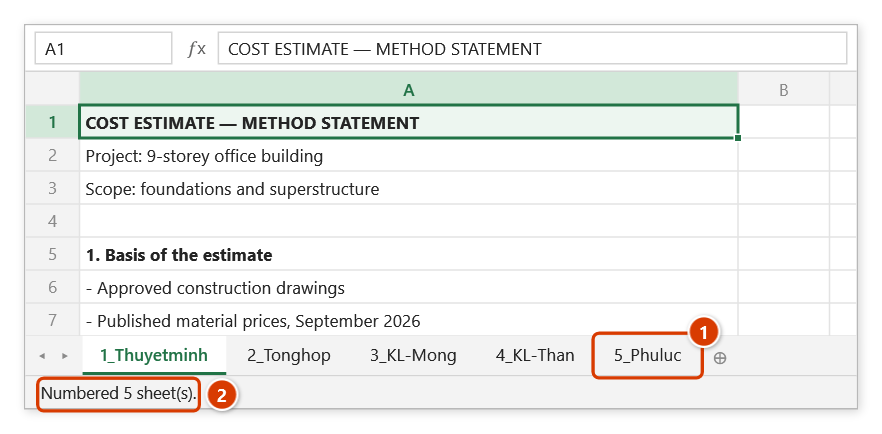
Step 4. Every tab now carries a prefix in order 1_, 2_, 3_…; an old numeric prefix is replaced, so 2_Phuluc becomes 5_Phuluc (1). The status bar reports how many sheets were numbered (2).
Example
A cost estimate workbook, tab bar before and after:
| Before | After |
|---|---|
Thuyetminh | 1_Thuyetminh |
Tonghop | 2_Tonghop |
KL-Mong | 3_KL-Mong |
KL-Than | 4_KL-Than |
2_Phuluc | 5_Phuluc |
2_Phuluc already carried an old number; the add-in strips 2_ and re-applies 5_ for its new position.
Notes
- The prefix is always a plain counter (
1_,2_, …10_) with no leading zero; there is no option to choose another numbering style. For01_style names use Rename Sheets with a mapping table. - Only visible sheets are numbered; hidden sheets are neither renamed nor counted in the sequence.
- Only an integer prefix before the first underscore is replaced; a name like
KL_Thanis left intact and becomes3_KL_Than. - A resulting name longer than Excel's 31-character limit is cut to 31 characters.
- Renaming goes through temporary names, so
X→1_Xworks even when a sheet named1_Xexists at that moment. - Any sheet that could not be renamed keeps its old name and is listed in the final message.
- The command cannot be undone with Ctrl+Z.
Related
- Rename Sheets — mapping-table renaming when you need a custom rule.
- Sheet List — build the index once the numbering is right.
- UnDiacritics — clean up sheet names before numbering them.
- Navigation — reorder the tabs before running the command.