
Rename Sheets
Location on ribbon: Tab DVD Addin → Group View and Sheets → the ▾ arrow of Sheet List
Command ID: btnRenameSheets
What it does
Renames many sheets at once from a two-column mapping table: the left column holds the current sheet name, the right column the new one. The add-in walks the rows, finds the matching sheet and renames it.
Use it whenever a whole workbook needs consistent names: turning Sheet1, Sheet2… into work-package names, prefixing every tab with a contract code, or replacing accented Vietnamese names with short codes before issuing the file.
How to use
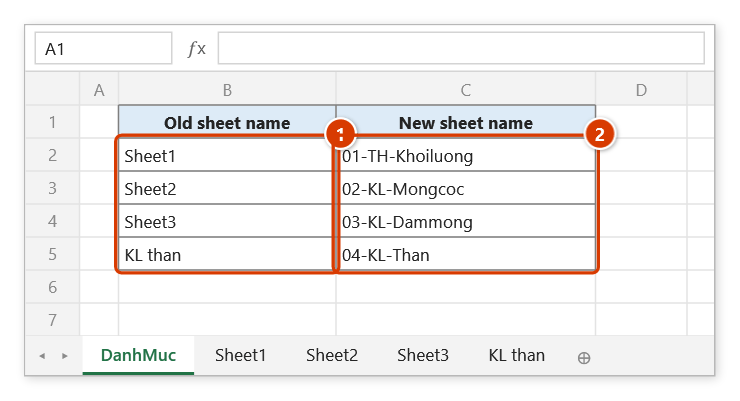
- On any sheet, build a table of two adjacent columns: column 1 = old sheet name, column 2 = new sheet name. No header row is needed.
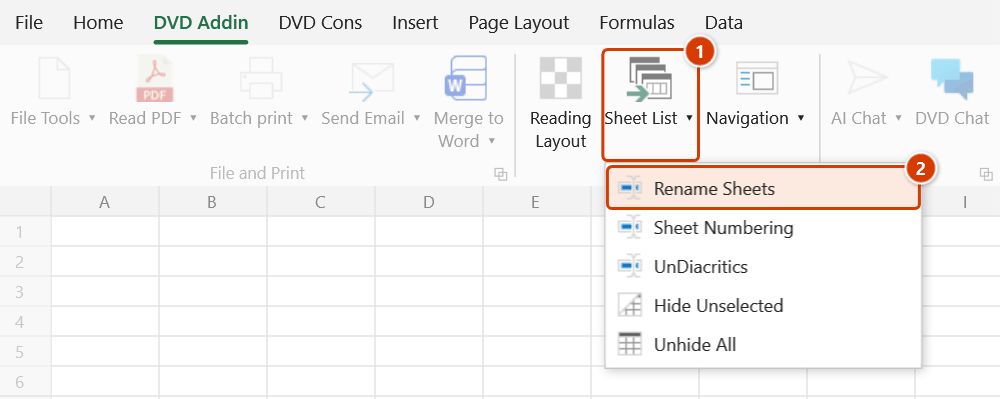
- Go to tab DVD Addin → group View and Sheets → the ▾ arrow of Sheet List → Rename Sheets.
- The range picker asks for a 2-column range: 1) Old sheet name, 2) New sheet name.
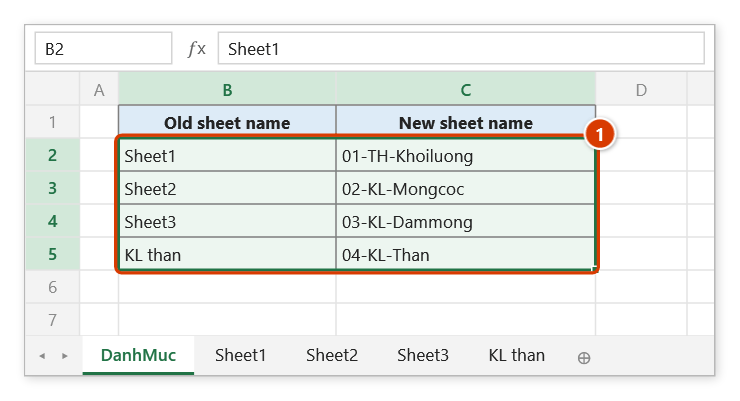
- Drag-select the two data columns (for example
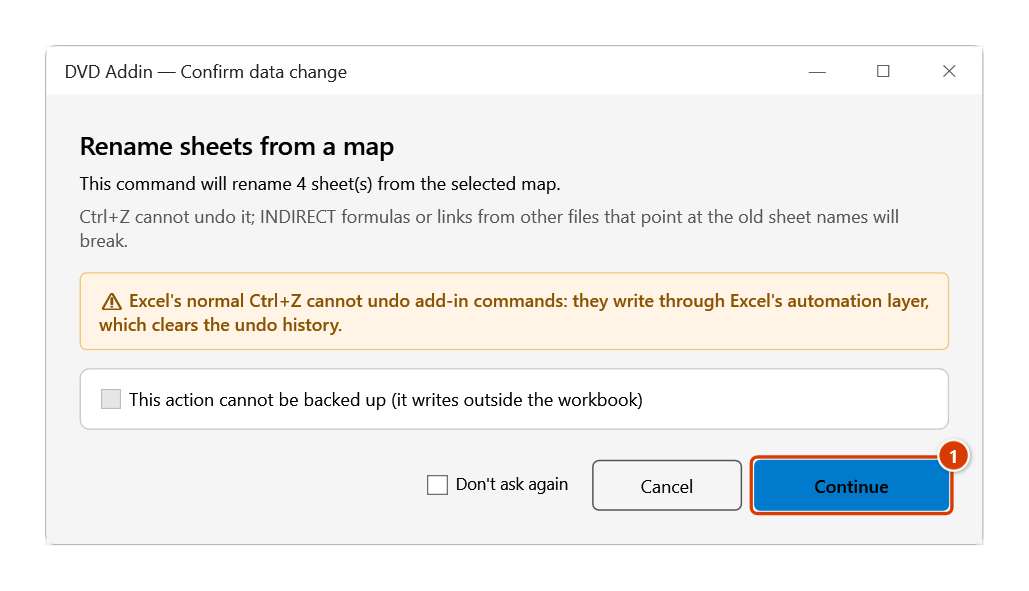
B4:C25) and click OK. If the range is not exactly two columns wide, the add-in reports an error and stops. - The add-in counts the matching sheets first, then opens the Confirm data change window (no backup option, since renaming sheets cannot be undone with Ctrl+Z). Click Continue.
- The add-in checks the whole table, skips blank pairs and renames the valid rows; the status bar reports how many sheets were renamed. If any sheets were not found or rows were refused, a message lists them with the reason.
Video tutorial
Narrated in Vietnamese, with Vietnamese subtitles. Đổi tên, Đánh số, Bỏ dấu Sheet · 5 min 53 s · 13 cases · Download the video · Practice workbook for the video
Commands in this video: Rename Sheets · Sheet Numbering · UnDiacritics
Chapters (19)
- Giới thiệu
- Mở lệnh
- 1 · Đổi tên theo bảng
- 2 · Bảng có dòng lỗi
- 3 · Đổi chéo, nối tiếp
- 4 · Công thức theo tên mới
- 5 · Tên trùng sheet ẩn
- Lệnh Đánh số Sheet
- 6 · Đánh số theo thứ tự tab
- 7 · Thêm sheet, chạy lại
- 8 · Số cũ kiểu khác, tên dài
- Lệnh Bỏ dấu Sheet
- 9 · Bỏ dấu tên sheet
- 10 · Sheet ẩn, chữ Đ, dấu cách
- 11 · Trùng tên sau bỏ dấu
- 12 · Khi chọn sai
- 13 · Hoàn tác, đổi ngược
- Mẹo
- Kết thúc
Illustrated walkthrough
Practice
Download this command's sample workbook — the data matches the pictures below (sheet DanhMuc), so you can follow each step right away.
Step 1. On any sheet, build a table of two adjacent columns: the current sheet name on the left (1) and the new name on the right (2).
Step 2. On the ribbon, open the DVD Addin tab → View and Sheets group → open Sheet List → choose Rename Sheets.
Step 3. The range picker appears (Select a 2-column range: 1) Old sheet name, 2) New sheet name). Drag-select exactly the two data columns (1), without the header row, and click OK.
Step 4. The add-in counts the matching sheets first and asks again, because renaming sheets cannot be undone with Ctrl+Z. Click Continue (1).
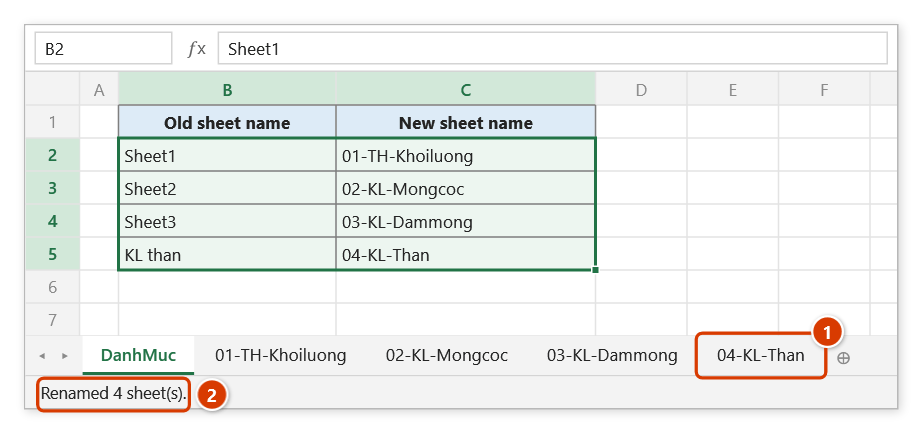
Step 5. The four sheets now carry the names from column C, e.g. KL than became 04-KL-Than (1); the status bar reports how many were renamed (2). If a name is not found or a new name is invalid (duplicate, over 31 characters, containing : \ / ? * [ ]), the add-in shows a message listing each row with the reason instead.
Example
A mapping table on the DanhMuc sheet:
| Before (column B) | After (column C) |
|---|---|
Sheet1 | 01-TH-Khoiluong |
Sheet2 | 02-KL-Mongcoc |
Sheet3 | 03-KL-Dammong |
KL than | 04-KL-Than |
Select B2:C5, click OK → Continue, and the four tabs take the names in column C — the tab bar now reads in the order required for submission.
Notes
- The selection must be exactly two columns; one or three columns is rejected with a message.
- Old names are matched case-insensitively and trimmed of leading/trailing spaces — a misspelled entry is listed under "not found".
- New names are checked first: 1 to 31 characters, none of
: \ / ? * [ ], not the name of an existing sheet that is not itself renamed in the same table, and not repeated on two rows of the table. A row that fails is refused (the message gives the reason) and that sheet keeps its old name. - Swapping two names (
A→BandB→A) and chains (A→B,B→C: sheetAtakes the nameB, the old sheetBbecomesC) both work in a single run, with no temporary names needed. - The change cannot be undone with Ctrl+Z, and formulas in other workbooks that reference the old sheet names will break.
- The range picker does not lock Excel: while it is open you can scroll, switch sheets or switch workbooks to pick the range there. Click OK or press Enter on the sheet when done; Cancel or Esc to stop.
Related
- Sheet Numbering — add sequence prefixes without building a mapping table.
- UnDiacritics — strip Vietnamese accents from all sheet names.
- Sheet List — dump the current sheet names to use as the "old name" column.
- Rename Files — the same idea applied to file names in a folder.