
Select visible
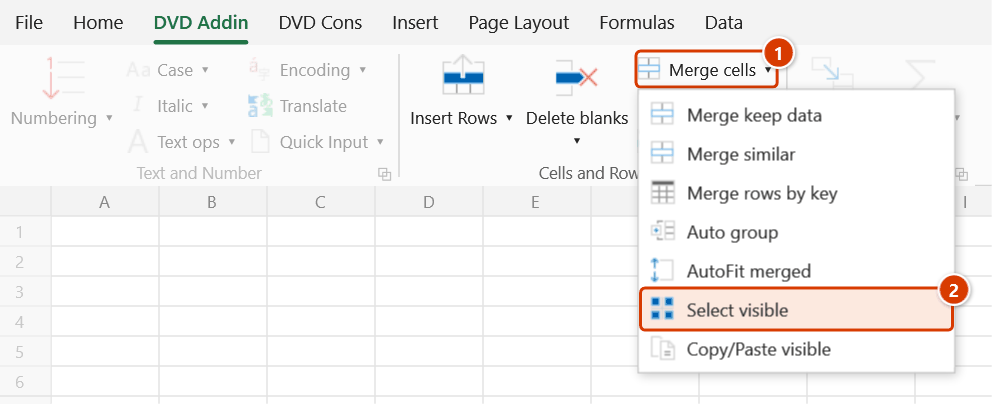
Location on ribbon: Tab DVD Addin → Group Cells and Rows → Menu Merge cells
Command ID: btnSelectVisible
What it does
The command narrows the current selection down to the cells that are visible, dropping every row or column hidden by AutoFilter, grouping or Hide. It is Excel's Go To Special → Visible cells only, in a single click instead of four.
Use it before copying filtered data, colouring, clearing or reformatting, so the action never reaches the hidden rows.
How to use
- Filter or hide rows as usual, then select the block of data you want to work on.
- Click DVD Addin → Cells and Rows → Merge cells → Select visible.
- The selection becomes several separate areas covering only the visible cells (the marching-ants border breaks at each hidden row).
- Carry on: Ctrl+C, apply a fill, clear contents, change formatting, and so on.
Video tutorial
Narrated in Vietnamese, with Vietnamese subtitles. Chọn ô hiện và Copy-Paste hiện · 7 min 05 s · 12 cases · Download the video · Practice workbook for the video
Commands in this video: Select visible · Copy/Paste visible
Chapters (18)
- Giới thiệu
- Mở lệnh
- 1 · Danh sách đang lọc
- 2 · Dòng, cột ẩn, nhóm thu gọn
- Lệnh Copy/Paste hiện
- Cửa sổ Copy/Paste hiện
- 3 · Dán vào danh sách đang lọc
- 4 · Chọn vùng đích cho đúng
- 5 · Nguồn đang lọc, có cột ẩn
- 6 · Chỉ giá trị, không định dạng
- 7 · Biểu mẫu có ô gộp
- 8 · Dán công thức =ô nguồn
- 9 · Cột điều kiện: khác thứ tự
- 10 · Chép mọi cột giá trị
- 11 · Khớp cả dòng lẫn cột
- 12 · Ghi đè và hoàn tác
- Mẹo
- Kết thúc
Illustrated walkthrough
Practice
Download this command's sample workbook — the data matches the pictures below (sheet BoQ), so you can follow each step right away.
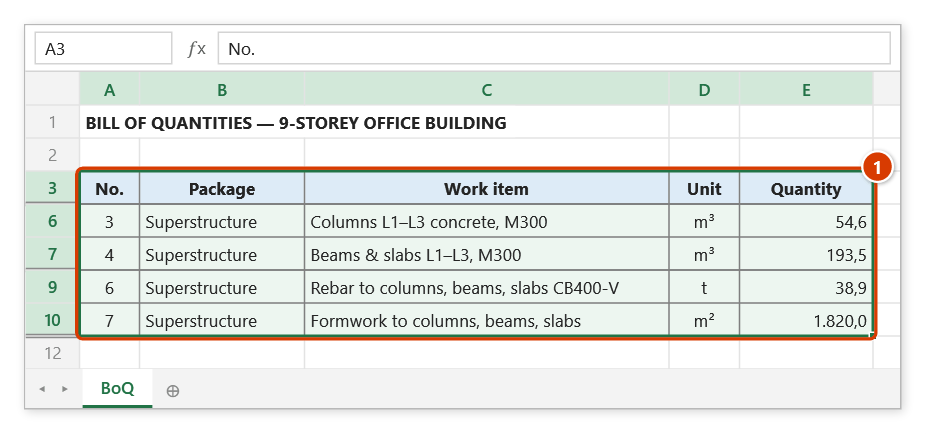
Step 1. Filter (AutoFilter) or hide rows as usual, then select the data range to work on — for example a bill of quantities filtered to Superstructure (rows 4–5, 8 and 11 are hidden): select A3:E11 (1).
Step 2. On the ribbon, open the DVD Addin tab → Cells and Rows group → open Merge cells → choose Select visible.
Step 3. The selection immediately shrinks to the visible cells only — the selection outline breaks at the hidden rows. The command only changes the selection and never touches the data. With no range selected, the status bar says Please select a range.
Step 4. Carry on as usual: Ctrl+C and paste into a new sheet copies only the Superstructure rows; filling, clearing or formatting no longer spills into the hidden rows.
Example
A 500-row quantity sheet is filtered to the "Superstructure" section. Select A2:H500, click Select visible, then Ctrl+C and paste into a new sheet — only the superstructure rows are copied, with none of the filtered-out rows.
Notes
- A selection is required before clicking; otherwise the status bar shows "Please select a range".
- If the range contains no visible cell at all, Excel raises an error and the selection is left unchanged.
- The command only changes the selection, never the data — clicking it by accident is harmless.
- Pasting a visible-cells-only selection still follows Excel's rules: the data lands contiguously at the destination.
Related
- Copy/Paste visible — copies between two ranges while skipping hidden rows on both sides.
- Delete hidden rows — removes hidden rows outright instead of skipping them.
- Hide empty rows — hide rows first, then work on what remains.