
Copy/Paste visible
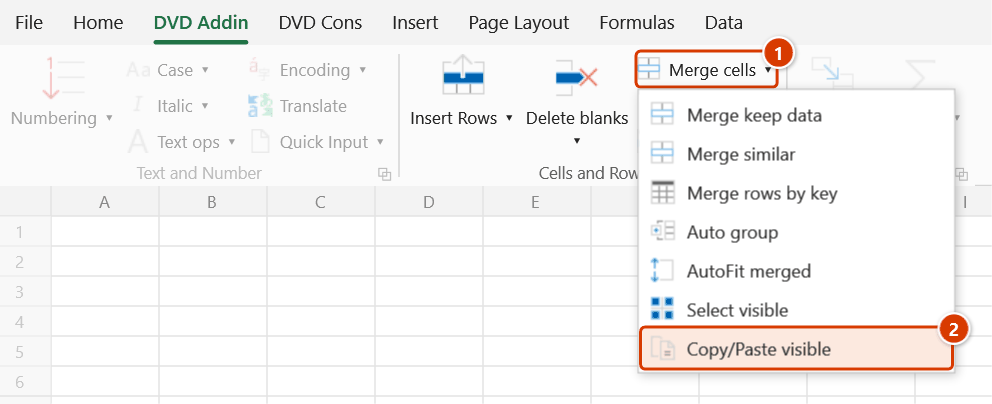
Location on ribbon: Tab DVD Addin → Group Cells and Rows → Menu Merge cells
Command ID: btnCopyPasteVisible
License required
This command needs a valid DVDAddin account (Standard or PRO). It is fully available during the trial period.
What it does
Excel refuses to paste into a filtered range properly — the data spills into the hidden rows and wrecks the table. This command copies from a source range into a target range where both sides count visible rows only, writing in left→right, top→bottom order and always into the top-left cell of any merged area.
Two matching modes are available: sequential (visible row order) or condition column matching, which behaves like a VLOOKUP but writes the value — or a reference formula — straight into the target table.
How to use
- Filter or hide rows on both the source and target sheets so only the relevant rows show.
- Click DVD Addin → Cells and Rows → Merge cells → Copy/Paste visible. The Copy Paste Visible window opens.
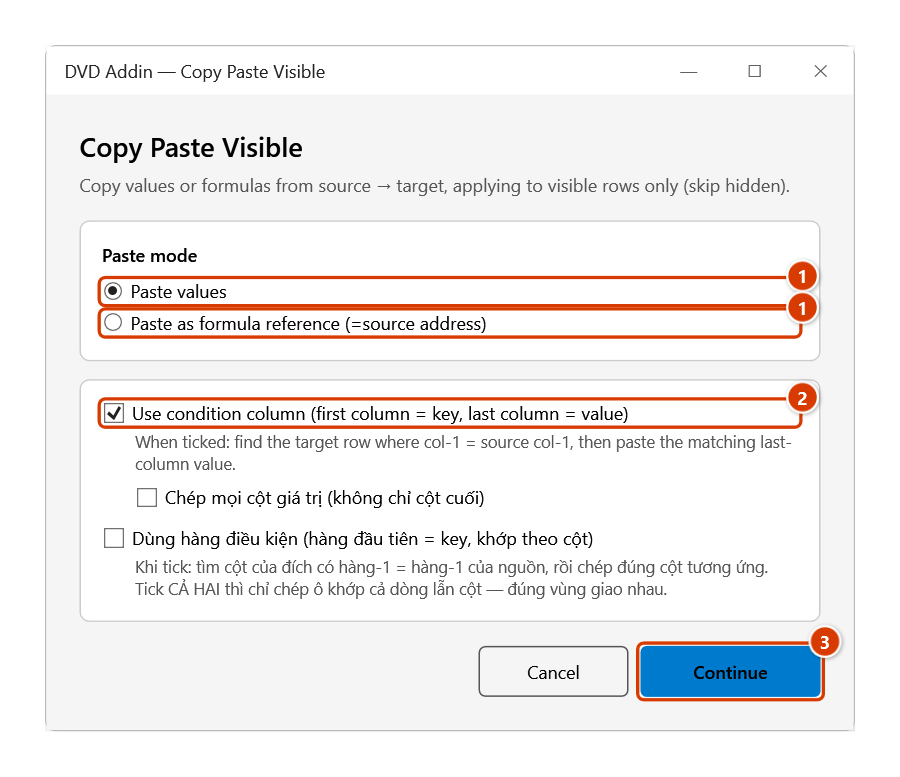
- Paste mode: choose Paste values (static values) or Paste as formula reference (=source address), which writes an absolute reference to the source cell so the target updates when the source changes.
- Tick Use condition column (first column = key, last column = value) for key matching: the command finds the target row whose column 1 equals the source column 1 and pastes the matching last-column value. With it ticked (and the condition row in step 5 left unticked) you can also tick Chép mọi cột giá trị (không chỉ cột cuối) ("copy every value column, not just the last") to copy every visible column from the 2nd one on instead of the last column only.
- Tick Dùng hàng điều kiện (hàng đầu tiên = key, khớp theo cột) ("use a condition row: first row = key, match by column") to match columns by the headings in the first row of both ranges. Tick both kinds of condition and only cells matching both row and column are copied. (These two options are labelled in Vietnamese only.)
- Click Continue.
- The "Select range to copy" box appears (pre-filled with the current selection) — drag over the source range and click OK or press Enter. Then the "Select range to paste" box — drag over the target range and click OK or press Enter. The box does not lock Excel: while it is open you can drag the scroll bars, switch sheets or switch to another workbook to pick the range there; click Cancel or press Esc to stop.
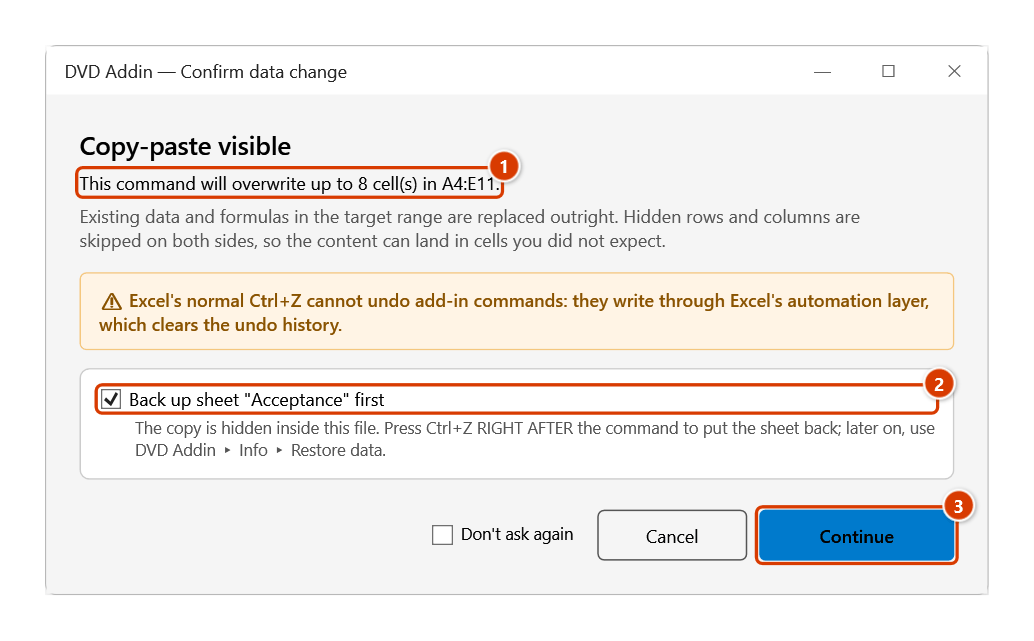
- The Confirm data change window shows the maximum number of cells that will be overwritten in the target. Keep the backup ticked and click Continue.
- The result is written immediately; hold ESC while it runs to stop early.
Video tutorial
Narrated in Vietnamese, with Vietnamese subtitles. Chọn ô hiện và Copy-Paste hiện · 7 min 05 s · 12 cases · Download the video · Practice workbook for the video
Commands in this video: Select visible · Copy/Paste visible
Chapters (18)
- Giới thiệu
- Mở lệnh
- 1 · Danh sách đang lọc
- 2 · Dòng, cột ẩn, nhóm thu gọn
- Lệnh Copy/Paste hiện
- Cửa sổ Copy/Paste hiện
- 3 · Dán vào danh sách đang lọc
- 4 · Chọn vùng đích cho đúng
- 5 · Nguồn đang lọc, có cột ẩn
- 6 · Chỉ giá trị, không định dạng
- 7 · Biểu mẫu có ô gộp
- 8 · Dán công thức =ô nguồn
- 9 · Cột điều kiện: khác thứ tự
- 10 · Chép mọi cột giá trị
- 11 · Khớp cả dòng lẫn cột
- 12 · Ghi đè và hoàn tác
- Mẹo
- Kết thúc
Illustrated walkthrough
Practice
Download this command's sample workbook — the data matches the pictures below (sheet Acceptance), so you can follow each step right away.
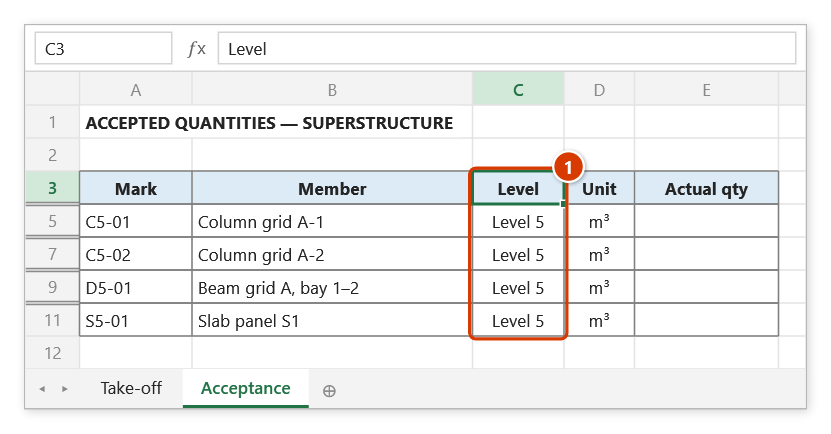
Step 1. Filter or hide rows on the target sheet (and on the source sheet if needed) so only the part to process is visible — for example filter the Level column (1) of the Acceptance sheet to Level 5: the Level 4 rows (4, 6, 8, 10) are hidden.
Step 2. On the ribbon, open the DVD Addin tab → Cells and Rows group → open Merge cells → choose Copy/Paste visible.
Step 3. In the Copy Paste Visible window choose how to paste: Paste values (static values) or Paste as formula reference (=source address, stays live) (1). If the two tables are not in the same row order, tick Use condition column (2): the first column of each range is the key, the last column is the value. Click Continue (3).
Step 4. The Select range to copy box: drag over the source range on the Take-off sheet, for example A4:D60 (column A member mark, column D quantity) → OK. The Select range to paste box: drag over the target A4:E11 on the Acceptance sheet (column A member mark, column E actual quantity) → OK.
Step 5. The confirmation box shows the maximum number of cells that will be overwritten in the target (1). Keep the backup ticked (2) and click Continue (3).
Step 6. The command looks up each mark and writes the quantity into column E, on visible rows only (1); the status bar reports how many cells were pasted (2). Clear the filter and the Level 4 rows (hidden during the paste) are unchanged.
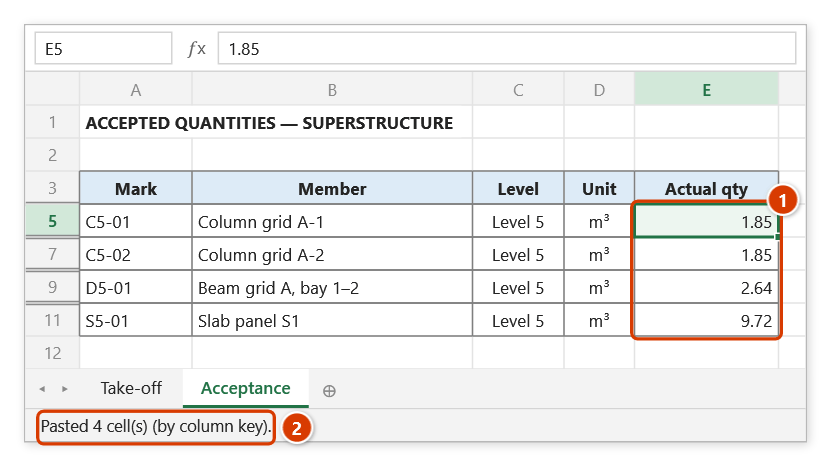
Example
A site acceptance sheet is filtered to level 5 and its "Actual quantity" column must be filled from a take-off sheet, also filtered to level 5 but in a different row order.
Open the command, pick Paste values, tick Use condition column and click Continue. Source = A5:E200 on the "Take-off" sheet (column A is the work code, column E the quantity). Target = A5:H160 on the "Acceptance" sheet (column A is the work code, column H the actual quantity). The command matches each code and fills column H, skipping every hidden row on both sheets.
Notes
- Data is written straight over the target range. Ctrl+Z right after the command puts the target sheet back as it was (thanks to the backup); see Restore data.
- Condition mode uses the first column of the selection as the key and its last column as the value — select the ranges so those two columns are the outer edges.
- The two range boxes do not lock Excel (unlike Excel's own range box, which cannot drag another workbook's scroll bars): scroll, switch sheets and switch workbooks freely. A range in another workbook shows the workbook name, e.g.
'[Estimate.xlsx]Summary'!$D$18:$D$40, and the confirmation names the target workbook and sheet too. While a box is open, Enter on the sheet = OK and Esc = Cancel (while typing in a cell, Enter still just finishes the entry). - Keys are compared case-insensitively; with duplicate source keys the first visible occurrence wins — hidden rows do not claim a key.
- Source rows with an empty key cell are skipped; target rows with no matching key keep their existing content.
- For merged cells the command reads and writes at the top-left cell, so the merge structure stays intact.
- Paste as formula reference writes an absolute reference including the source workbook and sheet name — renaming or moving the source file later breaks those formulas.
Related
- Select visible — check what is actually visible before copying.
- Merge rows by key — consolidate data per key before reconciling two tables.
- Delete hidden rows — remove hidden rows entirely when you no longer need them.