
Hide Empty Rows
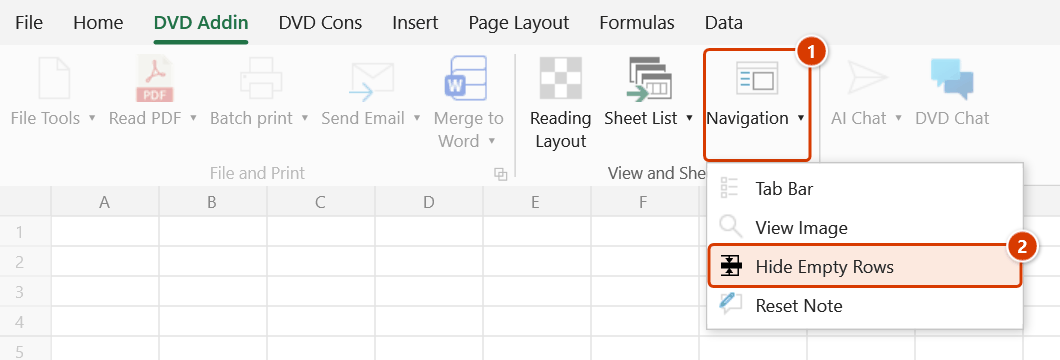
Location on ribbon: Tab DVD Addin → Group View and Sheets → the ▾ arrow of Navigation
Command ID: btnHideEmptyRows
What it does
Hides every row without data inside a range you pick. Unlike deleting blank rows, this only hides them — the data and formulas underneath stay intact, they are simply not displayed and not printed.
It fits pre-formatted templates with spare rows: a bill of quantities that leaves room for variations, an inspection form printed with 40 lines of which only 12 are used, a programme sheet with packages not yet started. Hiding the blanks gives a tight printout with no white gaps.
How to use
- Go to tab DVD Addin → group View and Sheets → the ▾ arrow of Navigation → Hide Empty Rows.
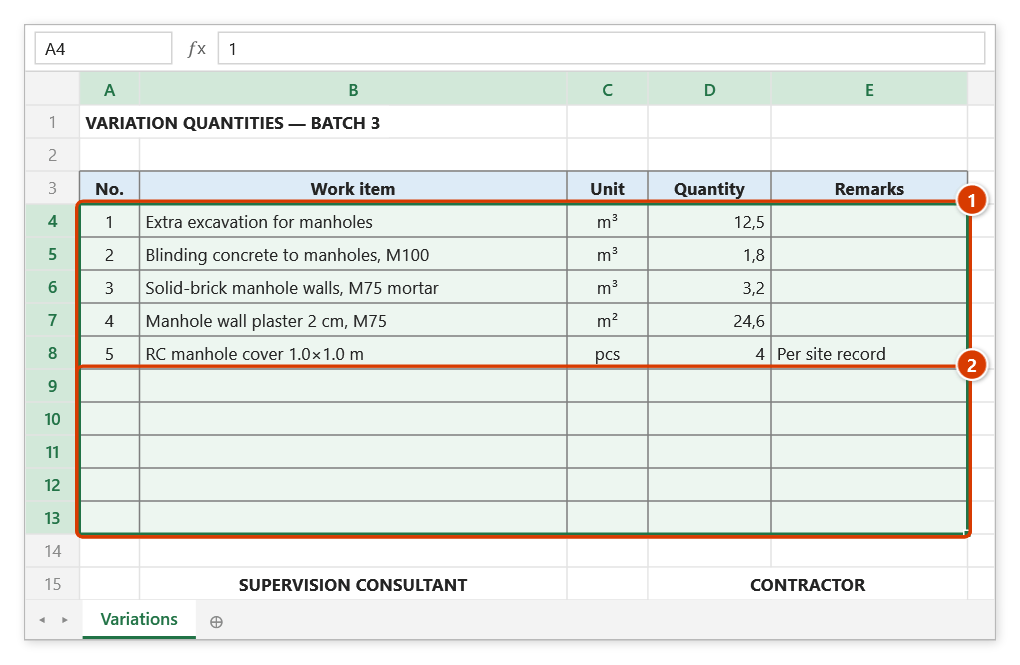
- The range picker appears with the prompt "Select data range".
- Drag-select the range to scan — pick the columns that actually hold data, for example
B10:H250. Hold Ctrl to pick several separate areas. - Click OK (or Cancel to exit without changes).
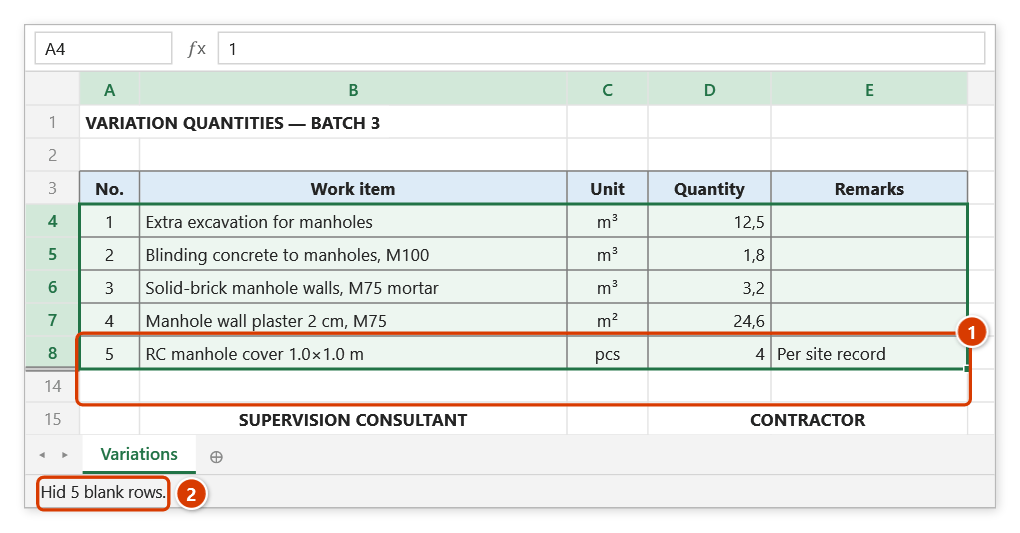
- Every row whose cells are all empty within that range is hidden, then a message reports "Hid N blank rows." — or "No blank rows." if none were found.
Video tutorial
Narrated in Vietnamese, with Vietnamese subtitles. Ẩn dòng trống · 5 min 27 s · 9 cases · Download the video · Practice workbook for the video
Chapters (14)
- Giới thiệu
- Mở lệnh
- 1 · Biểu mẫu chừa dòng
- 2 · Hiện lại các dòng đã ẩn
- 3 · Cột công thức kéo dài
- 4 · Ghi chú ngoài vùng chọn
- 5 · Dòng đang ẩn sẵn
- 6 · Ô gộp nhiều dòng
- 7 · Chọn rời bằng Ctrl
- 8 · Chọn cả cột
- 9 · Sheet đang khoá
- So với Xoá dòng trống
- Mẹo
- Kết thúc
Illustrated walkthrough
Practice
Download this command's sample workbook — the data matches the pictures below (sheet Variations), so you can follow each step right away.
Step 1. On the ribbon, open the DVD Addin tab → View and Sheets group → open Navigation → choose Hide Empty Rows.
Step 2. The range picker appears (Select data range). Drag-select the range to check, covering exactly the columns that hold data (1) — here the printed form has 10 rows but only 5 are used, rows 9–13 are blank (2) — then click OK. Hold Ctrl to add separate areas.
Step 3. Every row whose cells are all empty within the selection is hidden as a whole row: the row numbers jump from 8 to 14 (1), the signature block sits right under the table and the printout has no gaps. Nothing is deleted — unhide the rows when a new item comes in. The status bar reports how many rows were hidden (2).
Example
A finishing-works take-off printed from a template runs from row 12 to row 180, with 47 rows left blank for future variations:
| Before | After |
|---|---|
| Rows 12–180 all shown, printing over 5 pages full of gaps | Only the 133 rows with data shown, printing as 3 continuous pages |
Run the command, select B12:H180, and exactly 47 rows are hidden — the printout is continuous and nothing is deleted, so a new work item can be added later by simply unhiding.
Notes
- "Empty" is judged only within the columns you selected; a row with data in a column outside the range still counts as empty and gets hidden.
- A cell holding a formula that returns an empty string
""still counts as having data, so that row is not hidden. - The command hides the entire row across the sheet, not just the selected range.
- Hold ESC to stop partway; rows already hidden stay hidden.
- It cannot be undone with Ctrl+Z. To bring rows back, select the surrounding rows and use Home → Format → Unhide Rows.
- The range picker does not lock Excel: while it is open you can scroll, switch sheets or switch workbooks to pick the range there. Click OK or press Enter on the sheet when done; Cancel or Esc to stop.
Related
- Delete Blank Rows — remove them permanently when you are sure they are not needed.
- Delete Hidden Rows — clear out the rows you just hid to finalise the table.
- Select Visible — select only what remains on screen after hiding.
- Copy/Paste Visible — copy the trimmed table somewhere else.