
Quick Input
Location on ribbon: Tab DVD Addin → Group Text and Number
Command ID: btnQuickInput
License required
This command needs an active DVDAddin account (Standard or PRO). During the trial period it is fully available.
What it does
Opens a small search box (the Quick Input window, centred on the screen) listing values that already exist, so you pick instead of retyping. Suggestions come from the source table of a rule defined in Configure source ranges… (when the cell falls under one), from the cell's Data Validation list, or from the unique values in the column above the active cell. It is the anti-typo tool for site diaries, material tracking sheets and inspection registers — places where the same work item or subcontractor name repeats hundreds of times and a single stray space splits a PivotTable row in two.
How to use
- Put the cursor in the cell you are filling (a cell below a column that already has data, or one with a Data Validation list).
- Click Quick Input on the ribbon, or press Ctrl+Alt+I.
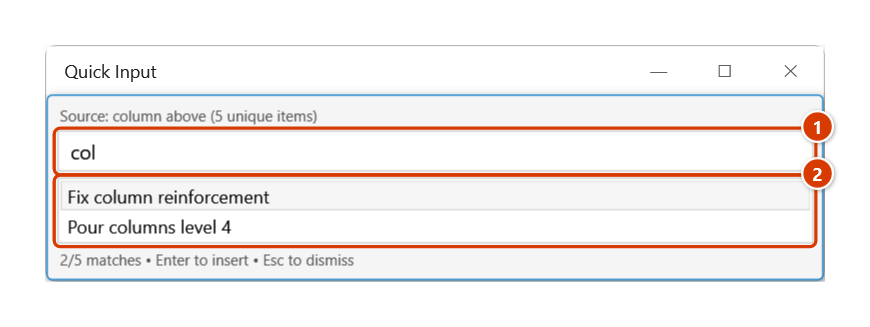
- The Quick Input popup appears in the middle of the screen: a hint line naming the data source, a search box, the result list, and a status line at the bottom.
- Type a few characters to filter. If the cell falls under a multi-column source rule, the results are shown as a table with all source columns.
- Use the arrow keys to highlight a row and press Enter (or double-click) to insert it. Press Esc to dismiss.
- The value is written into the cell and the cursor moves one row down automatically, ready for the next entry.
Video tutorial
Narrated in Vietnamese, with Vietnamese subtitles. Nhập nhanh · 5 min 41 s · 10 cases · Download the video · Practice workbook for the video
Commands in this video: Quick Input · Auto-suggest on cell select · Configure source ranges…
Chapters (15)
- Giới thiệu
- Mở lệnh
- Nguồn gợi ý
- 1 · Gợi ý theo cột phía trên
- 2 · Lọc không dấu, giữa từ
- 3 · Bẫy ở cột ngày
- 4 · Ô có Data Validation
- 5 · Khai báo bảng danh mục
- 6 · Điền cả dòng một lượt
- 7 · Tự động hiện gợi ý
- 8 · Tắt và nơi lưu thiết đặt
- 9 · Ghi đè, chọn nhiều ô
- 10 · Khi lệnh không ghi
- Mẹo
- Kết thúc
Illustrated walkthrough
Practice
Download this command's sample workbook — the data matches the pictures below (sheet Site diary), so you can follow each step right away.
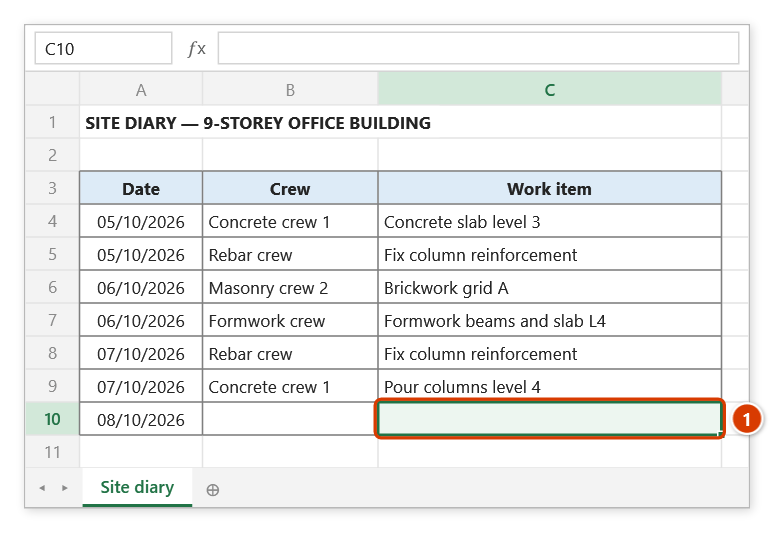
Step 1. Put the cursor in the cell to fill, below a column that already has data (1) — here the Work item cell of a new diary row.
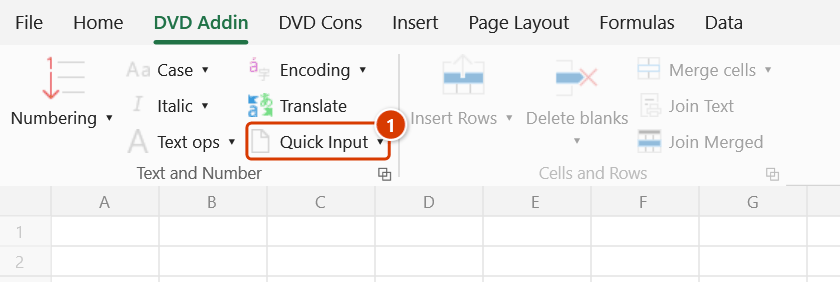
Step 2. On the ribbon, open the DVD Addin tab → Text and Number group → click Quick Input.
Step 3. The Quick Input window lists the distinct values of the column above. Type a few letters to filter — col (1); pick a row with the arrow keys and press Enter or double-click (2), Esc to dismiss. Next time open it straight away with Ctrl+Alt+I.
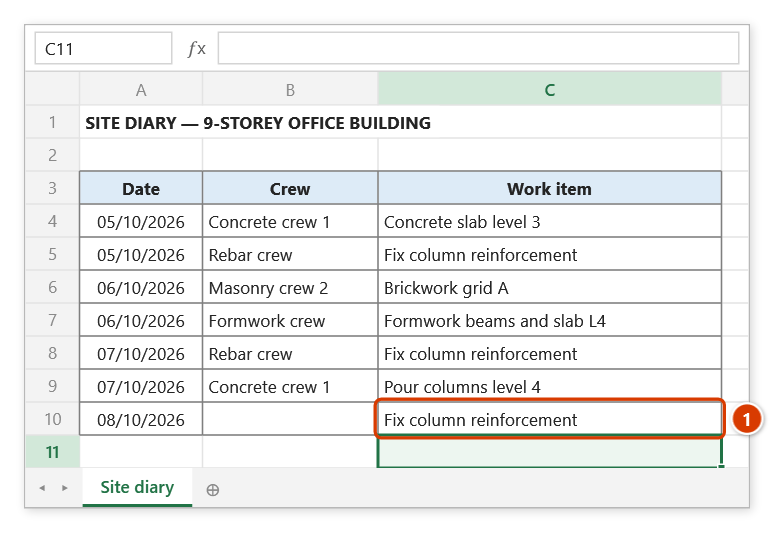
Step 4. The value is written into the cell, spelled exactly like the earlier rows (1), and the cursor moves down to the next cell, ready for the next row.
Example
A site diary has a Work item column filled from row 5 to row 180 with values such as Bê tông sàn tầng 3, Xây tường trục A, Lắp dựng cốt thép cột. On row 181 you put the cursor in that column, press Ctrl+Alt+I, and type cot — the list narrows to Lắp dựng cốt thép cột; Enter fills the cell with exactly the same spelling as the previous 180 rows and the cursor drops to row 182.
Notes
- When the cell falls under no source rule and has no Data Validation list, the list is built from unique values in the same column above the active cell — at the top of a table, with nothing above it, the add-in reports that no source list was found.
- The popup is modal: while it is open you cannot work in Excel — insert a value or press Esc to close it.
- The value is written straight into the cell; if you pick the wrong one, just retype it as usual.
- To pull suggestions from a catalogue table on another sheet, define a rule in Configure source ranges….
- To have the popup open by itself when you select a cell in the trigger column of a source rule, turn on Auto-suggest on cell select; otherwise the feature runs only from the ribbon button or Ctrl+Alt+I.
Related
- Auto-suggest on cell select — switch the automatic popup on or off.
- Configure source ranges… — define Target → Source rules, including sources on other sheets.
- Get lookup data — pull a whole record from another table when one cell is not enough.
- Preferences — where the add-in's general settings live.