
Auto-suggest on cell select
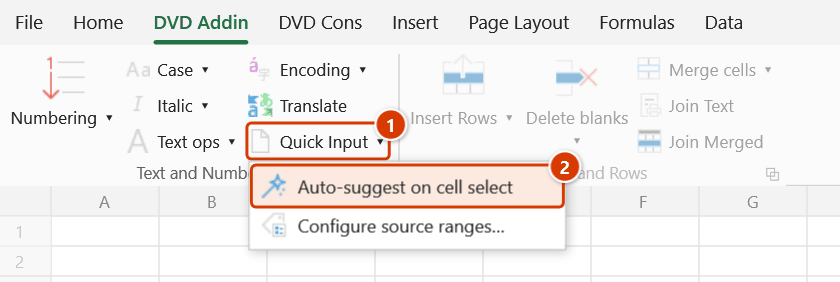
Location on ribbon: Tab DVD Addin → Group Text and Number → arrow on Quick Input
Command ID: ToggleAutoInput
What it does
A toggle that decides how the Quick Input feature is triggered. When ON, every time you select a cell in the trigger column of a rule defined in Configure source ranges…, the add-in opens the suggestion popup with that rule's source table — the "suggest as you go" data-entry style of dedicated input tools. Cells outside those rules get no popup; suggestions from the column above or a Data Validation list only appear when you call Quick Input yourself. When OFF, the popup appears only when you ask for it via the Quick Input button or Ctrl+Alt+I. Turn it on for bulk entry sessions (site diaries, timesheets, material logs) and off again when you go back to writing formulas, so the popup stops jumping out.
How to use
- Go to tab DVD Addin → group Text and Number → arrow on Quick Input.
- Click Auto-suggest on cell select so the button appears pressed (ON).
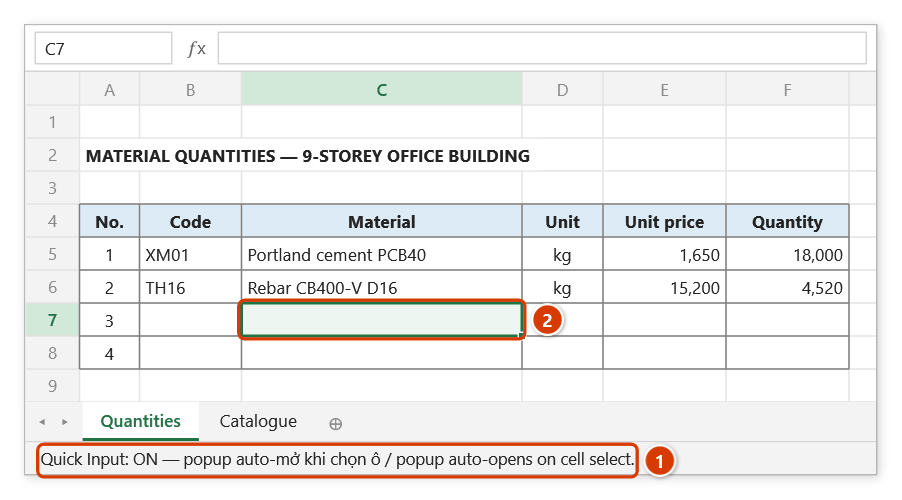
- The Excel status bar shows
Quick Input: ON — popup auto-opens on cell selectfor about 5 seconds, then clears. - From now on, selecting a cell in the trigger column of a configured rule opens the suggestion popup: type to filter, Enter to insert, Esc to dismiss.
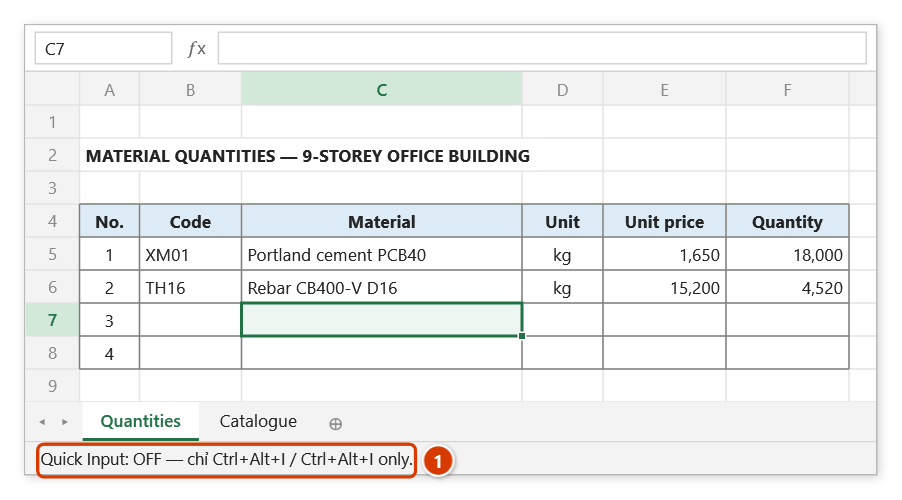
- Click the button again to turn it OFF — any popup currently showing closes immediately and the status bar reports
Quick Input: OFF — Ctrl+Alt+I only.
Video tutorial
Narrated in Vietnamese, with Vietnamese subtitles. Nhập nhanh · 5 min 41 s · 10 cases · Download the video · Practice workbook for the video
Commands in this video: Quick Input · Auto-suggest on cell select · Configure source ranges…
Chapters (15)
- Giới thiệu
- Mở lệnh
- Nguồn gợi ý
- 1 · Gợi ý theo cột phía trên
- 2 · Lọc không dấu, giữa từ
- 3 · Bẫy ở cột ngày
- 4 · Ô có Data Validation
- 5 · Khai báo bảng danh mục
- 6 · Điền cả dòng một lượt
- 7 · Tự động hiện gợi ý
- 8 · Tắt và nơi lưu thiết đặt
- 9 · Ghi đè, chọn nhiều ô
- 10 · Khi lệnh không ghi
- Mẹo
- Kết thúc
Illustrated walkthrough
Practice
Download this command's sample workbook — the data matches the pictures below (sheet Quantities), so you can follow each step right away.
Step 1. On the ribbon, open the DVD Addin tab → Text and Number group → open Quick Input → choose Auto-suggest on cell select.
Step 2. The button turns on and the status bar shows Quick Input: ON for about 5 seconds (1). From now on, selecting a cell in the trigger column of a rule set up in Configure source ranges… (2) pops the suggestion window up by itself: type to filter, Enter to insert, Esc to dismiss.
Step 3. When you are done, click the button again to turn it off: any open suggestion window closes at once and the status bar shows Quick Input: OFF (1). Quick Input is still available from the Quick Input button or Ctrl+Alt+I.
Example
At the end of the day you have 60 diary rows to enter: the Crew, Work item and Unit columns all repeat existing values. Define a rule for the Work item column in Configure source ranges…, turn Auto-suggest on cell select ON, then simply click the Work item cell of each row: the popup opens by itself, you type two or three characters, press Enter, and the cursor drops to the next row. When the diary is finished, click the toggle off so the popup stops covering the sheet while you build the summary formulas.
Notes
- The on/off state is stored in the Windows registry, so it survives closing and reopening Excel.
- The popup is modal: while it is open you cannot click another cell — press Esc to close it first.
- Turning it off does not disable the feature — it is still available via Ctrl+Alt+I or the Quick Input button.
- While it is on, every selection makes the add-in re-read the workbook's rules (and the source table when the cell is inside a target range), so with a very large source table it can feel slightly slower — switch it off while browsing or formatting big tables.
- The status-bar message is only a confirmation; it disappears after a few seconds and never touches your data.
Related
- Quick Input — the feature whose automatic mode this button controls.
- Configure source ranges… — define dedicated suggestion sources per input area.
- Preferences — the add-in's other general settings.