
Panel Cut 2D
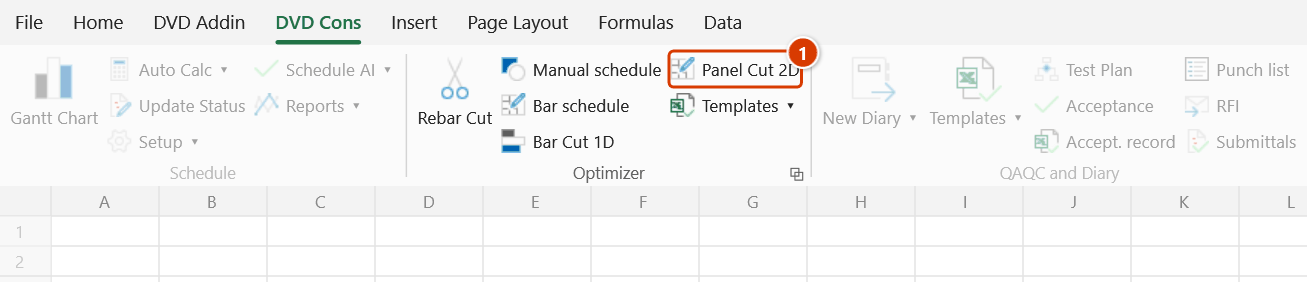
Location on ribbon: Tab DVD Cons → Group Optimizer
Command ID: btnPanelCut
License required
This command needs an active DVDAddin account (Standard or PRO). During the trial period it is fully available.
What it does
Nests rectangular pieces onto stock sheets using a panel-saw model — every cut runs the full width of the offcut (guillotine), which is how a real panel saw works. It supports piece rotation, saw kerf, edge trim, several stock sheet sizes and several materials in one run.
Use it to plan cutting for plywood formwork, MDF, glass, metal sheet or plasterboard: how many sheets to buy and how to cut them with the least waste. The output is a layout diagram per sheet, a cut list and utilization/scrap percentages.
How to use
- If the workbook does not yet have the input sheets, click Templates ▸ Panel Tpl to scaffold them with sample data.
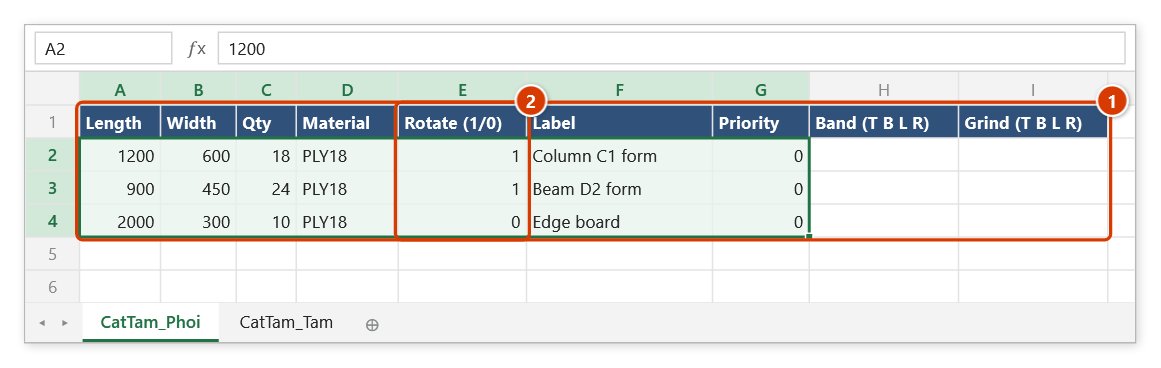
- Fill the pieces on the CatTam_Phoi sheet:
Length | Width | Qty | Material | Rotate (1/0) | Label | Priority | Band (T B L R) | Grind (T B L R). - Fill the stock sheets on CatTam_Tam:
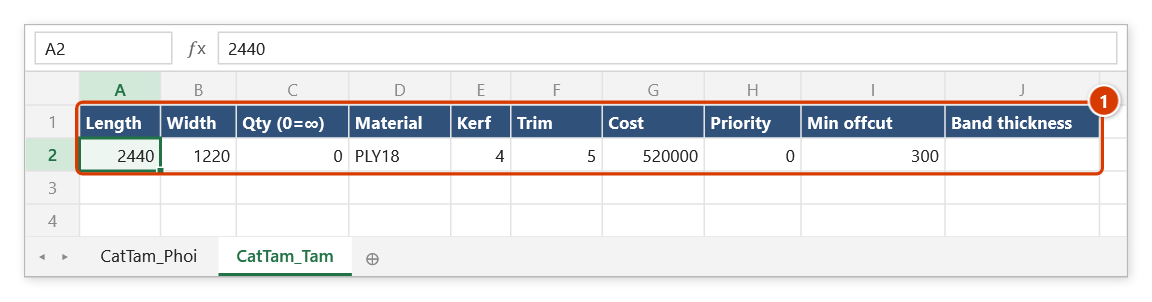
Length | Width | Qty (0=∞) | Material | Kerf | Trim | Cost | Priority | Min offcut | Band thickness. - Click Panel Cut 2D. With no workbook open the add-in reports "No workbook open." and stops.
- The Cutting preview — 2D window opens and optimizes immediately: each stock sheet is drawn as a layout, every piece coloured with its label and size, leftovers labelled "rem".
- On the toolbar pick Stages:
Free cutor2-stage— changing it re-runs the optimizer. The toolbar also has ↻ Re-optimize, ✓ Apply to sheet, ⬇ DXF, Close and a Save remnants to stock checkbox. - Read the statistics line: sheet count, utilization %, number of remnants, true scrap % and unplaced pieces.
- Click ✓ Apply to sheet to write the layouts and cut list onto the
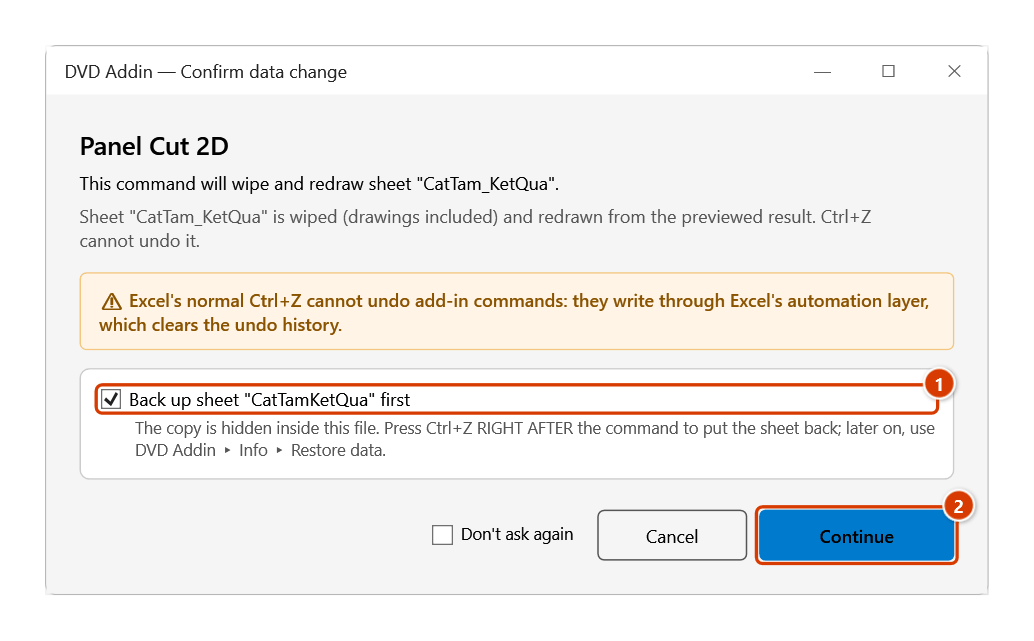
CatTam_KetQuasheet (on a rerun, or when saving remnants to stock, the Confirm data change box appears first — keep the backup ticked and click Continue), or ⬇ DXF to export a DXF file for a CNC saw.
Video tutorial
Narrated in Vietnamese, with Vietnamese subtitles. Cắt tấm 2D · 6 min 15 s · 12 cases · Download the video · Practice workbook for the video
Commands in this video: Panel Cut 2D · Panel Tpl
Chapters (16)
- Giới thiệu
- Mở lệnh
- 1 · Mẫu Cắt tấm
- 2 · Ván phủ phim cốp pha
- 3 · Đọc kết quả, nẹp cạnh
- 4 · Cấm xoay – ván vân gỗ
- 5 · Mạch cưa và xén mép
- 6 · Cắt tự do hay 2 tầng
- 7 · Nhiều vật liệu, độ dày
- 8 · Phôi quá khổ, sai vật liệu
- 9 · Nhiều khổ tấm, thiếu tấm
- 10 · Lưu tồn-dư vào kho
- 11 · Chạy lại, Ctrl+Z, bẫy tồn nhỏ
- 12 · Khi thiếu sheet nhập
- Mẹo
- Kết thúc
Illustrated walkthrough
Practice
Download this command's sample workbook — the data matches the pictures below (sheet CatTam_Phoi), so you can follow each step right away.
Step 1. Enter the pieces to cut on the CatTam_Phoi sheet (1) — if the sheet does not exist yet, create it with Panel Tpl. Example: film-faced plywood formwork for one floor; set Rotate (1/0) (2) to 0 for the edge boards that must keep the grain direction.
Step 2. Declare the stock sheets on CatTam_Tam (1): 2440×1220 boards, Qty = 0 (unlimited), same material PLY18, 4 mm saw kerf, 5 mm edge trim; leftovers big enough per Min offcut are kept as remnants. A piece is only placed on stock whose Material matches exactly.
Step 3. On the ribbon, open the DVD Cons tab → Optimizer group → click Panel Cut 2D.
Step 4. The Cutting preview — 2D window opens and optimises at once, without writing anything: each stock sheet is drawn as a layout captioned Sheet #1 [PLY18] 2440×1220 — util …% (… pieces), every piece coloured with its label and size (↻ = rotated), and reusable leftovers outlined in dashed green and marked rem. The statistics line gives the sheet count, utilisation, remnants, true scrap and unplaced pieces (red while any piece is unplaced).
Step 5. On the toolbar, Stages picks Free cut or 2-stage to match the workshop's panel saw — changing it re-optimises; there are also ↻ Re-optimize, ⬇ DXF (export a DXF file for the CNC saw) and the Save remnants to stock box. Click ✓ Apply to sheet: the add-in draws every sheet layout, the cut list (#, Sheet, Label, X, Y, L, W, Rot) and the remnant list on the CatTam_KetQua sheet.
Step 6. On the first run (no CatTam_KetQua yet, no remnants saved) the add-in draws straight away. When you run it again — or save remnants to CatTam_Tam — it asks first: keep the sheet backup ticked (1) so that Ctrl+Z right after the command puts the sheet back, then click Continue (2).
Example
Cutting film-faced plywood formwork for one floor:
CatTam_Phoi
| Length | Width | Qty | Material | Rotate | Label |
|---|---|---|---|---|---|
| 1200 | 600 | 18 | PLY18 | 1 | Column C1 form |
| 900 | 450 | 24 | PLY18 | 1 | Beam D2 form |
| 2000 | 300 | 10 | PLY18 | 0 | Edge board |
CatTam_Tam
| Length | Width | Qty (0=∞) | Material | Kerf | Trim | Cost |
|---|---|---|---|---|---|---|
| 2440 | 1220 | 0 | PLY18 | 4 | 5 | 520000 |
Click Panel Cut 2D, set Stages = 2-stage to match the workshop's panel saw, check the utilization figure, then ✓ Apply to sheet to print the cutting diagram for the carpentry crew.
Notes
- Both
CatTam_PhoiandCatTam_Tammust exist; a missing sheet or wrong columns raises an error message. - The Rotate column decides whether a piece may be turned 90° — set it to no for grained, ribbed or single-side-coated material.
- A stock quantity of 0 means that sheet size is treated as unlimited.
- The algorithm is guillotine-based, not free-form nesting, so every result is actually cuttable on a real panel saw.
- Nothing is written to the workbook until you click ✓ Apply to sheet; that write overwrites the results sheet. Ctrl+Z right after the command puts the results sheet — and
CatTam_Tamtoo when remnants are saved to stock — back as it was (thanks to the backup); see Restore data. A results sheet created by the first apply is not removed by Ctrl+Z — delete it by hand if you don't need it.
Related
- Panel Tpl — scaffolds the two input sheets with sample data.
- Bar Cut 1D — the same problem for linear stock such as pipe, box section and timber.
- Rebar Cut — dedicated optimizer for rebar with lap splices.
- Cutting Tpl — input template for the Rebar Cut optimizer.