
Merge keep data
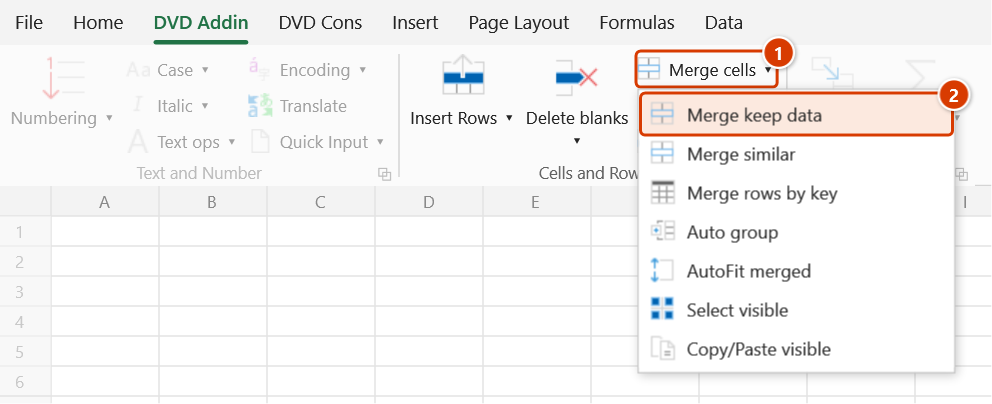
Location on ribbon: Tab DVD Addin → Group Cells and Rows → Menu Merge cells
Command ID: btnMergeKeepData
What it does
Excel's own Merge & Center keeps only the top-left value and throws the rest away. This command merges the selection but concatenates every value into one string, preserving per-character formatting (bold, italic, font colour, superscript and subscript) — exactly what you need when joining quantity descriptions that carry symbols such as m³, H₂O or ø10.
After merging, every cell of the range holds the contents — including the cells hidden under the merged cell — so AutoFilter, COUNTIF and SUMIF by column still see each row, and unmerging leaves data on every row. Cells with the same contents (for example the same date) are not joined: the first cell is kept as is, including its date / number type or formula. Row heights stay as they were before the merge.
If the selection contains merged cells — one or several merged areas, even mixed with plain cells — the command does the opposite: it unmerges each merged area and fills that merged cell's data into the empty cells of the same area (each merged area fills its own data). Only when the selection has no merged cells at all does the command merge. So one shortcut covers both directions.
How to use
- Select the cells to merge. Ctrl-select several separate areas if you like — each area is merged into its own cell.
- Click DVD Addin → Cells and Rows → Merge cells → Merge keep data, or press Ctrl+Shift+Z.
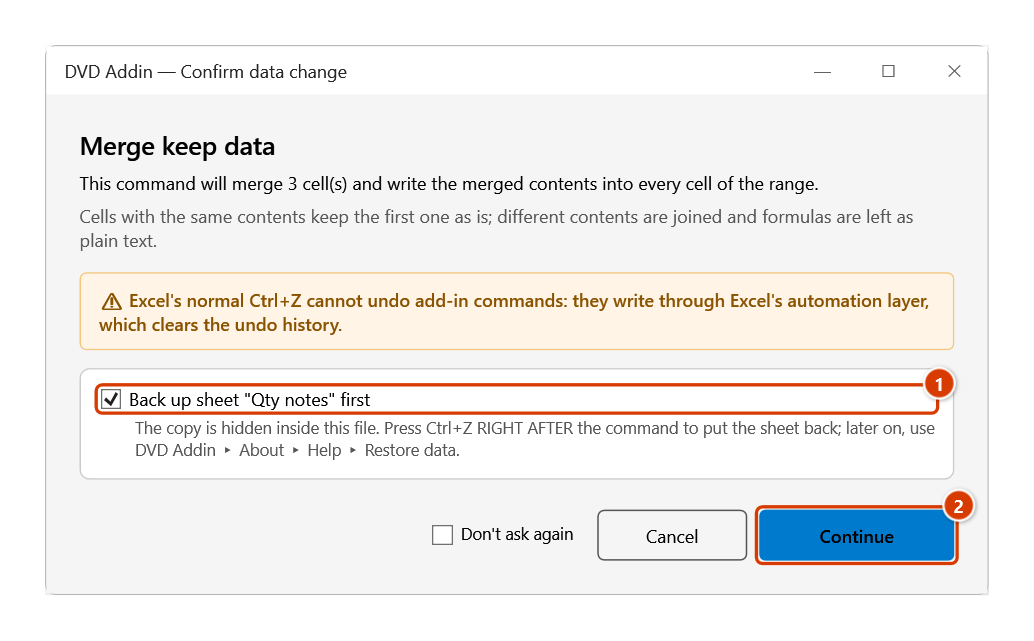
- The Confirm data change window reminds you that different contents are joined and every cell of the range gets the merged contents. Keep the backup ticked and click Continue (a selection that contains merged cells is unmerged and filled without asking — nothing is overwritten).
- For each area: if all non-empty cells show the same text it keeps the first cell and fills empty cells with that value, otherwise it joins the text left→right and top→bottom, turns Wrap Text on and writes the joined text into every cell; then it merges the area keeping every cell's data and puts the row heights back.
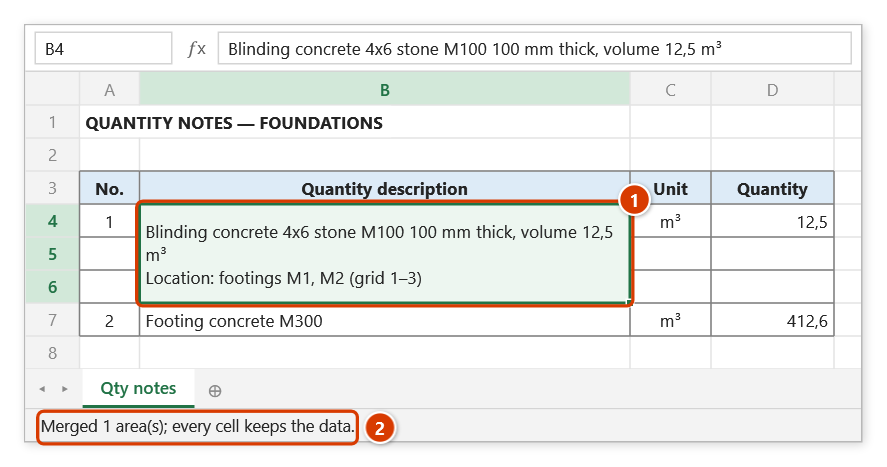
- The status bar reports the result, e.g. "Merged 3 area(s); every cell keeps the data."
- If the selected area is empty, the command simply merges and centres it (horizontally and vertically).
Video tutorial
Narrated in Vietnamese, with Vietnamese subtitles. Gộp giữ data, Gộp ô giống nhau, Gộp dòng theo key · 7 min 18 s · 16 cases · Download the video · Practice workbook for the video
Commands in this video: Merge keep data · Merge rows by key · Merge similar
Chapters (22)
- Giới thiệu
- Mở lệnh
- 1 · Diễn giải nhiều dòng
- 2 · Gạch đầu dòng, ô trống
- 3 · Ô số, ngày, công thức
- 4 · Nhiều vùng rời (Ctrl)
- 5 · Có ô gộp sẵn, dòng ẩn
- 6 · Bấm lại để tách gộp
- Gộp ô giống nhau
- 7 · Cột lặp tên cấu kiện
- 8 · Ô trống, khác dấu cách
- 9 · Gộp tiêu đề theo hàng
- 10 · Cột con và cột cha
- Gộp dòng theo key
- 11 · Tổng hợp theo mã công tác
- 12 · Công thức, ô có chữ
- 13 · Khoá trống, dư dấu cách
- 14 · Dòng đang ẩn
- 15 · Hoàn tác, sheet khoá
- 16 · Khi lệnh không chạy
- Mẹo
- Kết thúc
Illustrated walkthrough
Practice
Download this command's sample workbook — the data matches the pictures below (sheet Qty notes), so you can follow each step right away.
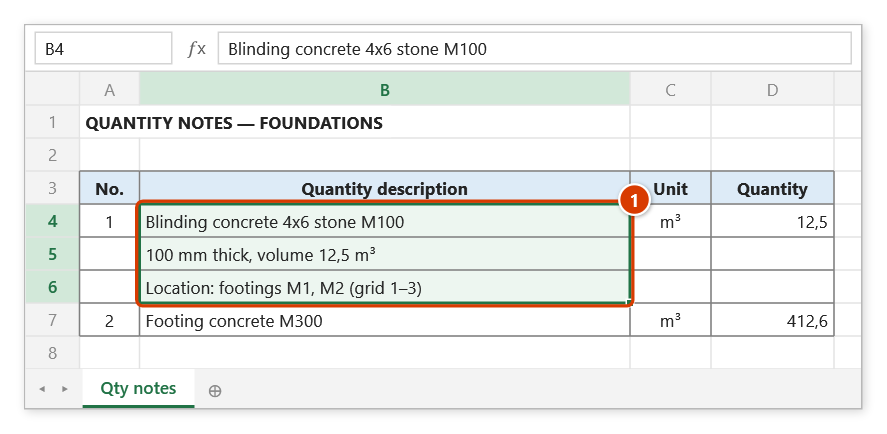
Step 1. Select the cells to merge, for example the three description lines B4:B6 (1). You can Ctrl-select several separate ranges — each one becomes its own merged cell.
Step 2. On the ribbon, open the DVD Addin tab → Cells and Rows group → open Merge cells → choose Merge keep data (or press Ctrl+Shift+Z).
Step 3. The confirmation box reminds you that different contents are joined and every cell of the range gets the merged contents. Keep the backup ticked (1) and click Continue (2).
Step 4. The three cells become one merged, wrapped cell that keeps all the text and its character formatting (such as superscript ³) (1); row heights stay as they were, and all three cells hold the joined contents (filters and counts by column still see every row). A piece starting with a lower-case letter is joined with a space, one starting with a capital goes on a new line. The status bar reports how many areas were merged (2).
Example
A quantity breakdown has three description lines in column C that must go into a single cell of the acceptance form:
| Before (C5:C7) | After Merge keep data (C5:C7) |
|---|---|
Lean concrete 4x6 M100 | Lean concrete 4x6 M100 100mm thick, 12.5 m³Location: footings M1, M2 |
100mm thick, 12.5 m³ | (one merged cell, wrapped) |
Location: footings M1, M2 |
The second line starts with a digit (100mm), so it is joined with a space; the third starts with a capital (Location), so it goes on a new line. The ³ keeps its superscript formatting through the merge.
A piling log has the date in column A, one pile per row: rows 23–29 all read 31/08/2026. Select A23:A29 and run Merge keep data: the merged cell shows the date once (not seven times), row 23 keeps its height, and all seven cells still hold that date — filtering the date column by 31/08/2026 still shows all seven piles, and =COUNTIF(A:A,A23) returns 7.
The other way round, select A27:A49, which holds three merged date areas (03/09, 05/09, 12/09) plus a few plain cells, and run Merge keep data: the three merged areas are unmerged, every row of the 03/09 area gets 03/09/2026, the 05/09 area 05/09/2026, the 12/09 area 12/09/2026; plain cells stay as they are. The status bar says "Unmerged 3 merged area(s); filled data into … cell(s)."
Notes
- A value starting with an uppercase letter is joined with a line break; a value starting with a lowercase letter or a digit is joined with a space. That rule is fixed.
- When the cells differ, each cell's own contents are replaced by the joined text (formulas are left as plain text); the command takes a backup, so Ctrl+Z right after puts the sheet back.
- To keep data in the hidden cells the command briefly inserts an empty column to the right of the range and deletes it again — no clipboard. On a sheet that blocks inserting columns, or a range at the sheet's last column, only the first cell is kept (as with a plain merge) and the status bar says how many areas that happened to.
- Conditional formatting on the hidden cells is dropped, as with Excel's own merge; the merged cell follows the first cell's conditional formatting.
- When unmerging: a merged area that only partly overlaps the selection is still unmerged as a whole (Excel cannot unmerge half of one). Only empty cells are filled — hidden cells that already hold data (for example an area merged by this command) are kept; the filled value carries the merged cell's number format (a date stays a date); row heights stay as they were.
- Number / date cells are joined using their displayed text (the cell's format), not a serial number or a 17-digit value.
- Cells inside an Excel Table (ListObject) cannot be merged; the command names the table and asks you to convert it to a range first (Table Design → Convert to Range).
- Empty cells in the area are skipped, so no blank lines appear in the joined text.
- Hold ESC to stop early — the check happens at area boundaries only, so the area being processed always finishes cleanly.
Related
- Merge similar — auto-merges adjacent cells that repeat the same value, without joining text.
- AutoFit merged — sets the row height so the newly merged text is fully visible.
- Join Merged — lists the addresses of the merged cells in a selection.