
3-Week Lookahead
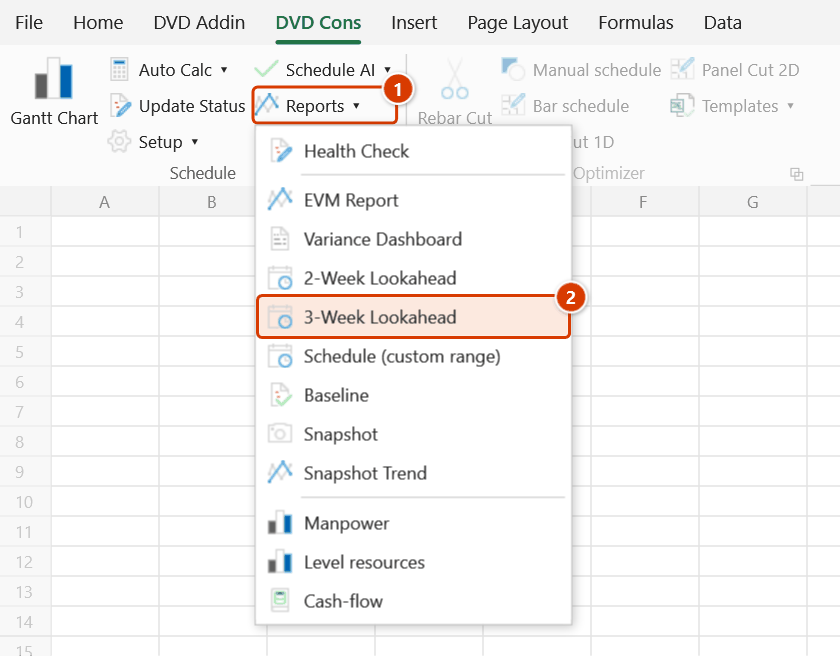
Location on ribbon: Tab DVD Cons → Group Schedule → Menu Reports
Command ID: btnLookahead
PRO feature
This command is part of the PRO plan. STANDARD accounts activated before 01/07/2026 keep access until their licence expires; other Standard accounts get an upgrade prompt when they click it.
What it does
The four-week version of the Lean Construction short-term plan: a 28-day grid covering the past week plus the next three weeks, written to a print-ready A3 landscape sheet. Compared with the two-week version, the longer horizon is what lets you place material orders, mobilise crews and book inspections in time for long-cycle work such as concrete pours, steel erection or façade finishes.
How to use
- Open the schedule sheet with progress updated to today (Start / Finish required; Actual Start / Actual Finish columns are auto-detected when present).
- Go to Tab DVD Cons → group Schedule → menu Reports → click 3-Week Lookahead.
- A data date prompt appears, pre-filled with the date saved in the file (today if none) — click OK. The window is anchored on the week containing that date.
- A new lookahead sheet appears: activity list on the left, 28-day grid on the right. Overdue unfinished activities are listed first.
- Read the cell colours: dark green complete, green in progress, yellow late or not updated, light blue upcoming, red overdue and unfinished (from the window start to the data date). Non-working days of the workbook calendar are shaded grey instead of a status colour.
- Print A3 landscape for the site board, or export a PDF to attach to the weekly meeting minutes.
Video tutorial
Narrated in Vietnamese, with Vietnamese subtitles. Kế hoạch 2 tuần, 3 tuần và khoảng tùy chọn · 6 min 29 s · 12 cases · Download the video · Practice workbook for the video
Commands in this video: 3-Week Lookahead · 2-Week Lookahead · Schedule (custom range)
Chapters (16)
- Giới thiệu
- Mở lệnh
- 1 · Kế hoạch 2 tuần
- 2 · Kế hoạch 3 tuần, chạy lại
- 3 · Ngày dữ liệu giữa tuần
- 4 · Việc nào được đưa vào
- 5 · Ngày nghỉ, ngày lễ
- 6 · Thiếu cột thực tế
- 7 · In A3 và cột Ghi chú
- 8 · Khi không sinh được
- 9 · Khoảng tùy chọn: Gantt thật
- 10 · Giữ ngày thật, không cắt
- 11 · Sheet thiếu cột Cấp
- 12 · Khi nhập sai
- Mẹo
- Kết thúc
Illustrated walkthrough
Practice
Download this command's sample workbook — the data matches the pictures below (sheet Schedule), so you can follow each step right away.
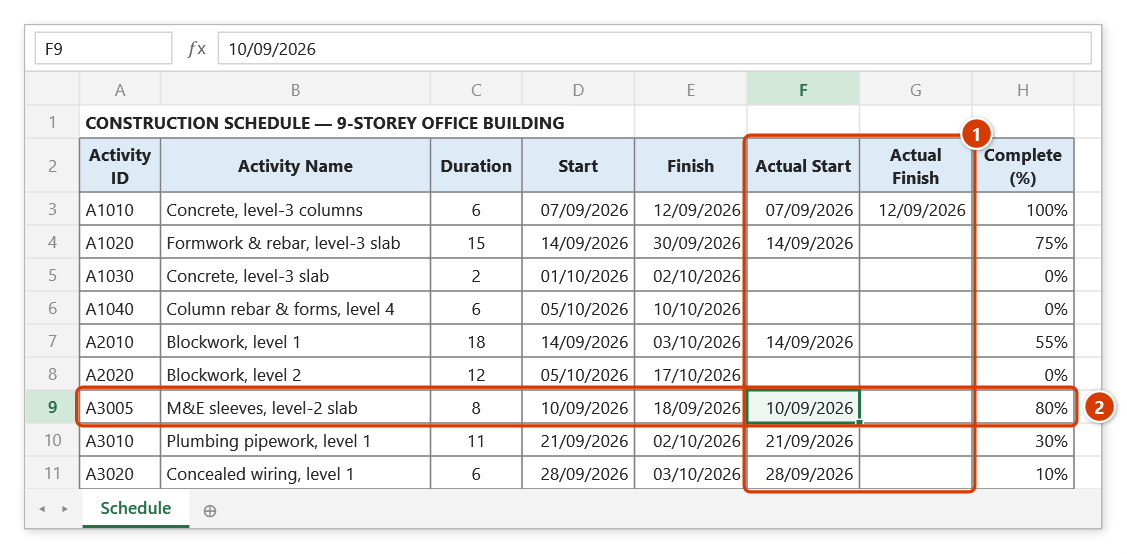
Step 1. Open the schedule sheet with actual dates (1) and % complete updated to today. Activity A3005 (2) was due on 18/09 but is only 80% done — overdue work like this still makes it into the plan.
Step 2. On the ribbon, open the DVD Cons tab → Schedule group → open Reports → choose 3-Week Lookahead.
Step 3. Excel asks for a date in the 3-Week Lookahead box: Status Date (typically today, start of the week): — the box is pre-filled with the data date stored in the file (today if none). Type 28/09/2026 and click OK; the date is saved as the shared data date for the other schedule reports.
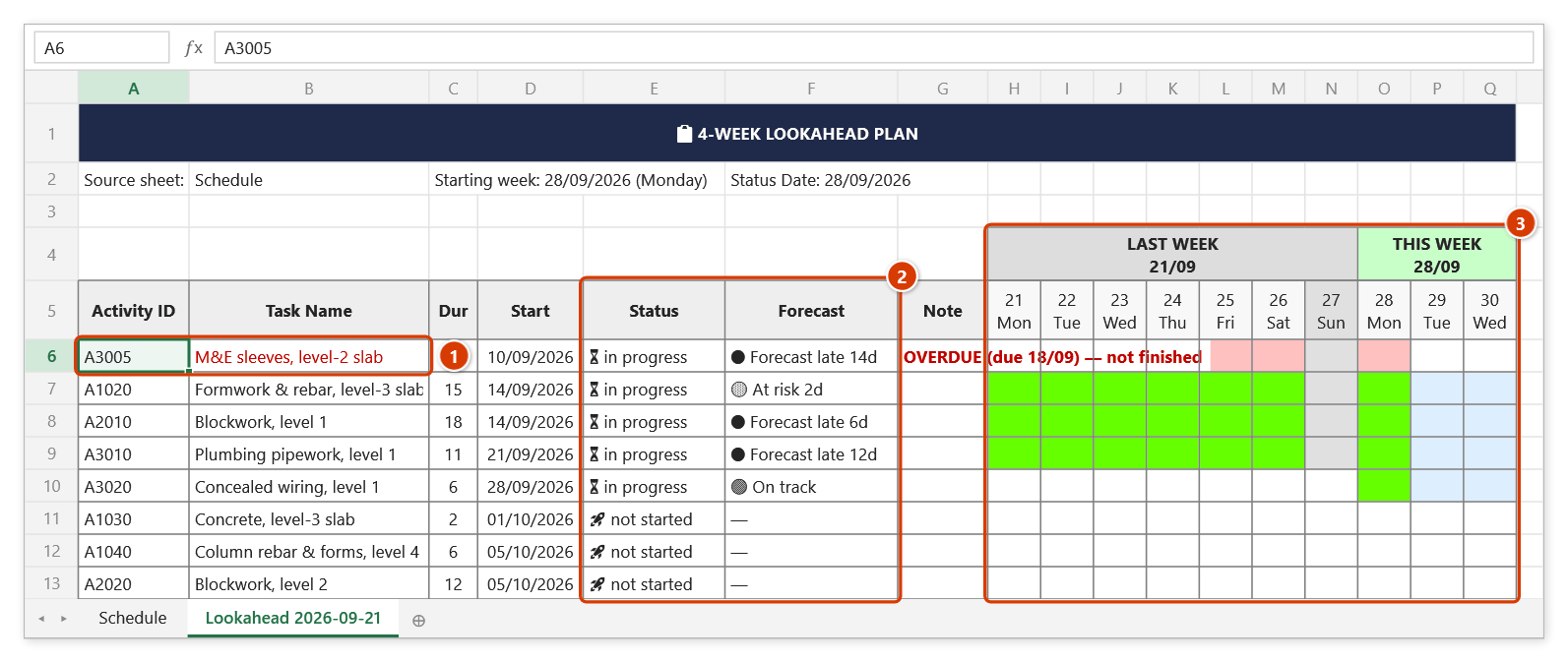
Step 4. The Lookahead 2026-09-21 sheet opens, already set up for A3 landscape on one page. Overdue work comes first with a red note (1); the Status / Forecast columns show which tasks will finish late at the current pace (2); in the day grid (3) green = in progress, light blue = coming up, red = overdue, grey = non-working day. The 28-day grid covers last week (21/09), this week (28/09) and the next two weeks (05/10, 12/10 — scroll right).
Step 5. Press Ctrl+P to print it for the site notice board or export a PDF for the weekly meeting minutes — as the message box reminds you.
Example
A factory project is entering steel erection. On Monday morning the planner runs the command and sees three lifting sequences sitting in week three of the grid (light blue) — meaning the 80-tonne crane booking has to be confirmed this week. At the same time two fireproofing activities show yellow because nobody entered progress, so the supervision team is asked to confirm the actual status before the meeting starts.
Notes
- Shared data date: the date prompt is pre-filled with the data date stored in the workbook (name
dvdDataDate, today if none) and saves the date you pick — the other schedule reports (EVM, Variance, Health Check, Lookahead, Snapshot, Update Status, Recovery) share it, so weekly reports no longer drift apart. - The sheet is a snapshot taken when you click; rerun it every Monday for a fresh one.
- Yellow covers both genuinely late and simply not-updated activities — update progress before printing to avoid arguments.
- Overdue work does not drop off the sheet: an activity whose finish falls before the window but has no Actual Finish and is under 100% is kept, listed first with a red note "OVERDUE (due dd/MM) — not finished", and its cells from the window start to the data date are red.
- Weekly rest days and holidays come from the workbook calendar and are shaded grey, so they are not misread as late or in-progress days.
- Without Actual Start / Actual Finish columns the command still runs, but complete-versus-in-progress detection is weaker.
- It is read-only against the master schedule. Each run creates a new Lookahead + date sheet (
(2),(3)… on a name clash); manual edits on an older sheet are not carried over to the new one. - Page setup targets A3 landscape — with 28 day columns, an A4 print is very hard to read.
Related
- 2-Week Lookahead — the shorter horizon for fast-cycle work, same colour scheme.
- Schedule (custom range) — a real Gantt for any chosen window, for presentations.
- Update Status — refresh progress so activities are not flagged yellow unfairly.
- Manpower — check which of these four weeks is over-loaded on labour.