
Hide Unselected
Location on ribbon: Tab DVD Addin → Group View and Sheets → the ▾ arrow of Sheet List
Command ID: btnHideUnselectedSheets
What it does
Hides every sheet that is not selected in the tab bar, leaving only the group you picked. Instead of right-clicking Hide on sheet after sheet, you select the ones to keep and run one command.
The usual case is sending part of a workbook to the supervision consultant or the client: expose only the sheets they need and hide the intermediate calculations, internal rates and scratch sheets.
How to use
- In the tab bar, select the sheets you want to keep: click the first one, then Ctrl-click the others, or Shift-click to take a contiguous run.
- Go to tab DVD Addin → group View and Sheets → the ▾ arrow of Sheet List → Hide Unselected.
- The add-in records the selected sheet names and hides every other sheet in the workbook.
- The status bar reports "Hid N sheets not in the selected group."
- To bring everything back, run Unhide All.
Video tutorial
Narrated in Vietnamese, with Vietnamese subtitles. Ẩn sheet khác và Hiện tất cả · 5 min 13 s · 10 cases · Download the video · Practice workbook for the video
Commands in this video: Hide Unselected · Unhide All
Chapters (14)
- Giới thiệu
- Mở lệnh
- 1 · Chọn nhóm bằng Ctrl
- 2 · Chọn dải liền bằng Shift
- 3 · Quên chọn nhóm
- 4 · Hiện tất cả: file nhận về
- 5 · Sheet vốn đã ẩn
- 6 · Sheet biểu đồ
- 7 · Sổ khoá cấu trúc
- 8 · Sheet Rất ẩn
- 9 · Bẫy: Rất ẩn thành ẩn thường
- 9 · Cách tránh
- Mẹo
- Kết thúc
Illustrated walkthrough
Practice
Download this command's sample workbook — the data matches the pictures below (sheet Tonghop), so you can follow each step right away.
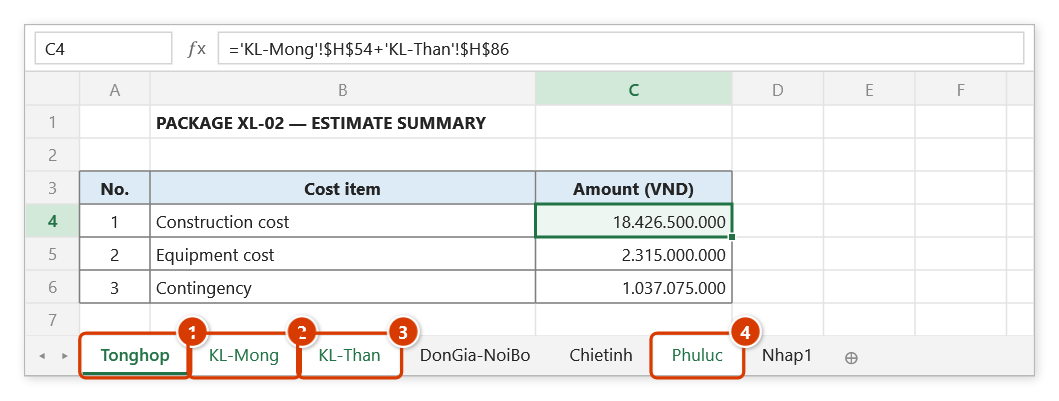
Step 1. In the tab bar, select the sheets you want to keep: click Tonghop (1), then Ctrl-click KL-Mong (2), KL-Than (3) and Phuluc (4) (Shift-click takes a contiguous run). Here DonGia-NoiBo, Chietinh and Nhap1 are internal figures that must not leave the office.
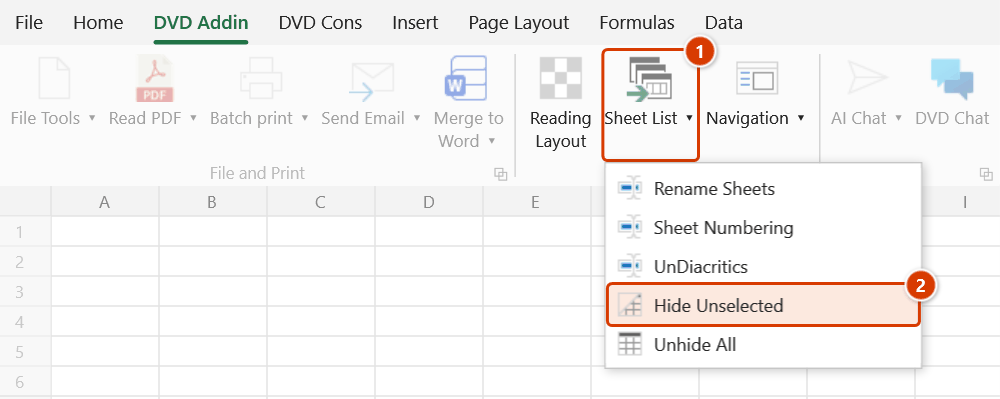
Step 2. On the ribbon, open the DVD Addin tab → View and Sheets group → open Sheet List → choose Hide Unselected.
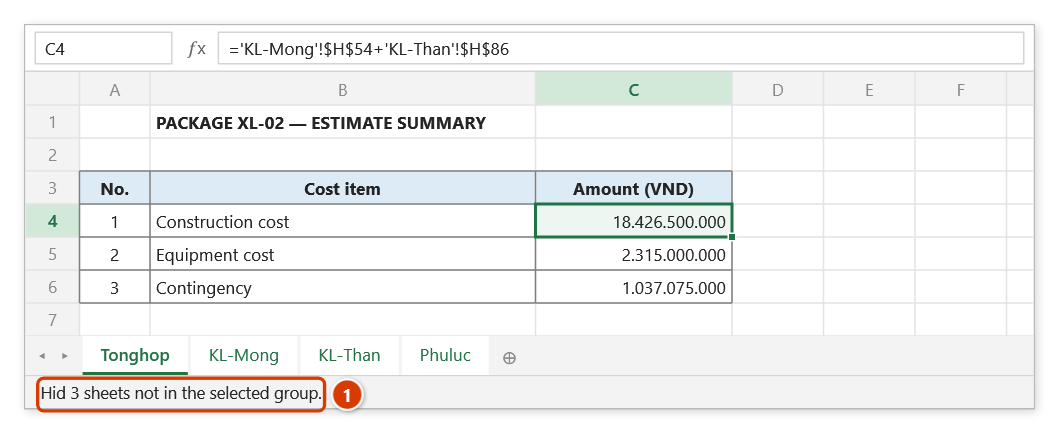
Step 3. The command runs at once with no prompt: every sheet outside the selected group is hidden and the tab bar keeps only the 4 sheets to send (still grouped). The status bar reports how many sheets were hidden (1). These are ordinary hidden sheets — the recipient can still Unhide them; to bring them all back, use Unhide All.
Example
A contractor's estimate workbook has 18 sheets, of which DonGia-NoiBo, Chietinh, Nhap1 and Nhap2 hold figures that must not leave the office.
Ctrl-click the four sheets to submit — Tonghop, KL-Mong, KL-Than, Phuluc — then run Hide Unselected. The other 14 tabs disappear at once and the file is ready to be saved as an outgoing copy without deleting anything.
Notes
- You must select first: with a single sheet active, every other sheet in the book is hidden.
- Excel will not let a workbook end up with no visible sheet; hiding the last visible one simply fails without a message.
- These are ordinary hidden sheets — the recipient can right-click and choose Unhide. This is not a security measure.
- The command processes worksheets only; chart sheets are outside its scope.
- Hold ESC to stop partway; sheets already hidden stay hidden. The change cannot be undone with Ctrl+Z.
Related
- Unhide All — the reverse operation, reveals everything again.
- Selected Sheets to PDF — export exactly the sheets currently selected.
- Sheet List — the index only lists sheets that are visible.
- Navigation — hide and show individual sheets from the manager pane.