
Column/wall shapes from DWG
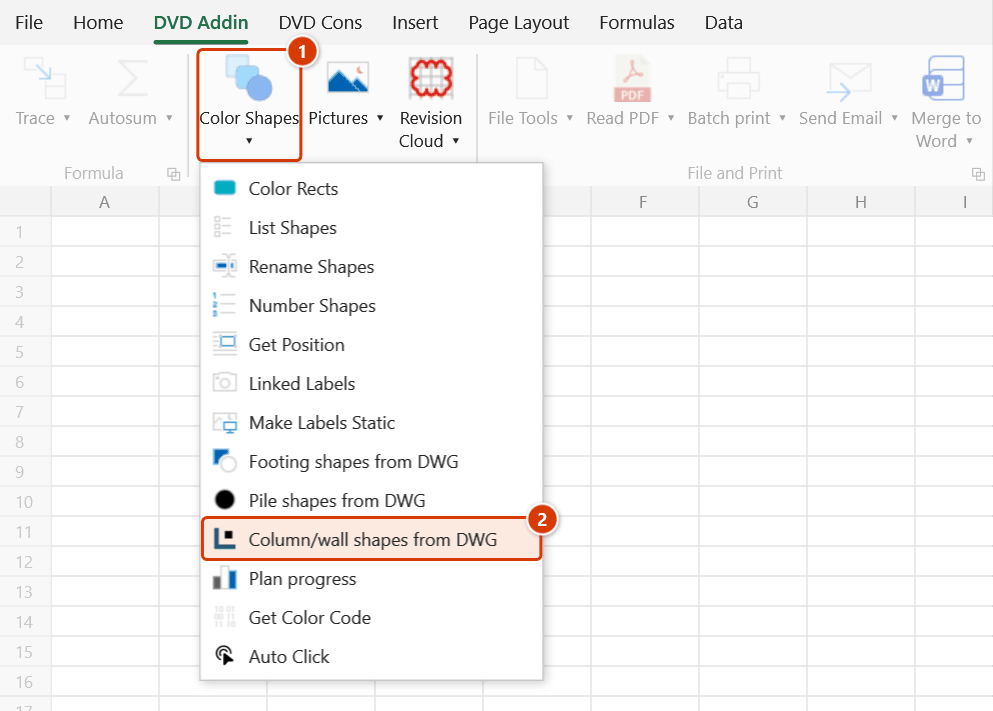
Ribbon location: Tab DVD Addin → Group Graphics → the ▾ arrow of Color Shapes
Command ID: btnColumnsWallsFromDwg
PRO feature
This command is part of the PRO plan. STANDARD accounts activated before 1 Jul 2026 keep using it until their license expires; other Standard accounts see the upgrade dialog.
What it does
Tracking concrete pours for columns and walls on a plan needs one shape per column and per wall segment — drawing hundreds of thin rectangles by hand is slow and never quite lines up. This command builds the whole set from the original DWG (or DXF) of the column/wall plan, through the same pipeline as Footing shapes from DWG and Pile shapes from DWG:
- it reads the drawing and finds columns and walls as closed outlines — closed polylines, hatch areas, loose LINEs that close up on a column/wall layer, MLINEs (outline of the two outer lines) or wide polylines (open lines drawn 90–1000 mm wide: the width is the wall thickness) — that are hatched (concrete pattern) or sit on a layer named for columns/walls (
COLUMN,WALL,COT,VACH,TUONG,LOI THANG… — any case, with or without Vietnamese accents). Drawings without such layer names still work through the hatch; hatches on beam, slab, opening, footing, pile, tie-beam, furniture, railing, detail, grid… layers are ignored, and so is any layer whose name starts with a non-structural discipline code (A-WALL,A-COLS,I-FURN,KT-…,M-/E-/P-…) — architectural masonry walls referenced into the structural drawing do not become walls. A first letter followed by a digit, as inL1-COTorM2_VACH, is a floor / zone name, not a discipline code. A polyline and the stacked hatches of the same column (concrete + cross-hatch) merge into one element; - it tells columns from walls by section: a rectangle longer than 4× its thickness (the TCVN 5574 wall rule) and no thicker than 1 m is a wall; otherwise, up to 3 m long, it is a column. Round columns (a round hatch, or a CIRCLE on a column layer) and L, T and cross-shaped columns (polygons up to 2 m across) are found too; larger slender polygons (equivalent thickness up to 1 m) are L, U walls and lift cores. The layer name wins over geometry: a shape on a wall layer is always a wall, a shape on a column layer always a column (unless longer than 3 m);
- drawings with several plans (for example Level 1 wall plan and Pipe penetration plan sharing the same grid on one A1 sheet): the command splits plans by grid cluster and ticks the plan that best matches the picture — when several plans have columns or walls (say one file holding the pile, footing and level 2 column sheets on the same grid), it tries matching each plan against the picture on the sheet and keeps the best one, and section ② says which plan it picked (plans with the same grid names get · sheet 2/3…); elements of the other plans are listed but unticked, the Label column saying Another plan (5-10…5-15 × 5-A…5-D). Elements outside every grid (details, legends) are unticked too;
- it assigns the marks written next to the elements —
C1,K2A,CT1.2,V1,VC2,W400(1),SW-3,CW…: wall-family marks (starting withW/V, or ending inWlikeSW,CW) go to walls only, column-family marks (starting withC/K) to columns only — footing, ground-beam and pile marks (F…,FB…,P…) next to column necks on a footing plan are not taken — aW400(1)written along a wall is not taken by the column next to it. Marks tied to an element by a leader (LEADER or MULTILEADER) follow the leader, however far they sit (aCW1.8 m from its column). A long wall marked with the same text in several places still counts as a sure mark. If the drawing does not mark its columns, the list does not flag each column — one warning says so; - it matches the drawing onto the plan picture on the sheet (pictures stretched differently in X and Y, or cropped, still match), shows a preview, then draws true-section shapes: rectangles for columns and straight walls, circles for round columns, polygons for L/T/U columns and walls;
- shape names: columns
C1,C2…, wallsV1,V2… — two separate sequences in reading order (top to bottom, left to right); Alt Text = mark and section (C1 · column 500×700,W400(1) · wall 400 · length 37100,column D600). Walls are created first and columns after them, so a column inside a wall stays on top and can be clicked.
The new shapes are grouped with the picture (a new group named <old name> + Cột vách DWG), so changing row heights or column widths moves them with the picture instead of letting them drift.
How to use
- Open the sheet with the column/wall plan picture. Select the picture (or the group holding it) — with nothing selected the command takes the largest picture on the sheet. A picture of the whole sheet cropped down to the plan you track works best.
- Go to tab DVD Addin → group Graphics → the ▾ arrow of Color Shapes → Column/wall shapes from DWG.
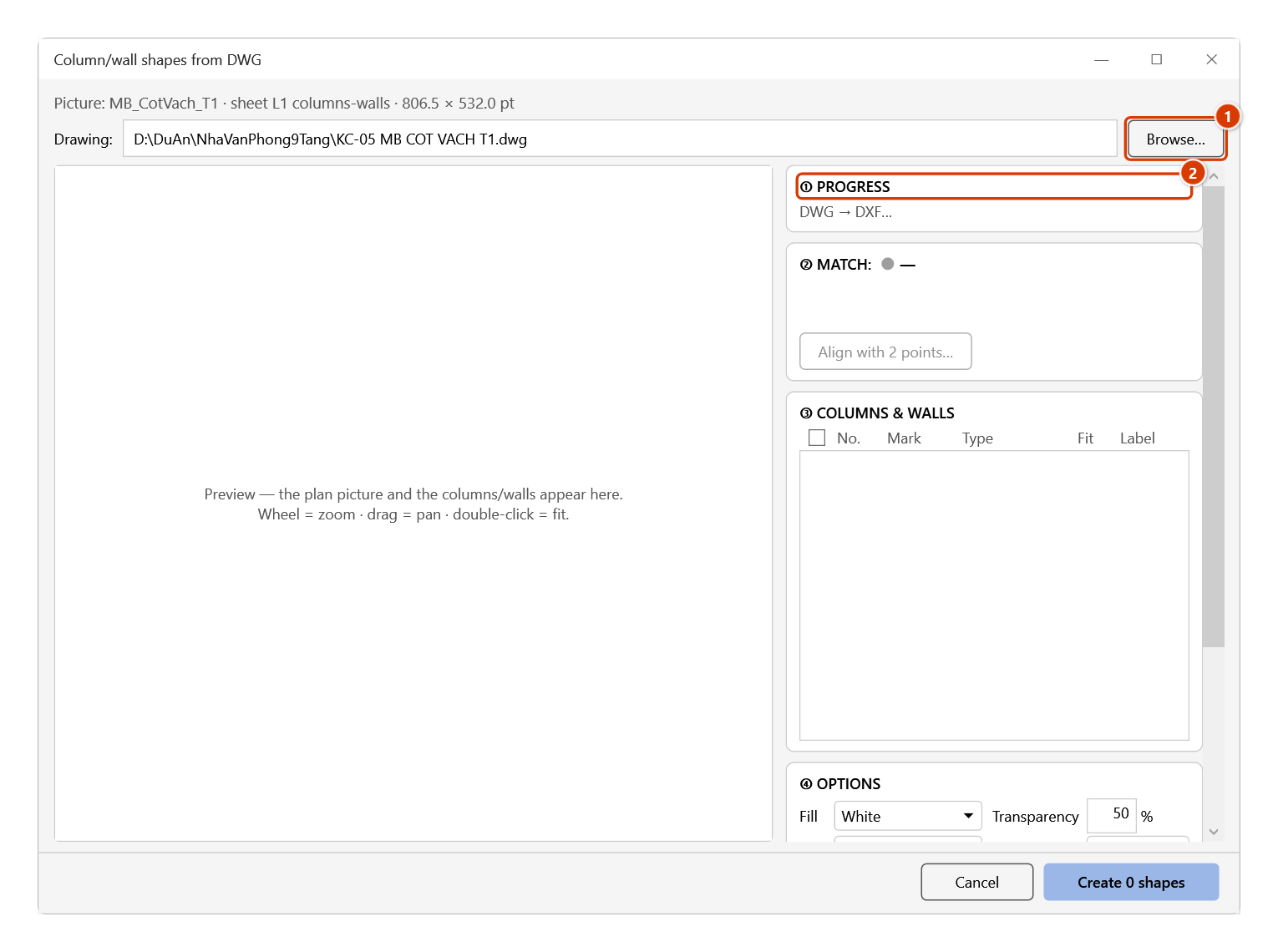
- Click Browse… to pick the original .dwg or .dxf (or paste a path and press Enter, or drag the file onto the dialog). The column/wall command remembers its own file and options, separate from the footing and pile commands.
- Watch the Progress panel: read picture → DWG → DXF → detect → match. DWG files are converted by AutoCAD Core Console in the background — no CAD window opens.
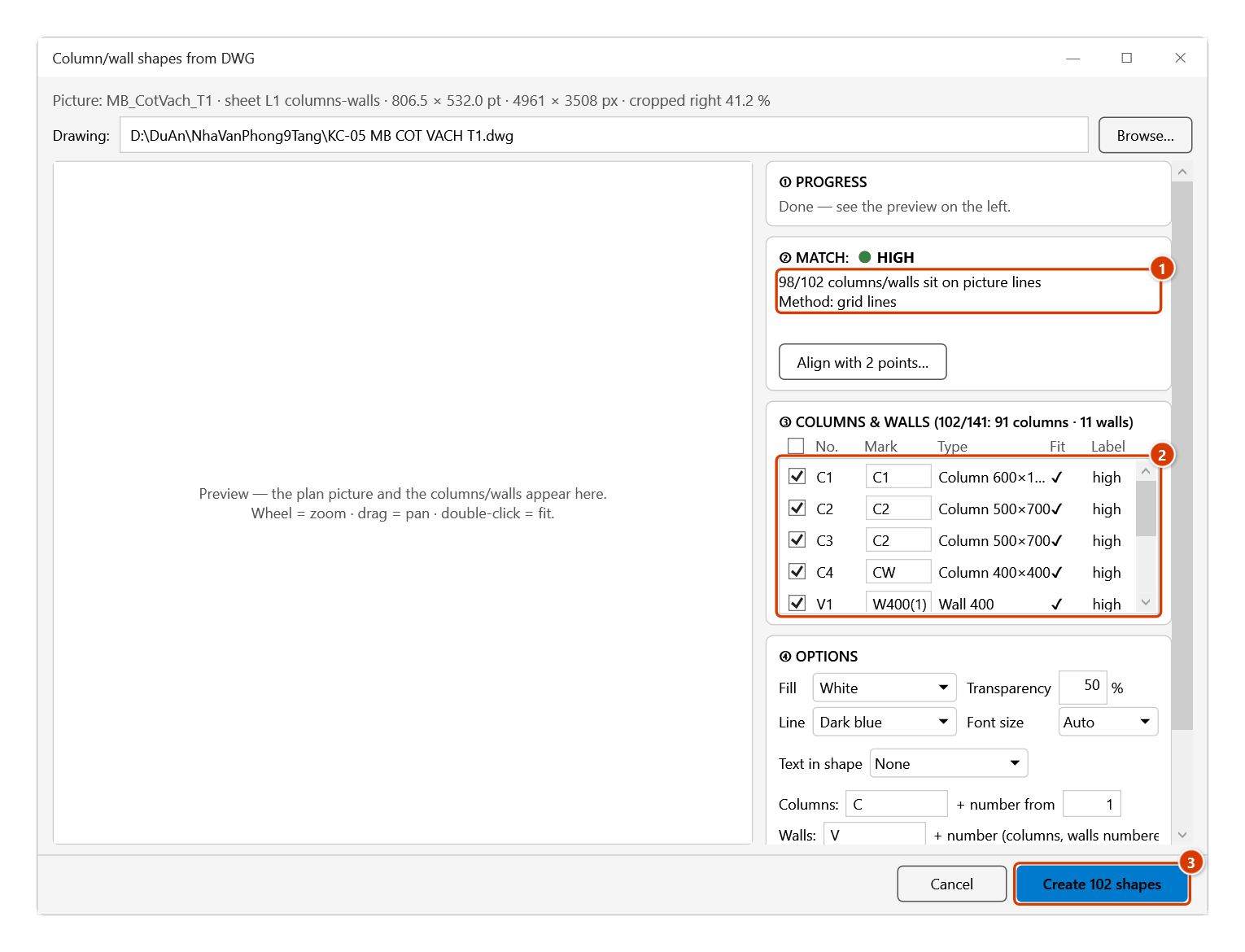
- Check the Match level — High enables Create right away; Medium asks you to check the preview and tick I checked the preview, positions are right; Low switches to Align with 2 points (click one grid intersection on the picture, then the same one on the DWG, two pairs at opposite corners).
- In the Columns & walls list: the title counts the ticked columns and walls (for example
③ COLUMNS & WALLS (102/141: 91 columns · 11 walls)); the No. column shows the shape name to be created (C1,V3…), the Type column the section (Column 500×700,Column D600,Wall 400). Untick what you do not need; tick elements of another plan if you want them. The Mark cell is editable (it goes to Alt Text). - Set the Options:
- fill colour (white by default, 50 % transparent — so progress colours show through) and line colour;
- Text in shape: None (default — columns are often only a few points wide on the picture), Mark (C1, W400) or Sequence number. With text on, Font size is enabled: Auto picks one size for the whole set in 1–8 pt so the text fits the smallest element;
- Columns prefix (default
C) and Walls prefix (defaultV) + number from (default 1) — the two prefixes must differ; - Group with the picture (keep it on).
- Click Create N shapes. Hold ESC to stop midway — the command removes every shape it just created, never leaving half a set.
Video tutorial
Narrated in Vietnamese, with Vietnamese subtitles. Tạo shape cột vách từ DWG · 4 min 51 s · 11 cases · Download the video
Chapters (15)
- Giới thiệu
- Mở lệnh
- 1 · Ảnh mặt bằng cột và tệp bản vẽ
- 2 · Phân tích: 75 cột, khớp Cao
- 3 · Lệnh nhận cột, vách thế nào
- 4 · Danh sách: tên C1, tiết diện
- 5 · Cột không ký hiệu, cột lồng nhau
- 6 · Sửa ký hiệu
- 7 · Tên cột, tên vách: hai dãy riêng
- 8 · Tạo shape, bảng tiến độ
- 9 · Tệp gom nhiều khổ
- 10 · Chạy lại, gỡ bộ
- 11 · Không nhận ra cột vách nào
- Mẹo
- Kết thúc
Illustrated walkthrough
Step 1. Open the sheet with the column/wall plan picture (ideally a full-sheet picture cropped to the plan you track) and click the picture. With nothing selected, the command takes the largest picture on the sheet.
Step 2. On the ribbon, open the DVD Addin tab → Graphics group → open Color Shapes → choose Column/wall shapes from DWG.
Step 3. Click Browse… (1) to pick the original .dwg or .dxf (or paste a path and press Enter, or drag the file onto the dialog). The column/wall command remembers its own file and options. The Progress panel (2) runs: read picture → DWG → DXF → read drawing → detect columns/walls → match to picture; a DWG is converted by AutoCAD Core Console in the background.
Step 4. With a High Match (1) the Create button is enabled at once. In the Columns & walls list (2) the No. column is the shape name to be created (C1, V3…) and Type is the section; elements of another plan on the same drawing sheet are unticked. Marks are editable (written to Alt Text). In the ④ Options card the Columns / Walls prefixes default to C and V (numbered separately); click Create 102 shapes (3).
Step 5. The add-in creates shapes with the true sections — rectangles for columns and straight walls, circles for round columns, polygons for L, T, U columns/walls — named C1 … C91 and V1 … V11, Alt Text holding the mark and section (C1 · cột 500×700), grouped with the picture; walls are created first so a column inside a wall can still be clicked. Ready for Plan progress.
Example
Drawing TNCOF.01-24-DW-S-05 — Auxiliary building 1 — Level 1 wall plan (A1, 1:200): grid 5-1…5-15 × 5-A…5-F with 600×1200, 500×700, 400×600 and 500×1000 columns on layer G05_Column (closed polylines + two hatches, ANSI32 and AR-CONC), a water-tank block of 11 walls 400 and 300 thick on layer G06_Wall marked W400(1), W400(2), W300, and 14 400×400 columns inside the walls tied to CW texts by leaders; the same sheet also holds a Pipe penetration plan that redraws the tank block on grid 5-10…5-15 × 5-A…5-D.
The plan picture on the sheet is cropped to the level 1 wall plan. Run the command and pick the DWG: the list has 141 rows — 91 columns + 11 walls of the main plan ticked, the 39 elements of the pipe penetration plan unticked; the 14 400×400 columns carry CW, every wall the right W400(1) / W400(2) / W300. Match High (98/102 elements on picture lines). Click Create 102 shapes: C1…C91 and V1…V11 grouped with the picture, ready for Plan progress.
Notes
- After a clean run (no warnings) the add-in offers to create the progress tracking table (Plan progress) for the new shapes; a plan that already has a table gets rows added for the new shapes, statuses you entered are kept.
- Reading DWG needs a full AutoCAD no older than the file format (files saved by AutoCAD 2018 or later need AutoCAD 2018+), or the ODA File Converter; otherwise save the drawing as DXF and pick the .dxf. The details (AutoCAD LT, GstarCAD, ZWCAD, rotated/flipped pictures, .xls workbooks, password-protected workbooks) are the same as for footings — see the Notes of Footing shapes from DWG.
- Walls drawn as MLINE or wide polylines are read directly — do not explode them (exploding drops the width and leaves only the centre line). A closed MLINE (a core) gives one wall per segment. A closed wide polyline (bold outline) is still read as a closed outline; lines narrower than 90 mm count as bold plotting. The summary says how many walls came from MLINE / wide lines and how many were skipped.
- Not supported yet: unhatched columns/walls drawn with loose lines on a layer not named for columns/walls (indistinguishable from table frames and details); walls with openings drawn as one hatch with holes (the outer boundary is used). Each wall segment drawn as its own outline becomes one shape — a continuous wall drawn as one polygon becomes one shape. A column drawn over a wall gets both shapes: the wall and the column on top.
- Column marks usually repeat by type (
C1×20), so shape names are not taken from marks but numbered — the mark is in Alt Text and in the Mark column of List shapes. - Re-running with Replace the existing set keeps the column prefix, wall prefix and start number of the old set, so a progress table that looks shapes up by name keeps working (reading order does not change while the drawing does not).
- Number shapes refuses to run when the selection holds shapes of a column/wall set made from DWG: renaming them
1,2,3… would wipe theC…/V…names that the progress table, linked labels anddvdColorShapeslook up. - The three DWG commands never touch each other: Replace and Remove this set of the column/wall command only see column/wall sets — footing and pile sets on the same sheet are left alone. If the picture already belongs to a footing or pile set's group, the column/wall set gets its own group
Cột vách DWG …over the picture, with a warning line. - Ctrl+Z cannot undo it. To remove: run the command again and click Remove this set — the command asks once before removing; only the shapes this command created are removed, and if the set sat in the picture's group, that group goes back to how it was. If no set belongs to the selected picture, the button reads Remove all N sets — it removes the sets of OTHER pictures on the sheet, and the question lists each one.
- If the sheet protects drawing objects (Protect Sheet), unprotect it first.
Related
- Footing shapes from DWG — the same pipeline for footing plans.
- Pile shapes from DWG — the same pipeline for pile plans.
- Plan progress — a status table per column and wall that colours the plan.
- Color shapes — bulk colouring from a name → colour table.
- Linked labels — attach pour-date / status cells to the column/wall shapes by name.