
Auto Click
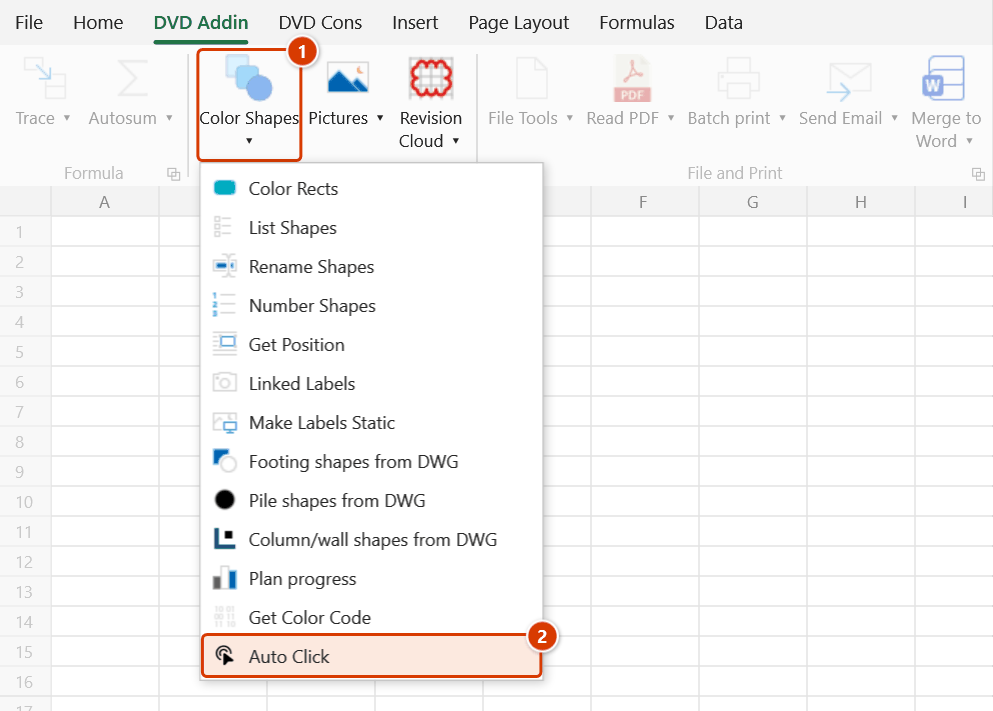
Location on ribbon: Tab DVD Addin → Group Graphics → the ▾ arrow of Color Shapes
Command ID: btnAutoClick
License required
This command needs a valid DVDAddin account (Standard or PRO). It is fully available during the Trial period.
What it does
Auto Click records every mouse click you make together with its screen coordinates and timing, stores them as a table on a dedicated sheet named AutoClick, then replays that exact sequence for as many loops as you configure.
It covers the repetitive work that has no "run in bulk" button: stepping through page after page in an estimating package to export reports, ticking hundreds of approval rows in a document-control portal, or repeating a click sequence in design software with no macro support.
How to use
- Go to tab DVD Addin → group Graphics → the ▾ arrow of Color Shapes → Auto Click. The Auto Click — record and replay mouse clicks window opens.
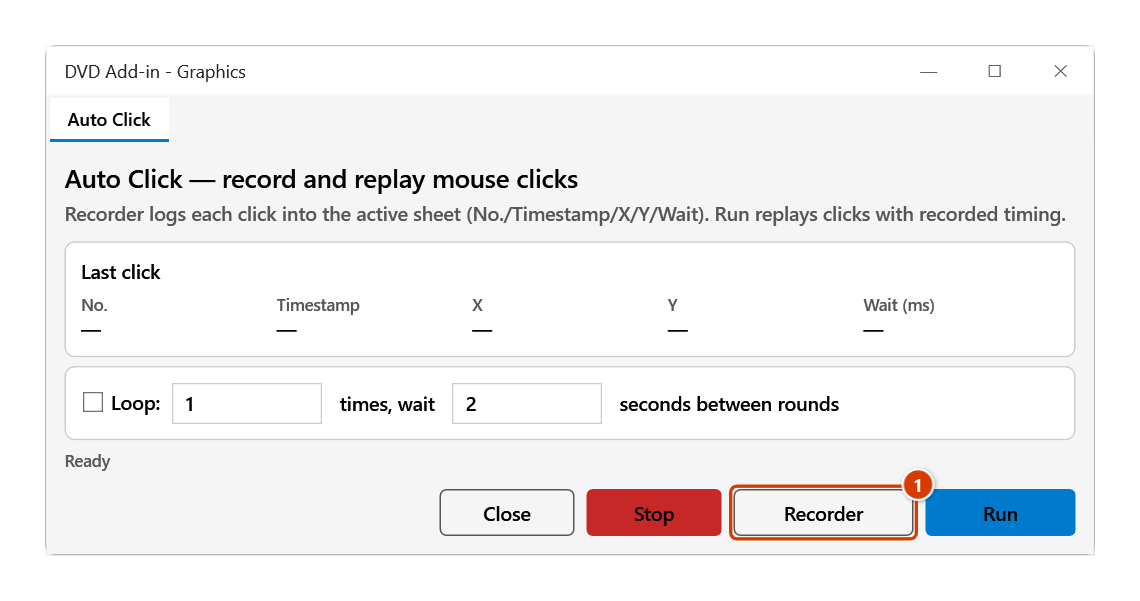
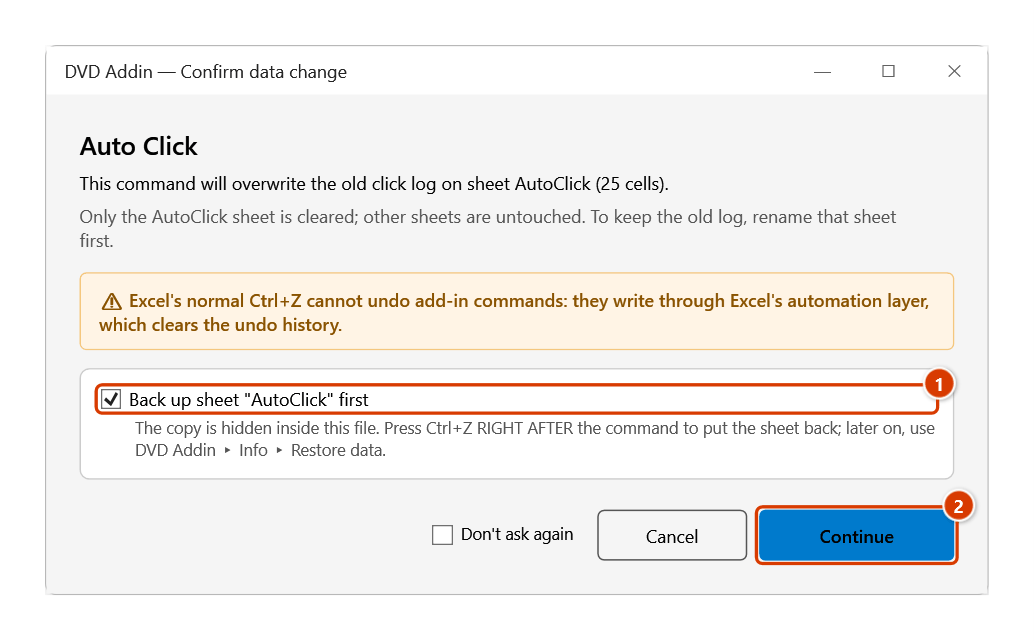
- Press Recorder to start capturing. The click table goes to the workbook's AutoClick sheet (created if it does not exist yet). If the AutoClick sheet already holds an old click log, the Confirm data change window asks before clearing it — keep the backup ticked if you want Ctrl+Z right afterwards to bring it back, then click Continue.
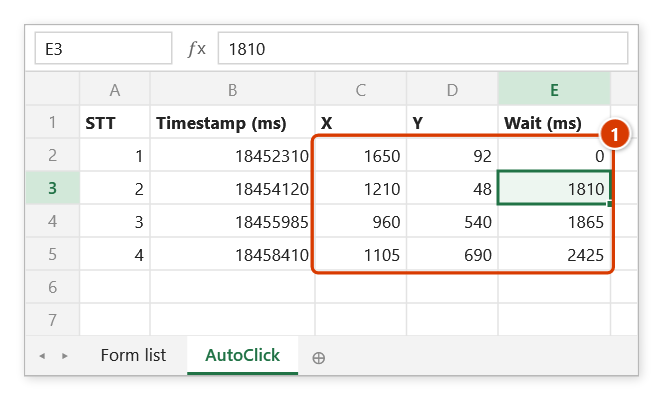
- Perform the sequence you want to repeat in the target application. The Last click field shows the coordinates just captured, and each click is appended to the AutoClick sheet as a row with the columns No. / Timestamp / X / Y / Wait (ms). Clicks on the Auto Click window itself (Stop, Recorder, the input boxes…) are not recorded; every other click, the first one included, is recorded.
- Stop recording in any of three ways: press Recorder again, press Stop, or press ESC — from any window.
- If needed, edit the X / Y / Wait (ms) values directly on the AutoClick sheet to fine-tune positions or delays. Wait (ms) is the pause before that row's click; the first row is
0. - Tick the Loop: box, then enter how many times to repeat and how many seconds between rounds — unticked, the command runs one round only and ignores both numbers.
- Press Run to replay: before each click the command waits the recorded Wait (ms), then clicks. The status line (initially Ready) shows progress; press Stop or ESC (from any window) to interrupt at any moment.
Video tutorial
Narrated in Vietnamese, with Vietnamese subtitles. Auto Click · 6 min 07 s · 12 cases · Download the video · Practice workbook for the video
Chapters (18)
- Giới thiệu
- Mở lệnh
- Cửa sổ Auto Click
- 1 · Ghi chuỗi click
- 2 · Ba cách dừng ghi
- 3 · Sửa toạ độ, thời gian chờ
- 4 · Chạy một vòng, lặp nhiều vòng
- 5 · Dừng khẩn cấp bằng ESC
- 6 · Ghi lại – xoá nhật ký cũ
- 7 · Giữ nhiều chuỗi click
- 8 · Lập chuỗi bằng công thức
- 9 · Dòng bị bỏ qua, dòng ẩn
- 10 · Nhấp đúp, chuột phải, phím
- 11 · Toạ độ màn hình
- 12 · Khi lệnh không chạy
- Tập ngay trên Excel
- An toàn
- Kết thúc
Illustrated walkthrough
Practice
Download this command's sample workbook — the data matches the pictures below (sheet AutoClick), so you can follow each step right away.
Step 1. On the ribbon, open the DVD Addin tab → Graphics group → open Color Shapes → choose Auto Click.
Step 2. The Auto Click window opens. Click Recorder (1), then perform the click sequence to repeat in the target program — Last click shows the coordinates just captured. Stop recording with Recorder, Stop or the ESC key (from any window). Clicks on the Auto Click window itself are not recorded.
Step 3. If the AutoClick sheet already holds an old click log (from a previous recording), clicking Recorder shows a confirmation before that log is cleared: keep the backup ticked (1) to get it back with Ctrl+Z, then click Continue (2). To keep the old log for good, rename that sheet first.
Step 4. Each click becomes a row on the separate AutoClick sheet (created if missing). Edit X / Y or Wait (ms) — the delay before that row's click — directly to fine-tune (1).
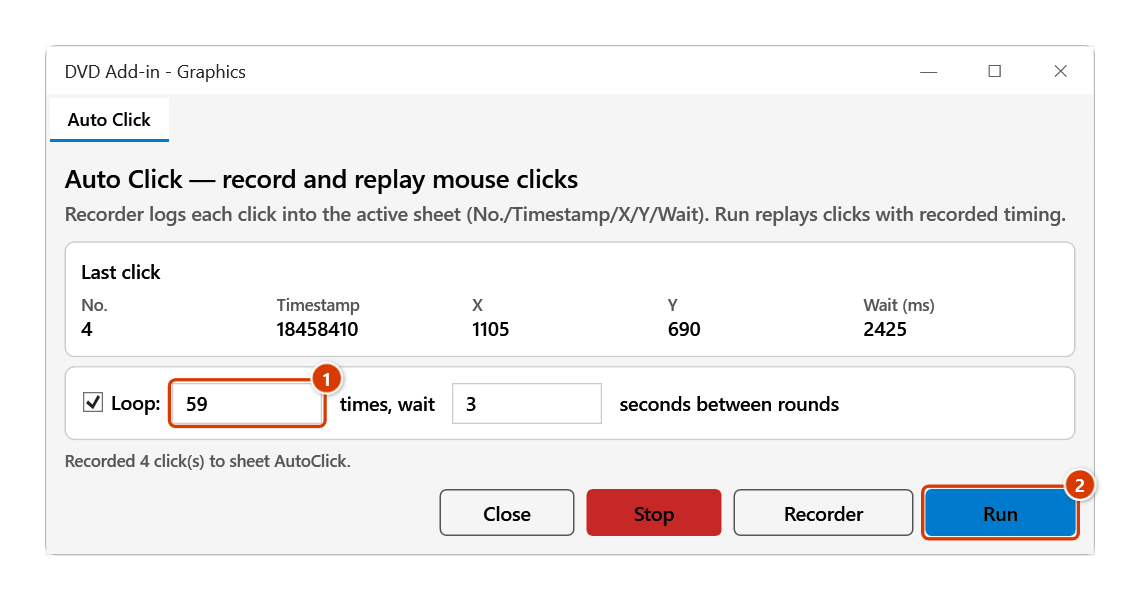
Step 5. Tick Loop:, enter the number of rounds and the seconds to wait between rounds — for example 59 times, wait 3 seconds for the remaining 59 forms (1) — then click Run (2): before each click the command waits exactly the recorded Wait (ms). Click Stop or press ESC to break off at any time — try a small number of rounds before a long run.
Example
You have to export 60 inspection records from a QA/QC application, and each one takes the same four clicks: the "next record" arrow → Print → pick the PDF printer → Save.
Open Auto Click, press Recorder, perform the four clicks for the first record, press Recorder again (or ESC). The AutoClick sheet now holds four coordinate rows. Tick Loop:, set 59 times, wait 3 seconds between rounds and press Run — the sequence repeats for the remaining 59 records.
Notes
- Replay uses absolute screen coordinates: do not move or resize the target window, and do not change screen resolution or display scaling between recording and running, or the clicks will land in the wrong place.
- The click table is only ever written to the dedicated AutoClick sheet; other sheets are never cleared or overwritten. An old click log on the AutoClick sheet is cleared only after you confirm.
- When you press Run, if the active sheet is a click log (headers X / Y in
C1:D1) that log is replayed; otherwise the command reads the AutoClick sheet. So you can keep several click sequences on different sheets and open the right one before running. - Recorded points that fall on the Auto Click window itself are skipped during replay.
- While it runs the program drives your mouse; press ESC (from any window) or Stop to interrupt, and allow enough seconds between rounds for the target application to respond.
- Only mouse clicks are simulated, not keystrokes — steps that require typing cannot be automated with this command.
- The clicks are real clicks delivered to whatever window sits under the cursor; test with a small loop count before running against live data.
Related
- Batch Print — if the repetitive job is printing or exporting PDFs from Excel, use this instead of simulated clicks.
- Capture and Annotate — grab the screen to document exactly where the clicks must land.
- Quick Actions — keep your frequently used commands within one click.