
Capture and Annotate
Location on ribbon: Tab DVD Addin → Group Graphics → the arrow next to Pictures
Command ID: btnScreenAnnotate
What it does
The command captures any region of the screen and immediately opens an annotation window where you can draw on it: pen, highlighter, line, arrow, rectangle, ellipse, cloud, polygon cloud, polyline, text, note, callout and blur (the Select tool lets you adjust what you drew). When you are done you can Copy it to the clipboard, Save… it as a file, or Insert into Excel straight into the active cell.
It suits marking up a drawing open in CAD or a PDF viewer, circling a discrepancy in a quantity sheet before sending it to the consultant, or capturing a software error with an arrow pointing at it — no more screenshot-then-Paint round trip.
How to use
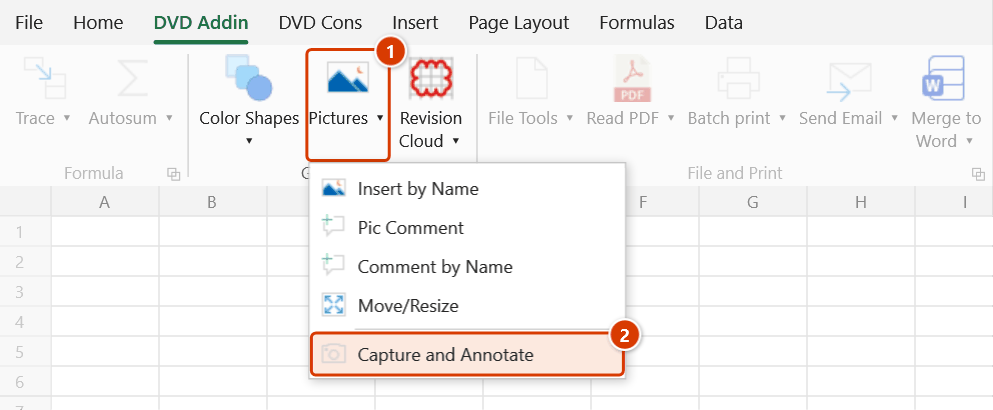
- Press the global shortcut Ctrl+Alt+S from any window, or go to tab DVD Addin → group Graphics → the arrow next to Pictures → Capture and Annotate.
- By default Excel is minimised so it does not cover what you want to capture, then the region-select overlay appears.
- Drag to select the region. Excel is restored as soon as the capture is taken.
- The Screenshot and annotate window opens with the captured image — choose a tool (Select, Pen, Highlight, Line, Arrow, Rect, Ellipse, Cloud, Cloud (poly), Polyline, Text, Note, Callout, Blur), set Colour…, Width: and Size:, and draw.
- Finish one of three ways: Copy (paste into Word, Zalo, email…), Save… (export as an image file), or Insert into Excel — the annotated image is placed into the active cell of the sheet.
Video tutorial
Narrated in Vietnamese, with Vietnamese subtitles. Chụp và Ghi chú · 5 min 43 s · 12 cases · Download the video · Practice workbook for the video
Chapters (17)
- Giới thiệu
- Mở lệnh
- Cửa sổ ghi chú
- 1 · Chèn ảnh vào biên bản
- 2 · Chụp kèm cửa sổ Excel
- 3 · Huỷ khi đang chọn vùng
- 4 · Mũi tên, khung, mây
- 5 · Đa đoạn, mây đa giác
- 6 · Chữ, ghi chú, chú dẫn
- 7 · Tô sáng và làm mờ
- 8 · Sửa hình đã vẽ
- 9 · Hoàn tác trong cửa sổ
- 10 · Sao chép hoặc lưu file
- 11 · Khi không chèn được
- 12 · Đổi phím tắt
- Mẹo
- Kết thúc
Illustrated walkthrough
Practice
Download this command's sample workbook — the data matches the pictures below (sheet Minutes), so you can follow each step right away.
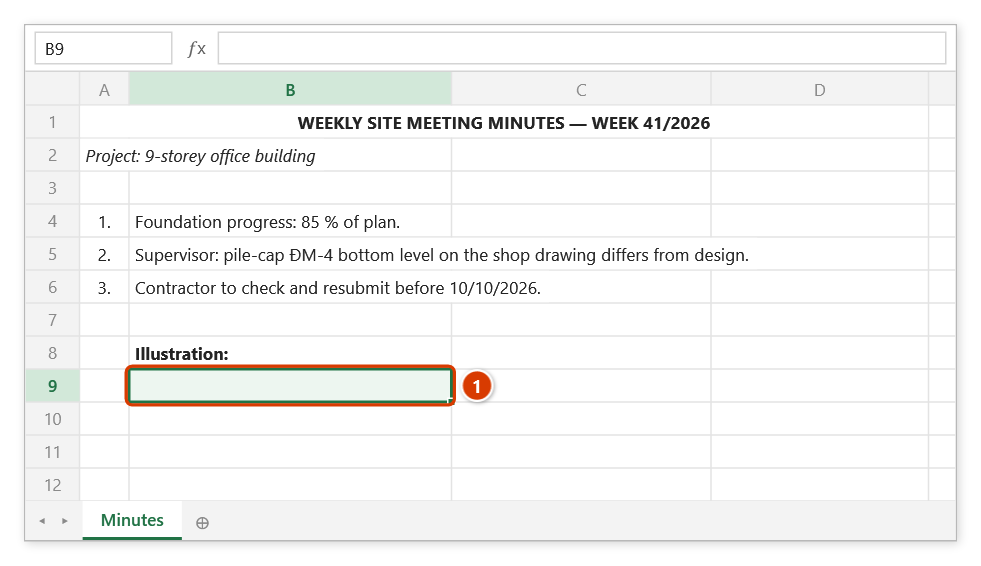
Step 1. Click the cell that will receive the picture, for example B9 of the meeting minutes (1) — the Insert into Excel button places the picture at the active cell.
Step 2. On the ribbon, open the DVD Addin tab → Graphics group → open Pictures → choose Capture and Annotate — or press Ctrl+Alt+S from any window (Excel must still be running with DVDAddin).
Step 3. Excel minimizes itself (unless Include the Excel window in the capture is ticked in Preferences ▸ Graphics) and the region overlay appears: drag around the area to capture, for example the ĐM-4 pile-cap section in a PDF drawing. Excel comes back as soon as the shot is taken.
Step 4. The Screenshot and annotate window opens with the capture. Pick a tool on the bar — Arrow, Rect, Cloud, Text, Callout, Blur… — set Colour…, Width:, Size: and draw, for example an arrow at the wrong level with the text −150 off design. Finish with Copy, Save… or Insert into Excel.
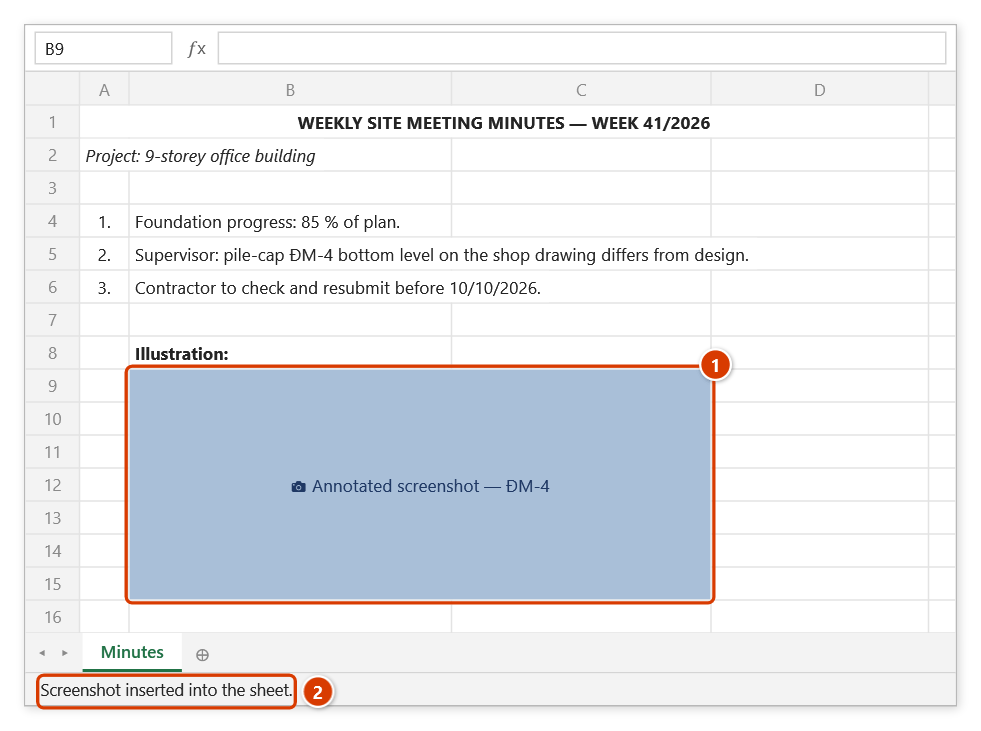
Step 5. With Insert into Excel, the annotated picture sits right at B9, at the captured size (1); the status bar confirms (2). Closing the window without Copy/Save/Insert discards the shot.
Example
During a progress meeting the site consultant points out that the pile-cap PC-4 soffit level on the shop drawing does not match the design drawing.
You open the drawing PDF, press Ctrl+Alt+S, and drag over the pile-cap section. In the annotation window you use an arrow to point at the wrong level, a red rectangle to circle the figure, and add the text "−150 against design". Press Insert into Excel, and the image lands in the remarks cell of the meeting minutes open in Excel.
Notes
- The Ctrl+Alt+S shortcut works system-wide, so Excel does not need to be the foreground window — but Excel must be running with DVDAddin loaded.
- To include the Excel window in the capture, enable the matching option under Preferences ▸ Graphics; by default Excel is minimised first.
- Pressing the shortcut again while a capture or annotation is in progress does nothing — only one session runs at a time.
- Only the Insert into Excel button puts the image on the sheet, and it goes into the active cell — click the right cell before invoking the command.
- The inserted image cannot be removed with Ctrl+Z; select the picture and delete it instead.
- Closing the annotation window without Copy/Save/Insert discards the capture — nothing is kept on disk.
Related
- Screen Clip OCR — capture a screen region and extract its text instead of annotating it.
- Pictures — bulk-insert existing images from a folder into the sheet.
- Move/Resize — refit the inserted image into its cell.
- Preferences — toggle whether the Excel window is included, under the Graphics section.