
Insert by Name
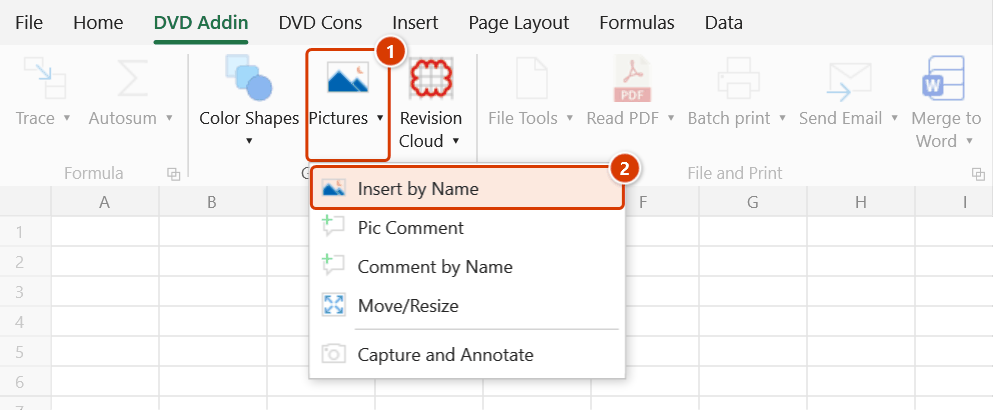
Location on ribbon: Tab DVD Addin → Group Graphics → the arrow next to Pictures
Command ID: btnInsertPictureByName
What it does
This command inserts pictures based on the file name written in a cell: you have a column of image names, and the command finds the matching file in the folder you point at and drops it into the corresponding target cell.
Unlike Pictures (which inserts in file-selection order), this one matches by name, so rows can never drift out of sync — ideal when your photo table already keys on a work-item code, record number or element mark.
How to use
- On the sheet, prepare a column of image names and an empty range to receive the pictures (usually the neighbouring column).
- Go to tab DVD Addin → group Graphics → the arrow next to Pictures → Insert by Name.
- The Pick images folder dialog opens (it starts in the workbook's folder) — choose the folder and press OK.
- A picker asks for the "Cells with image basenames" — drag over the name column and press OK.
- A second picker asks for the "Cells to insert images into" — drag over the target range and press OK. Each merged area counts as one slot. Select just one start cell and the command moves down by itself, one merged area at a time, until every name has a slot.
- An input box asks for "Spacing 2-5" (default
2) — the padding between picture and cell border. Press OK. - If there are more names than target slots, the command asks first whether to insert only the first names (as many as there are slots).
- If target cells already contain pictures, the command asks Yes / No / Cancel:
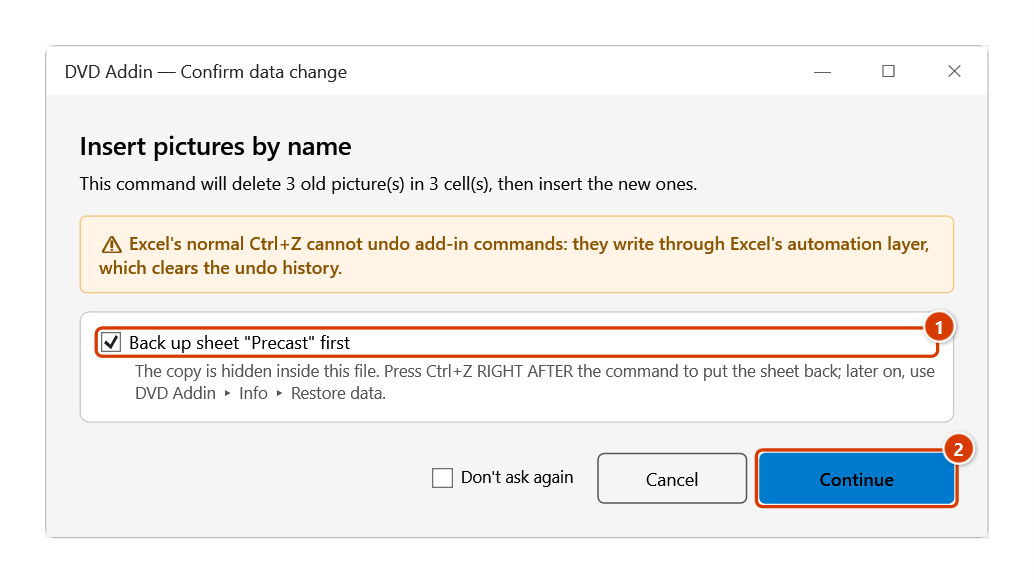
- Yes — the Confirm data change window appears (keep Back up the sheet first ticked, click Continue), then the command deletes the old pictures in those cells and inserts the new ones. Pictures are deleted only in cells where a new image was found; pictures created by the
dvdPicfunction are never touched. - No — keeps the old pictures and inserts the new ones on top.
- Cancel — stops without inserting anything.
- Yes — the Confirm data change window appears (keep Back up the sheet first ticked, click Continue), then the command deletes the old pictures in those cells and inserts the new ones. Pictures are deleted only in cells where a new image was found; pictures created by the
- Pictures land in their slots; progress shows in the status bar, and ESC stops the run. The final message reports how many were inserted and lists the names for which no image was found.
Video tutorial
Narrated in Vietnamese, with Vietnamese subtitles. Chèn ảnh, Chèn theo tên, Chỉnh ảnh · 4 min 28 s · 12 cases · Download the video · Practice workbook for the video
Commands in this video: Pictures · Insert by Name · Move/Resize
Chapters (20)
- Giới thiệu
- Mở lệnh
- Ba hộp hỏi
- 1 · Nhật ký ảnh – ô gộp
- 2 · Lưới ảnh có dòng chú thích
- 3 · Chọn một ô hay cả cột
- 4 · Bốn chế độ vừa ảnh
- 5 · Bẫy: bảng lọc, dòng ẩn
- Lệnh Chèn theo tên
- Bốn hộp hỏi
- 6 · Chèn theo tên – cấu kiện
- 7 · Cách khớp tên tệp
- 8 · Cập nhật – thay ảnh cũ
- Lệnh Chỉnh ảnh
- 9 · Chỉnh ảnh trôi khỏi ô
- 10 · Ảnh dọc, vùng nhiều ô
- 11 · Khi chọn sai
- 12 · Hoàn tác
- Mẹo
- Kết thúc
Illustrated walkthrough
Practice
Download this command's sample workbook — the data matches the pictures below (sheet Precast), so you can follow each step right away.
Step 1. On the ribbon, open the DVD Addin tab → Graphics group → open Pictures → choose Insert by Name.
Step 2. The Pick images folder box opens (starting in the workbook's folder): choose the photo folder, for example D:\DuAn\VanPhong9T\Anh\CauKien (holding CK-001.jpg, CK-002.png, CK-003.jpg), and click OK. Only that folder is searched, not its subfolders.
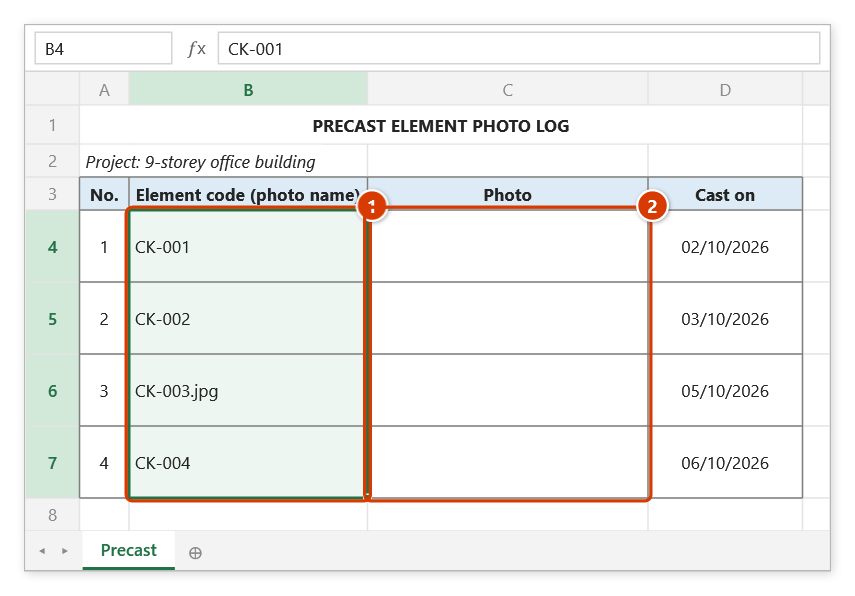
Step 3. In Cells with image basenames, drag over the code column B4:B7 (1) and click OK. In Cells to insert images into, drag over C4:C7 (2) — or just the first cell C4, the command then moves down one merged area at a time — and click OK. In Spacing 2-5, keep 2 and click OK.
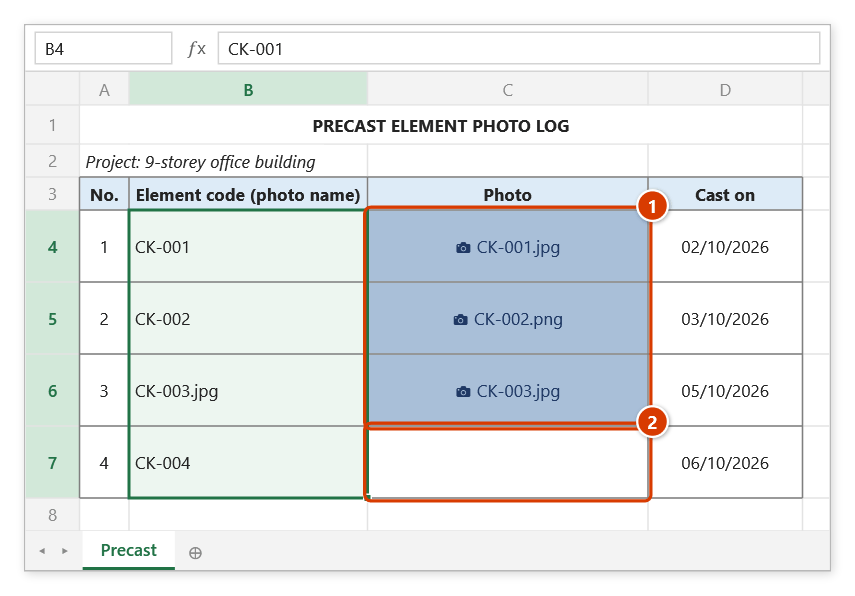
Step 4. Each picture lands on the row of its name (1): a cell holding CK-001 matches any image extension, a cell holding CK-003.jpg matches only that file. The final message reports Inserted 3/4 pictures. and lists No picture found for: CK-004 (1) — cell C7 stays empty (2).
Step 5. Run it again to refresh the photos (for example after re-shooting CK-001 … CK-003): the target cells already hold pictures, so the command asks Yes (delete the old pictures, then insert) / No (insert on top) / Cancel. With Yes, the confirmation box appears: keep Back up the sheet first (1) ticked and click Continue (2). Pictures made by the dvdPic function are never deleted.
Example
A precast element photo register has element marks in column B and an empty column C for the photos. The folder D:\Photos\Precast holds PC-001.jpg, PC-002.png, PC-003.jpg and so on.
| Column B (image name) | Column C — Before | Column C — After |
|---|---|---|
| PC-001 | (empty) | photo PC-001.jpg |
| PC-002 | (empty) | photo PC-002.png |
| PC-003.jpg | (empty) | photo PC-003.jpg |
| PC-004 | (empty) | (empty — no such file) |
The final message reports 3 images inserted and lists the name with no image found: PC-004.
Notes
- A name cell may include or omit the extension:
PC-001matches any extension, whilePC-001.jpgmatches only that exact file. Names containing a dot still match correctly: a cell holdingP1.5finds the fileP1.5.jpg. - Names and slots are paired in order: the first name goes to the first slot, the second name to the second slot, and so on. Each merged area is one slot and the picture is fitted to the whole merged area; how it fills follows the Fit mode for Insert Pictures setting under Preferences ▸ Graphics.
- The image folder is read only once for the whole run, so a folder with many images is still quick. Only files sitting directly in the chosen folder are searched; subfolders are ignored.
- Matching is case-insensitive; empty name cells are skipped and are not included in the "not found" list.
- Pictures created by the
dvdPicfunction are never deleted, even when you answer Yes to the existing-pictures question. - A normal run cannot be undone with Ctrl+Z — delete the inserted pictures manually if you need to start over. When you answer Yes to replace old pictures, keep Back up the sheet first ticked and Ctrl+Z right after the command puts the sheet (old pictures included) back; untick it and the deleted pictures cannot be brought back.
- The range picker does not lock Excel: while it is open you can scroll, switch sheets or switch workbooks to pick the range there. Click OK or press Enter on the sheet when done; Cancel or Esc to stop.
Related
- Pictures — insert in file-selection order when photo names do not match the table.
- Comment by Name — same name matching, but the image goes into a cell comment.
- File List — dump the folder's file names into the sheet to build the name column.
- Move/Resize — refit a picture into its cell after insertion.