Range & lookup functions
This group contains 14 functions that work on ranges: extended lookups (one-way, two-way, multi-result, across every worksheet), filtering arrays and extracting unique values, summing or counting by fill colour or by visible rows, and hiding rows automatically by condition.
The examples below use a semicolon ; to separate arguments (Excel running on a Vietnamese regional format). If your Excel uses the English (US) format, type a comma , instead of ;.
Quick reference:
| Function | Purpose |
|---|---|
dvdXlookup | Extended lookup with error handling and approximate match. |
dvdELookup | Return the result of the last matching row. |
dvdMCLookup | Write every matching row, across several columns, into an output range. |
dvdMVLookup | Return every matching value from a column offset to the lookup column. |
dvdTableLookup | Two-way lookup by row header and column header. |
dvdLookupAllSheets | Look a value up across all worksheets of the workbook. |
dvdUnique | Return an array of the unique values of a range. |
dvdUniqueV | Return the unique values, writing the remainder into an output range. |
dvdUnique2DArray | Keep the unique rows of an array based on one key column. |
dvdFilter2DArray | Filter a two-dimensional array on one column. |
dvdSumVisible | Sum the visible cells, skipping hidden rows and columns. |
dvdSumIfColor | Sum the cells whose fill colour matches a sample cell. |
dvdCountIfColor | Count the cells whose fill colour matches a sample cell. |
dvdAutoHide | Hide the rows that fail a condition and renumber the rest. |
dvdXlookup
Looks a value up in the lookup range and returns the matching value from the result range, with optional fallbacks for "not found" and "error".
Syntax:
=dvdXlookup(LookupValue; LookupArray; ReturnArray; [IfNotFound]; [IfError]; [MatchMode])| Parameter | Required | Description |
|---|---|---|
LookupValue | Yes | Value to look for inside LookupArray. |
LookupArray | Yes | Range in which the search is performed. |
ReturnArray | Yes | Range the result is taken from. |
IfNotFound | No | Value returned when nothing matches; #N/A when omitted. |
IfError | No | Value returned on error; #N/A when omitted. |
MatchMode | No | 0 = exact (default), -1 or 1 = approximate, like XLOOKUP. |
Example:
=dvdXlookup(A6; 'Đơn giá'!$A$5:$A$500; 'Đơn giá'!$E$5:$E$500; "Chưa có đơn giá"; "Lỗi dữ liệu"; 0)
// → 1,850,000 (unit rate of the work code in A6)

=dvdXlookup(D6; $H$5:$H$20; $I$5:$I$20; ""; ""; 1)
// → the haulage factor of the nearest distance band not exceeding D6
Notes
- The function always tries an exact match first; the approximate pass only runs when nothing matched and
MatchModeis not0. - Approximate matching works on numeric data only:
-1takes the smallest value greater than or equal to the lookup value,1takes the largest value less than or equal to it.
Illustrated walkthrough
Practice
Download this function's sample workbook — the data matches the pictures below and the cell for the formula is already selected.
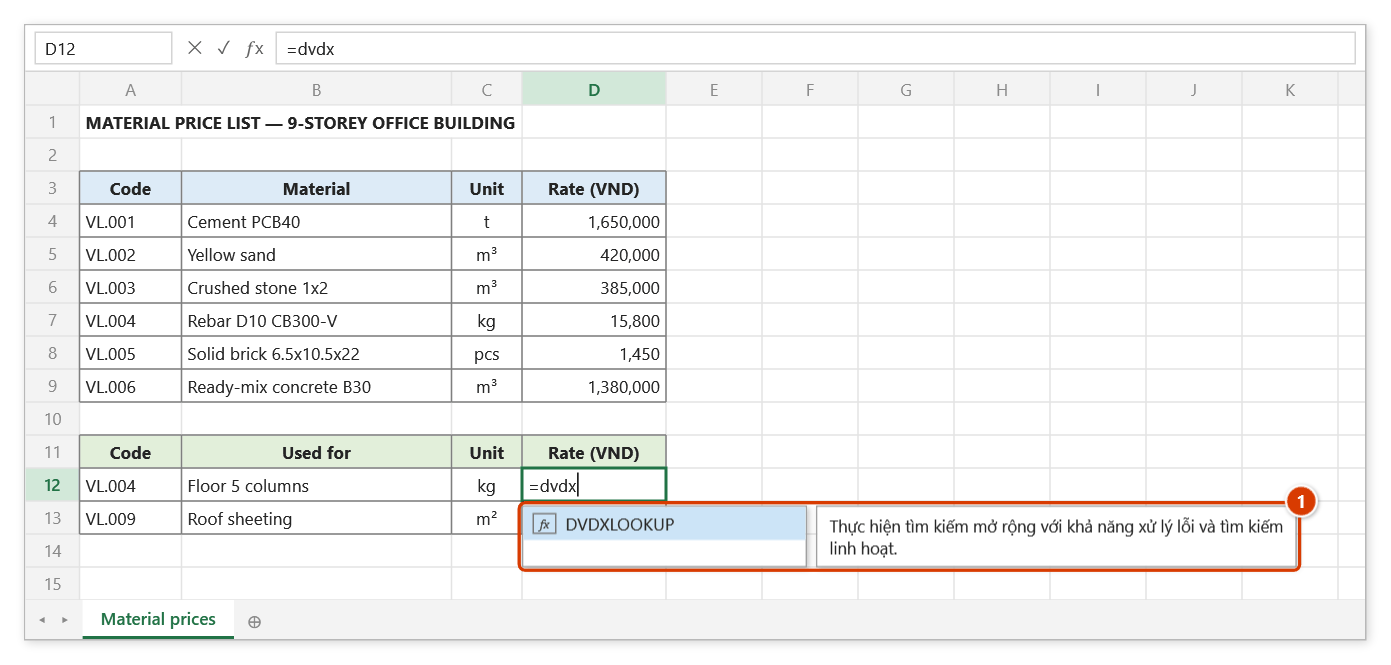
Step 1. Select D12 (the rate for the code in A12) and type =dvdx — the suggestion list shows DVDXLOOKUP with its description (1). Press Tab to pick it.
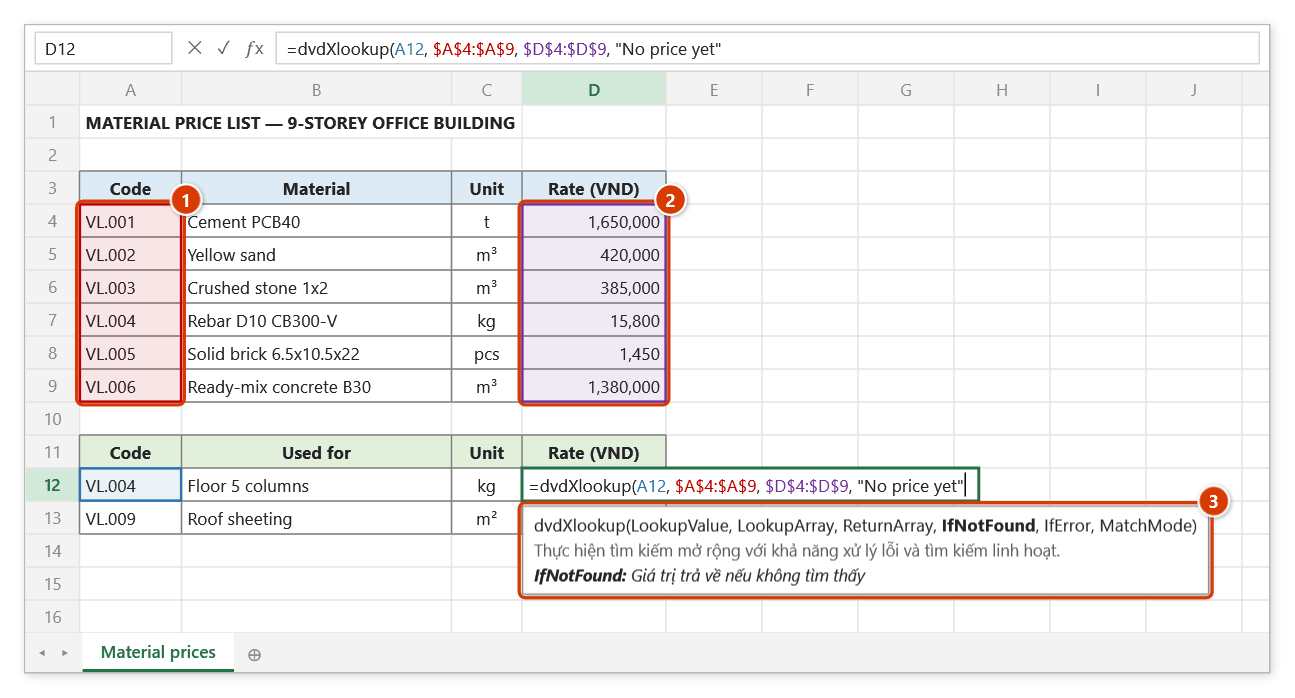
Step 2. Pick the code cell A12, the code column of the price list (1) and the rate column (2) (press F4 to add $), then type "No price yet" for codes that are not found. The tip (3) shows the current argument in bold.
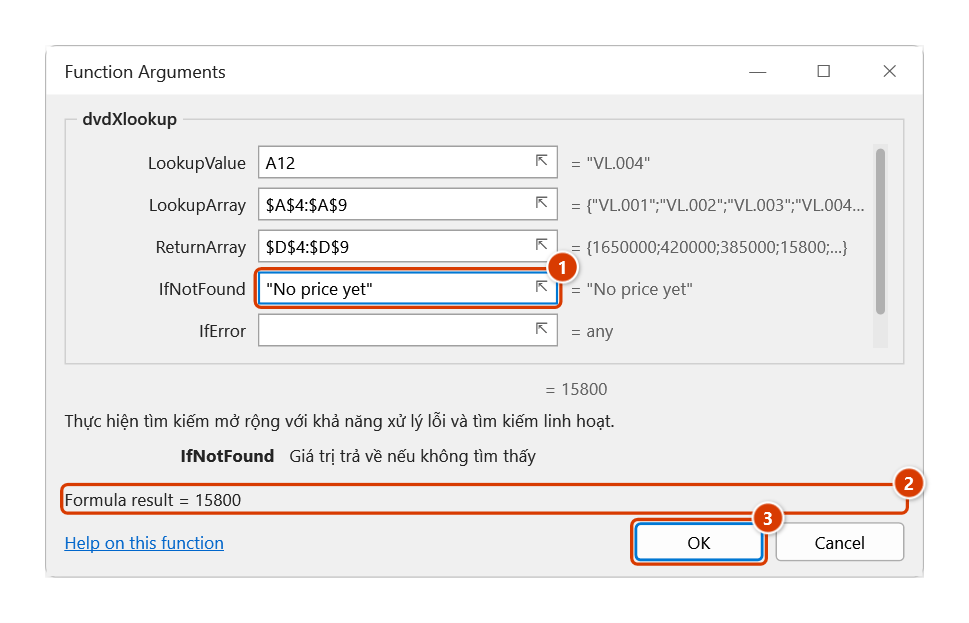
Step 3. For the description of every argument, press Ctrl+A right after the function name: the Function Arguments dialog shows the not-found value (1) and the live result (2). The sixth box MatchMode (scroll down) takes 1/-1 for an approximate match on numbers. Click OK (3).
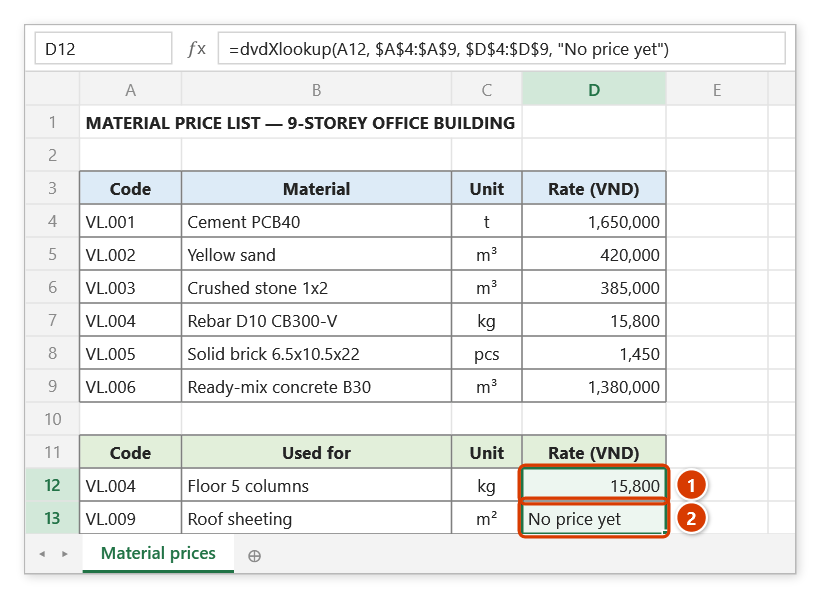
Step 4. Press Enter and copy the formula down to D13: code VL.004 returns the rate 15,800 (1); VL.009 is not in the price list, so the cell shows "No price yet" instead of #N/A (2).
dvdELookup
Searches from the bottom up and returns the result of the last match — useful when a work code appears several times and you need the most recent record.
Syntax:
=dvdELookup(LookupValue; LookupRange; ResultRange)| Parameter | Required | Description |
|---|---|---|
LookupValue | Yes | Value to look for. |
LookupRange | Yes | Range containing the value to look for. |
ResultRange | Yes | Range containing the result. |
Example:
=dvdELookup(A6; $B$5:$B$300; $F$5:$F$300)
// → the quantity of the latest acceptance record for work code A6
Notes
- When nothing matches, the function returns the text
Không tìm thấy kết quả("no result found"). - Both ranges should have the same number of rows, because the result is taken by matching position.
Illustrated walkthrough
Practice
Download this function's sample workbook — the data matches the pictures below and the cell for the formula is already selected.
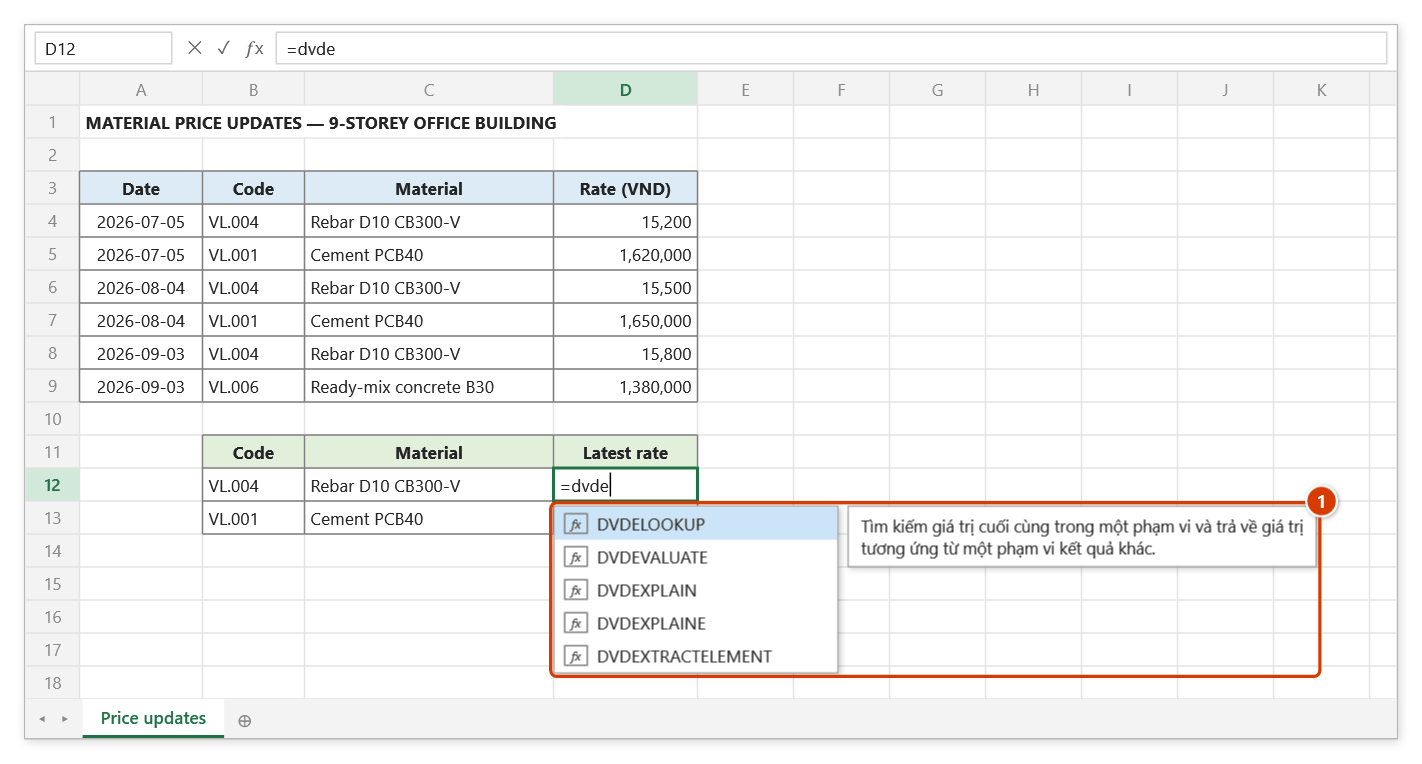
Step 1. Select D12, type =dvde, pick DVDELOOKUP in the suggestion list (1) and press Tab.
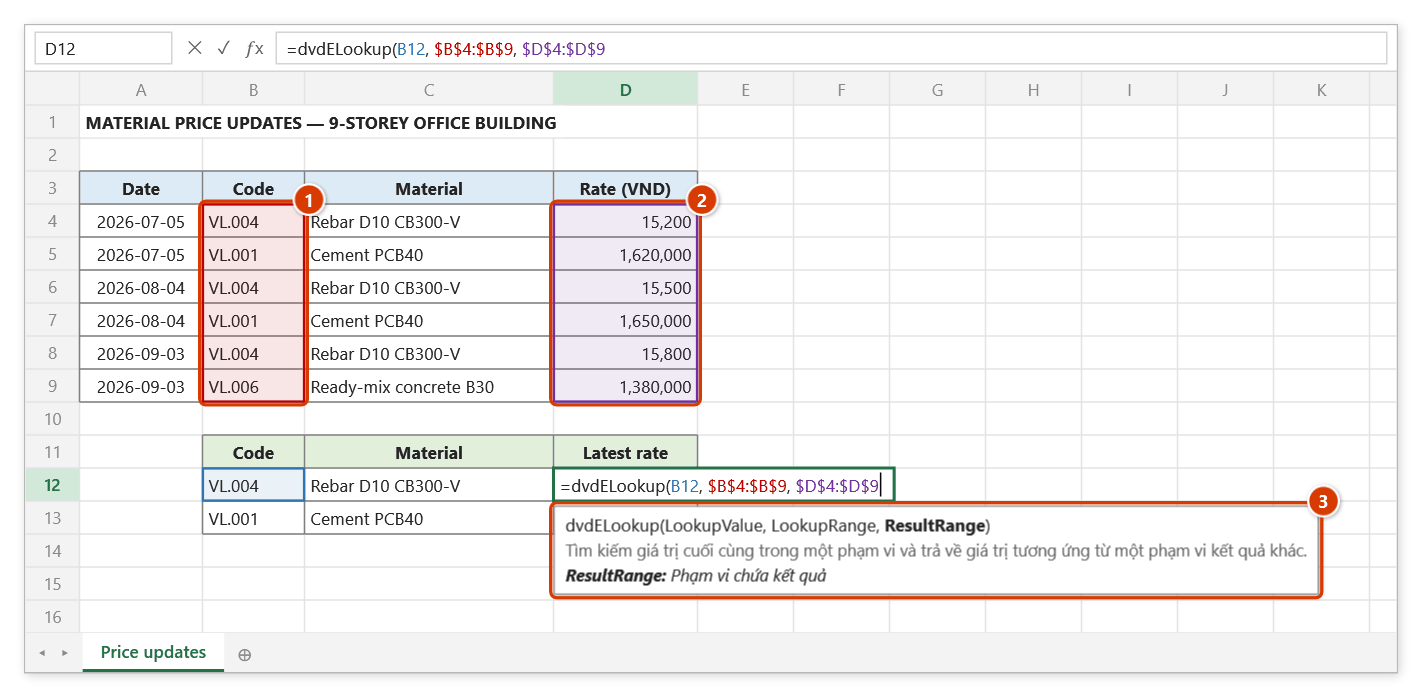
Step 2. Pick the code cell B12, the code column of the log (1) and then the rate column (2) — both ranges must have the same number of rows, because the result is taken by position. The tip (3) describes the current argument.
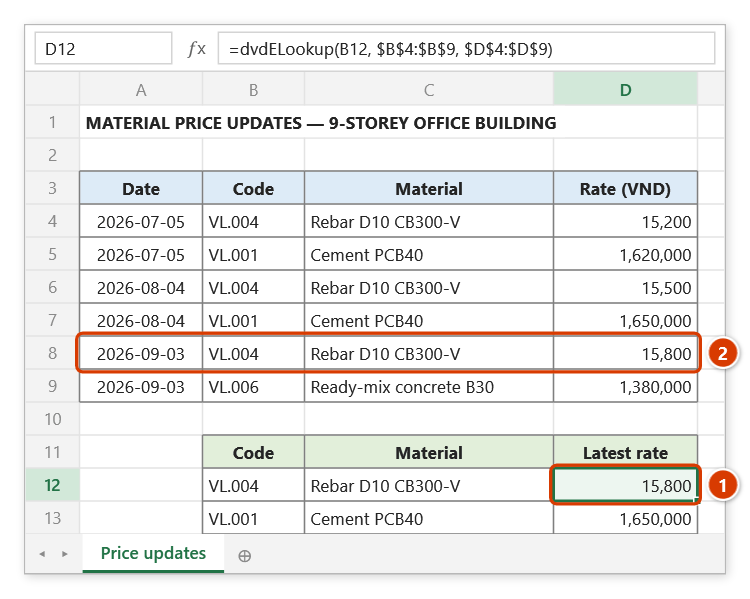
Step 3. Press Enter and copy down to D13. The function searches from the bottom up, so it returns 15,800 (1) from the last update on 2026-09-03 (2), not 15,200 from the first row. A code missing from the log returns "Không tìm thấy kết quả" (no result found).
dvdMCLookup
Returns every row matching the lookup value, with all of its columns, written into an output range on the worksheet.
Syntax:
=dvdMCLookup(ReturnCols; LookupColIndex; LookupValue; outputRange)| Parameter | Required | Description |
|---|---|---|
ReturnCols | Yes | Columns containing the values to return. |
LookupColIndex | Yes | Index of the lookup column, counted from 1 inside ReturnCols. |
LookupValue | Yes | Value to look for. |
outputRange | Yes | Target range where the results are written. |
Example:
=dvdMCLookup($A$5:$F$500; 2; $H$3; $H$6:$M$40)
// → "Done", and every row whose item code equals H3 is written into H6:M40
Notes
- The formula cell only shows
Done; the data goes intooutputRange, and only inside it — with more results than rows, the last row reads … N more result(s) — enlarge outputRange instead of spilling over the cells below. A single-celloutputRangespills down from that cell. - Values are compared as text (case-insensitively): the number
5matches a cell holding5or the text"5", but not"05"or"5.0"— unlikedvdXlookup/dvdELookup/dvdTableLookup, which also compare numbers by value. - The function recalculates when
ReturnColsorLookupValuechanges (no longer volatile) and only writes when the result actually changes — editing elsewhere no longer wipesCtrl+Z. It always writes into the workbook that holds the formula, even with several open workbooks sharing sheet names. - When no row matches, the function returns
#N/Aand clears the old results inoutputRange.
Illustrated walkthrough
Practice
Download this function's sample workbook — the data matches the pictures below and the cell for the formula is already selected.
Step 1. Select A14, type =dvdm, pick DVDMCLOOKUP in the suggestion list (1) and press Tab.
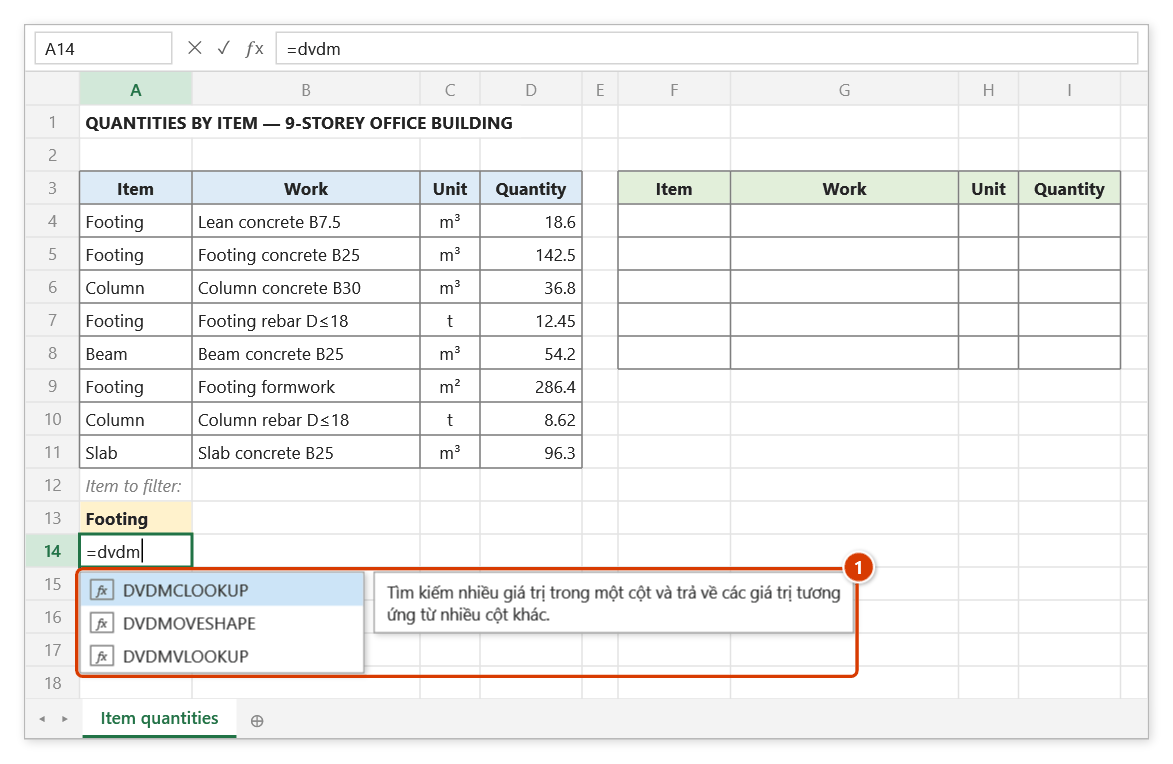
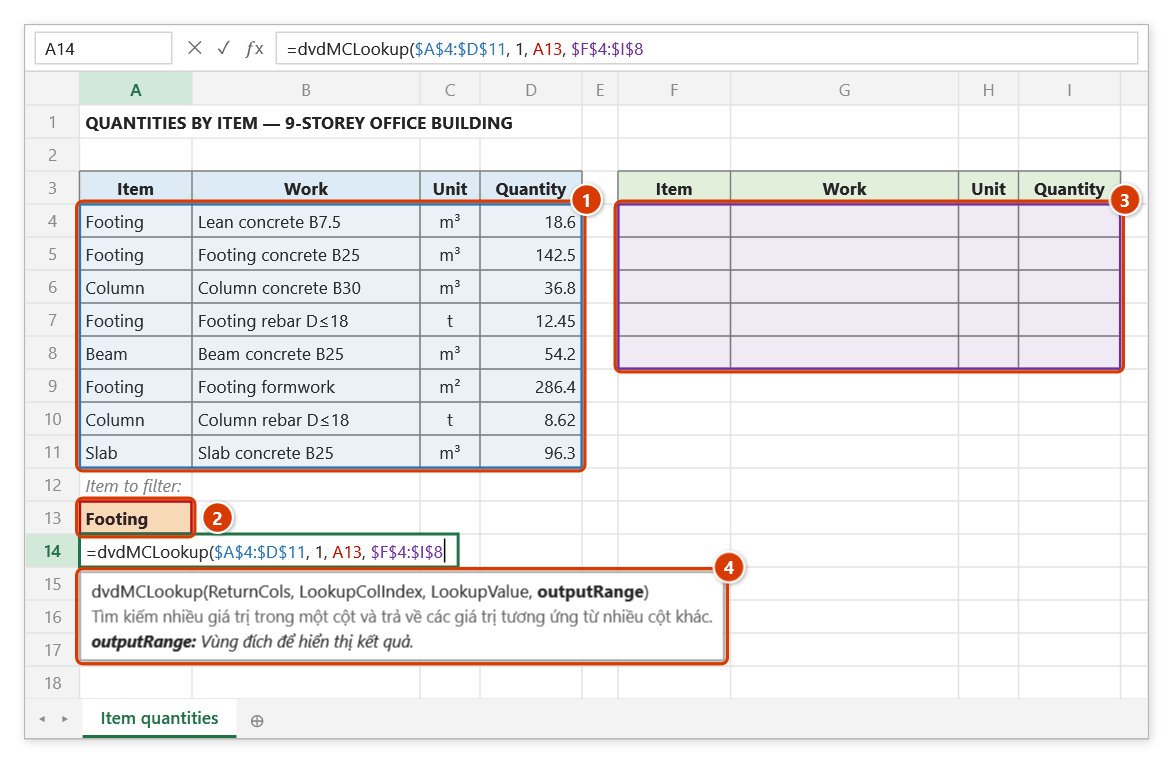
Step 2. Select the data table (1), type 1 (Item is the first column of the table), pick the filter cell (2), then select an empty target range with the same number of columns (3). The tip (4) describes the current argument.
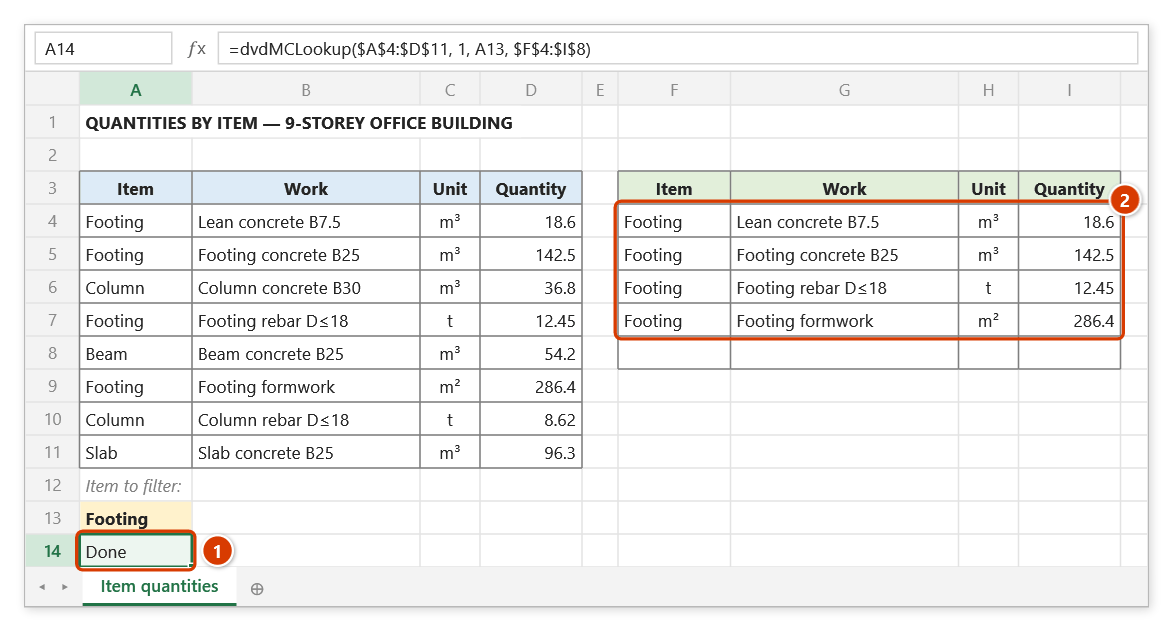
Step 3. Press Enter: the formula cell shows Done (1) and the four Footing rows are written into the target range (2); the spare row stays empty. Change A13 to "Column" and the target updates by itself; with more results than rows, the last row reads … N more result(s) — enlarge outputRange.
dvdMVLookup
Returns every matching value from a column offset to the lookup column: the first hit appears in the formula cell, the remaining hits are written into the output range.
Syntax:
=dvdMVLookup(LookupValue; LookupCol; OffsetCol; outputRange)| Parameter | Required | Description |
|---|---|---|
LookupValue | Yes | Value to look for. |
LookupCol | Yes | Column containing the value to look for. |
OffsetCol | Yes | Number of columns to the right of LookupCol holding the returned value. |
outputRange | Yes | Target range for the second and later values (for Excel 2019/2016 without dynamic arrays). |
Example:
=dvdMVLookup($H$3; $B$5:$B$500; 4; $J$4:$J$40)
// → the first quantity for work code H3; the remaining quantities go into J4:J40
Notes
- The second and later results are written only inside
outputRange(pick an empty area outside the data table); with more results, the last row reads … N more result(s) — enlarge outputRange. A single-celloutputRangespills down from that cell. - Values are compared as text (case-insensitively), like
dvdMCLookup, not by numeric value likedvdXlookup/dvdELookup/dvdTableLookup:"05"or"5.0"does not match the number5. - The function is volatile (the result column is offset from
LookupCol, so Excel cannot track it) but only writes when the result actually changes — editing elsewhere no longer wipesCtrl+Z; it always writes into the workbook that holds the formula. - When nothing matches it returns
#VALUE!and clears the old results inoutputRange.
Illustrated walkthrough
Practice
Download this function's sample workbook — the data matches the pictures below and the cell for the formula is already selected.
Step 1. Select B14, type =dvdm, pick DVDMVLOOKUP in the suggestion list (1) and press Tab.
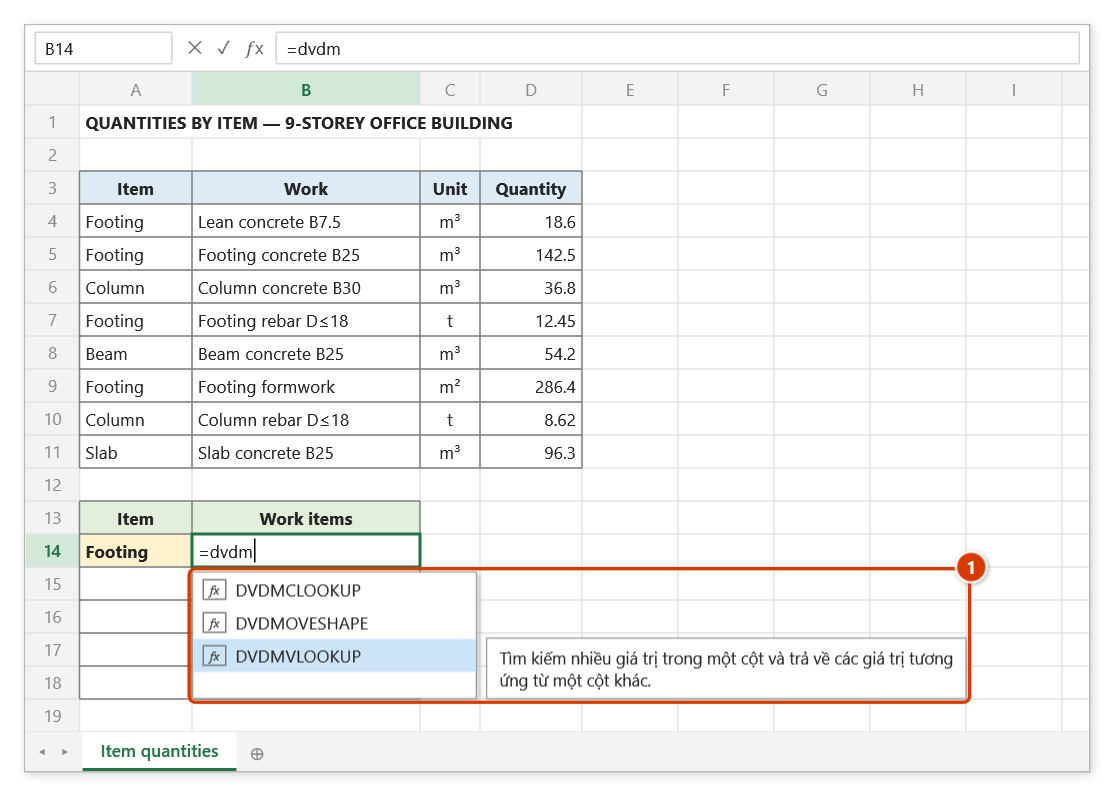
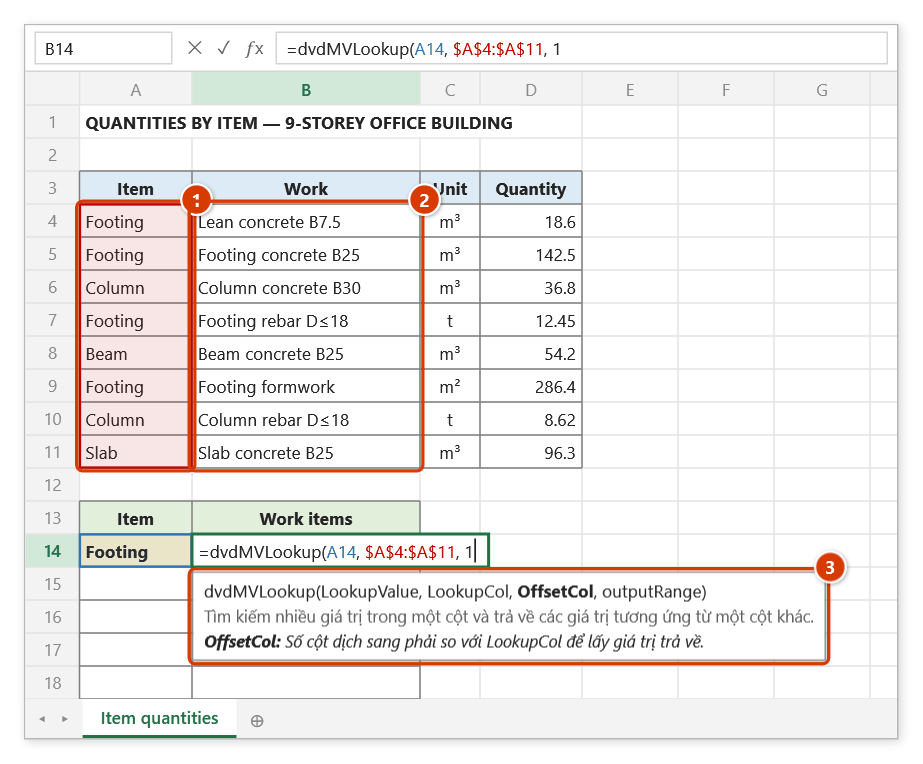
Step 2. Pick the lookup cell A14, the Item column to search (1), then type the column offset to the right: 1 returns the Work column (2). The tip (3) explains OffsetCol.
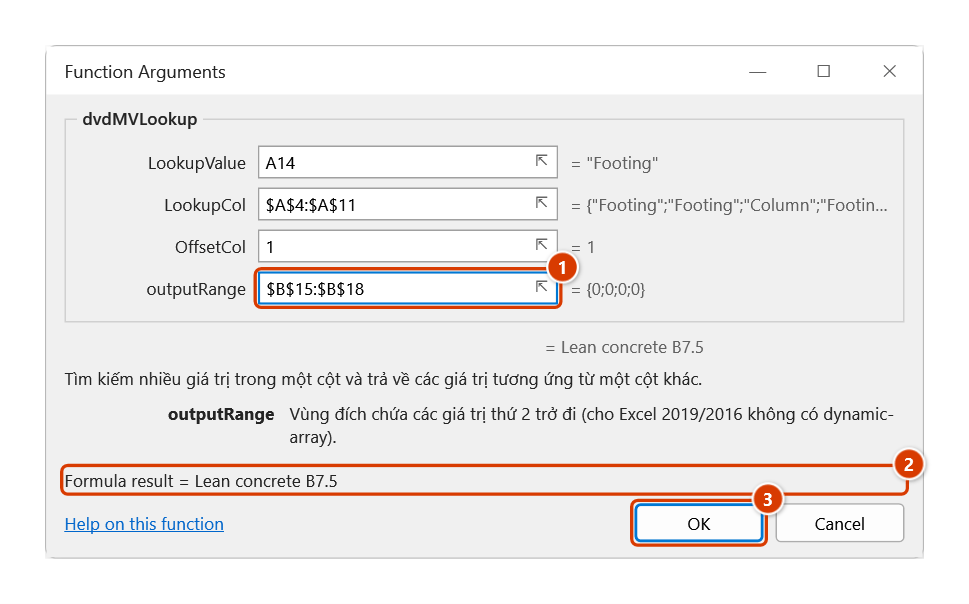
Step 3. Type , and select the target range right below the formula cell for the second and later results (1). The Function Arguments dialog (Ctrl+A) shows the first result (2). Click OK (3).
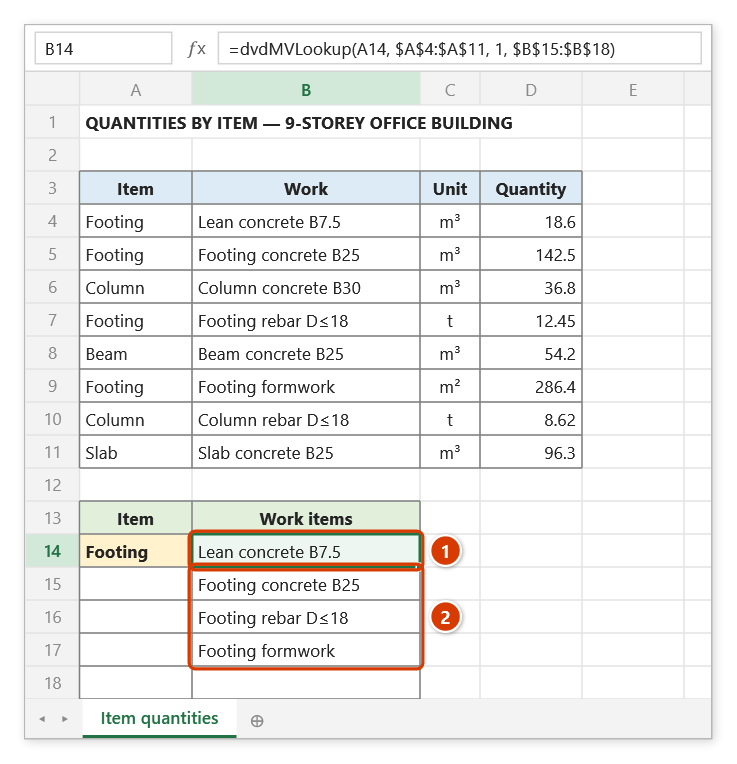
Step 4. Press Enter: the first Footing work item appears in the formula cell (1) and the other three are written into the target range below (2). When nothing matches, the function returns #VALUE! and clears the target range.
dvdTableLookup
Two-way lookup: returns the value at the intersection of the row and the column identified by their headers.
Syntax:
=dvdTableLookup(LookupRowValue; LookupColumnValue; TableRange)| Parameter | Required | Description |
|---|---|---|
LookupRowValue | Yes | Value to find in the first column of the table. |
LookupColumnValue | Yes | Value to find in the first row of the table. |
TableRange | Yes | Data table, including both row and column headers. |
Example:
=dvdTableLookup("D16"; "Cấp bền B22.5"; $A$5:$H$30)
// → 1.284 (norm looked up by rebar diameter and concrete grade)
Notes
- When the row or the column header is not found, the function returns the text
Không tìm thấy kết quả("no result found").
Illustrated walkthrough
Practice
Download this function's sample workbook — the data matches the pictures below and the cell for the formula is already selected.
Step 1. Select D11, type =dvdt, pick DVDTABLELOOKUP in the suggestion list (1) and press Tab.
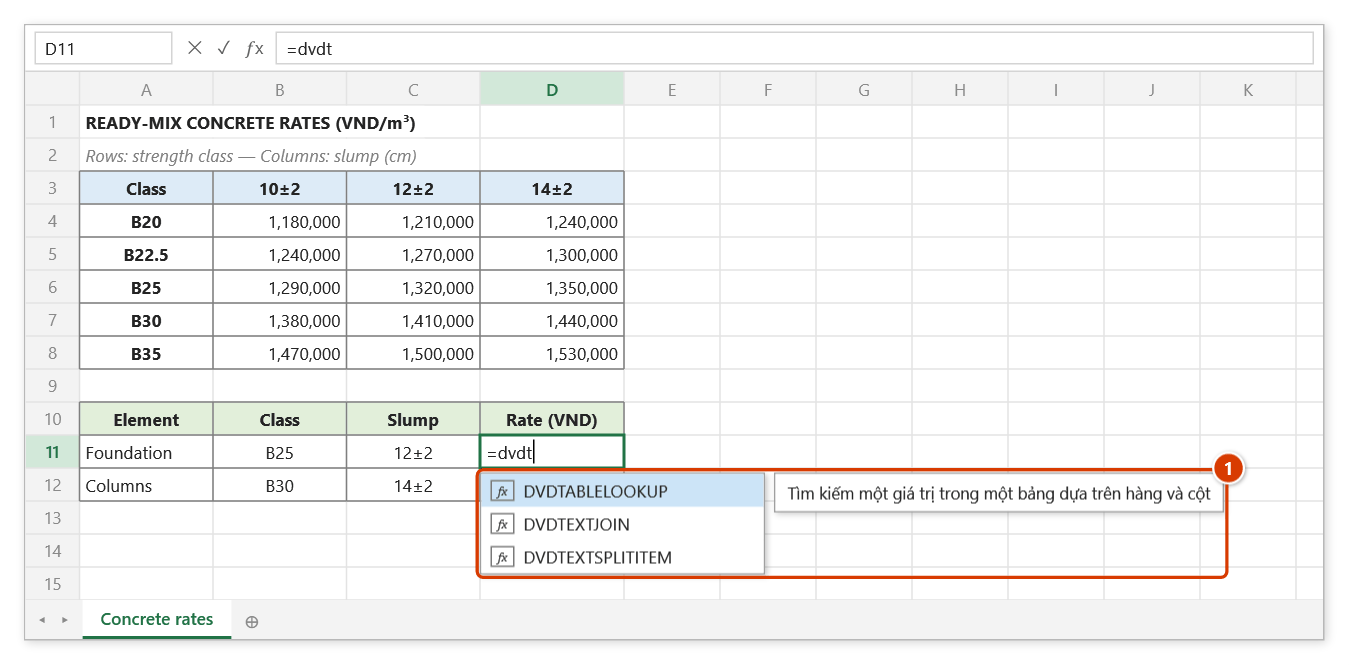
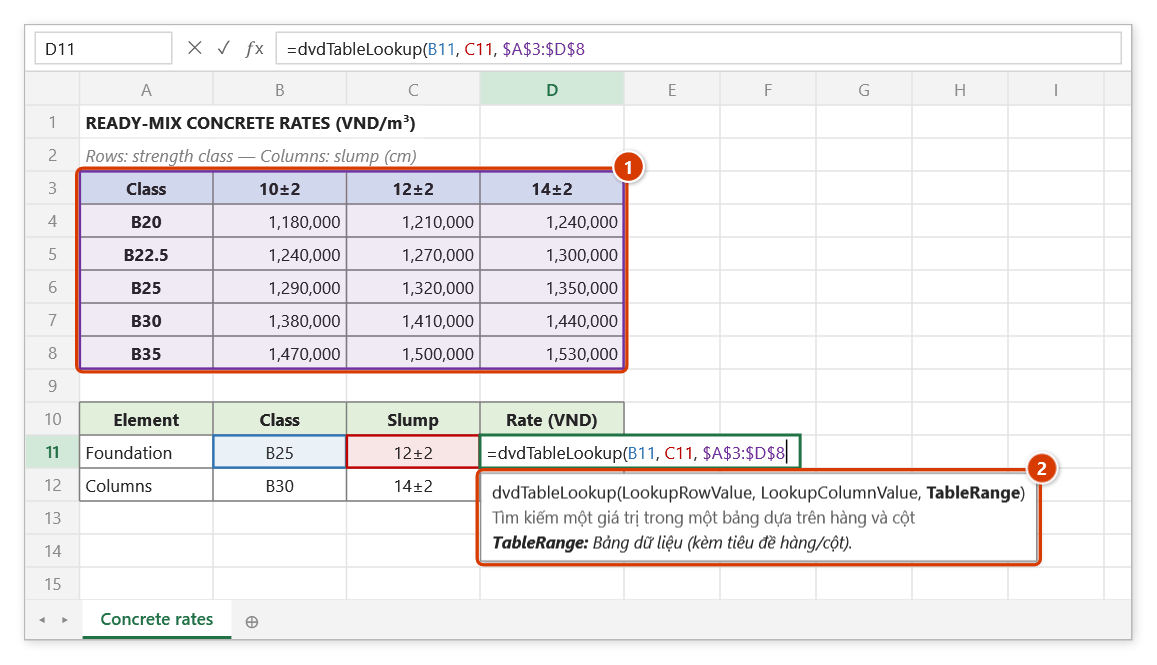
Step 2. Pick the class cell B11 (searched in the first column of the table), the slump cell C11 (searched in the first row), then select the whole rate table including its row and column headers (1). The tip (2) describes the current argument.
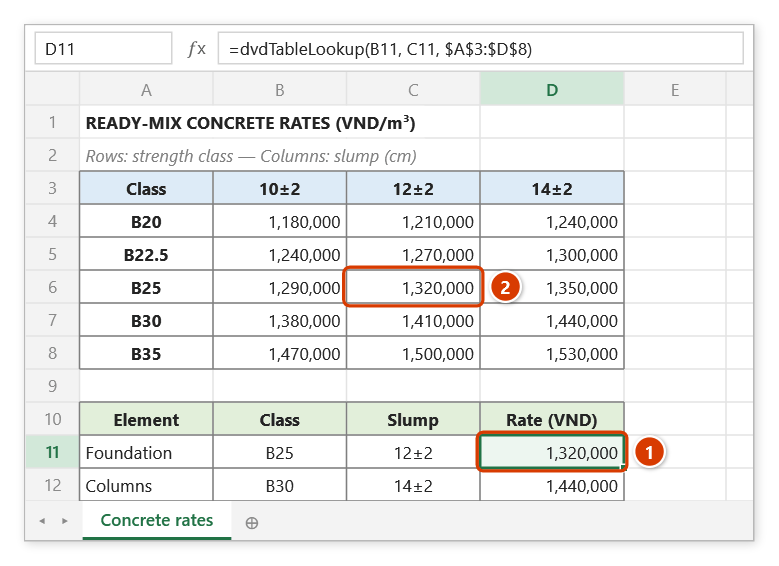
Step 3. Press Enter and copy down to D12: the function returns the value where row B25 meets column 12±2 (2) — 1,320,000 (1). When the row or column header is missing it returns "Không tìm thấy kết quả" (no result found).
dvdLookupAllSheets
Looks a value up across every visible worksheet of the workbook and returns the value from the requested column.
Syntax:
=dvdLookupAllSheets(lookupValue; lookup_column; result_column)| Parameter | Required | Description |
|---|---|---|
lookupValue | Yes | Value to look for. |
lookup_column | Yes | Number of the column containing the value to look for (column A is 1). |
result_column | Yes | Number of the column containing the value to return. |
Example:
=dvdLookupAllSheets(A6; 2; 6)
// → the quantity in column F of the row whose work code is A6, searched on every quantity sheet
Notes
- The worksheet holding the formula and any hidden worksheets are skipped; when nothing matches the function returns
#N/A. - Only the first match is returned: worksheets are searched in tab order; within a sheet the search runs from row 2 downwards and checks row 1 last.
- Matching is on the whole cell and ignores case; numbers are compared by value, not by their displayed format (
"0.5"matches a cell holding 0.5).*(any text) and?(one character) are wildcards; type~*or~?to look for the character itself. Hidden and filtered rows are searched too. - An empty result cell returns an empty string; an error in the result cell is returned as that error.
- Columns are counted as worksheet columns, not as positions inside a range.
- It searches the workbook that holds the formula, even with several workbooks open. It takes no range argument, so it does not recalculate when data on another sheet changes or when a sheet is hidden or unhidden — press
Ctrl+Alt+F9to refresh. On the first calculation of a session the result may change one beat later, once the add-in has read which sheets are hidden.
Illustrated walkthrough
Practice
Download this function's sample workbook — the data matches the pictures below and the cell for the formula is already selected.
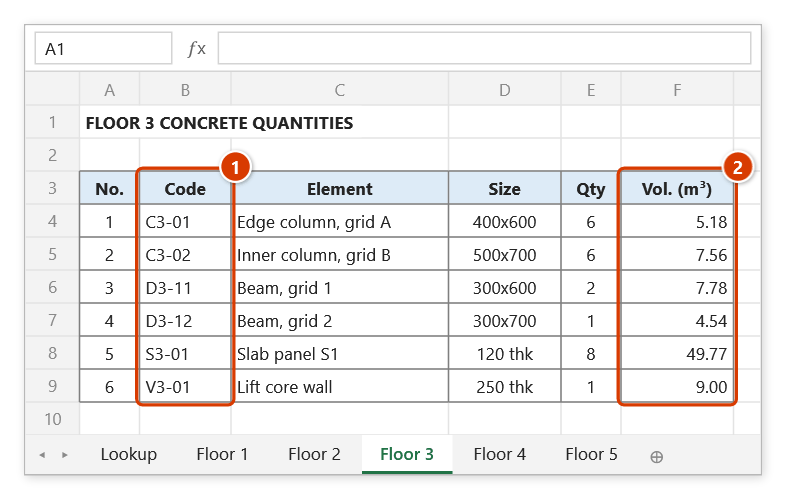
Step 1. All floor sheets share one layout: the element code is in column B — worksheet column 2 (1) — and the concrete volume in column F — column 6 (2).
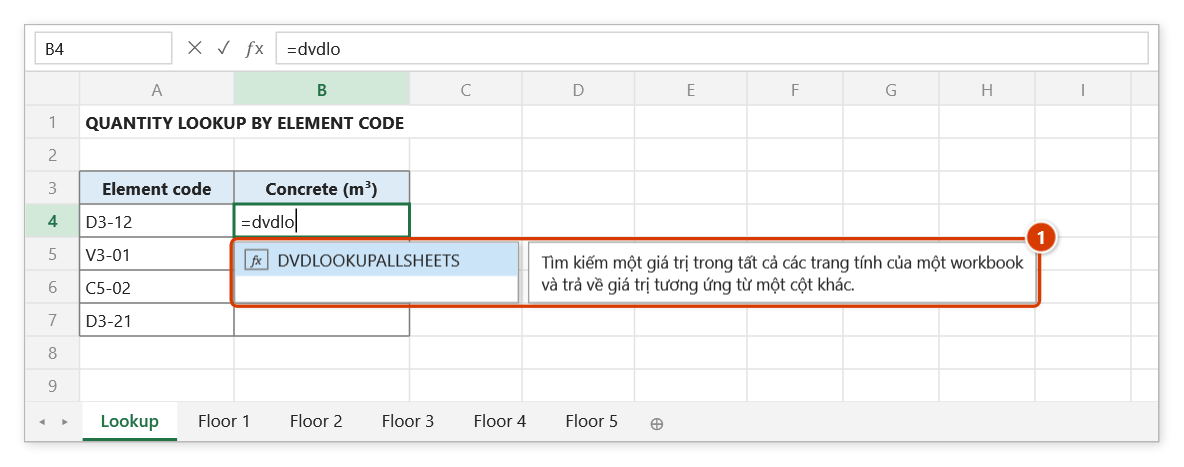
Step 2. On the Lookup sheet, select B4 and type =dvdlo — the suggestion list shows DVDLOOKUPALLSHEETS (1). Press Tab.
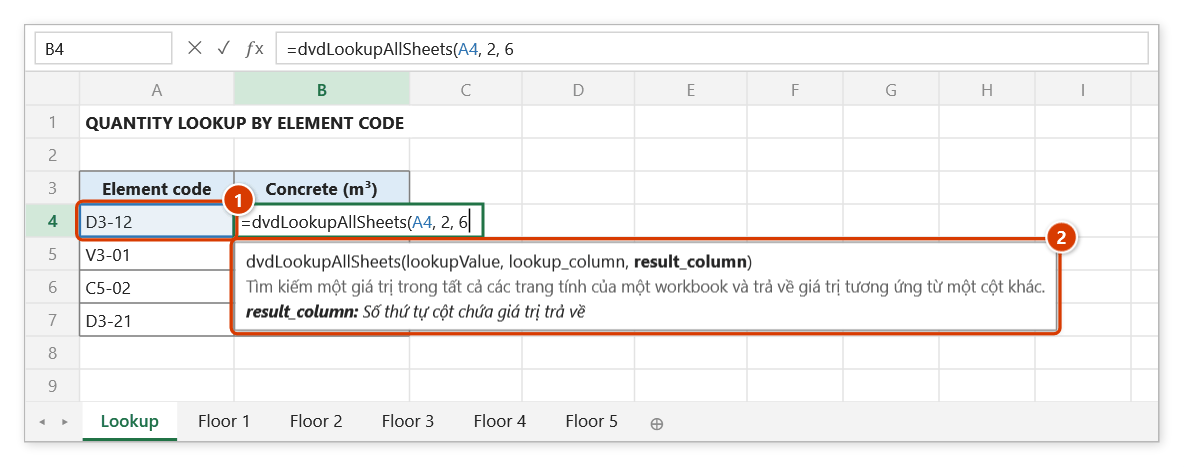
Step 3. Pick the code cell A4 (1), then type 2 (column B holds the code) and 6 (column F holds the volume) — columns of the floor sheets. The tip (2) describes the current argument.
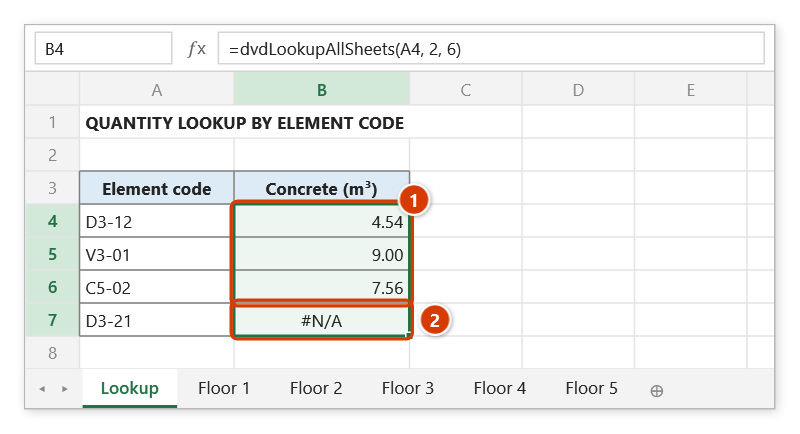
Step 4. Press Enter and copy down: each code gets its volume from the floor sheet that holds it (1) — D3-12 and V3-01 on Floor 3, C5-02 on Floor 5. The mistyped code D3-21 is on no sheet, so it returns #N/A (2). The sheet holding the formula and hidden sheets are skipped; after floor data changes press Ctrl+Alt+F9.
dvdUnique
Returns a one-column array holding the unique values of a range.
Syntax:
=dvdUnique(rng)| Parameter | Required | Description |
|---|---|---|
rng | Yes | Input data range. |
Example:
=dvdUnique($B$6:$B$500)
// → the list of distinct items: Móng, Cột, Dầm, Sàn
Notes
- The function returns an array: Excel 365/2021 spills it automatically; on Excel 2019 and earlier select the target range and press
Ctrl+Shift+Enter, or usedvdUniqueV. - Values are compared case-insensitively.
- Empty cells in the range are skipped (as in
dvdUniqueV), so selecting a few spare blank rows at the end of the table adds no blank item to the result.
Illustrated walkthrough
Practice
Download this function's sample workbook — the data matches the pictures below and the cell for the formula is already selected.
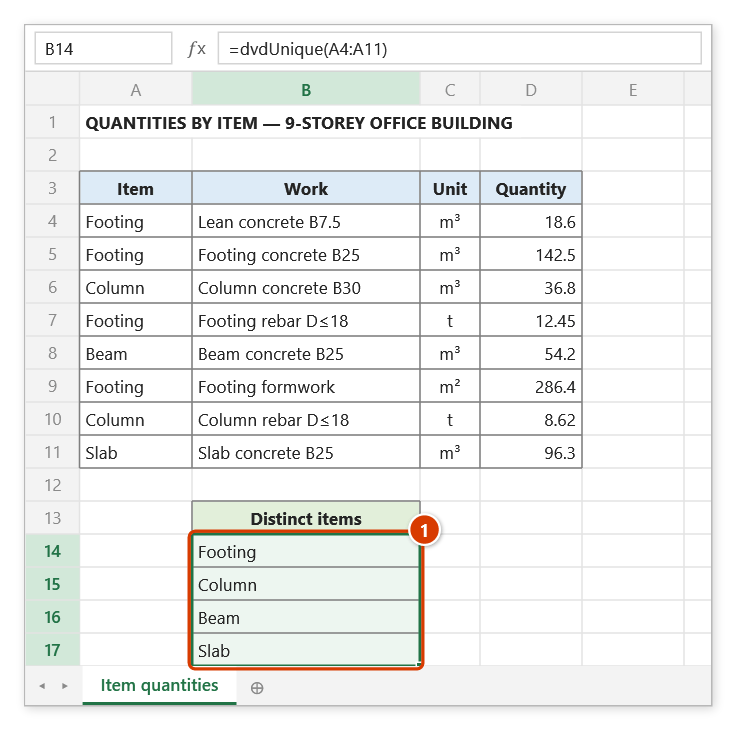
Step 1. Select B14, type =dvduniq, pick DVDUNIQUE in the suggestion list (1) and press Tab.
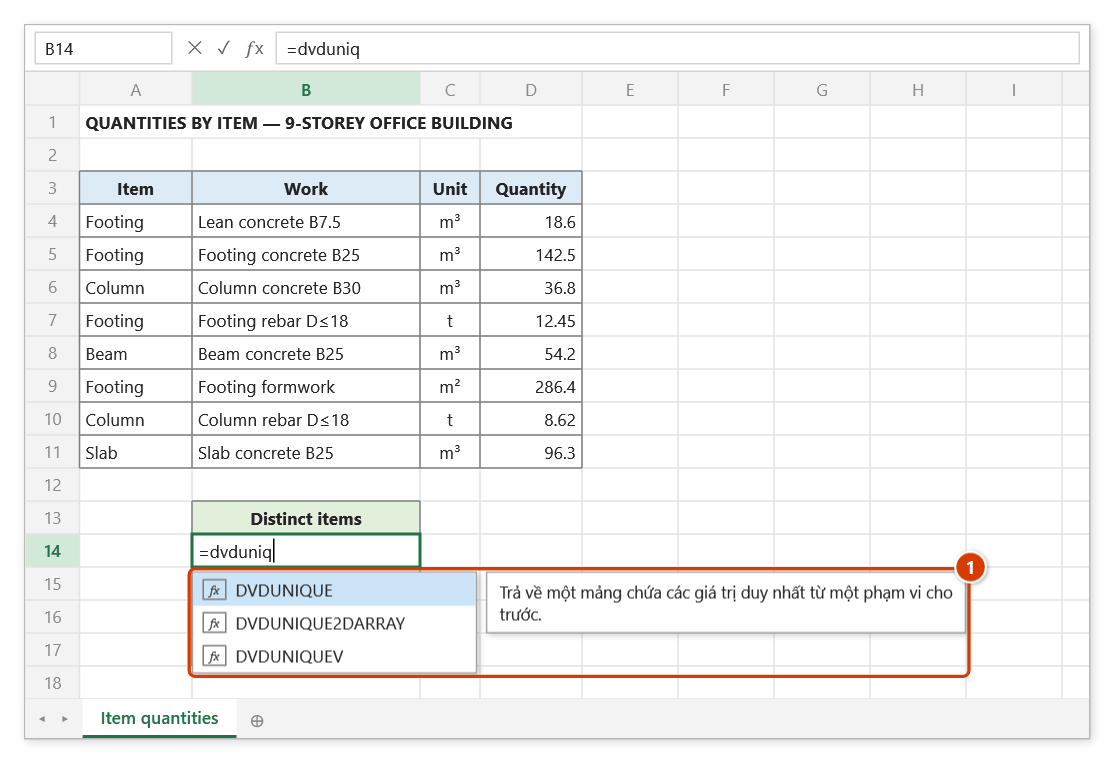
Step 2. Select the Item column of the table (1) — empty cells in the range are skipped. The tip (2) describes the function's only argument.
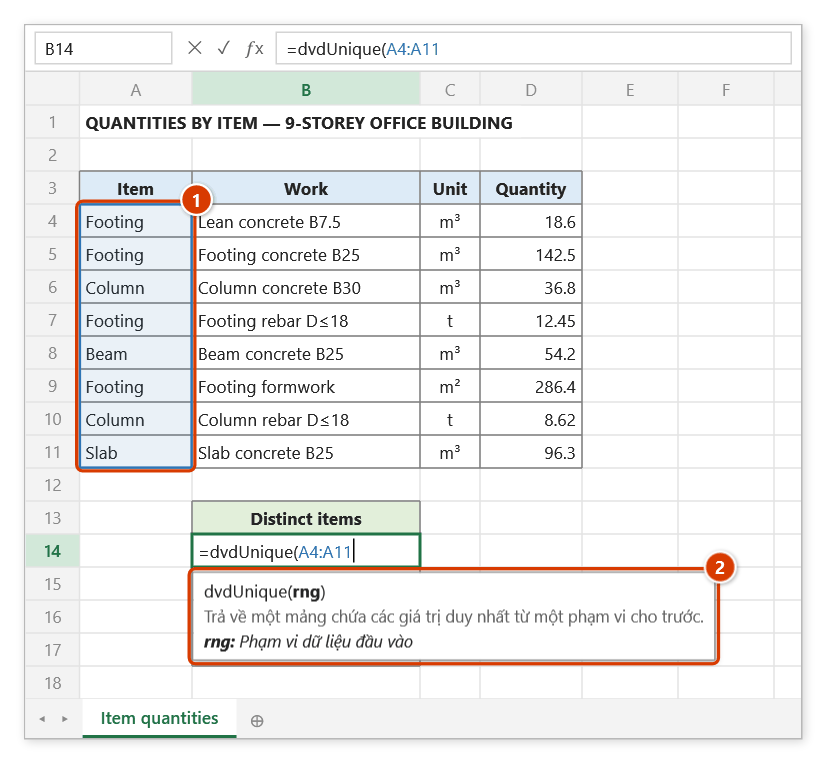
Step 3. Press Enter: Excel 365/2021 spills the result into B14:B17, each item once in order of appearance (1) (case-insensitive). On Excel 2019 and earlier, select B14:B17 first, type the formula and press Ctrl+Shift+Enter.
dvdUniqueV
Returns the first unique value in the formula cell and writes the remaining unique values into the output range — made for Excel versions without dynamic arrays.
Syntax:
=dvdUniqueV(inputRange; outputRange)| Parameter | Required | Description |
|---|---|---|
inputRange | Yes | Range holding the values to deduplicate. |
outputRange | Yes | Range where the remaining unique values are written (for Excel 2019/2016). |
Example:
=dvdUniqueV($B$6:$B$500; $H$7:$H$40)
// → "Móng" in the formula cell; the other items are written into H7:H40
Notes
- The second and later values are written only inside
outputRange; with more values, the last row reads … N more result(s) — enlarge outputRange. - The function recalculates when
inputRangechanges (no longer volatile) and only writes when the result actually changes — editing elsewhere no longer wipesCtrl+Z; it always writes into the workbook that holds the formula. - Empty cells in the source range are skipped.
Illustrated walkthrough
Practice
Download this function's sample workbook — the data matches the pictures below and the cell for the formula is already selected.
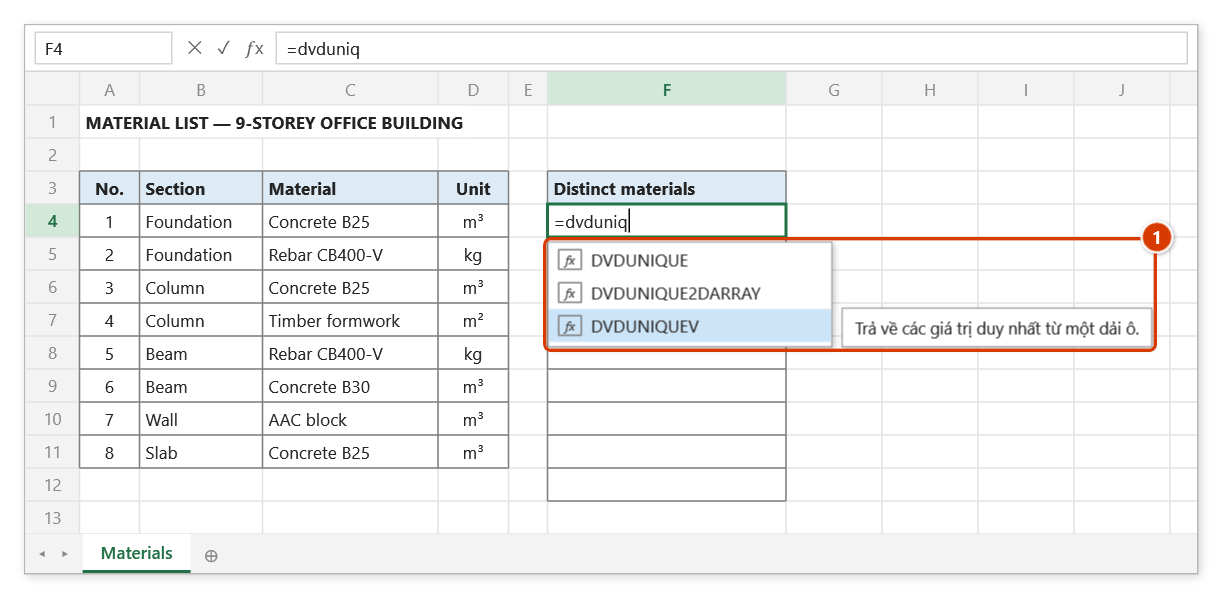
Step 1. Select F4, the first cell of the list, and type =dvduniq — Excel suggests three functions; pick DVDUNIQUEV (1) and press Tab.
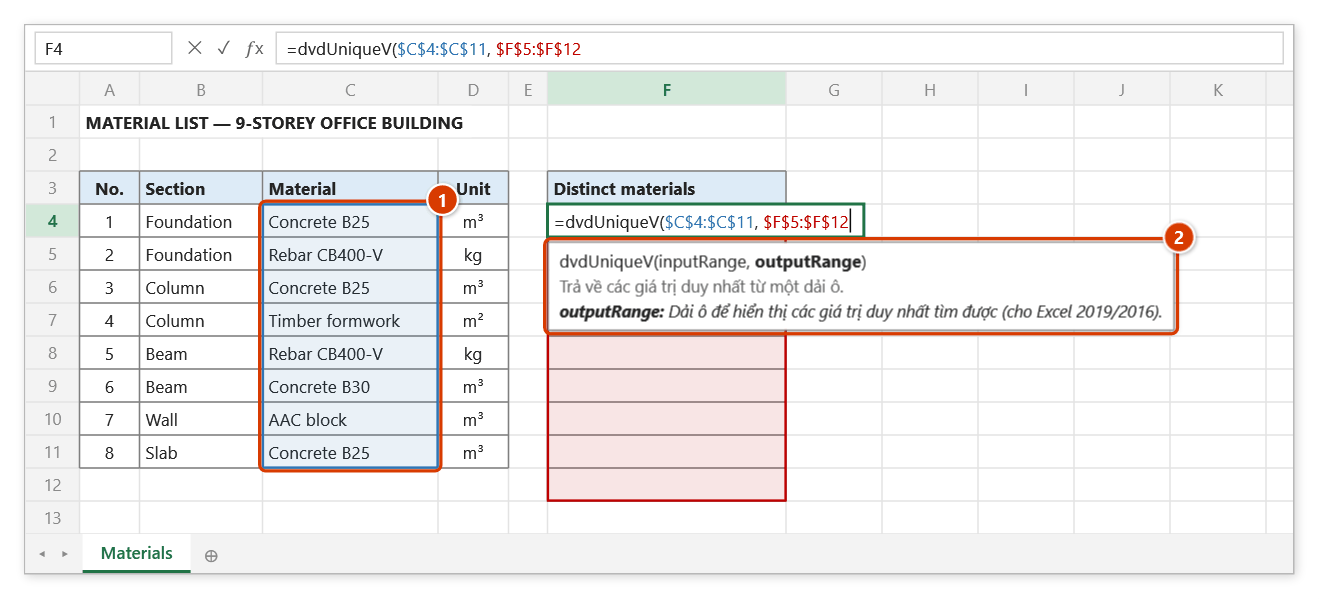
Step 2. Select the material column (1) as inputRange, type , and select the range right under the formula cell, $F$5:$F$12, as outputRange. The tip (2) explains the current argument.
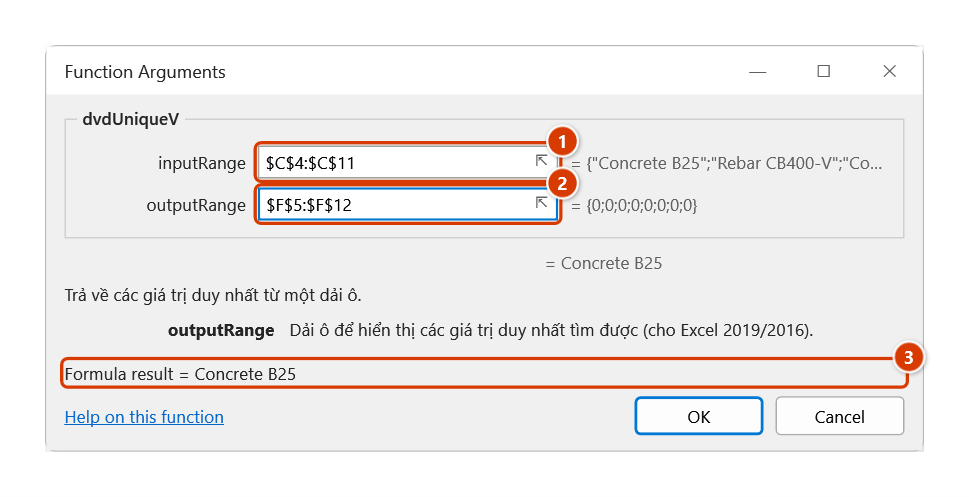
Step 3. The Function Arguments dialog (Ctrl+A right after the function name) shows the source range (1), the still-empty output range (2) and the value returned to the formula cell (3).
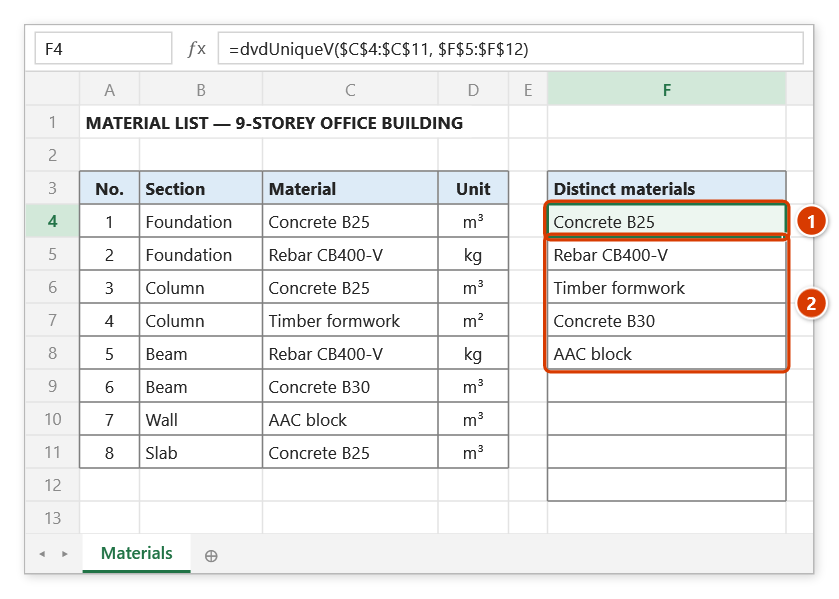
Step 4. Press Enter: the formula cell F4 shows the first material (1); the other 4 are written into F5:F8 (2) as values right after the calculation, and the rest of the output range stays empty. Edit column C and the list updates itself.
dvdUnique2DArray
Keeps the unique rows of a two-dimensional array based on one key column.
Syntax:
=dvdUnique2DArray(sArray; colIndex; HasTitle)| Parameter | Required | Description |
|---|---|---|
sArray | Yes | Input two-dimensional array. |
colIndex | Yes | Index of the key column, counted from 1. |
HasTitle | Yes | TRUE when the data has a header row. |
Example:
=dvdUnique2DArray($A$5:$F$500; 2; TRUE)
// → the subcontractor table with only the first occurrence of each code
Notes
- The function returns a two-dimensional array: Excel 365/2021 spills it; older versions need it entered as an array formula with
Ctrl+Shift+Enter. - With
HasTitleset toTRUEthe header row is always kept at the top of the result. - Rows whose key cell is empty are skipped and do not appear in the result.
Illustrated walkthrough
Practice
Download this function's sample workbook — the data matches the pictures below and the cell for the formula is already selected.
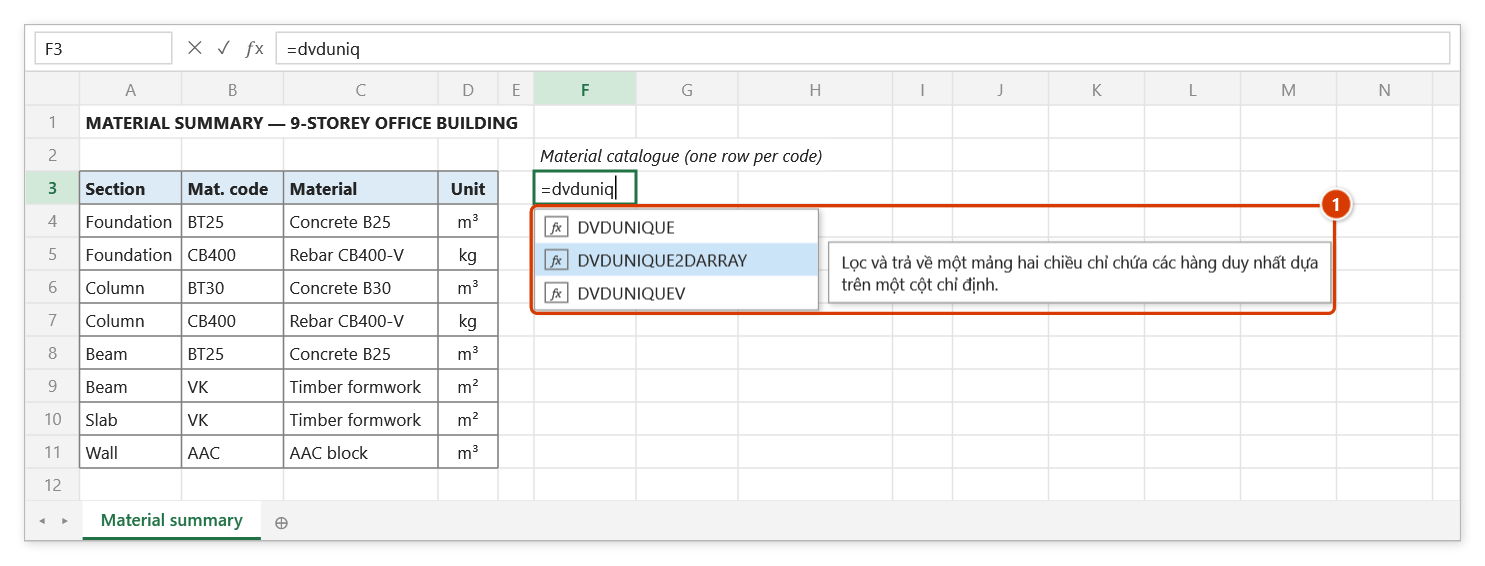
Step 1. Select F3 (top-left corner of the result) and type =dvduniq; pick DVDUNIQUE2DARRAY from the suggestion list (1) and press Tab.
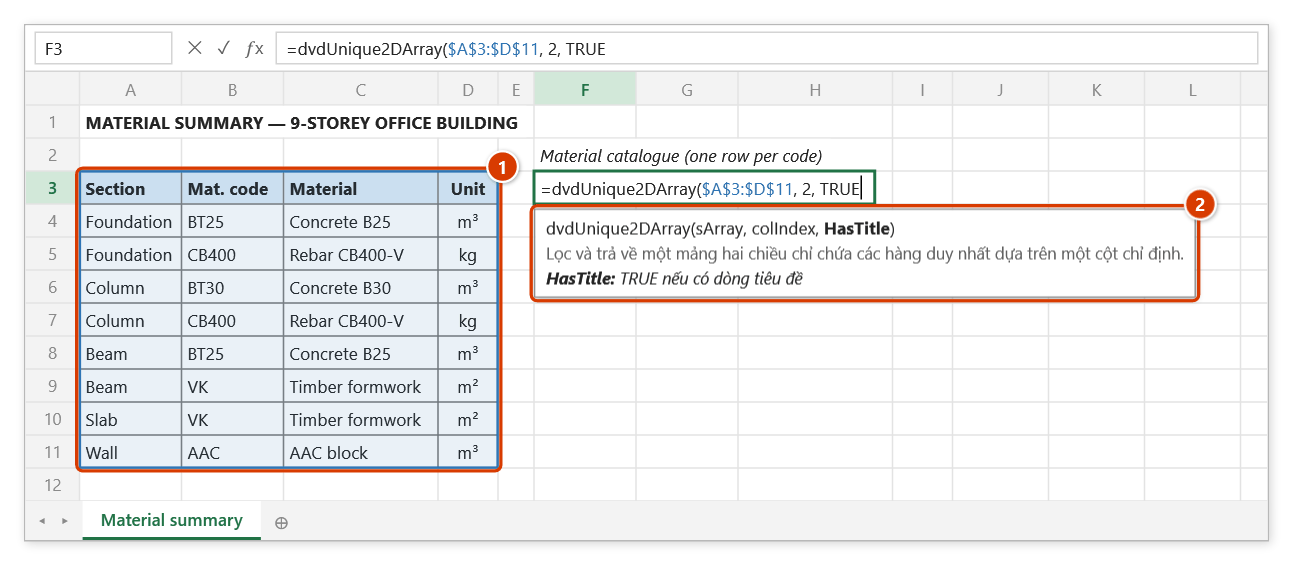
Step 2. Select the whole table including its header row (1), then type 2 (the Mat. code column is the key) and TRUE (the table has a header row). The tip (2) shows the current argument in bold.
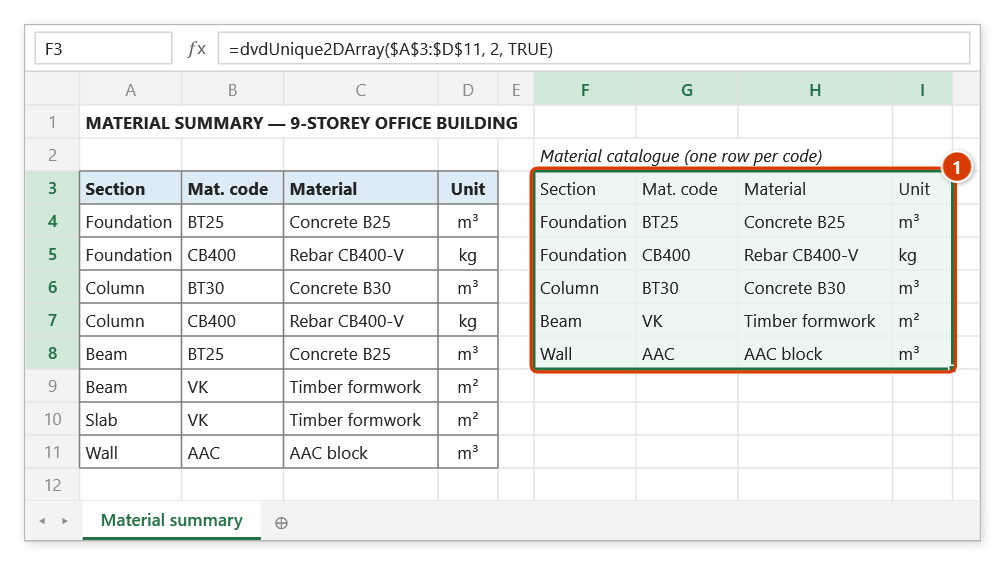
Step 3. Press Enter: the result spills into F3:I8 (1) — the header row plus one row per material code (its first occurrence); the duplicate rows 7, 8 and 10 are dropped.
dvdFilter2DArray
Filters a two-dimensional array on a condition applied to one column and returns the matching rows.
Syntax:
=dvdFilter2DArray(DataArray; ColumnIndex; Criteria; HasTitle)| Parameter | Required | Description |
|---|---|---|
DataArray | Yes | Two-dimensional array holding the data to filter. |
ColumnIndex | Yes | Index of the column the criteria apply to, counted from 1. |
Criteria | Yes | Filter criteria, for example ">5", "abc", "abc*". |
HasTitle | Yes | TRUE when the data has a header row. |
Example:
=dvdFilter2DArray($A$5:$F$500; 6; ">0"; TRUE)
// → the table reduced to work items with a quantity greater than zero

=dvdFilter2DArray($A$5:$F$500; 2; "BT*"; TRUE)
// → the rows whose work code starts with "BT"
Notes
- The function returns a two-dimensional array: Excel 365/2021 spills it; older versions need it entered as an array formula with
Ctrl+Shift+Enter. - Criteria accept comparison operators (
">5",">=2","<>0") and wildcards (*,?) as inCOUNTIF:"BT*"or"=BT*"keeps codes starting with BT,"<>BT*"keeps all other rows. - Decimals in the criteria may use a comma or a dot (
">0,5"=">0.5");"1.250.000"is 1250000.
Illustrated walkthrough
Practice
Download this function's sample workbook — the data matches the pictures below and the cell for the formula is already selected.
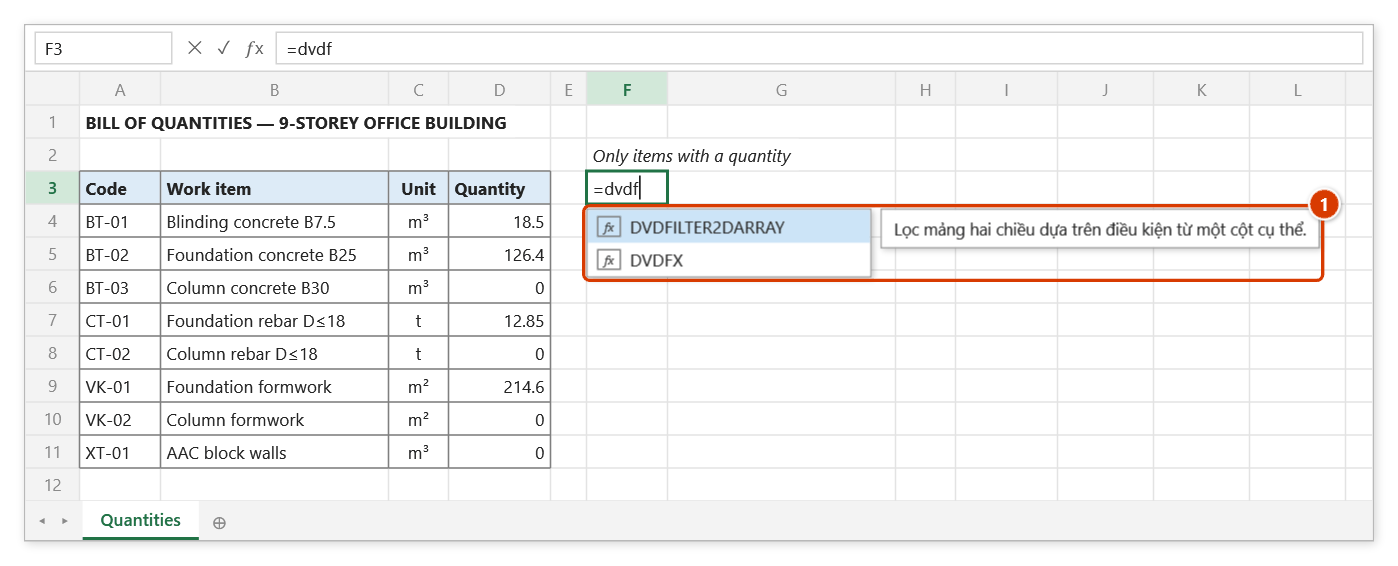
Step 1. Select F3 (top-left corner of the result) and type =dvdf; pick DVDFILTER2DARRAY (1) and press Tab.
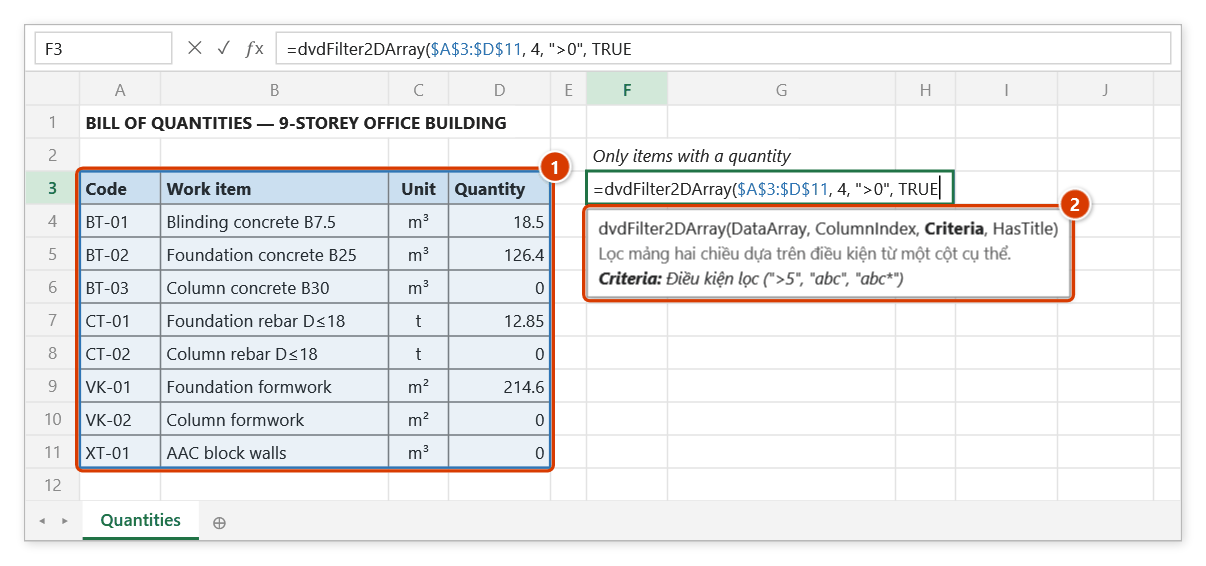
Step 2. Select the whole table including its header row (1), then type 4 (the Quantity column), the criteria ">0" and TRUE (has a header row). The tip (2) lists the accepted criteria forms.
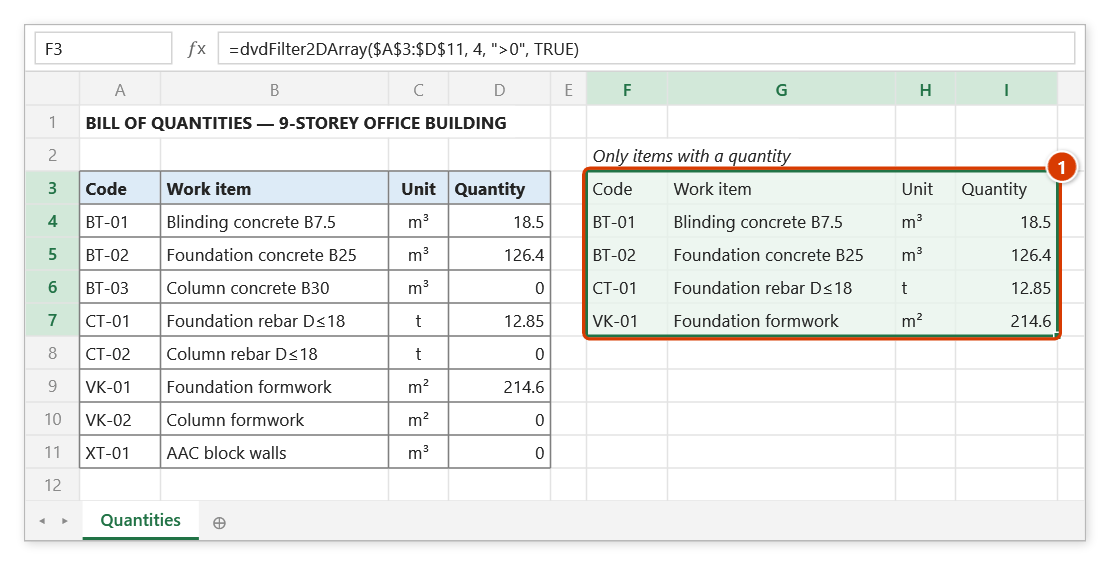
Step 3. Press Enter: the result spills into F3:I7 (1) — the header row and the 4 items with a quantity greater than 0; the zero-quantity rows are left out.
dvdSumVisible
Sums the values of the visible cells, skipping any cell in a hidden row or column.
Syntax:
=dvdSumVisible(SumRng)| Parameter | Required | Description |
|---|---|---|
SumRng | Yes | Range whose visible cells are summed. |
Example:
=dvdSumVisible($F$6:$F$500)
// → the total amount of the rows still visible after filtering by item
Notes
- The function is volatile: Excel recalculates it whenever anything changes, so avoid using it hundreds of times on a very large sheet.
- Cells hidden by
AutoFilter, hidden manually or hidden bydvdAutoHideare all skipped.
Illustrated walkthrough
Practice
Download this function's sample workbook — the data matches the pictures below and the cell for the formula is already selected.
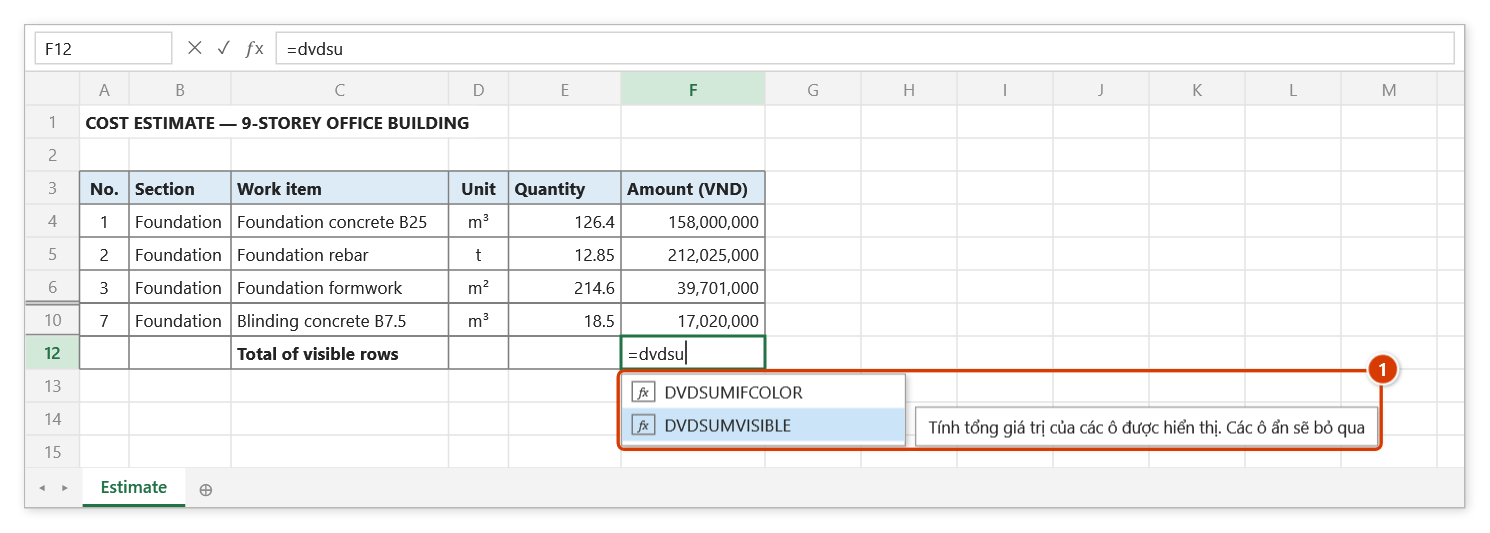
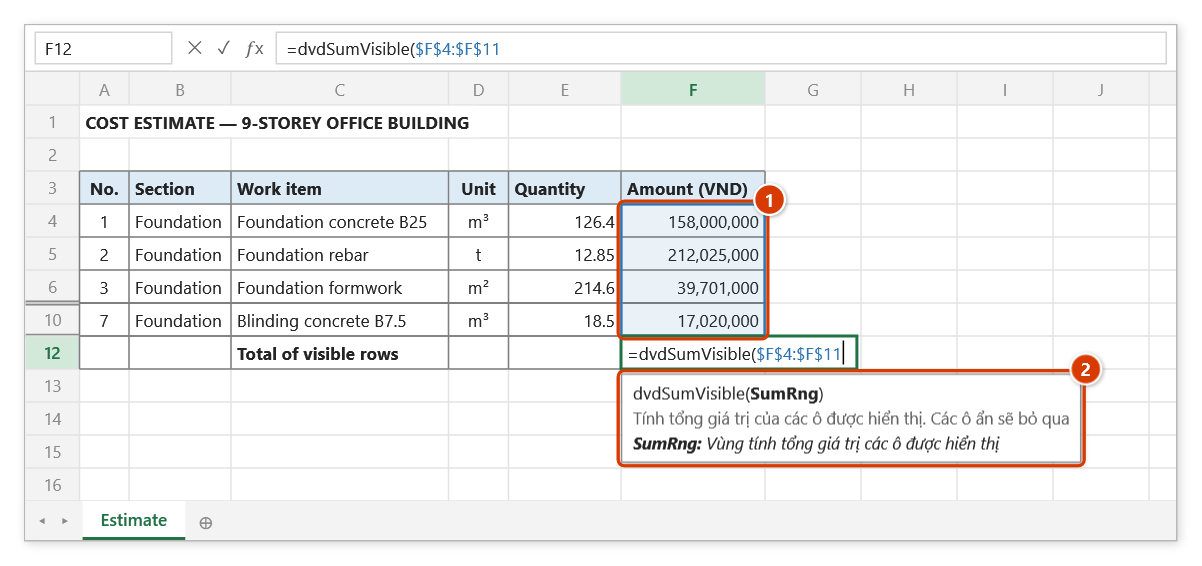
Step 1. The table is filtered on Section = Foundation (rows 7–9 and 11 are hidden). In the total cell F12 type =dvdsu and pick DVDSUMVISIBLE (1).
Step 2. Select the whole amount column $F$4:$F$11 (1) — hidden rows included, the function skips them itself. The tip (2) explains the argument.
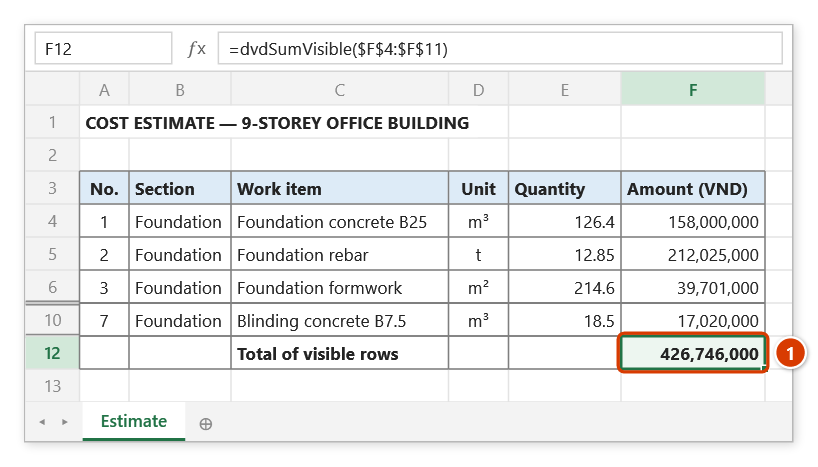
Step 3. Press Enter: F12 = 426,746,000 (1) — only the 4 visible rows are added (SUM of the column gives 827,780,000). Clear the filter and the cell recalculates to the full total.
dvdSumIfColor
Sums the cells whose fill colour matches the fill colour of a sample cell.
Syntax:
=dvdSumIfColor(rngSum; rngCellColor)| Parameter | Required | Description |
|---|---|---|
rngSum | Yes | Range whose values are summed. |
rngCellColor | Yes | Cell whose fill colour is used as the condition. |
Example:
=dvdSumIfColor($F$6:$F$500; $H$3)
// → the total quantity of the rows filled with the same colour as H3 (for example the "variation" mark)
Notes
- Changing a fill colour does not trigger a recalculation; the function refreshes on Excel's next calculation (edit any cell, or press
F9). - Colours are compared by Excel's palette colour index (as in the original VBA): two very similar fills may count as the same colour.
- The comparison uses the fill colour applied directly to the cell, not colours produced by conditional formatting.
Illustrated walkthrough
Practice
Download this function's sample workbook — the data matches the pictures below and the cell for the formula is already selected.
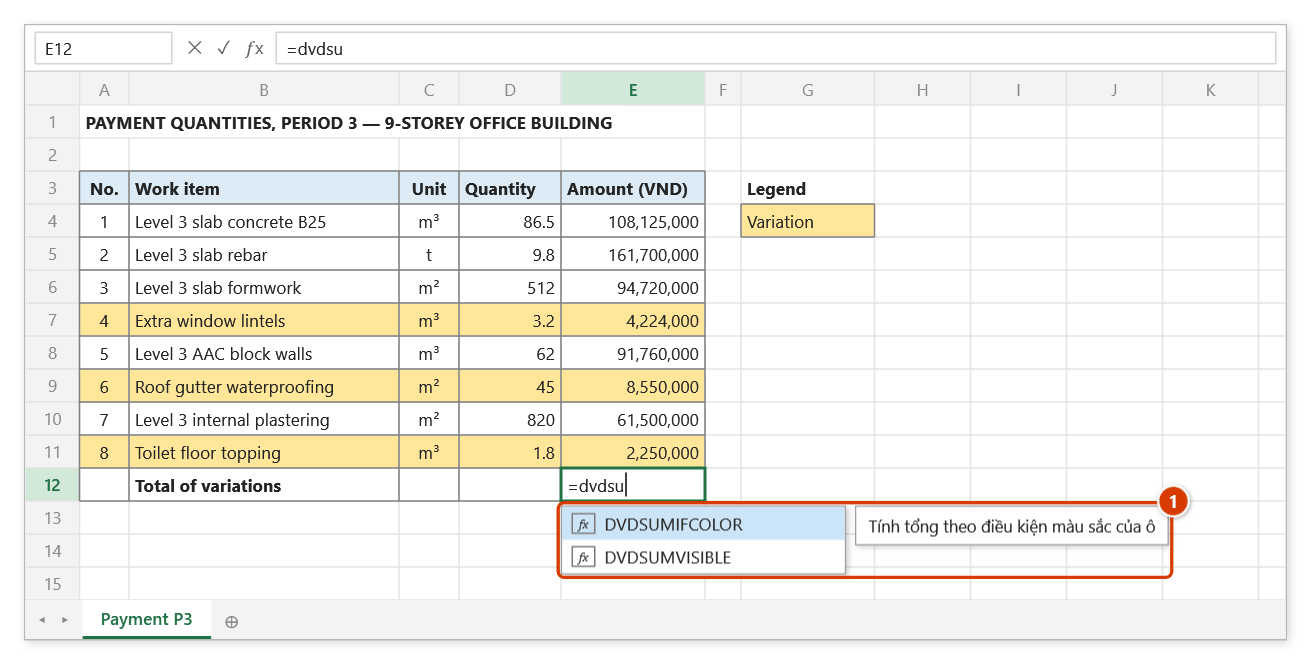
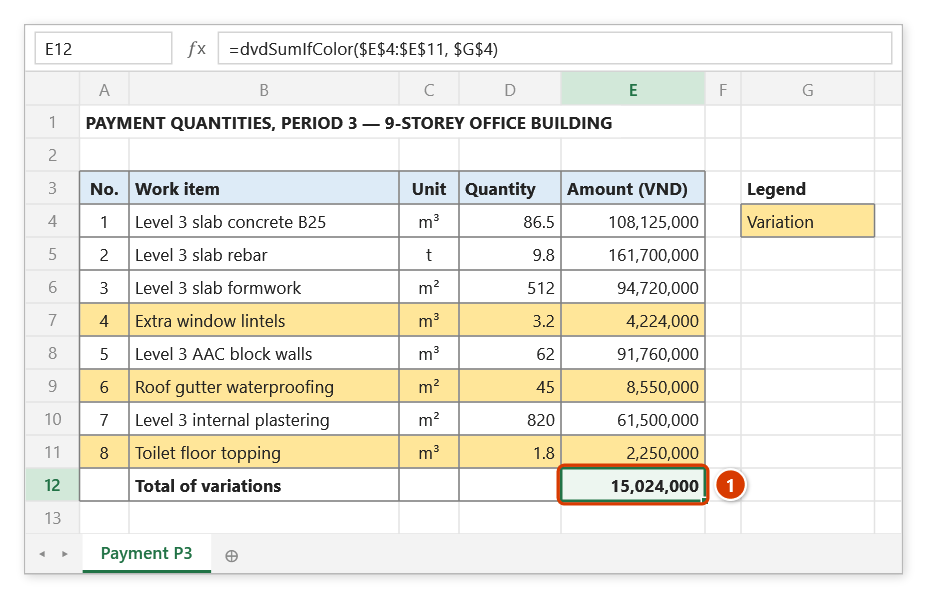
Step 1. The variation rows are filled yellow like the legend cell G4. In E12 type =dvdsu and pick DVDSUMIFCOLOR (1).
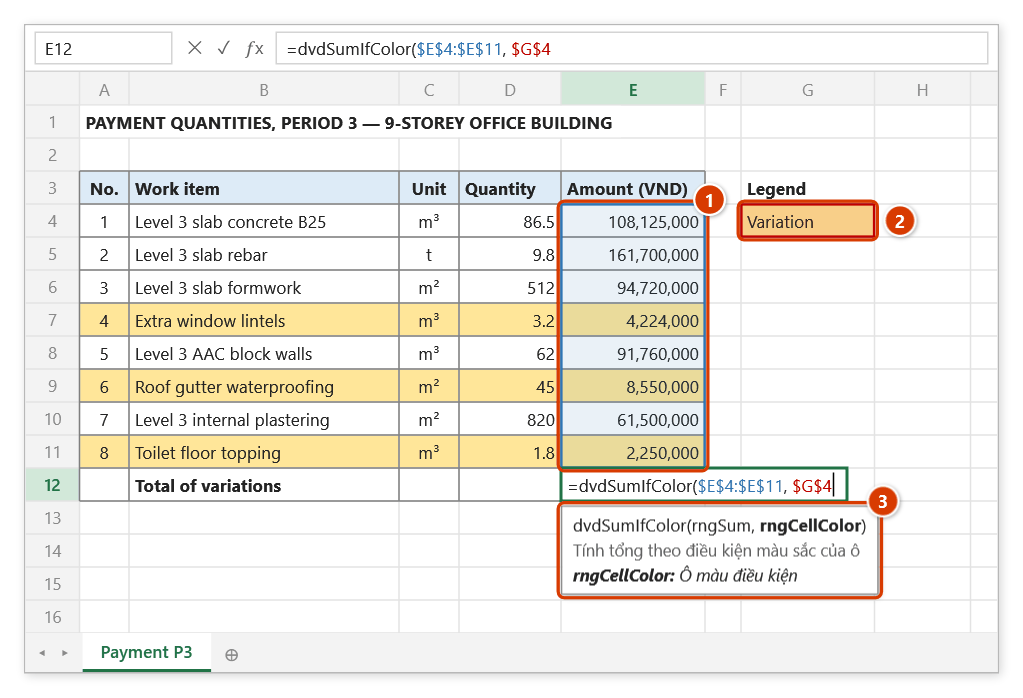
Step 2. Select the amount column (1), type , and click the colour sample G4 (2). The tip (3) explains the current argument.
Step 3. Press Enter: E12 = 15,024,000 (1) — the total of the 3 yellow rows (rows 7, 9, 11). Changing a fill does not recalculate: edit any cell or press F9.
dvdCountIfColor
Counts the cells in a range whose fill colour matches the fill colour of a sample cell.
Syntax:
=dvdCountIfColor(RangeToCount; ReferenceCell)| Parameter | Required | Description |
|---|---|---|
RangeToCount | Yes | Range of cells to count. |
ReferenceCell | Yes | Cell whose fill colour is used as the reference. |
Example:
=dvdCountIfColor($B$6:$B$500; $H$4)
// → 12 (number of items flagged as behind schedule)
Notes
- Changing a fill colour does not trigger a recalculation; the function refreshes on Excel's next calculation (edit any cell, or press
F9). - Colours are compared by Excel's palette colour index (as in the original VBA): two very similar fills may count as the same colour.
- The comparison uses the fill colour applied directly to the cell, not colours produced by conditional formatting.
- Empty cells with a matching fill are counted too. If the reference cell has no fill, every unfilled cell in the range (up to the sheet's last used row/column) is counted.
Illustrated walkthrough
Practice
Download this function's sample workbook — the data matches the pictures below and the cell for the formula is already selected.
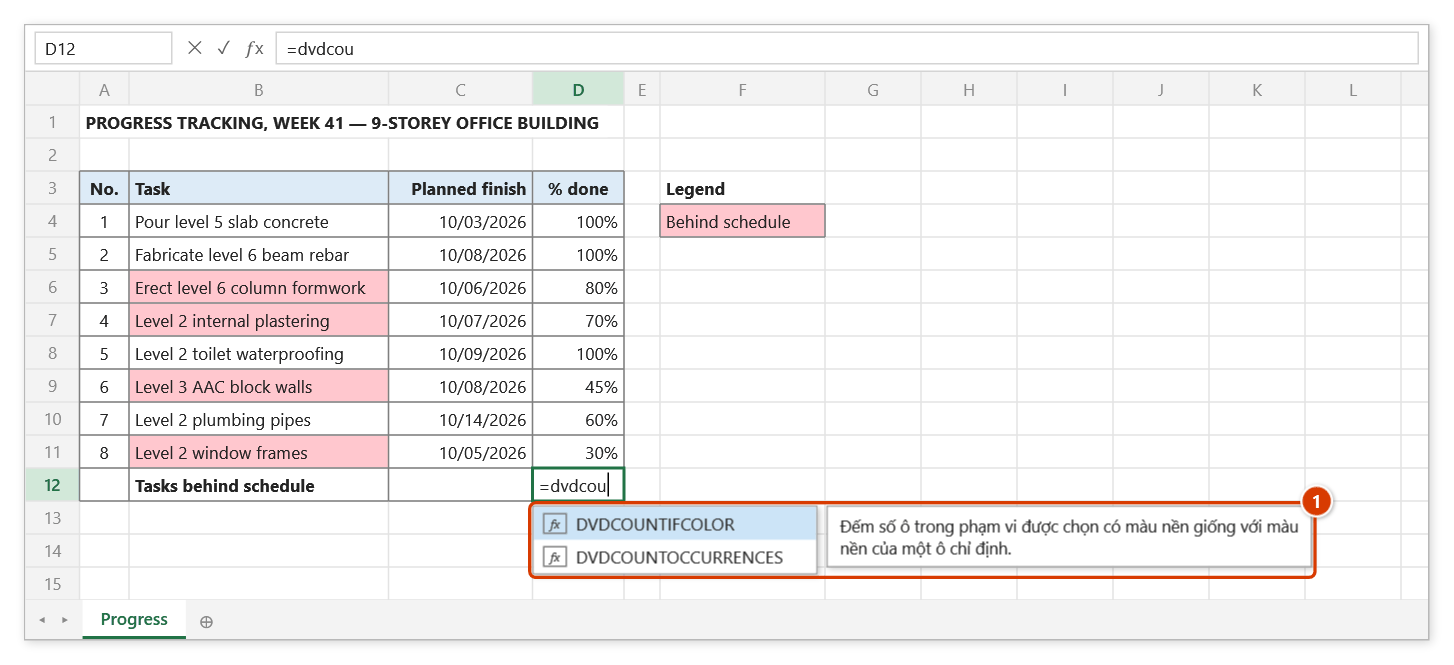
Step 1. Tasks behind schedule are filled red in column B, like the legend cell F4. In D12 type =dvdcou and pick DVDCOUNTIFCOLOR (1).
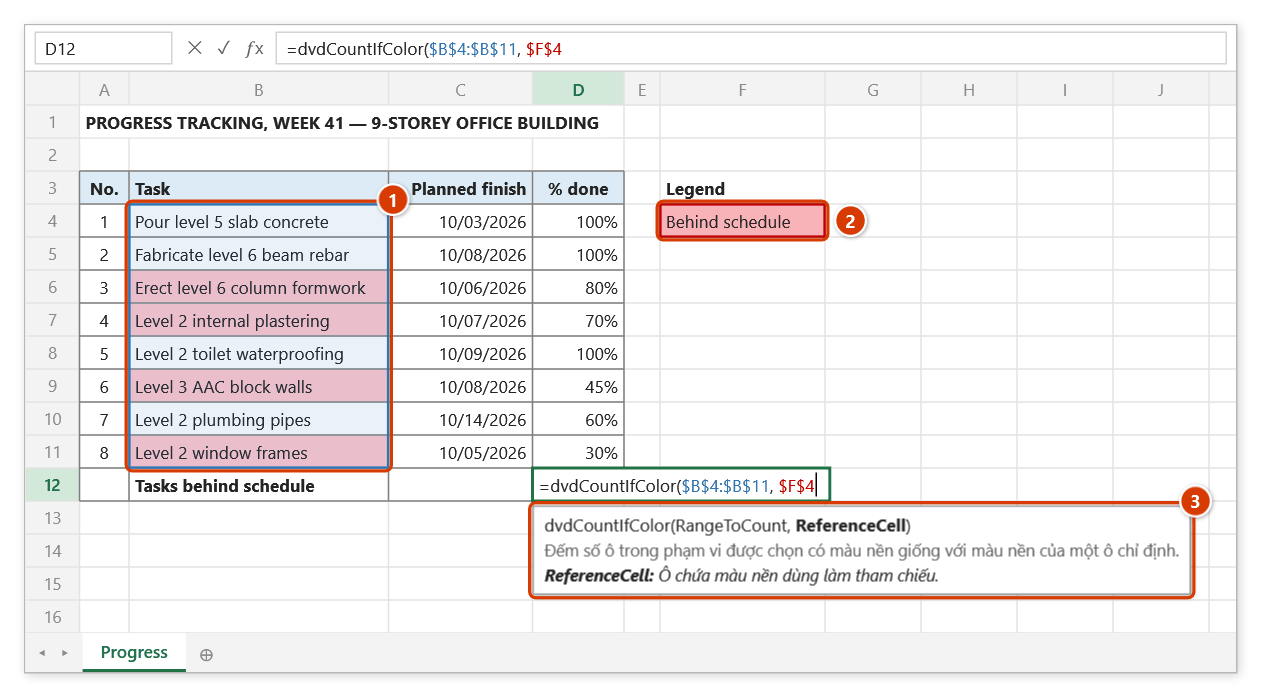
Step 2. Select the task column (1), type , and click the colour sample F4 (2). The tip (3) explains the current argument.
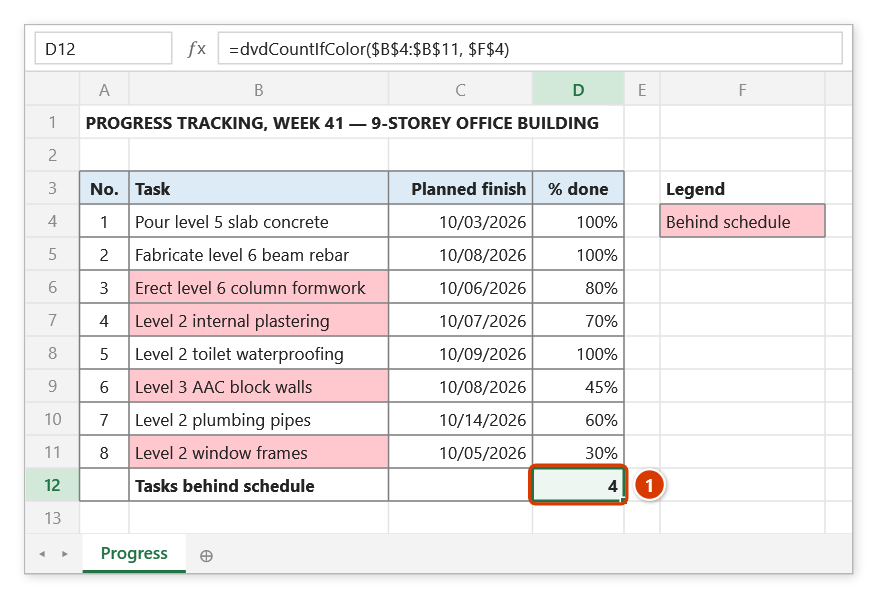
Step 3. Press Enter: D12 = 4 (1) tasks behind schedule. After filling or clearing a cell, press F9 to recount (changing a fill does not recalculate).
dvdAutoHide
Hides the rows that fail the condition and renumbers the rows that stay visible.
Syntax:
=dvdAutoHide(Target; Cells; Conditions; [OrdersRange]; [Title])| Parameter | Required | Description |
|---|---|---|
Target | Yes | Range of rows covered by the hide/show operation. |
Cells | Yes | Range holding the values compared against the conditions. |
Conditions | Yes | Condition, for example "0", ">=2", "<>0"; several conditions can be supplied as a range. |
OrdersRange | No | Range that is renumbered after hiding. |
Title | No | Text shown in the formula cell, DVDAutoHide by default. |
Example:
=dvdAutoHide($A$6:$A$500; $F$6:$F$500; "<>0"; $A$6:$A$500; "Ẩn dòng khối lượng 0")
// → keeps the rows with a non-zero quantity, hides the rest and renumbers them consecutively
Notes
- A row stays visible when at least one of its cells in
Cellssatisfies every condition; all other rows are hidden. - A blank cell satisfies
"<>0": rows with a blank quantity (such as group headers) stay visible and get a number inOrdersRange. - The operators
>,<,>=,<=never match when one side is a number and the other is text, as inCOUNTIF: a cell readingMóngdoes not pass">0". Numbers in the conditions may use a comma or a dot (">0,5"=">0.5"). - Hiding runs after Excel finishes calculating, so the result may appear one beat later than the formula entry.
- The function is volatile: Excel recalculates it whenever anything in the workbook changes.
- Put the formula in a cell outside
Targetso that it is not hidden along with the rows.
Illustrated walkthrough
Practice
Download this function's sample workbook — the data matches the pictures below and the cell for the formula is already selected.
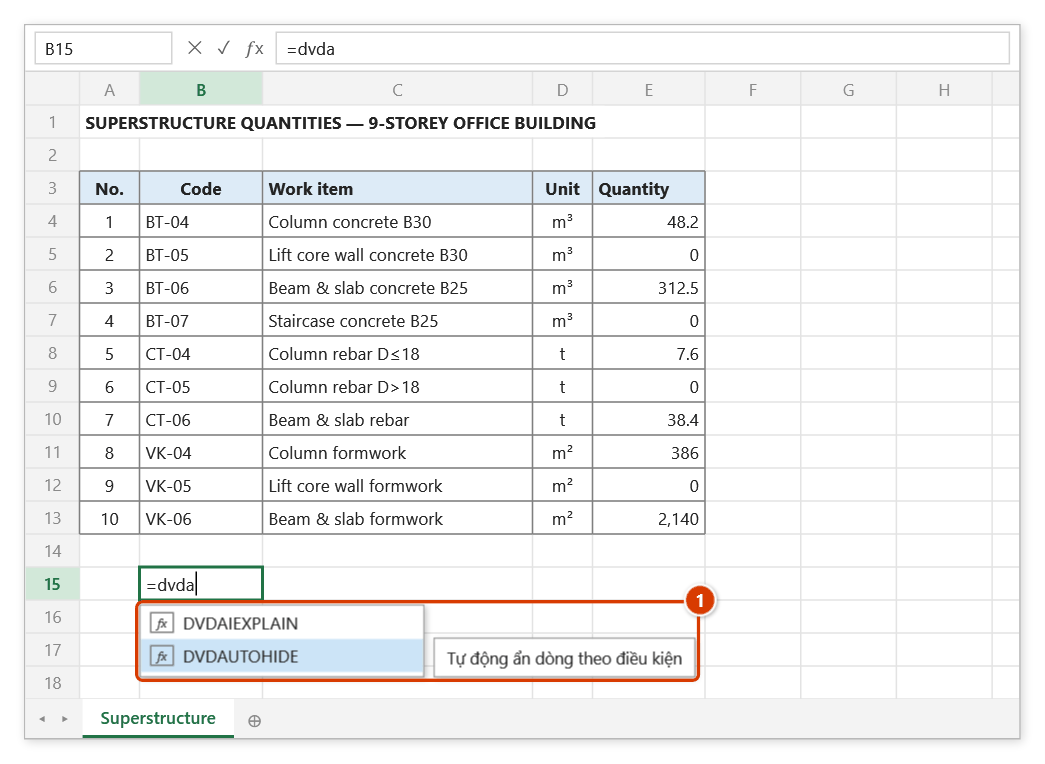
Step 1. The quantity table has several zero-quantity items. Select B15 — outside the rows to be hidden — type =dvda and pick DVDAUTOHIDE (1).
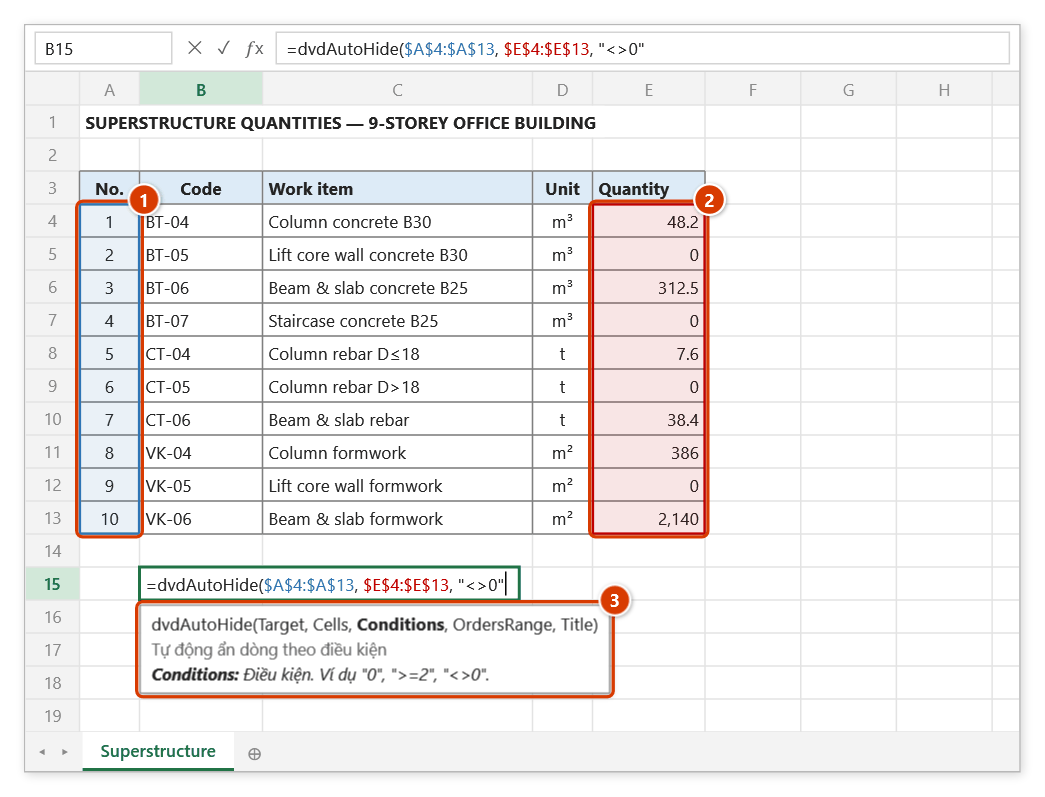
Step 2. Select the No. column as Target (1) and the quantity column as Cells (2), then type the keep-row condition "<>0". The tip (3) shows the condition forms.
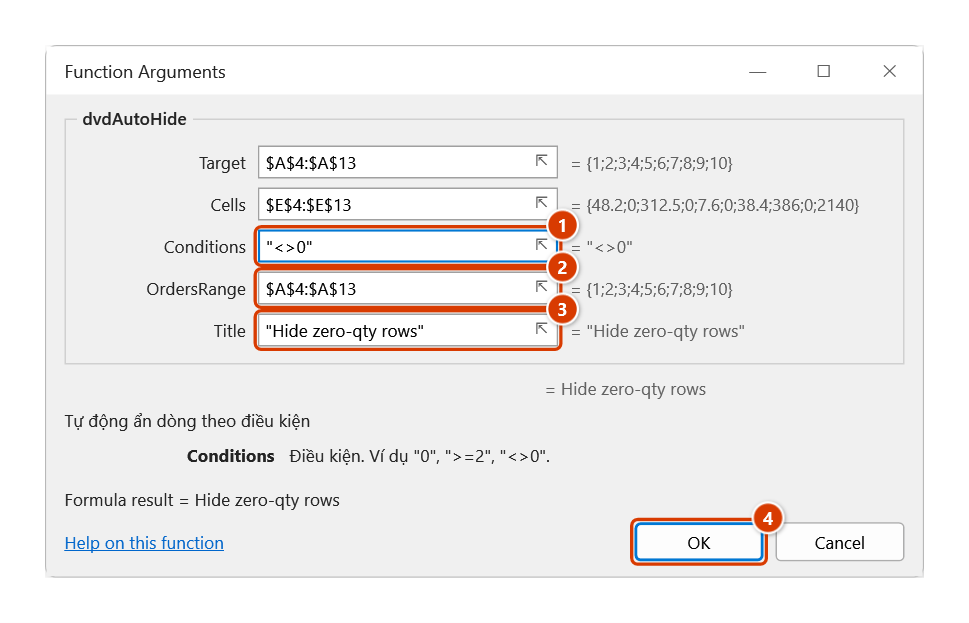
Step 3. Add the No. column as OrdersRange and a title. The Function Arguments dialog shows the condition (1), the range that gets renumbered (2) and the text shown in the cell (3). Click OK (4).
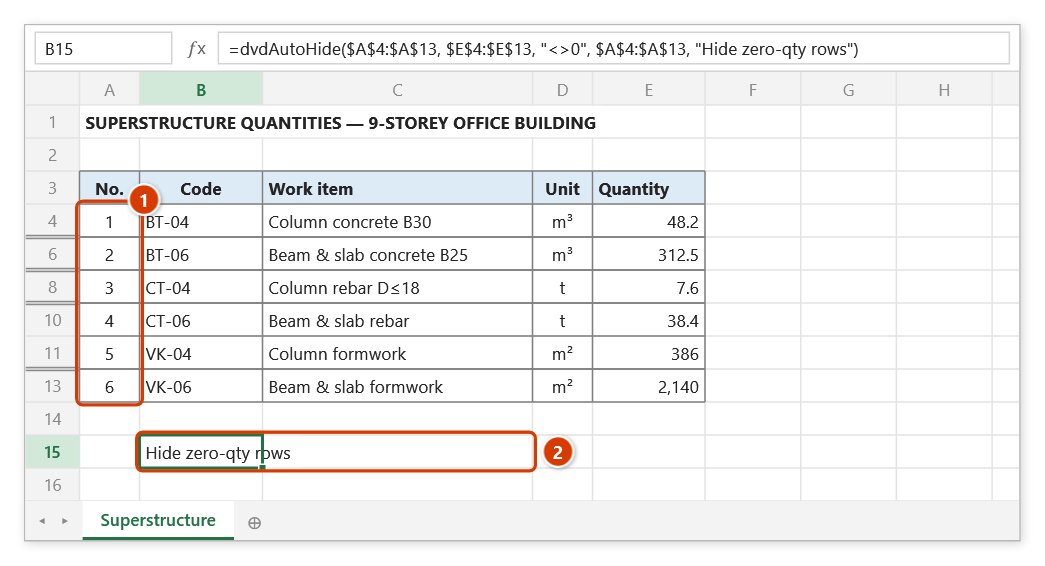
Step 4. B15 shows the title (2); right after the calculation the 4 zero-quantity rows (5, 7, 9, 12) are hidden and the No. column is renumbered 1–6 (1). Set a row's quantity to 0 and that row hides itself on the next calculation.