Date, number & money functions
This group contains 11 functions covering both the wording and the arithmetic of Vietnamese construction paperwork: dates and times written out for acceptance records (Vietnamese, English or bilingual), lunar/solar calendar conversion, amounts spelled out in words, automatic quantity explanations built from cell formulas, linear interpolation and steel weight.
The examples below use a semicolon ; to separate arguments (Excel running on a Vietnamese regional format). If your Excel uses the English (US) format, type a comma , instead of ;.
Quick reference:
| Function | Purpose |
|---|---|
dvdLDate | Write a date as the sentence used in official records. |
dvdLTime | Write hours and minutes in words. |
dvdLTimeDate | Write time and date together in words. |
dvdLunarToSolar | Convert a lunar date into a solar date. |
dvdSolarToLunar | Convert a solar date into a lunar date. |
dvdVnd | Spell a Vietnamese dong amount out in words. |
dvdUsd | Spell a dollar amount out in English words. |
dvdExplain | Explain a formula as result = expression. |
dvdExplainE | Explain a formula as expression = result. |
dvdNoiSuy | One-dimensional linear interpolation. |
dvdSteelWeight | Steel weight from bar diameter and quantity. |
dvdLDate
Writes a date cell as the sentence used in official records, optionally prefixed with a place name.
Syntax:
=dvdLDate(shortDate; [Location]; [Language])| Parameter | Required | Description |
|---|---|---|
shortDate | Yes | Cell holding a date value. |
Location | No | Place name added in front of the sentence. |
Language | No | 0 = Vietnamese (default), 1 = English, 2 = bilingual. |
Example:
=dvdLDate(D6; "Hà Nội"; 0)
// → "Hà Nội, ngày 22 tháng 8 năm 2026"

=dvdLDate(D6; ; 2)
// → "ngày/date 22 tháng/month 8 năm/year 2026"
Notes
- Passing an empty string
""asLocationproduces a dotted line to fill in by hand:...................., ngày 22 tháng 8 năm 2026. - An empty date, or a time-only value (below 1), produces the blank template
ngày….......tháng….......năm…......., handy for forms that are signed later. WithLanguage= 1 it isdate….......month….......year…......., worded like the filled-in text. - The day is always shown with two digits; January and February are shown as
01and02.
Illustrated walkthrough
Practice
Download this function's sample workbook — the data matches the pictures below and the cell for the formula is already selected.
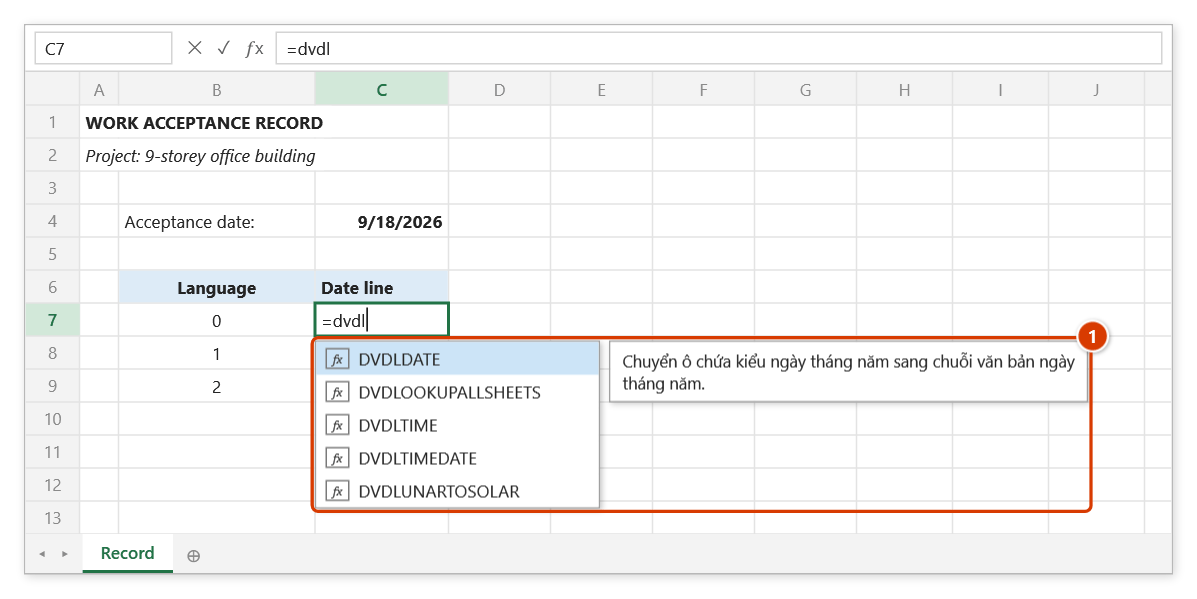
Step 1. Select C7 and type =dvdl — Excel's suggestion list shows the DVDAddin date functions with DVDLDATE selected and its description (1). Press Tab to pick it.
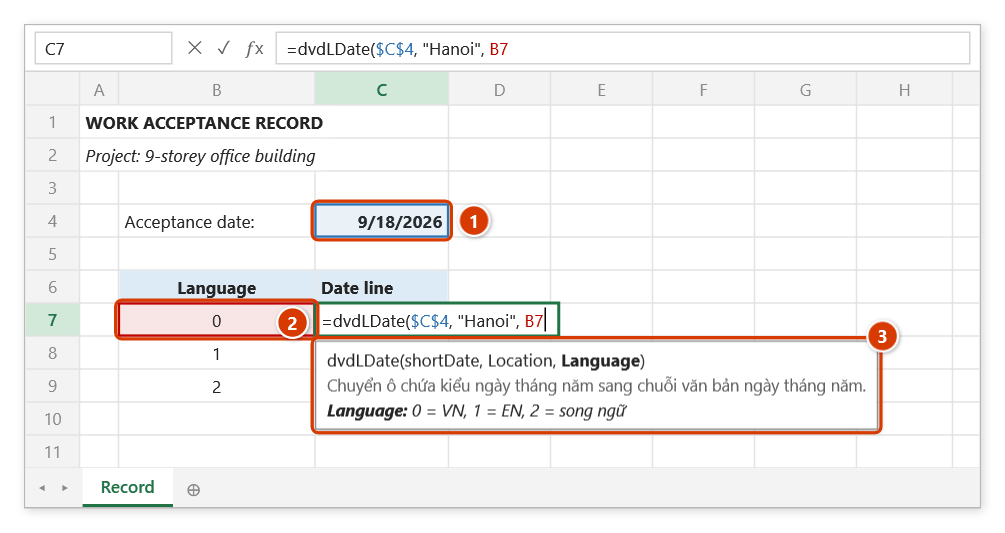
Step 2. Click the acceptance date (1) and press F4 to lock it as $C$4, type , "Hanoi", and click the language code (2). The argument tip (3) reminds you: 0 = Vietnamese, 1 = English, 2 = bilingual.
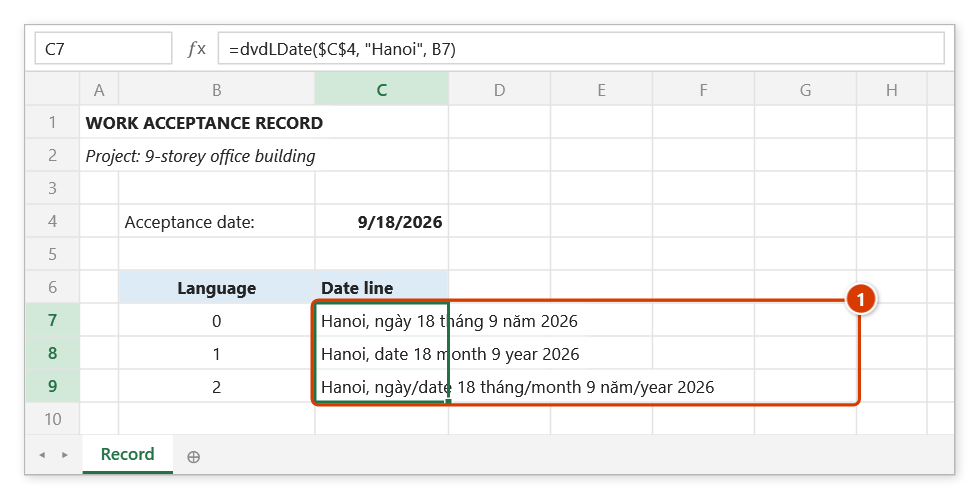
Step 3. Press Enter and fill the formula down to C9: each row gives one wording of the date (1) — Vietnamese, English, bilingual. Change the date in C4 and all three lines follow.
dvdLTime
Writes a time value as hours and minutes in words.
Syntax:
=dvdLTime(shortTime; [Language])| Parameter | Required | Description |
|---|---|---|
shortTime | Yes | Time value of type Date. |
Language | No | 0 = Vietnamese (default), 1 = English, 2 = bilingual. |
Example:
=dvdLTime(E6; 0)
// → "08 giờ 30 phút"

=dvdLTime(E6; 2)
// → "08 giờ/hours 30 phút/minutes"
Notes
- Only an empty cell (or an omitted argument) produces the blank template
….......giờ….......phútfor forms filled in by hand; a real 00:00, with or without a date, gives00 giờ 00 phút.
Illustrated walkthrough
Practice
Download this function's sample workbook — the data matches the pictures below and the cell for the formula is already selected.
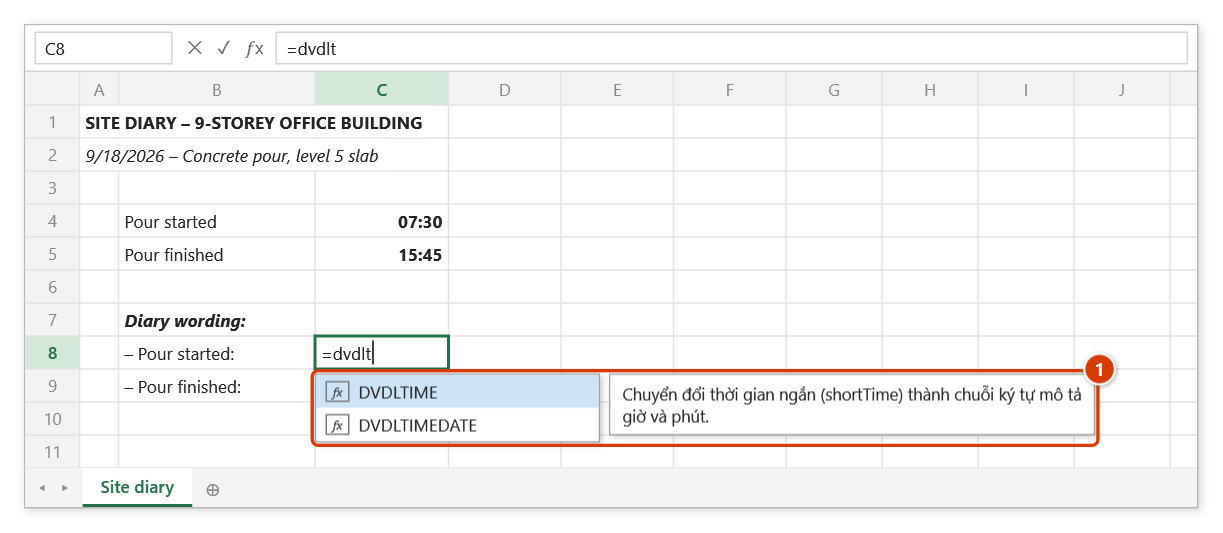
Step 1. Select C8 and type =dvdlt — Excel's suggestion list shows DVDLTIME with the function description (1). Press Tab to pick it.
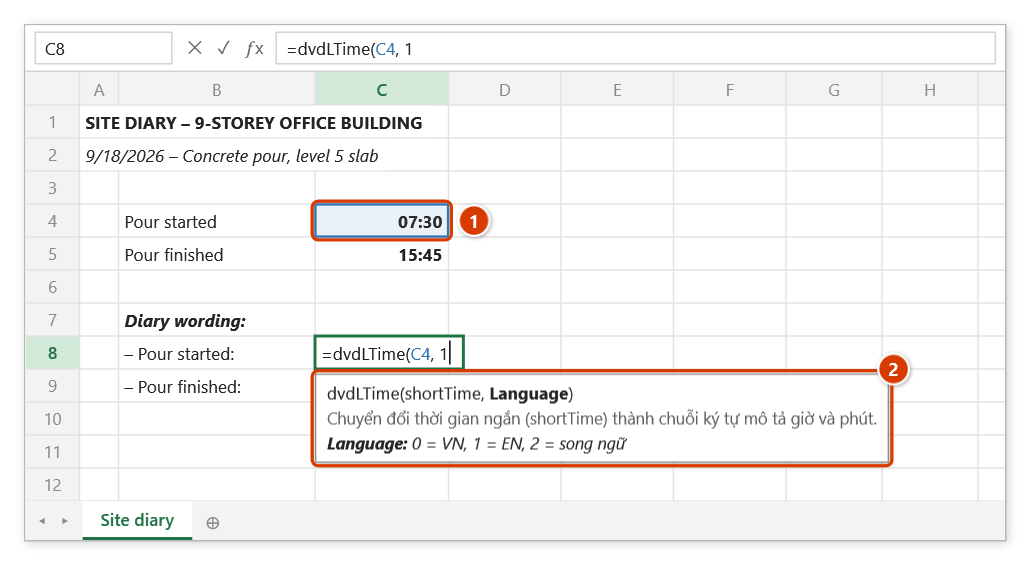
Step 2. Click the start time (1) and type , 1 (1 = English). The argument tip (2) lists the language options: 0 = Vietnamese, 2 = bilingual.
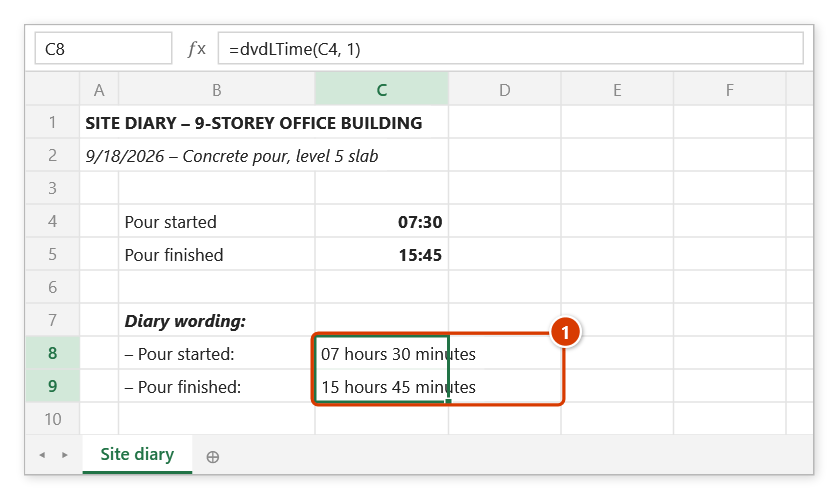
Step 3. Press Enter and fill down to C9: the pour times are written out (1) for the diary. An empty time cell gives the blank template ….......hours….......minutes to fill in by hand.
dvdLTimeDate
Writes hours, minutes, day, month and year as one sentence — the opening line of an acceptance record.
Syntax:
=dvdLTimeDate(shortTime; shortDate; [Language])| Parameter | Required | Description |
|---|---|---|
shortTime | Yes | Time value of type Date. |
shortDate | Yes | Date value of type Date. |
Language | No | 0 = Vietnamese (default), 1 = English, 2 = bilingual. |
Example:
=dvdLTimeDate(E6; D6; 0)
// → "08 giờ 30 phút, ngày 22 tháng 8 năm 2026"
Notes
- An empty time cell gives the blank time template while a real 00:00 gives
00 giờ 00 phút; an empty date cell or a time-only value (below 1) gives the blank date template — the same rules asdvdLTimeanddvdLDate.
Illustrated walkthrough
Practice
Download this function's sample workbook — the data matches the pictures below and the cell for the formula is already selected.
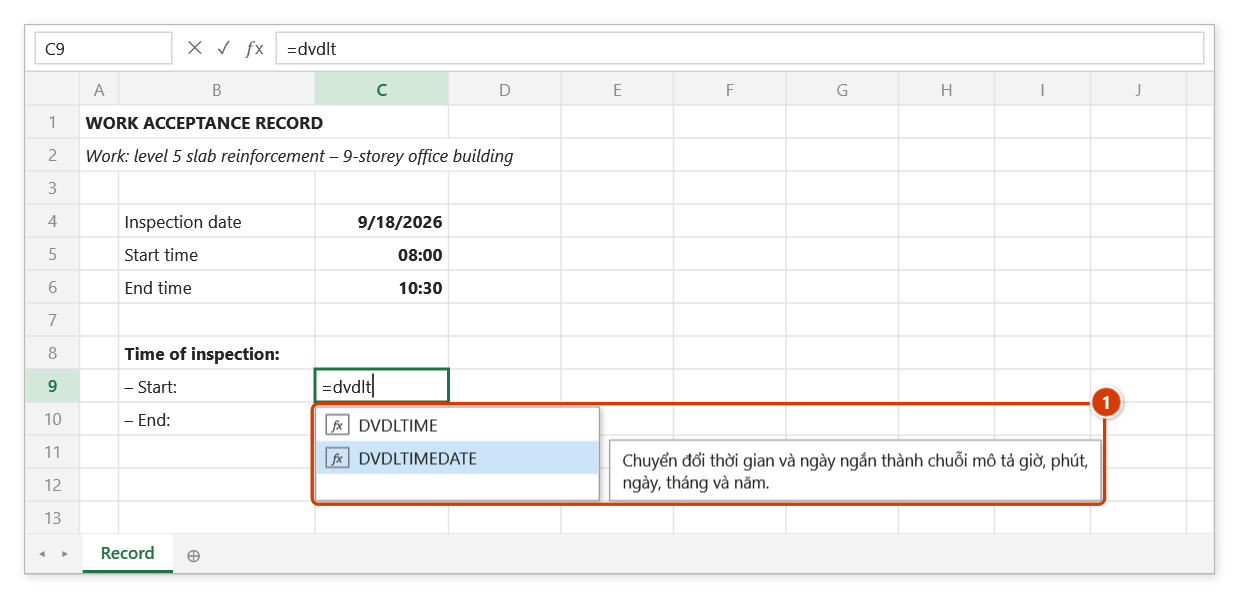
Step 1. Select C9 and type =dvdlt — the suggestion list shows two functions; press ↓ to highlight DVDLTIMEDATE (with its description (1)) and press Tab.
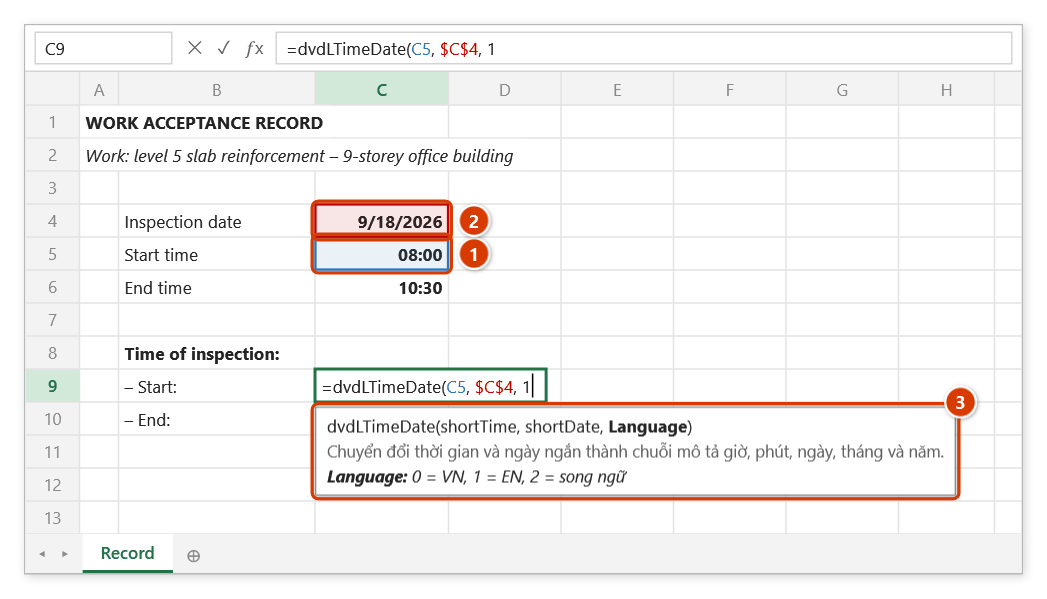
Step 2. Click the start time (1), type , then click the date (2) and press F4 to lock it as $C$4; finish with , 1 (1 = English). The argument tip (3) reminds you: 0 = Vietnamese, 2 = bilingual.
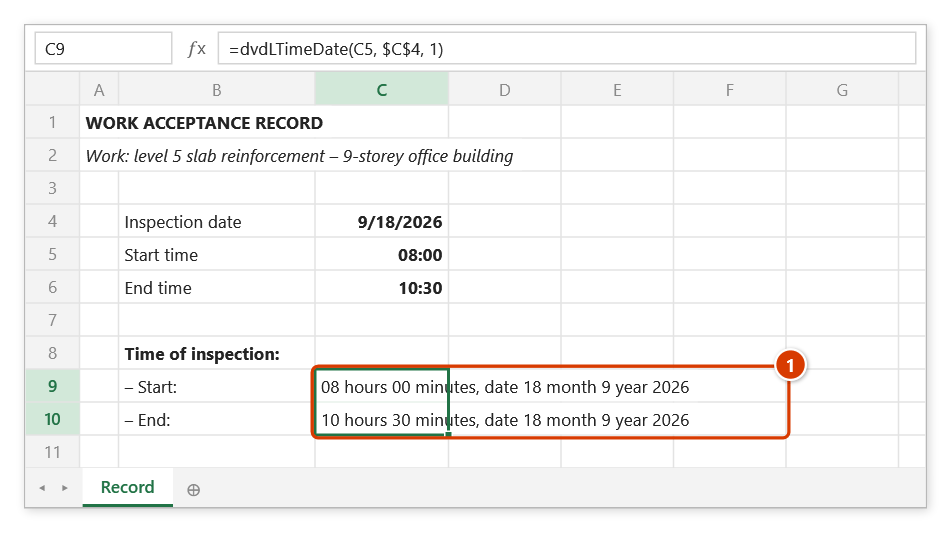
Step 3. Press Enter and fill down to C10: both inspection times are written out in full — hours, minutes, day, month, year (1) — ready for the opening lines of the record.
dvdLunarToSolar
Converts a lunar date into the matching solar date.
Syntax:
=dvdLunarToSolar(shortDateLunar)| Parameter | Required | Description |
|---|---|---|
shortDateLunar | Yes | Lunar date, entered as a date value. |
Example:
=dvdLunarToSolar(DATE(2026;1;1))
// → 17/02/2026 (first day of Tết — the anchor for the holiday break in a programme)
Notes
- The result is a date value: format the cell as Date to display it correctly.
- A lunar date that does not exist returns
#VALUE!. - The conversion uses Vietnam time (GMT+7).
Illustrated walkthrough
Practice
Download this function's sample workbook — the data matches the pictures below and the cell for the formula is already selected.
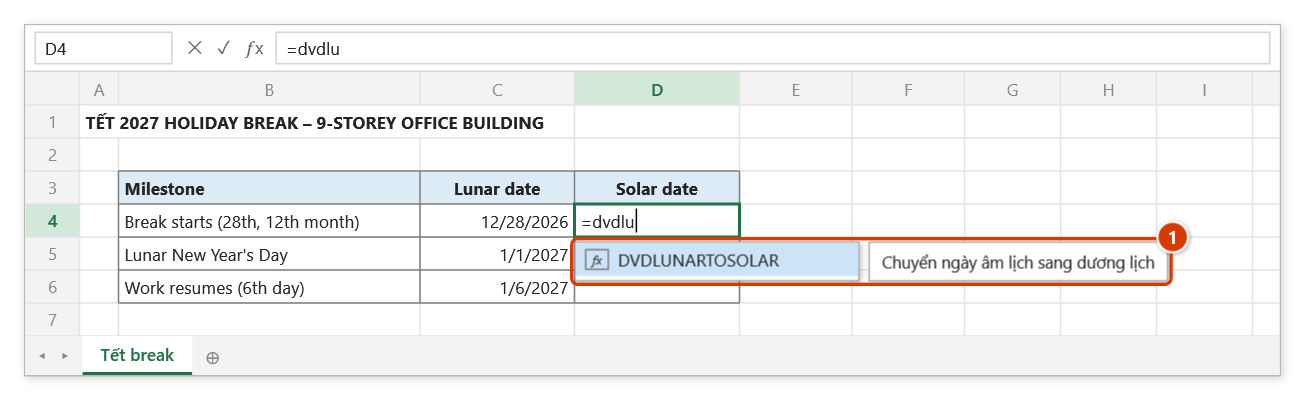
Step 1. Enter the Tết break milestones as lunar dates in column C, typed like ordinary dates (lunar day/month/year). Select D4 and type =dvdlu — the suggestion shows DVDLUNARTOSOLAR with its description (1). Press Tab.
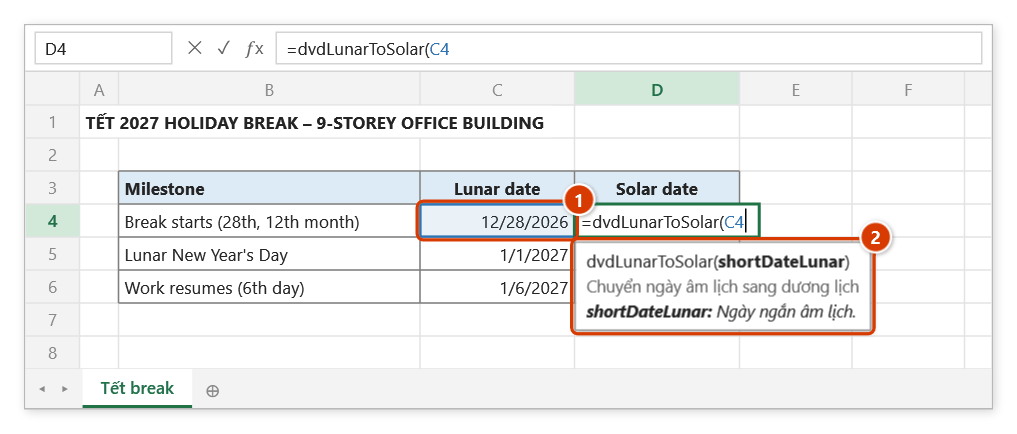
Step 2. Click the lunar date (1) and close the bracket. The argument tip (2) reminds you the only argument is the lunar date.
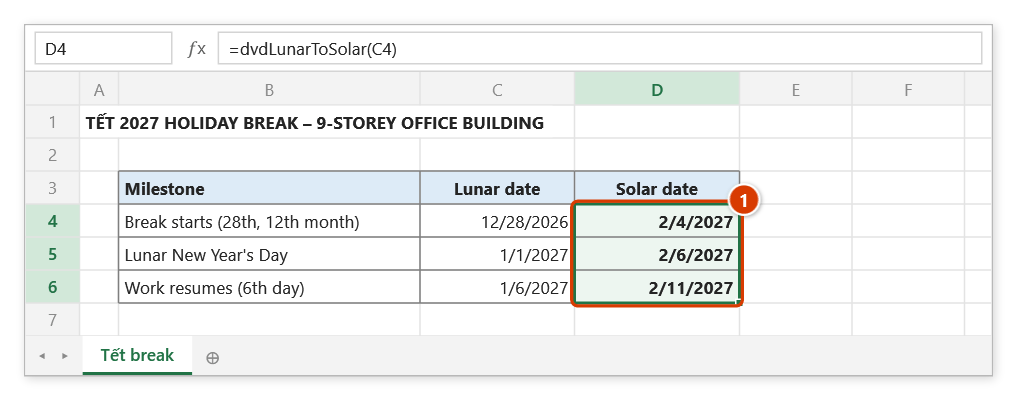
Step 3. Press Enter, fill down to D6 and format column D as Date: the solar dates (1) can go straight into the programme's holiday calendar. A lunar date that does not exist returns #VALUE!.
dvdSolarToLunar
Converts a solar date into the matching lunar date.
Syntax:
=dvdSolarToLunar(shortDateSolar)| Parameter | Required | Description |
|---|---|---|
shortDateSolar | Yes | Solar date, entered as a date value. |
Example:
=dvdSolarToLunar(DATE(2026;8;22))
// → "10/07/2026 AL"
Notes
- The result is text ending in
AL; a leap month is flagged in brackets, for example(6 N). - The conversion uses Vietnam time (GMT+7).
Illustrated walkthrough
Practice
Download this function's sample workbook — the data matches the pictures below and the cell for the formula is already selected.
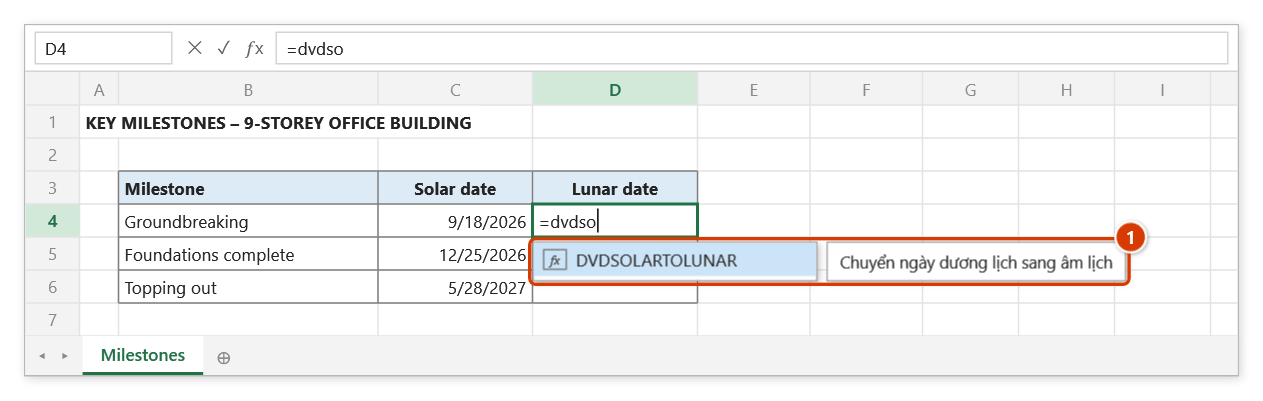
Step 1. Select D4, next to the solar date of the milestone, and type =dvdso — the suggestion shows DVDSOLARTOLUNAR with its description (1). Press Tab.
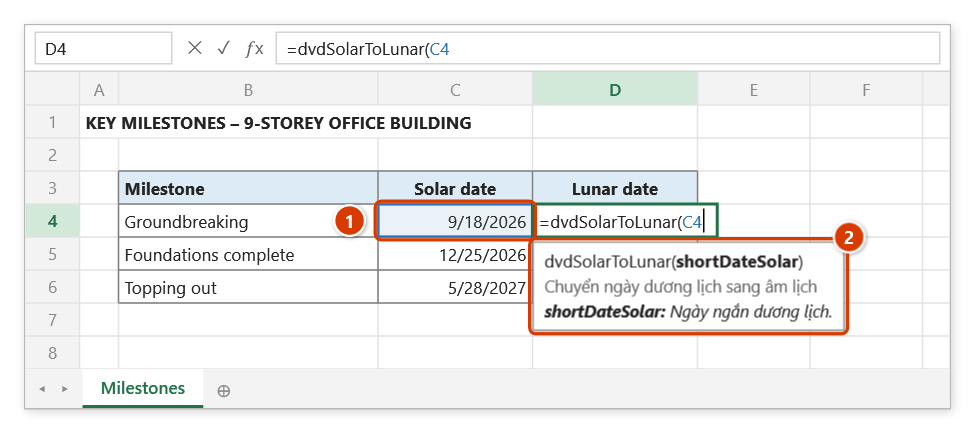
Step 2. Click the solar date (1) and close the bracket. The argument tip (2) shows the only argument is the solar date.
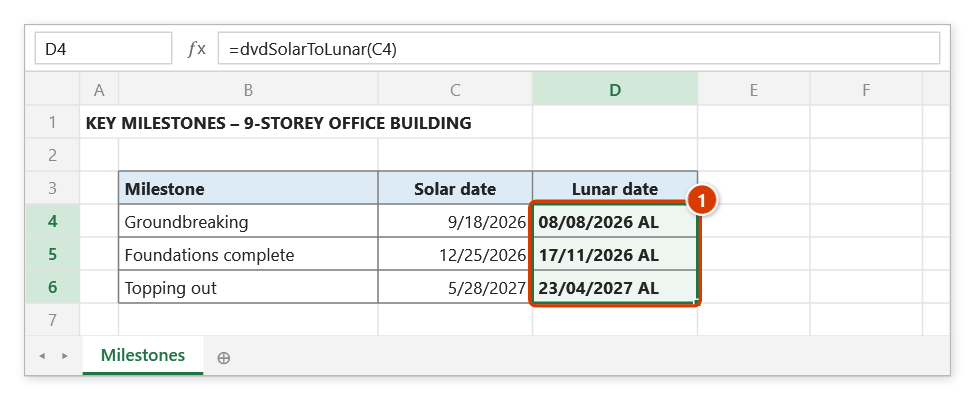
Step 3. Press Enter and fill down to D6: every milestone gets its lunar date as text ending in AL (1). A date in a leap month is flagged, e.g. 01/06/2025 AL (6 N).
dvdVnd
Spells a Vietnamese dong amount out in words for the "in words" line of a payment certificate or contract.
Syntax:
=dvdVnd(Number; [match_mode])| Parameter | Required | Description |
|---|---|---|
Number | Yes | Cell holding the amount, or the amount typed directly. |
match_mode | No | 0 = words only (default), 1 = prefix the result with Bằng chữ: . |
Example:
=dvdVnd(125000000)
// → "Một trăm hai mươi lăm triệu đồng."

=dvdVnd(F42; 1)
// → "Bằng chữ: Một triệu, hai trăm năm mươi nghìn đồng."
Notes
- The amount is rounded to whole dong before being spelled out; negative amounts are prefixed with "âm".
- An empty cell or a non-numeric value returns an empty string.
Illustrated walkthrough
Practice
Download this function's sample workbook — the data matches the pictures below and the cell for the formula is already selected.
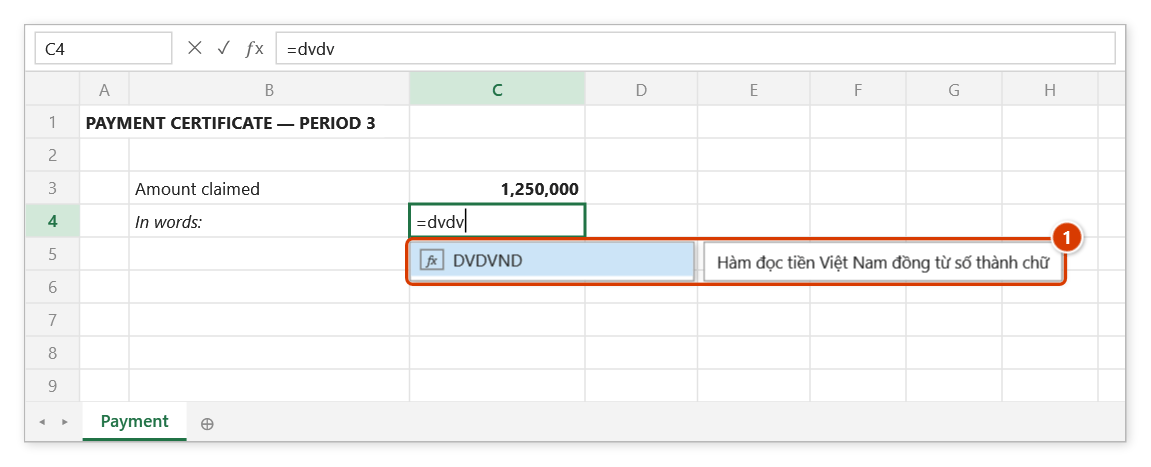
Step 1. Select the cell for the amount in words and type =dvdv — Excel's suggestion list shows DVDVND with the function description (1). Press Tab to pick it.
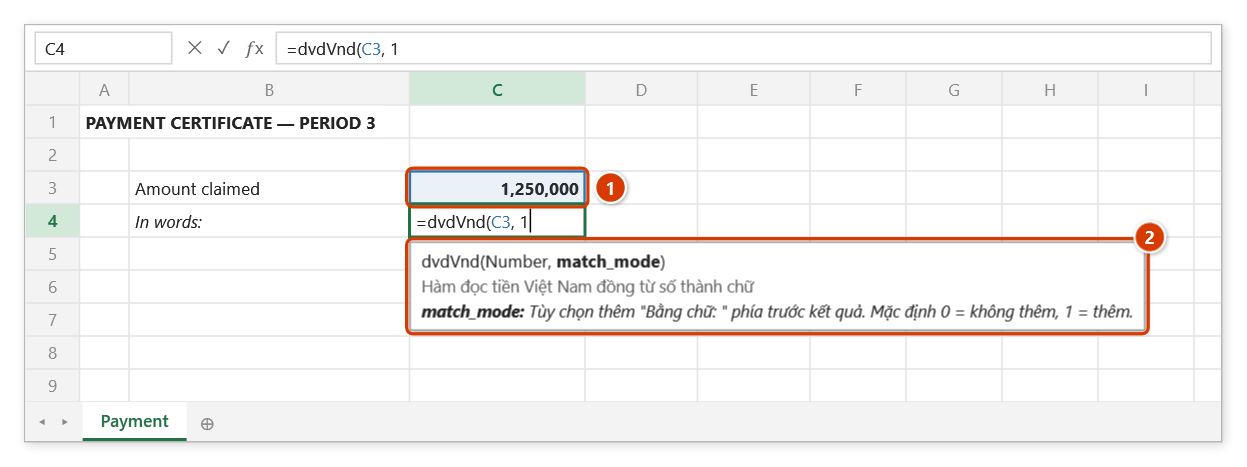
Step 2. Click the amount cell (1) (or type its address), then type , and 1 to prefix "Bằng chữ: ". The argument tip (2) shows the current argument in bold with its meaning.
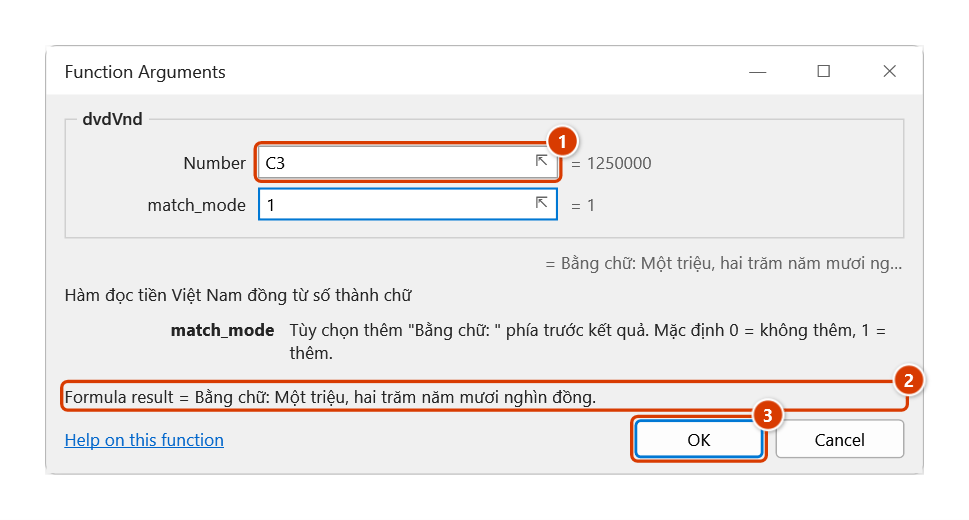
Step 3. For the full description of each argument, press Ctrl+A right after the function name (or the 𝑓x button): the Function Arguments dialog shows a box per argument (1) and a live result (2). Click OK (3).
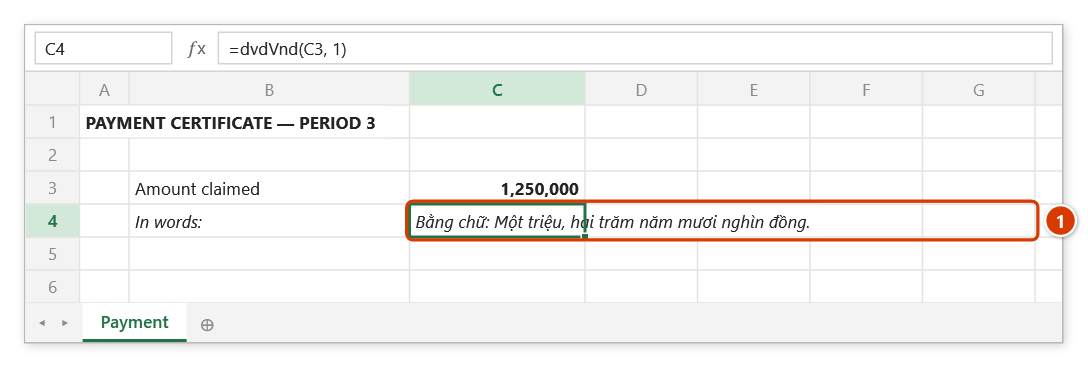
Step 4. Press Enter: the cell shows the amount in words (1); change C3 and the text updates by itself.
dvdUsd
Spells a dollar amount out in English words, for bilingual contracts and payment documents.
Syntax:
=dvdUsd(Number)| Parameter | Required | Description |
|---|---|---|
Number | Yes | Cell holding the amount, or the amount typed directly. |
Example:
=dvdUsd(5000)
// → "Five thousand dollars only"

=dvdUsd(1250,5)
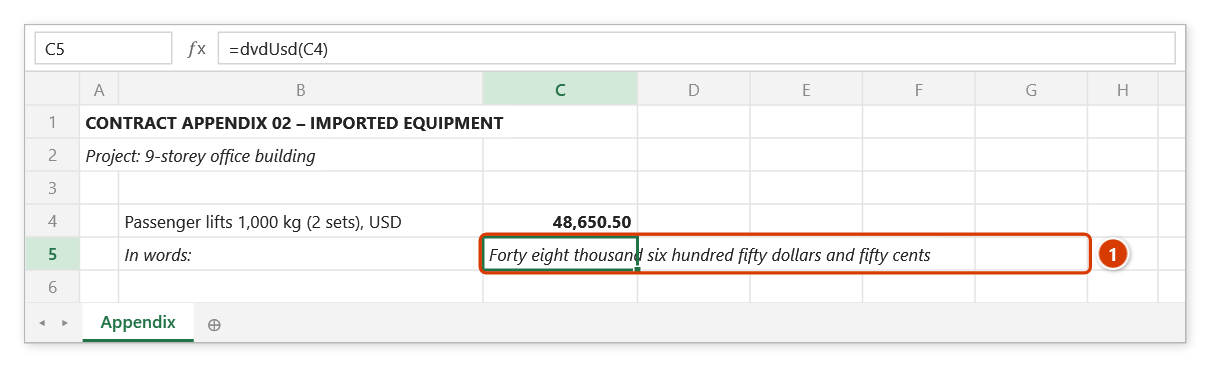
// → "One thousand two hundred fifty dollars and fifty cents"
Notes
- Zero returns
None; negative amounts are prefixed withMinus. - Exactly one dollar or one cent uses the singular:
=dvdUsd(1)→One dollar only,=dvdUsd(1,5)→One dollar and fifty cents,=dvdUsd(0,01)→One cent. Whole-dollar amounts end withonly; amounts with cents do not (=dvdUsd(0,5)→Fifty cents).
Illustrated walkthrough
Practice
Download this function's sample workbook — the data matches the pictures below and the cell for the formula is already selected.
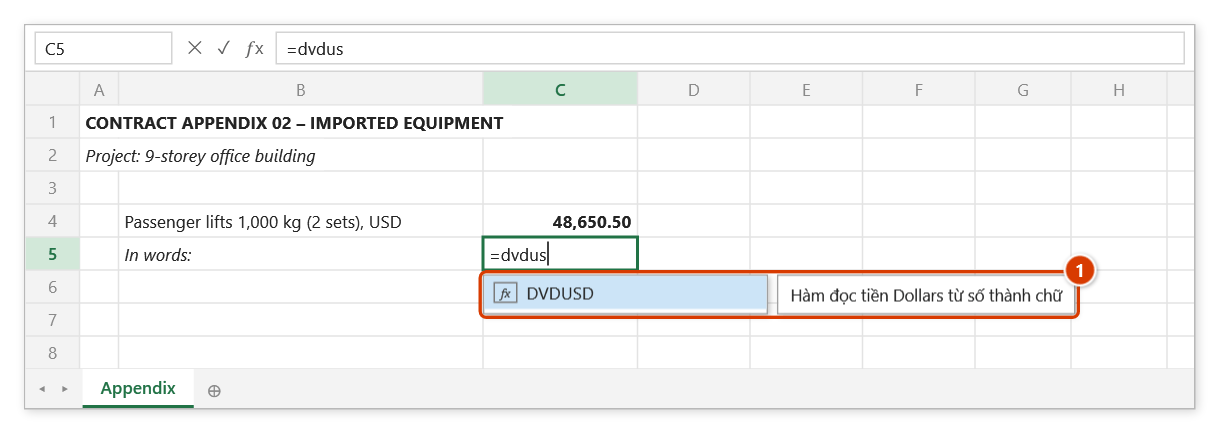
Step 1. Select the cell for the amount in words and type =dvdus — the suggestion shows DVDUSD with the function description (1). Press Tab to pick it.
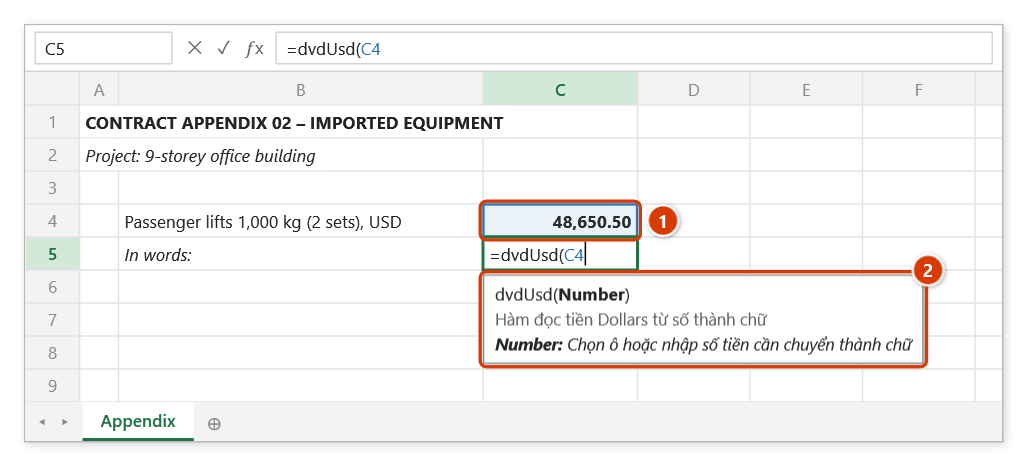
Step 2. Click the amount cell (1) and close the bracket. The argument tip (2) reminds you to pick a cell or type the amount.
Step 3. Press Enter: the cell shows the amount in English words, cents included (1) — ready for a bilingual contract. Whole-dollar amounts end with "only"; zero gives "None".
dvdExplain
Builds a quantity explanation for the cells of a range in the form result = expression, with every cell reference in the formula replaced by its actual value.
Syntax:
=dvdExplain(RangeToExplain; [HeaderRange]; [OptionValue]; [DecimalPlaces])| Parameter | Required | Description |
|---|---|---|
RangeToExplain | Yes | Range of cells to explain (a real cell or range reference). |
HeaderRange | No | Header written in front of each cell's line. A single-cell header is used for every cell; a single-row header is matched by the cell's column, a single-column header by the cell's row (when the header range shares no column/row with the explained range, e.g. it sits on another sheet, by relative position). A header spanning several rows and columns: the n-th cell (counted row by row) gets the n-th cell of the header range's first row. |
OptionValue | No | 1 = explain every cell (default), 0 = only cells that contain a formula. |
DecimalPlaces | No | Number of decimals in the result (rounded, using Excel's decimal separator); omitted or -1 keeps the cell's displayed text exactly, in the cell's own number format. |
Example:
=dvdExplain(F6; ; 0; 2)
// → "2.40=3*0.8" (F6 holds the formula =D6*E6 with D6 = 3 and E6 = 0.8)

=dvdExplain(D6:F6; $D$5:$F$5; 0; 2)
// → one line per formula cell, each prefixed with the header in its column (D5, E5, F5)
Notes
SUM(...)is expanded into a chain of additions andPRODUCT(...)into a chain of multiplications of the individual cells, in place — the rest of the formula is kept:=SUM(D6:D8)*2gives(5+3.2+7.8)*2, while=SUM(D6:D8)still gives5+3.2+7.8. Only the exact function namesSUM/PRODUCTare expanded;SUMPRODUCT,SUMIF… are explained like any other formula.- Multiple cells produce multiple lines separated by line breaks: turn on
Wrap Texton the formula cell to read them all. - The first argument is required and must be a real cell or range reference on the sheet; leaving it out or passing an intermediate value returns
#VALUE!. - The result and the numbers in the expression use the same decimal separator — the one Excel is using (the numbers in the expression are the cells' displayed text): a Vietnamese regional format gives
2,40=3*0,8, English (US) gives2.40=3*0.8.
Illustrated walkthrough
Practice
Download this function's sample workbook — the data matches the pictures below and the cell for the formula is already selected.
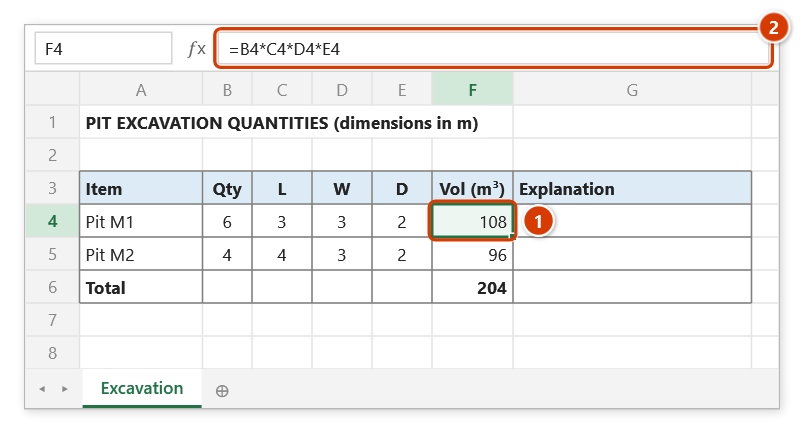
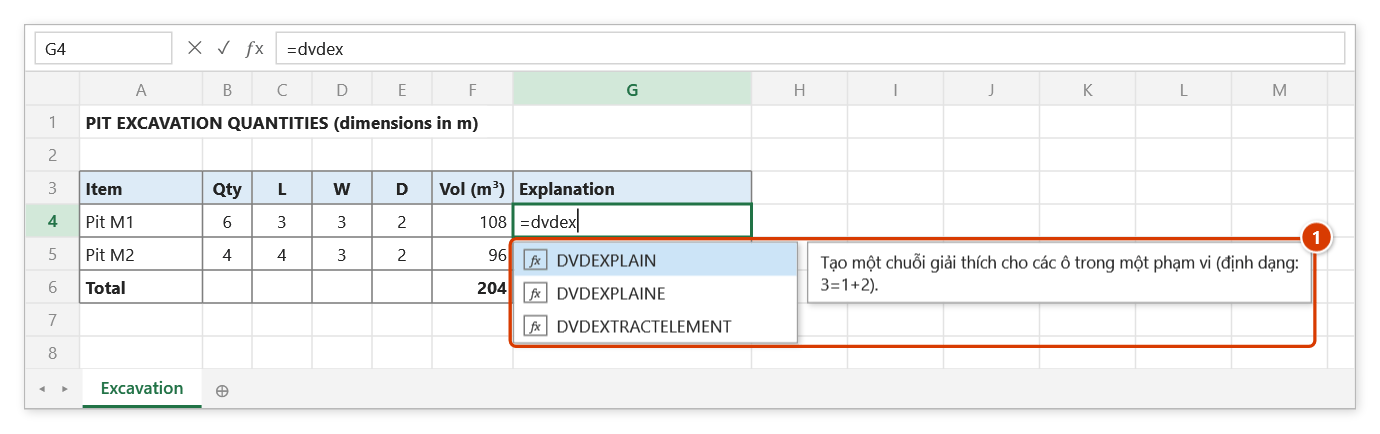
Step 1. The volume cell F4 (1) holds the formula =B4*C4*D4*E4 (2). dvdExplain replaces every cell in that formula with its displayed value to build the explanation line.
Step 2. Select G4 and type =dvdex — the suggestion list shows the DVDEX… functions with DVDEXPLAIN selected and its description (1). Press Tab.
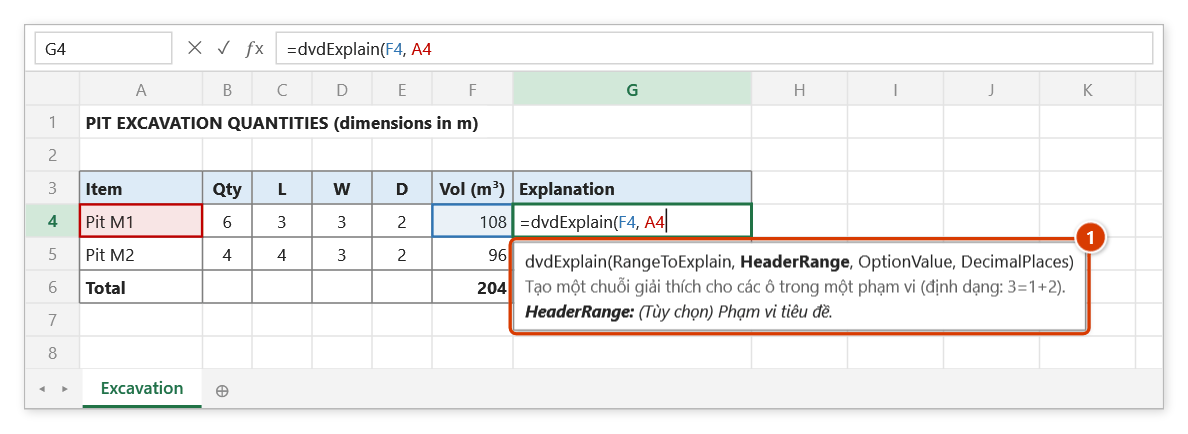
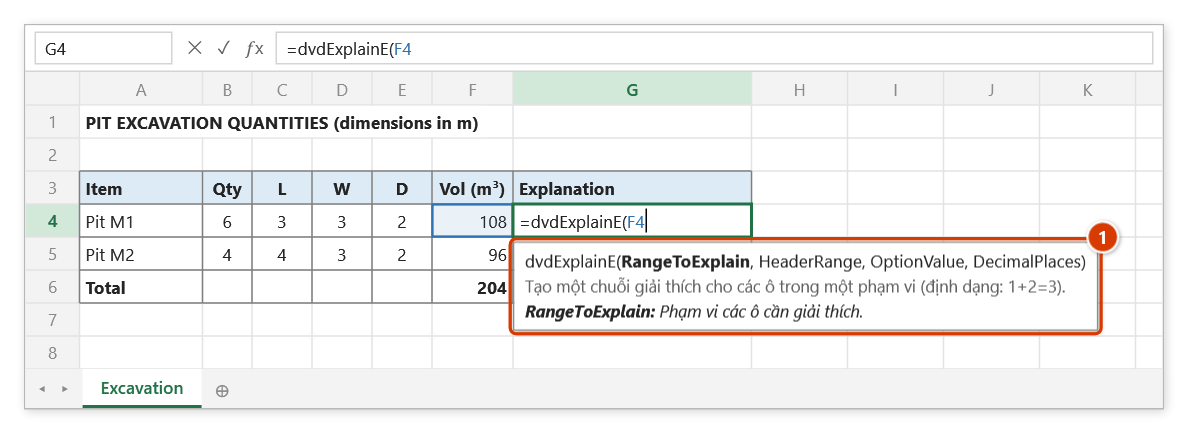
Step 3. Click the volume cell F4, type , and click the item name in A4 to use it as the line heading. The argument tip (1) shows the current argument in bold.
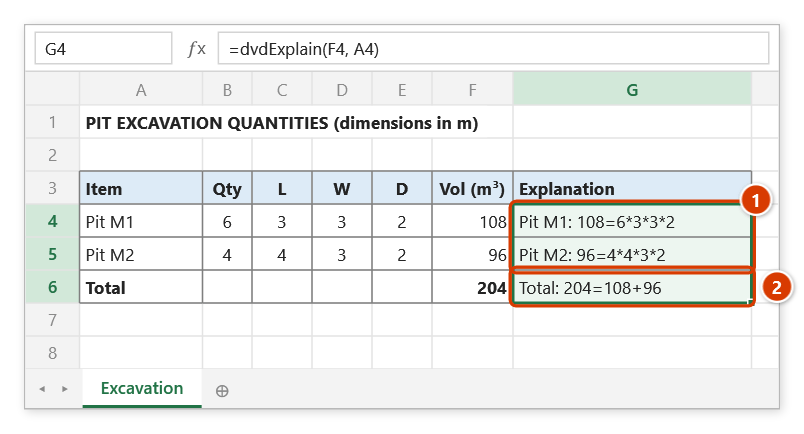
Step 4. Press Enter and fill down to G6: each line reads result=expression after the item name (1); on the Total row SUM(F4:F5) is expanded into a sum of the individual cells (2).
dvdExplainE
Same as dvdExplain but written the other way round, expression = result, which suits the quantity statements of as-built documentation.
Syntax:
=dvdExplainE(RangeToExplain; [HeaderRange]; [OptionValue]; [DecimalPlaces])| Parameter | Required | Description |
|---|---|---|
RangeToExplain | Yes | Range of cells to explain (a real cell or range reference). |
HeaderRange | No | Header written in front of each cell's line. A single-cell header is used for every cell; a single-row header is matched by the cell's column, a single-column header by the cell's row (when the header range shares no column/row with the explained range, e.g. it sits on another sheet, by relative position). A header spanning several rows and columns: the n-th cell (counted row by row) gets the n-th cell of the header range's first row. |
OptionValue | No | 1 = explain every cell (default), 0 = only cells that contain a formula. |
DecimalPlaces | No | Number of decimals in the result (rounded, using Excel's decimal separator); omitted or -1 keeps the cell's displayed text exactly, in the cell's own number format. |
Example:
=dvdExplainE(F6; ; 0; 2)
// → "3*0.8=2.40"

=dvdExplainE(F6:F20; ; 0; 3)
// → "5+3.2+7.8=16.000" for a cell holding =SUM(...)
Notes
- Every note for
dvdExplainapplies here too: the first argument is required (#VALUE!without it), results span several lines,SUM/PRODUCTare expanded in place, and the result and the expression share Excel's decimal separator.
Illustrated walkthrough
Practice
Download this function's sample workbook — the data matches the pictures below and the cell for the formula is already selected.
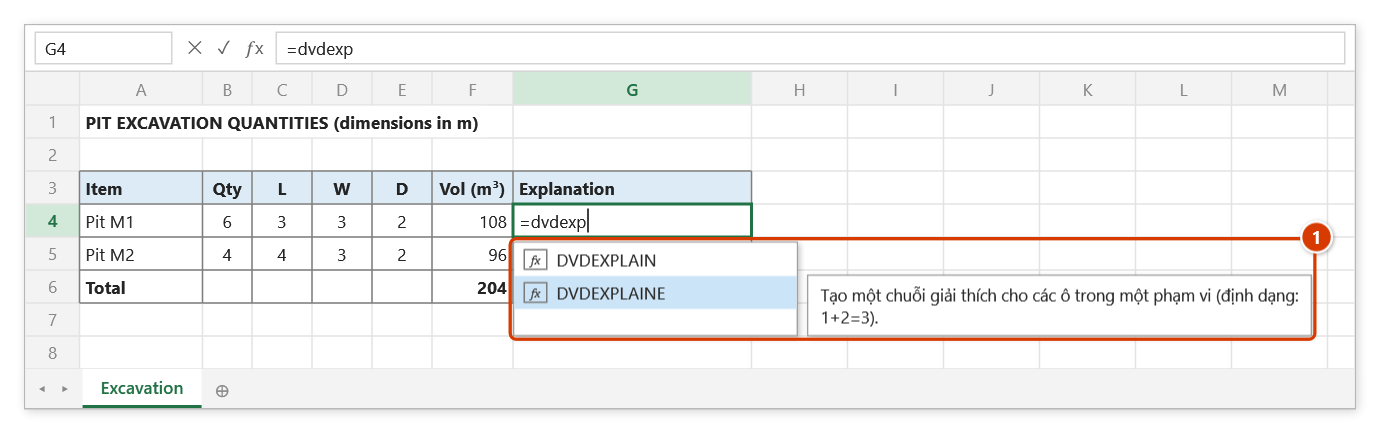
Step 1. Column F holds the volume formulas (F4 =B4*C4*D4*E4, F6 =SUM(F4:F5)). Select G4, type =dvdexp, press ↓ to highlight DVDEXPLAINE (with its description (1)) and press Tab.
Step 2. Click the volume cell F4 and close the bracket — the other arguments are optional. The argument tip (1) reminds you the first argument is the range to explain.
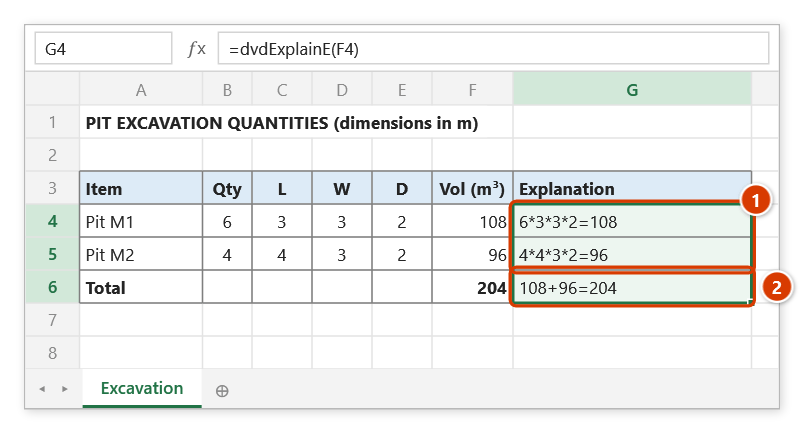
Step 3. Press Enter and fill down to G6: the explanation reads expression=result (1), the layout of a quantity statement; the Total row expands SUM into 108+96=204 (2).
dvdNoiSuy
One-dimensional linear interpolation between two known points — norms, haulage factors, excavation-depth factors.
Syntax:
=dvdNoiSuy(x1; x2; y1; y2; xnew)| Parameter | Required | Description |
|---|---|---|
x1 | Yes | Value x1. |
x2 | Yes | Value x2. |
y1 | Yes | Value y1 matching x1. |
y2 | Yes | Value y2 matching x2. |
xnew | Yes | Value of x to interpolate at. |
Example:
=dvdNoiSuy(5; 10; 120000; 150000; 7)
// → 132000 (haulage rate at a distance of 7 km)
Notes
- When
x1equalsx2the function returns#DIV/0!.
Illustrated walkthrough
Practice
Download this function's sample workbook — the data matches the pictures below and the cell for the formula is already selected.
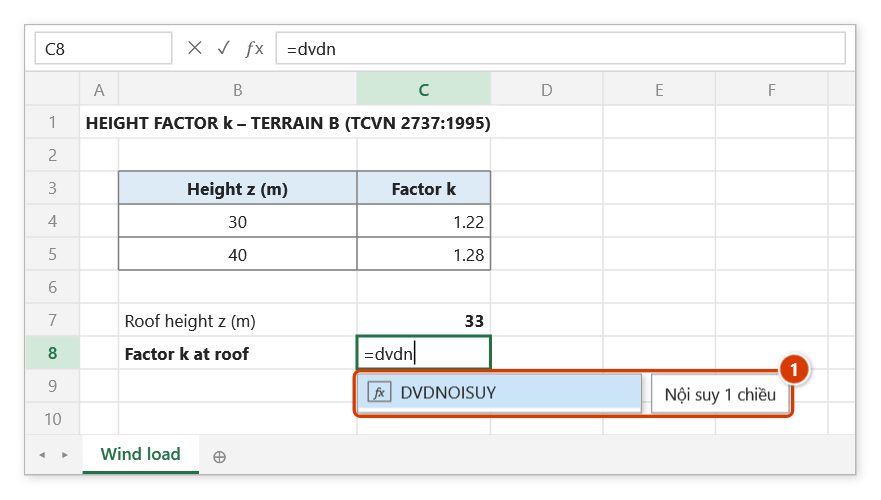
Step 1. The roof at 33 m lies between the 30 m and 40 m rows of the table. Select C8 and type =dvdn — the suggestion shows DVDNOISUY with its description (1). Press Tab.
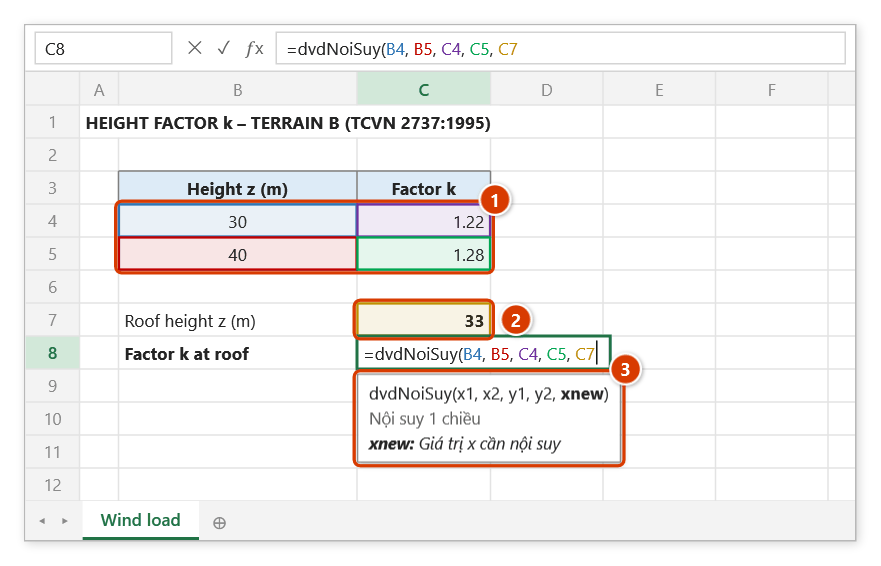
Step 2. Click the two x points of the table (B4, B5), their y values (C4, C5) (1), then the x to interpolate at (2). The argument tip (3) shows the current argument in bold.
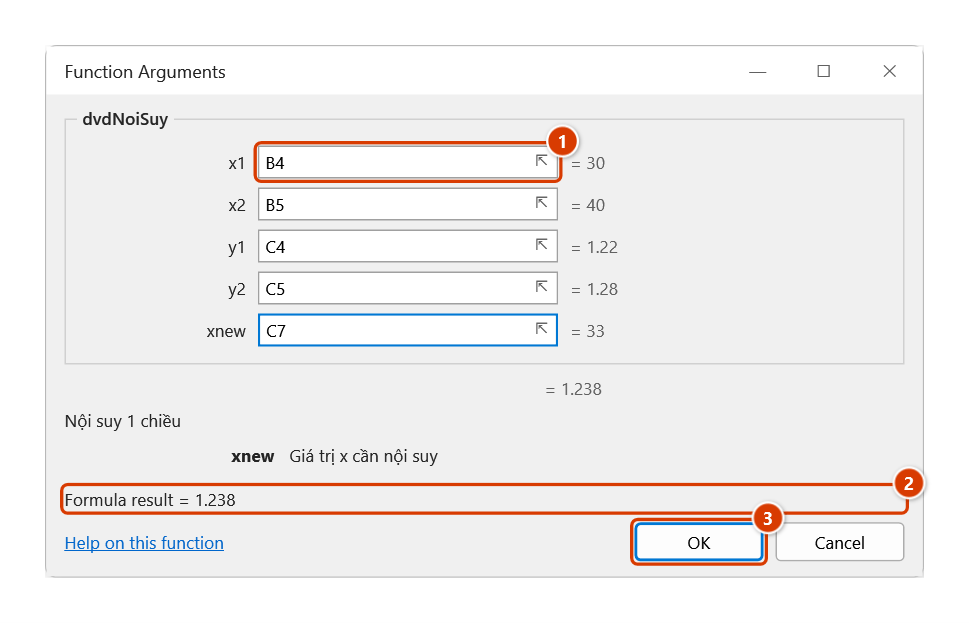
Step 3. To check each argument, press Ctrl+A right after the function name: the Function Arguments dialog shows a box per argument with its value on the right (1) and a live result (2). Click OK (3).
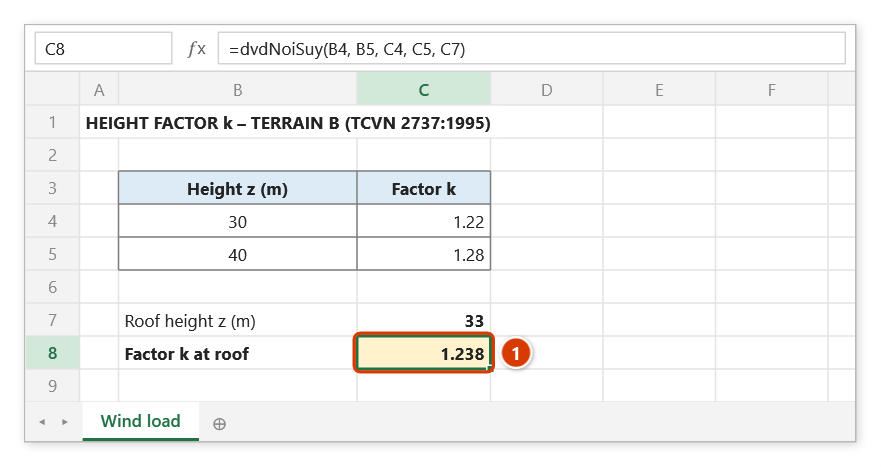
Step 4. Press Enter: the factor k at roof level is 1.238 (1) — exactly 1.22 + (1.28 − 1.22) × (33 − 30) / (40 − 30). If x1 = x2 the function returns #DIV/0!.
dvdSteelWeight
Calculates steel weight from bar diameter and quantity.
Syntax:
=dvdSteelWeight(diameter; quantity)| Parameter | Required | Description |
|---|---|---|
diameter | Yes | Bar diameter, in mm. |
quantity | Yes | Number of bars when D > 8, or the coil weight (kg) when D ≤ 8. |
Example:
=dvdSteelWeight(16; 20)
// → 369.72 (kg — 20 bars of D16, 11.7 m each)

=dvdSteelWeight(8; 250)
// → 250 (kg — D8 coiled steel supplied by weight)
Notes
- For diameters of 8 and below the function returns
quantityunchanged, because coiled steel is bought by weight. - Above diameter 8 the calculation assumes standard 11.7 m bars and a density of 7,850 kg/m³; the weight per metre is rounded before multiplying, to 3 decimals for 8 < D ≤ 12 and to 2 decimals above 12 (D16: 1.58 kg/m × 11.7 m × 20 bars = 369.72 kg). The final result is rounded to 6 decimals, so there are no floating-point tails such as
58.382999999999996(D9 × 10 bars gives58.383).
Illustrated walkthrough
Practice
Download this function's sample workbook — the data matches the pictures below and the cell for the formula is already selected.
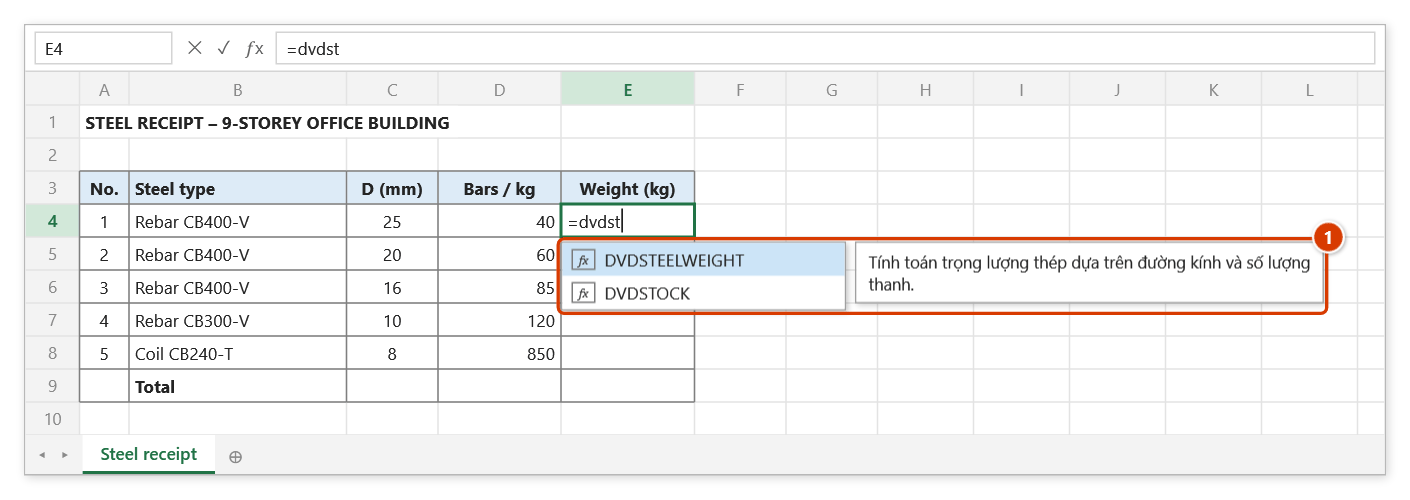
Step 1. Select E4 and type =dvdst — the suggestion list shows DVDSTEELWEIGHT with the function description (1). Press Tab to pick it.
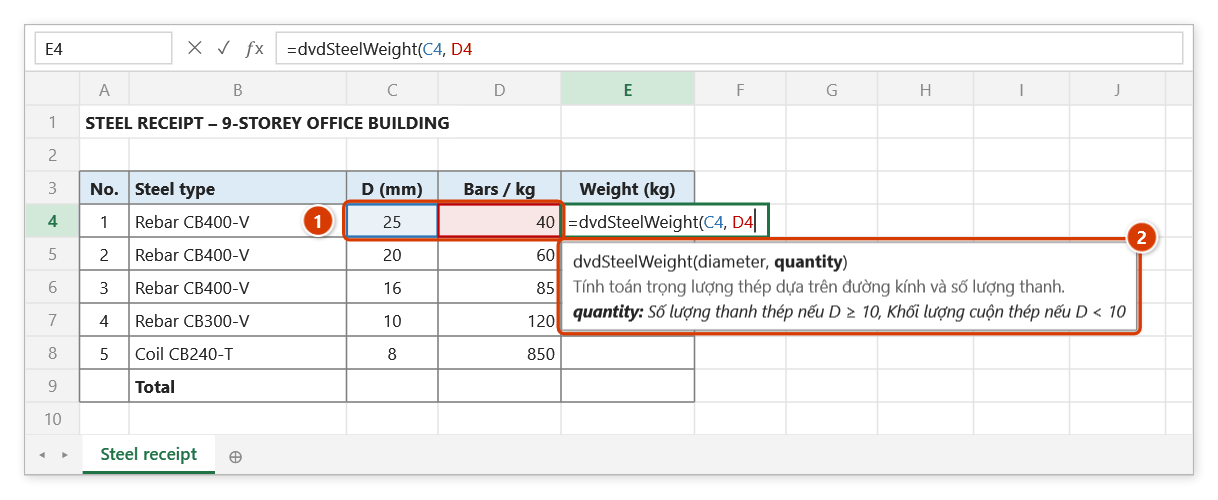
Step 2. Click the diameter in C4, type , and click the quantity in D4 (1). The argument tip (2) reminds you: bars are entered as a count, coiled steel as a weight (kg).
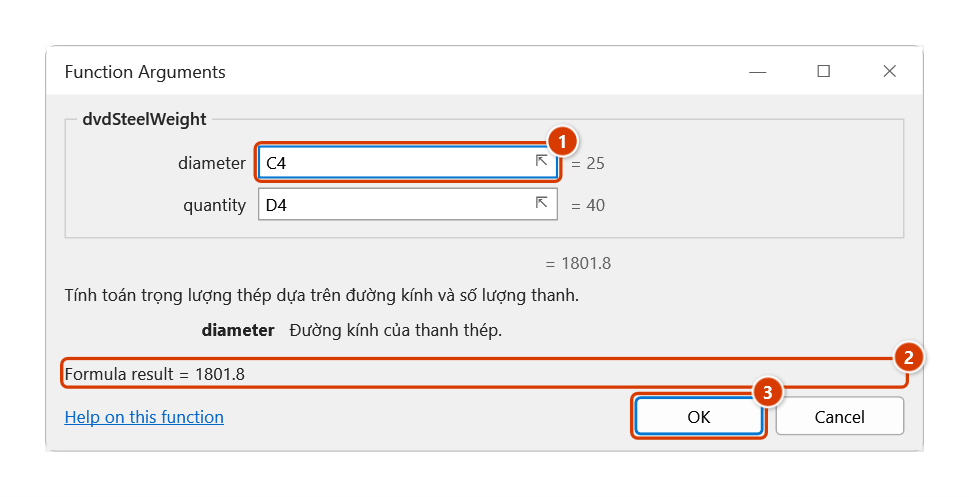
Step 3. For the full argument descriptions, press Ctrl+A right after the function name: the Function Arguments dialog shows a box per argument (1) and a live result (2). Click OK (3).
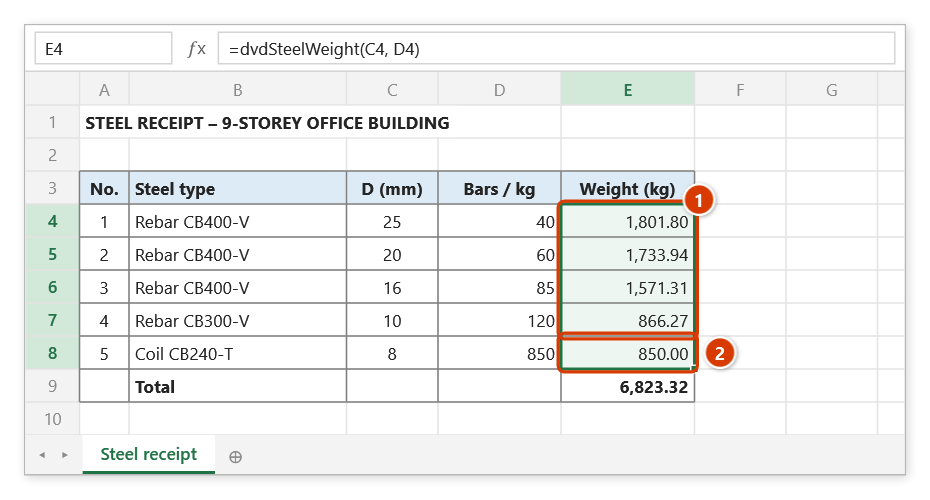
Step 4. Press Enter and fill down to E8: bars are weighed as 11.7 m lengths at 7,850 kg/m³ (1); coiled steel (D ≤ 8) keeps the weight you entered (2).