
Manual schedule
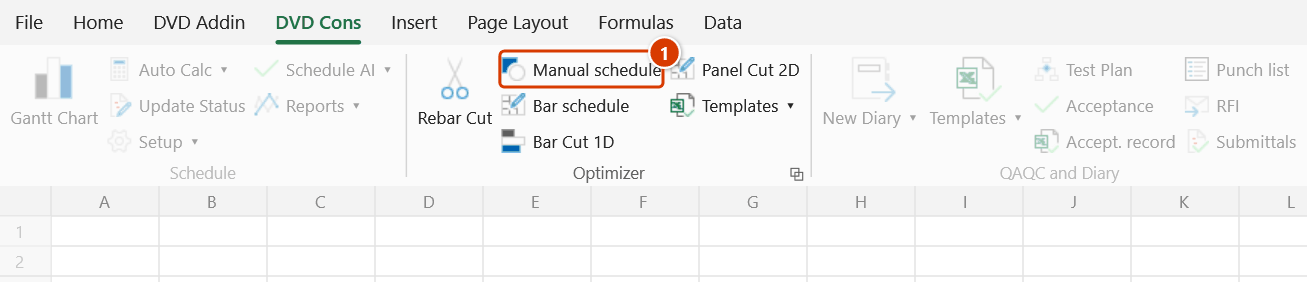
Ribbon location: DVD Cons tab → Optimizer group
Command ID: btnRebarShape
What it does
Produces exactly the rebar schedule sheet that the DVDKATABBS command in DVDAddin CAD exports — same 19 columns, same formulas, same weight table — but with no drawing needed. You type the data straight into Excel.
Use it when: there is no CAD drawing yet, the drawing is a photo or a PDF, or the item is small enough that opening CAD is not worth it.
How to use it
- Click Manual schedule in the DVD Cons tab → Optimizer group.
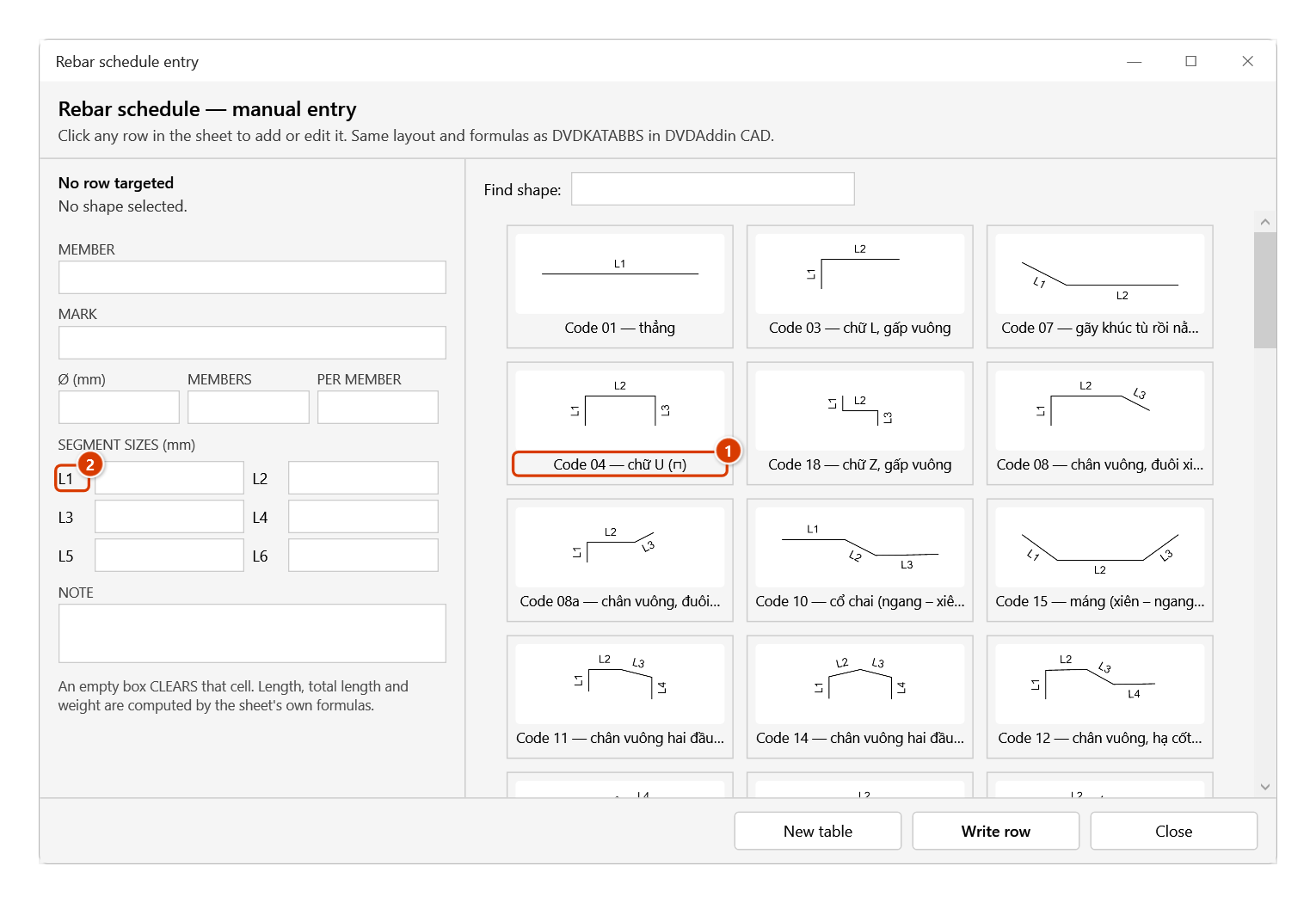
- With no table yet, click New table (the add-in adds a
Thong kesheet in the right layout); otherwise click a row on the sheet to load it. Pick a bar shape from the gallery — each shape comes with the dimensions it needs (a, b, c, bend angles…). - Fill in the diameter, quantity and dimensions, then click Write row (or press Enter).
- When the table is done, run Bar schedule → Export cut list → Rebar Cut.
Video tutorial
Narrated in Vietnamese, with Vietnamese subtitles. Thống kê thép và Nhập thống kê · 6 min 40 s · 15 cases · Download the video · Practice workbook for the video
Commands in this video: Bar schedule · Manual schedule
Chapters (20)
- Giới thiệu
- Mở lệnh
- 1 · Bảng dầm và sàn
- 2 · Tiêu đề hai tầng
- Bảng khung trục 3
- 3 · Móc 180° và móc tối thiểu
- 4 · Đai kín
- 5 · Chữ Z, chữ U thêm đoạn
- 6 · Gấp khúc và góc uốn
- 7 · Hình dạng gõ bằng chữ
- 8 · Bảng chỉ có chiều dài
- 9 · Thanh dài hơn cây 11,7 m
- 10 · Đổi hệ số, lập lại bảng
- 11 · Dòng thiếu, số sai
- 12 · Nhập thống kê: tạo bảng
- 13 · Chọn hình, ghi từng dòng
- 14 · Công thức trong bảng
- 15 · Nối sang Cắt tối ưu
- Mẹo
- Kết thúc
Illustrated walkthrough
Step 1. On the ribbon, open the DVD Cons tab → Optimizer group → click Manual schedule.
Step 2. The Rebar schedule entry window opens and does not lock Excel. If there is no table yet, click New table — the add-in adds a Thong ke sheet in the exact DVDKATABBS layout — 19 columns, data from row 5, formulas in place; otherwise click a row on the sheet to load it. Pick the shape from the gallery (1) (type a code or name in Find shape to filter), fill in member, mark, Ø, number of members, bars per member and the segment sizes L1… (2), then click Write row (or press Enter).
Step 3. The row is written with the shape picture in the DẠNG column; the bar length, total length and weight come from the sheet's own formulas, and the cursor moves to the next row so you can keep typing. Click an earlier row to edit it. When the table is done, run Bar schedule (it picks up the table's range and columns by itself) → Export cut list → Cutting optimiser.
Notes
- The sheet matches the DVDKATABBS layout, so it mixes with CAD-exported schedules on the same sheet.
- Weights come from the standard table, not typed by hand — change the diameter and the weight follows.
- This command is free to use, no account needed.